
Browser History Step Navigation controls how filter changes are added to the customer’s browser history. When enabled, each filter change can create a separate browser history step, so customers can use the browser Back and Forward buttons to move between previous filter states.
This is useful for improving navigation on filtered WooCommerce product pages, especially when customers apply multiple filters and want to return to a previous selection.
When Should You Use Browser History Step Navigation?
Use this option when you want customers to:
- Go back to the previous filter selection using the browser Back button.
- Move forward again using the browser Forward button.
- Navigate filter states more naturally.
- Keep filter URLs connected with browser history.
- Improve user experience on AJAX-based product filtering pages.
Step 1: Open Advanced Settings
- Go to your WordPress Dashboard.
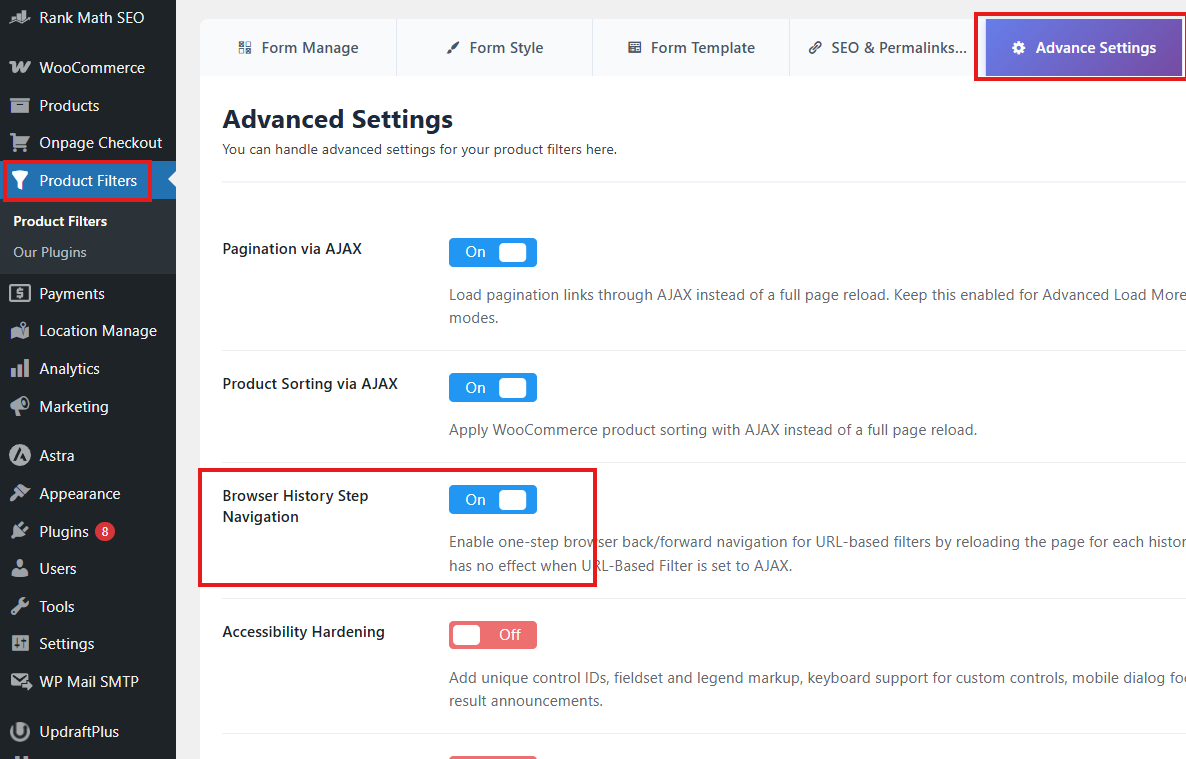
- Navigate to Product Filters > Advanced Settings.
- Find the option named Browser History Step Navigation.
Step 2: Enable Browser History Step Navigation
Turn on Browser History Step Navigation.
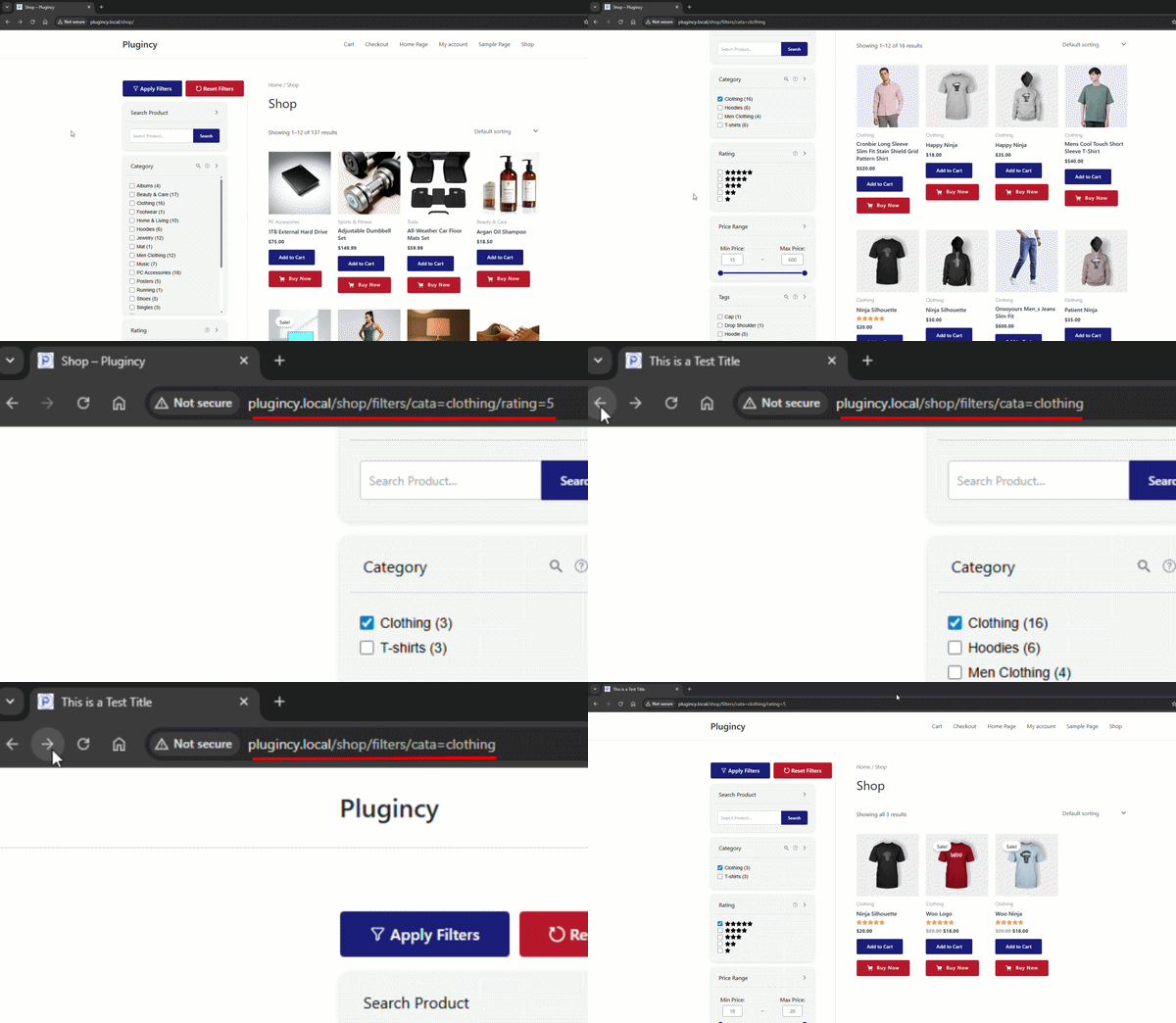
When this option is enabled, filter changes will be added as browser history steps.
For example:
- Customer selects Color: Blue.
- Customer selects Size: Large.
- Customer clicks the browser Back button.
- The page can return to the previous filtered state before Size: Large was selected.
Step 3: Save Changes
After enabling the option:
- Click Save Changes.
- Visit your shop or product archive page.
- Apply multiple filters.
- Use the browser Back and Forward buttons to test the behavior.
Expected Result
After setup, customers can navigate between filter states using their browser navigation buttons.
For example:
- Back once: returns to the previous filter selection.
- Back again: returns to the filter state before that.
- Forward: moves forward to the next filter state again.
This makes AJAX filtering feel closer to normal page navigation.
Example Use Case
A customer is shopping for shoes and applies filters in this order:
- Category: Sneakers
- Brand: Nike
- Size: 10
- Color: Black
With Browser History Step Navigation enabled, the customer can press the browser Back button to step back through those filter states instead of leaving the shop page immediately.
Notes
- This option is useful when your filters update the URL.
- It works best when URL-based filtering is enabled.
- If your filters are set to pure AJAX mode without URL updates, browser history behavior may be limited.
- Browser behavior can vary depending on caching, theme scripts, and page builder scripts.
- After changing this setting, clear cache if you are using a caching or optimization plugin.
Troubleshooting
Browser Back button leaves the shop page immediately
Check the following:
- Browser History Step Navigation is enabled.
- Your filter method updates the URL.
- The filter page is not being cached too aggressively.
- No custom JavaScript is overriding browser history behavior.
Back button does not restore the previous filter state
Please check:
- URL-based filtering is enabled.
- Filter parameters are visible in the URL after applying filters.
- Cache has been cleared.
- Theme or optimization scripts are not blocking filter JavaScript.
Browser history creates too many steps
This can happen if customers apply many filters one by one. Disable Browser History Step Navigation if you prefer the browser Back button to return to the previous page instead of each previous filter state.
Forward button does not work as expected
The Forward button depends on the browser’s saved history state. Test again by applying multiple filters, pressing Back, and then pressing Forward.