
The Post Date Filter allows customers to filter WooCommerce products based on the date the products were published. This is useful when customers want to view newly added products, products from this week, products from this month, or products from this year.
With Dynamic AJAX Product Filters for WooCommerce, you can add a Post Date filter to your product filter form. Customers can select a date-based option, and the product list updates with AJAX to show products that match the selected publishing period.
The Post Date filter supports dropdown-based layouts, including a standard select dropdown and a Select2-style dropdown, depending on the style option you choose.
Step 1: Understand How the Post Date Filter Works
The Post Date filter uses the product publish date in WooCommerce. When a customer selects a date option, the plugin filters products based on when those products were published.
The default Post Date filter options are:
- All Time: Shows products from all available dates.
- Today: Shows products published today.
- This Week: Shows products published during the current week.
- This Month: Shows products published during the current month.
- This Year: Shows products published during the current year.
This filter is helpful for stores that frequently add new products or want customers to quickly find the latest items.
Step 2: Enable the Post Date Filter
Enable the Post Date filter from the filter form settings.
- Go to Product Filters > Form Manage in your WordPress dashboard.
- Find the Date Filter option.
- Turn the Show Date Filter option on if you want to show it in the filter widget.
- Turn it off if you want to hide the Post Date filter.
- Click Save Changes.
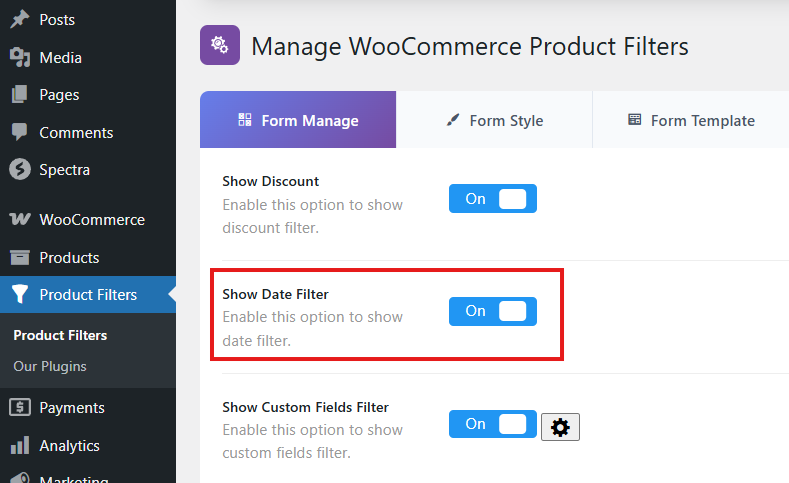
Once enabled, the Post Date filter becomes available in your product filter form.
Step 3: Customize the Post Date Filter Design
You can customize the Post Date filter from the Form Style settings.
- Go to Product Filters > Form Style.
- From the Configure Style for or Select Attribute dropdown, choose Post Date.
- Choose the dropdown style you want to use.
- Customize the widget title and date filter labels.
- Click Save or Save Changes.
Available Post Date Layouts
The Post Date filter supports dropdown-based layouts:
- Standard Select: Displays a normal dropdown field.
- Select2: Displays an enhanced dropdown style, useful when you want a more polished select field.
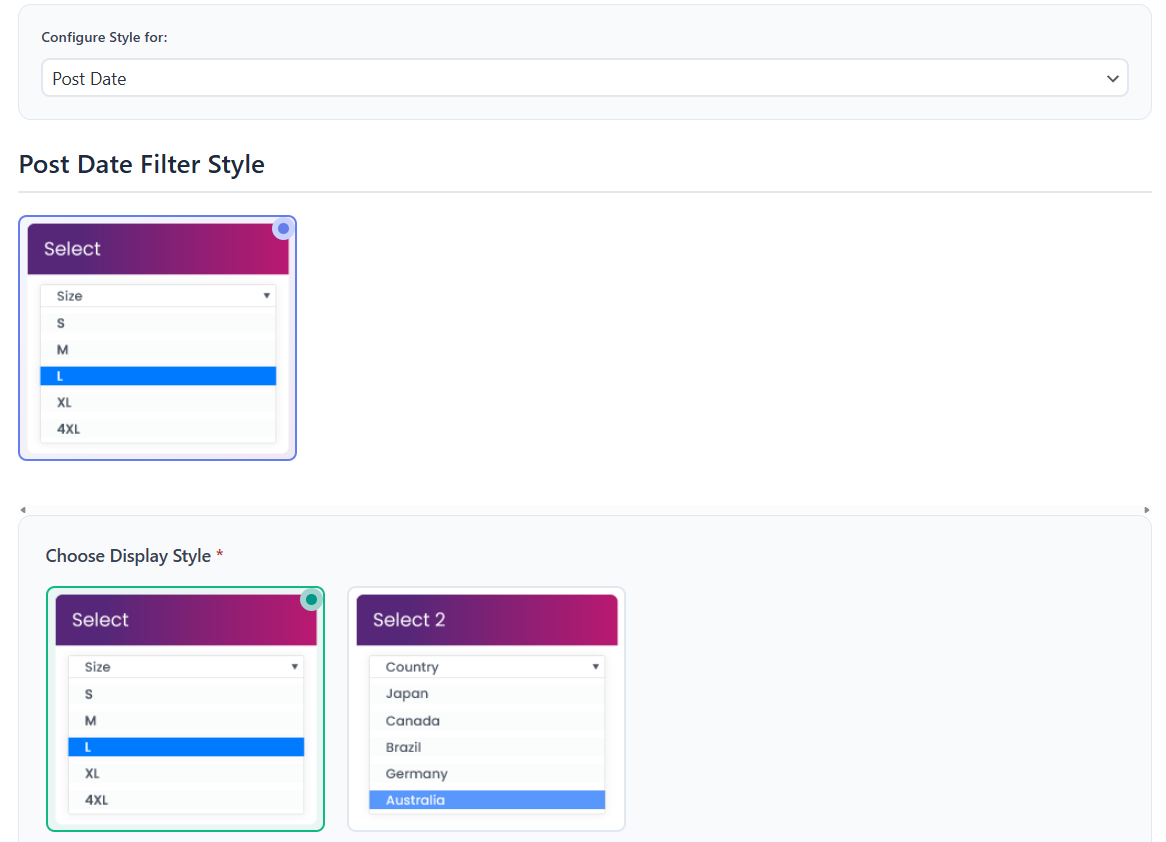
Use Standard Select for a simple dropdown. Use Select2 if you want the Post Date filter dropdown to match the enhanced dropdown style used by other filter widgets.
Optional Settings
The optional settings section controls the behavior and display of the Post Date widget.
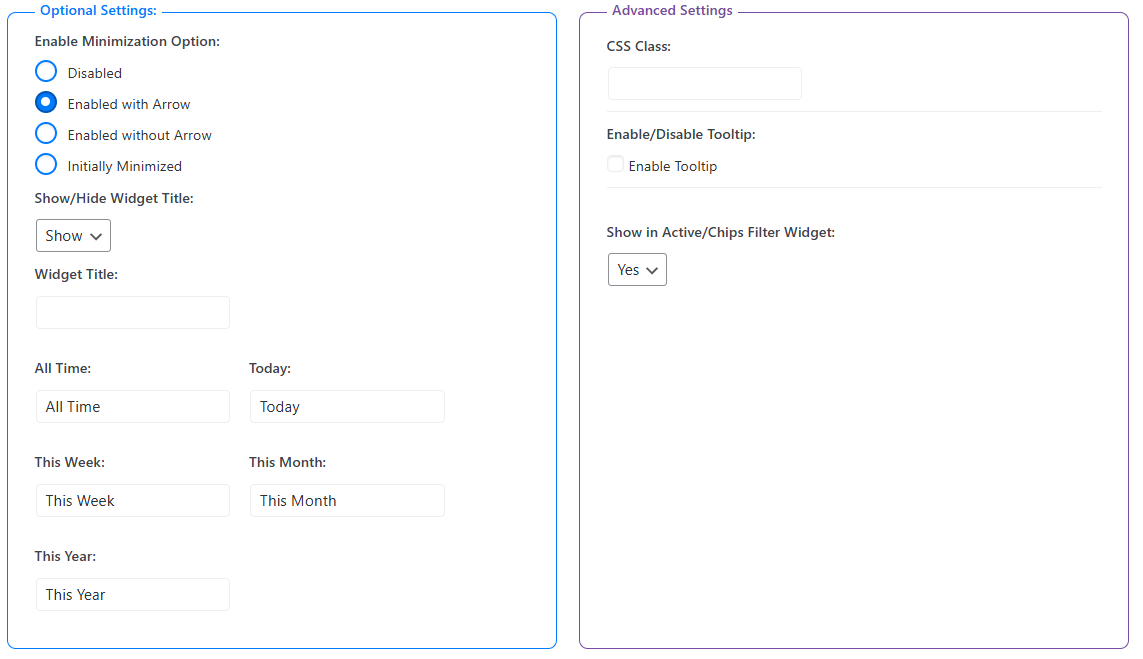
Enable Minimization Option
Controls whether the Post Date widget can be collapsed on the frontend.
- Disabled: The Post Date filter always stays expanded.
- Enabled with Arrow: Customers can collapse or expand the filter using an arrow icon.
- Enabled without Arrow: Customers can collapse or expand the filter without showing an arrow icon.
- Initially Minimized: The Post Date filter loads in a collapsed state.
Show in Active / Chips Filter Widget
Enable this option if you want the selected Post Date value to appear in the Active Filters or Chips widget. This helps customers see and remove the active date filter easily.
Show / Hide Widget Title
Controls whether the Post Date filter title is shown on the frontend.
- Show: Display the Post Date widget title.
- Hide: Hide the Post Date widget title.
Widget Title
Set a custom title for the Post Date filter widget. For example:
Filter by Date
Date Filter Labels
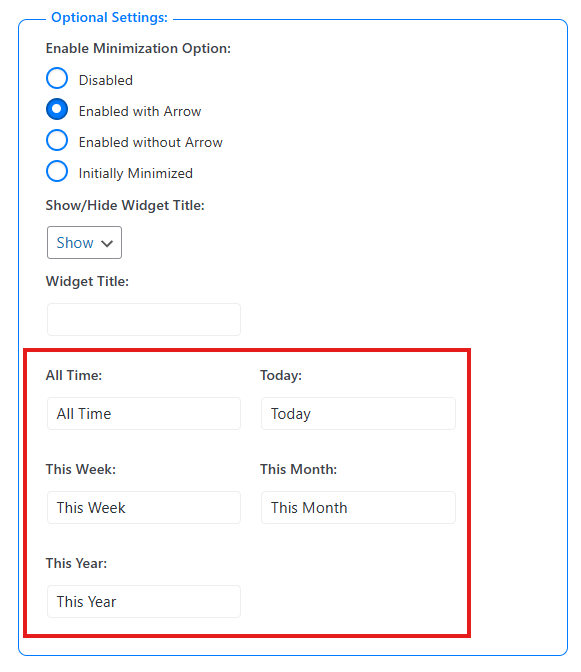
You can customize the labels displayed in the Post Date dropdown. This is useful if you want to translate the filter labels or use wording that better matches your store.
- All Time: Set the label for products from all available dates.
- Today: Set the label for products published today.
- This Week: Set the label for products from the current week.
- This Month: Set the label for products from the current month.
- This Year: Set the label for products from the current year.
After customizing the Post Date widget, click Save to apply your changes.
Step 4: Display the Product Filter with the Block Editor
You can display the product filter on any page using the WordPress block editor.
Use the main filter shortcode:
[plugincy_filters]
Add the filter to a page
- Go to Pages and edit the page where you want to show the filter.
- Click the + icon to add a new block.
- Search for Shortcode.
- Add the Shortcode block.
- Paste
[plugincy_filters]into the block. - Click Update or Publish.
You can also place the shortcode inside a block-based widget area, sidebar, archive template, or Site Editor template if your theme supports it.
If you want to show products on the same page, add WooCommerce product display blocks or product shortcodes according to your store layout.
Expected Result
After completing the setup, customers will be able to filter WooCommerce products by post date from the frontend filter widget.
For example, customers can choose:
- Today to view products published today.
- This Week to view products published during the current week.
- This Month to view products published during the current month.
- This Year to view products published during the current year.
The product list will update using AJAX and show products that match the selected post date range.
Example Use Cases
- New Arrivals: Customers can quickly find products published today or this week.
- Large Product Catalogs: Customers can narrow down products by recently added items.
- Seasonal Stores: Customers can filter products added during the current month or year.
- Regular Product Updates: Stores that publish products often can help customers discover the latest products faster.
Notes
- The Post Date filter uses the WooCommerce product publish date.
- The available default options are All Time, Today, This Week, This Month, and This Year.
- You can customize the date option labels from the Form Style settings.
- Use the Select2 layout if you want an enhanced dropdown design.
- After changing filter settings, clear your cache if you use a caching plugin.
Troubleshooting
Post Date Filter is not showing
Please check the following:
- Date Filter is enabled in Product Filters > Form Manage.
- The filter shortcode is added to the page, sidebar, widget area, or archive template.
- The product filter settings are saved.
- Cache has been cleared.
No products appear after selecting a date option
This usually means no products were published during the selected period. Try choosing All Time or check the product publish dates in WooCommerce.
Select2 dropdown is not showing
Go to Product Filters > Form Style, choose Post Date, and make sure the selected layout is the Select2-style dropdown. Save the settings and clear cache if needed.