
Dynamic AJAX Product Filters for WooCommerce includes advanced options for the Search Product filter. These options help customers search products more easily and help store owners control how product search behaves.
With these settings, you can customize:
Auto suggestion
Search behavior
Full match search
Search placeholder/text
Search button text
Apply button behavior
These options are especially useful for stores with large product catalogs.
What is the Search Product Filter?
The Search Product filter allows customers to search WooCommerce products directly from the filter widget.
For example, customers can search by product name or keyword:
shirt
running shoes
phone case
wooden table
The product list will update based on the search query.
This is different from Terms Search, which only searches inside filter option lists such as brands, categories, or attributes.
Difference Between Product Search and Terms Search
| Feature | What it searches | Example |
|---|---|---|
| Product Search | WooCommerce products | Search “shirt” to find matching products |
| Terms Search | Filter options inside a filter widget | Search “Nike” inside the Brand filter list |
Use Product Search when customers need to find products.
Use Terms Search when customers need to find an option inside a long filter list.
Where to Find Product Search Settings
To configure search filter options:
- Go to WordPress Dashboard.
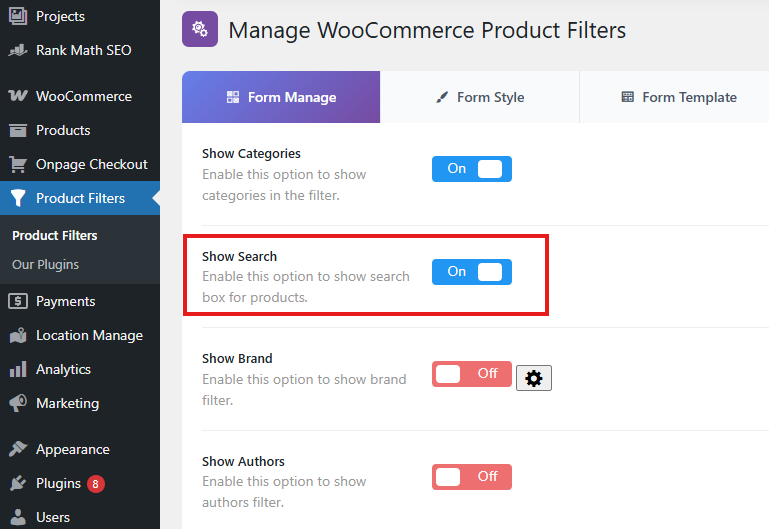
- Navigate to Product Filters → Form Manage.
- Make sure Show Search is enabled.
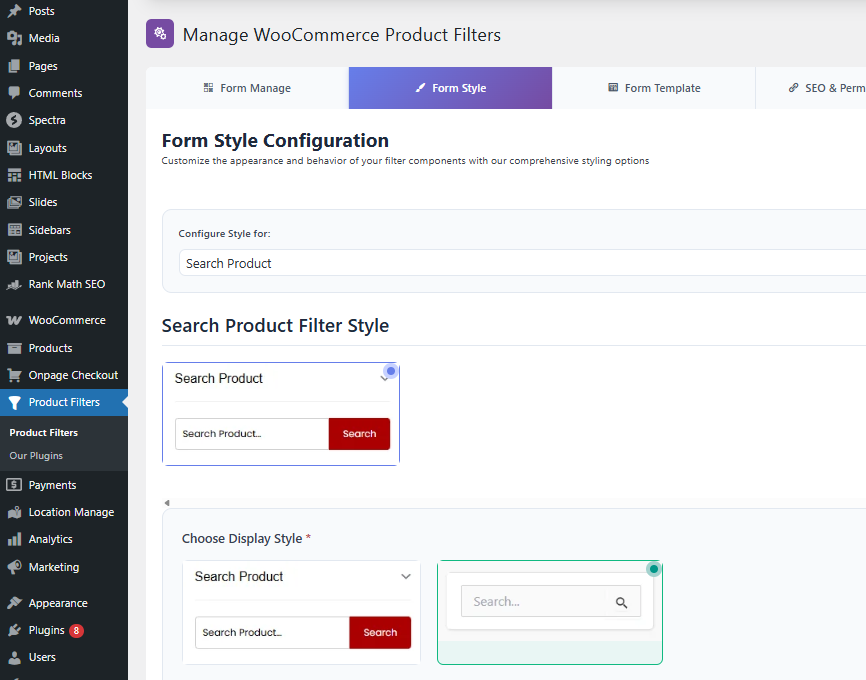
- Go to Product Filters → Form Style.
- From Configure Style for, select Search Product.
- Configure the available search options.
- Click Save Changes.
Enable Product Search Filter
Before customizing search behavior, make sure the Search Product filter is enabled.
Go to:
Product Filters → Form Manage
Enable:
Show Search
Then save changes.
After enabling it, you can customize the search field from:
Product Filters → Form Style → Search Product
Auto Suggestion
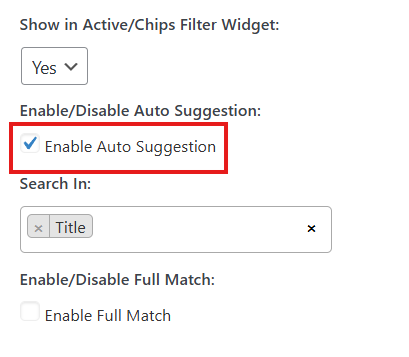
The Auto Suggestion option helps customers find products while they type.
When enabled, the search field can suggest matching product results or search suggestions based on the customer’s input.
This improves the search experience because customers do not need to type the full product name.
Example
If a customer starts typing:
iph
The search field may suggest related products or terms such as:
iPhone Case
iPhone Charger
iPhone Screen Protector
This makes product discovery faster and easier.
When to Enable Auto Suggestion
Enable auto suggestion when:
- Your store has many products.
- Customers often search by product name.
- Product names are long or technical.
- You sell products with model numbers.
- You want to reduce typing effort.
- You want customers to find products faster.
Auto suggestion is useful for stores such as:
Electronics stores
Auto parts stores
Book stores
Fashion stores
Furniture stores
Beauty stores
Hardware stores
Wholesale catalogs
When to Disable Auto Suggestion
Disable auto suggestion if:
- Your catalog is very small.
- You want a simpler search field.
- Another search plugin already provides suggestions.
- Your theme has a separate live search feature.
- Auto suggestion conflicts with another search script.
- You want search to run only after the customer submits the query.
For small stores, normal search behavior may be enough.
Full Match Search
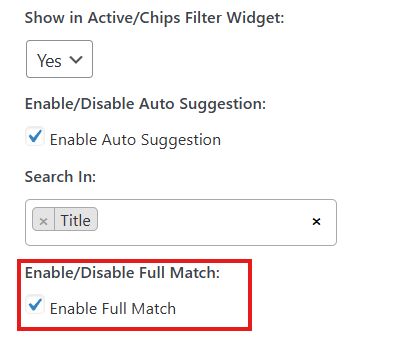
The Full Match option controls whether the search should match the complete search phrase more strictly.
When full match is enabled, the plugin tries to match the customer’s full search input more closely.
Example
Search query:
red
shirt
Without full match, results may include products that match either:
red
shirt
With full match enabled, results are expected to match the phrase more closely:
red shirt
This can make search results more accurate.
When to Enable Full Match
Enable full match when:
- Customers search for exact product names.
- Your products use model numbers or SKUs in titles.
- Partial matches return too many unrelated products.
- You want stricter search results.
- Your catalog has many similar products.
Good examples:
iPhone 15 Case
Samsung Galaxy S24 Cover
Model X100 Charger
Cotton Crew Neck T-Shirt
When to Disable Full Match
Disable full match when:
- Customers search with broad keywords.
- You want more flexible search results.
- Product titles vary a lot.
- Customers may not know the exact product name.
- You want search to return more possible matches.
For general stores, flexible search may be better.
Search Placeholder/Text
The search placeholder is the text shown inside the search input before the customer types anything.
Use this text to guide customers.
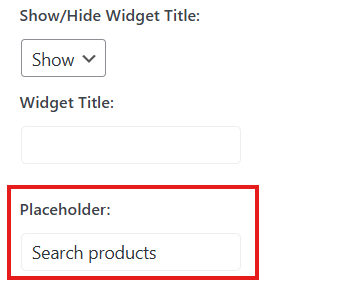
Common examples:
Search products
Search by product name
What are you looking for?
Search model, product, or keyword
For technical catalogs:
Search by model number
For fashion stores:
Search clothing
For book stores:
Search books by title
For electronics stores:
Search devices or accessories
Best Practices for Placeholder Text
Use clear and simple text.
Good examples:
Search products
Search by product name
Search by model number
Avoid unclear placeholders:
Type here
Enter text
Search now please
Short placeholder text works better on mobile devices.
Recommended Settings for Large Catalogs
For large WooCommerce stores, use settings that reduce unnecessary AJAX requests and make search results more accurate.
Recommended setup:
Auto Suggestion: Enabled
Full Match: Enabled if customers search exact names/models
Placeholder: Search by product name or model
This is useful for stores with:
Thousands of products
Many similar products
Model numbers
Technical product names
Large variation catalogs
Wholesale product lists
Large Catalog Example
For an electronics store:
Auto Suggestion: Enabled
Full Match: Enabled
Placeholder: Search by model or product name
For a fashion store:
Auto Suggestion: Enabled
Full Match: Optional
Placeholder: Search clothing
For an auto parts store:
Auto Suggestion: Enabled
Full Match: Enabled
Placeholder: Search by part name or model
Recommended Settings for Small Catalogs
For smaller stores, keep search simple.
Recommended setup:
Auto Suggestion: Optional
Full Match: Disabled
Placeholder: Search products
This gives customers a quick and flexible search experience.
How Search Works with Other Filters
The Search Product filter can work together with other filters.
For example, a customer can search:
shirt
Then also select:
Category: Men
Color: Red
Size: Large
The product results will be narrowed by both the search query and the selected filters.
This helps customers find specific products faster.
Troubleshooting
Search field is not showing
Check that Show Search is enabled from:
Product Filters → Form Manage
Then make sure your filter widget, shortcode, or block is added to the page.
Auto suggestions are not showing
Check that Auto Suggestion is enabled from:
Product Filters → Form Style → Search Product
Also confirm that products exist and are published.
If another live search plugin is active, test for JavaScript conflicts.
Search returns too many products
Enable Full Match if you want stricter matching.
Also use more specific placeholder text to guide customers.
Example:
Search by product name
Search returns too few products
Disable Full Match if customers need broader results.
Also check whether other filters are active and narrowing the result.
Search is slow on a large catalog
Use search behavior that runs after pressing Enter, clicking Search, or clicking Apply instead of searching while typing.
Also consider enabling auto suggestion so customers can choose from suggested results faster.
Search placeholder is not changing
Go to:
Product Filters → Form Style → Search Product
Update the placeholder text and save changes.
Clear cache if the old placeholder still appears.
Search conflicts with another live search plugin
If another plugin controls live search or product suggestions, disable one of the live search systems or test with auto suggestion turned off.
Best Practices
Use auto suggestion for large or complex catalogs.
Use full match when customers search exact product names, model numbers, or technical terms.
Use flexible search when customers search broad keywords.
Use short placeholder text for mobile layouts.
Use search-after-apply behavior for large catalogs to reduce AJAX requests.
Test search together with category, brand, price, attribute, sorting, and pagination filters.
Avoid enabling multiple live search systems on the same search field.
Summary
The Search Product filter includes options for auto suggestion, search behavior, full match, and custom search text.
Use these settings to make product search easier and more accurate.
For large catalogs, a strong setup is:
Auto Suggestion: Enabled
Search Behavior: Search after Enter or Apply
Full Match: Enabled when exact matching is needed
Placeholder: Search by product name or model
For small catalogs, a simple setup is usually enough:
Auto Suggestion: Optional
Search Behavior: Search while typing
Full Match: Disabled
Placeholder: Search products