
All sections
Getting StartedForm ManageFilters ByDisplaying FiltersFilter Design & StylingSearch, Sorting & PaginationAdvanced Filter Logic & Query BehaviorSEO & Filter URLsMobile & User ExperienceCompatibilityImport, Export & ResetAdvanced SettingsForm TemplatesDeveloper DocumentationTroubleshooting & DebuggingApply & Reset Button
A template sets the overall look of your filters in one click: borders, shadows and spacing. You can then change its colours to match your shop, with no code needed.
You can see all five on our live demos, such as the Minimal and Modern templates.
Choose a template
- Go to Product Filters and open the Form Template tab.
- Click Quick Preview on a template to look at it more closely.
- Click Activate on the one you like.
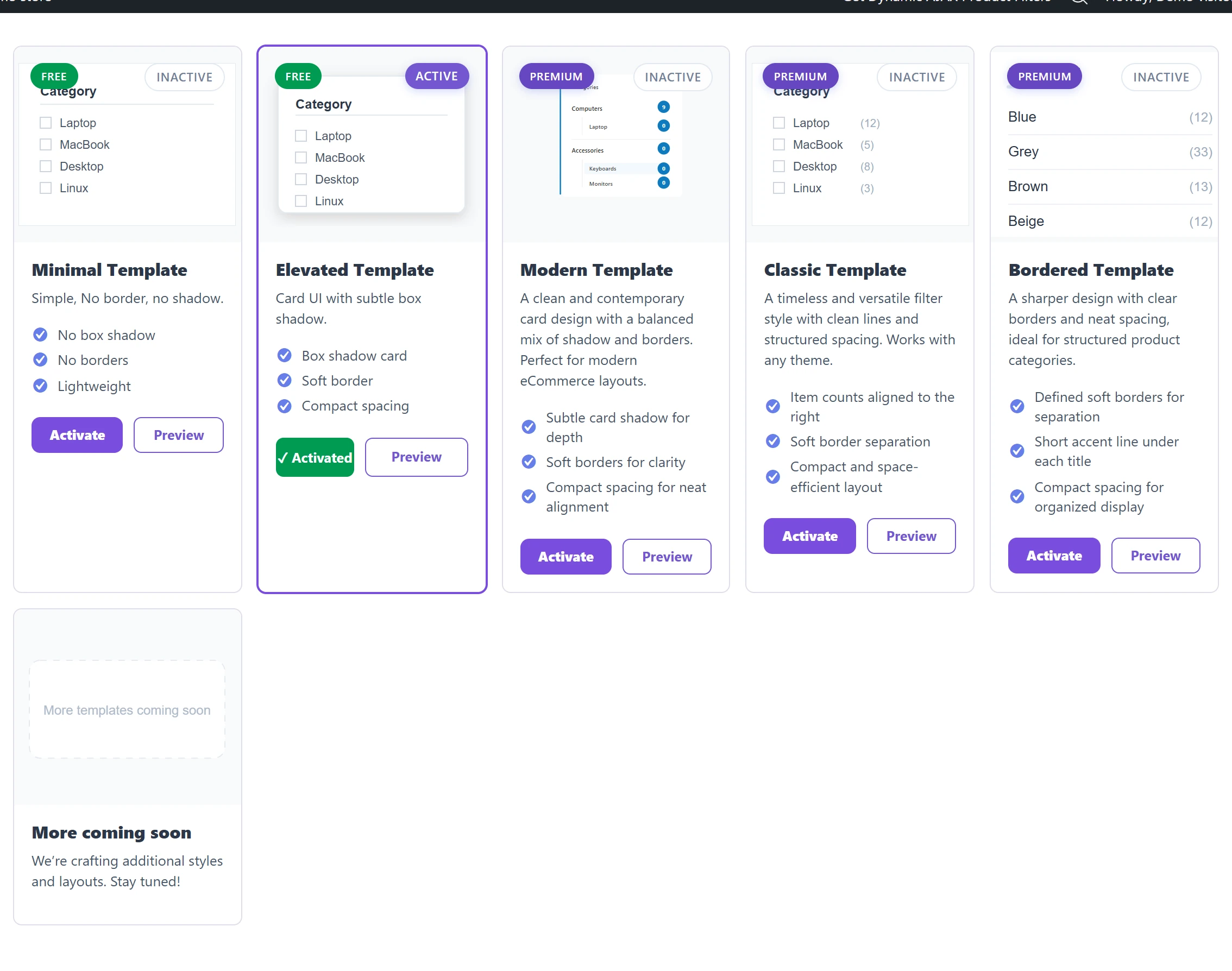
The five templates
| Template | Look | Suits | Plan |
|---|---|---|---|
| Minimal | No borders or shadows | Clean, simple shops | Free |
| Elevated | Cards with a soft shadow | Most shops | Free |
| Modern | A contemporary card with shadow and border | Modern shops | PRO |
| Classic | A traditional style | Established or traditional brands | PRO |
| Bordered | Clear outlines | Shops with many filters, where separation helps | PRO |
Change the colours
- On the Form Template tab, find Color Settings.
- Click a colour and pick a new one. Use your logo or button colour for the main colour.
- Pro users can also set Opacity.
- Click Save Changes. Colours do not apply until you save.
Check that text stays easy to read against your new colours, on a phone as well.
If something looks wrong
- Nothing changes on your shop: clear your caching plugin’s cache.
- A template cannot be activated: it needs the Pro version.
- Your theme changes the look: some themes style form fields strongly. Try another template, or use CSS Class on a filter for your own styling.