
Dynamic AJAX Product Filters for WooCommerce allows you to update WooCommerce product sorting through AJAX. When this option is enabled, customers can change the product order without reloading the full page. This creates a faster and smoother shopping experience, especially on shop, category, tag, brand, and custom product archive pages.
What is Product Sorting via AJAX?
WooCommerce normally reloads the page when a customer changes the sorting option, such as:
- Default sorting
- Sort by popularity
- Sort by average rating
- Sort by latest
- Sort by price: low to high
- Sort by price: high to low
With Product Sorting via AJAX, the plugin handles the sorting request dynamically and refreshes only the product area. This keeps the selected filters active and updates the product results instantly.
How to Enable Product Sorting via AJAX
To enable AJAX sorting:
- Go to your WordPress Dashboard.
- Navigate to Product Filters → Advanced Settings.
- Find the Product Sorting via AJAX option.
- Enable the option.
- Click Save Changes.
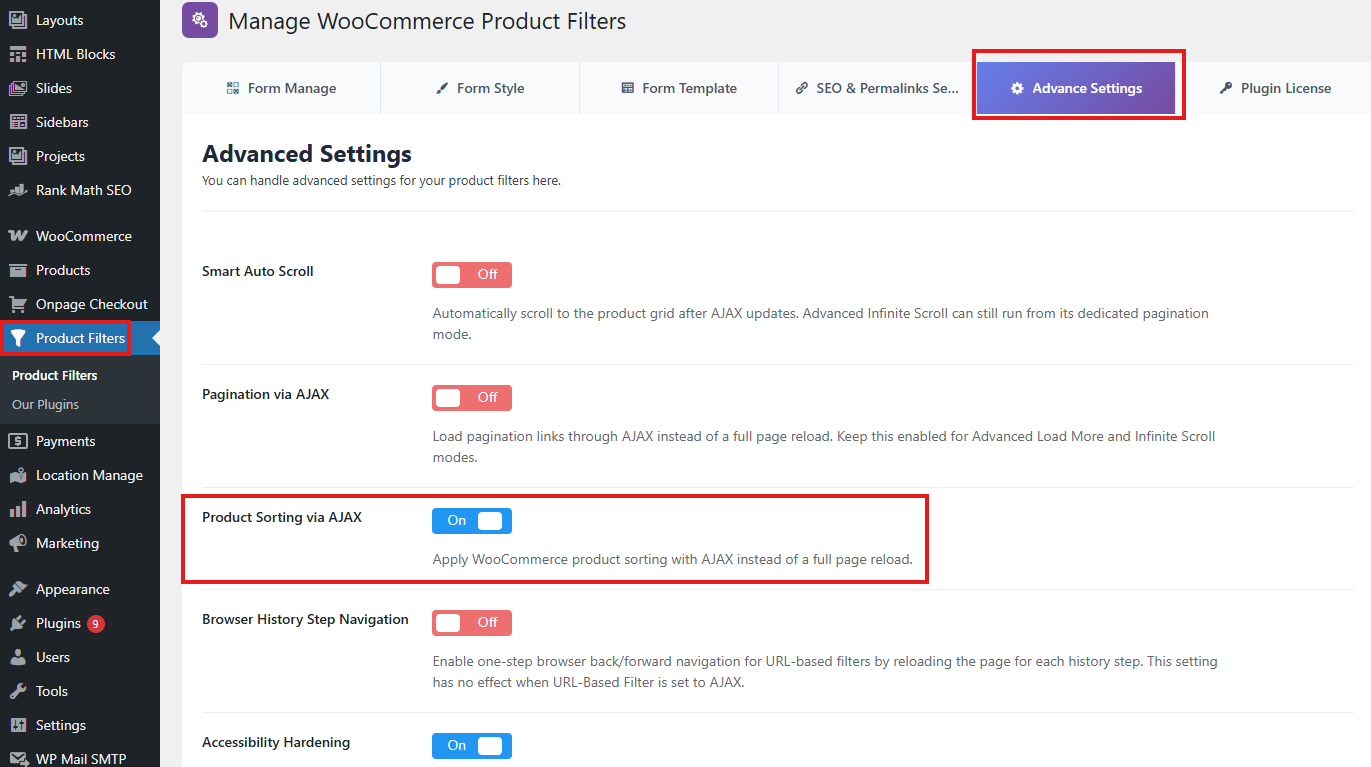
Once enabled, the sorting dropdown will work together with the AJAX filter system.
Sorting Selector
The Sorting Selector option tells the plugin which sorting dropdown should be controlled by AJAX.
By default, WooCommerce uses the following selector for the sorting dropdown:
form.woocommerce-ordering select
This is the default selector used by the plugin.
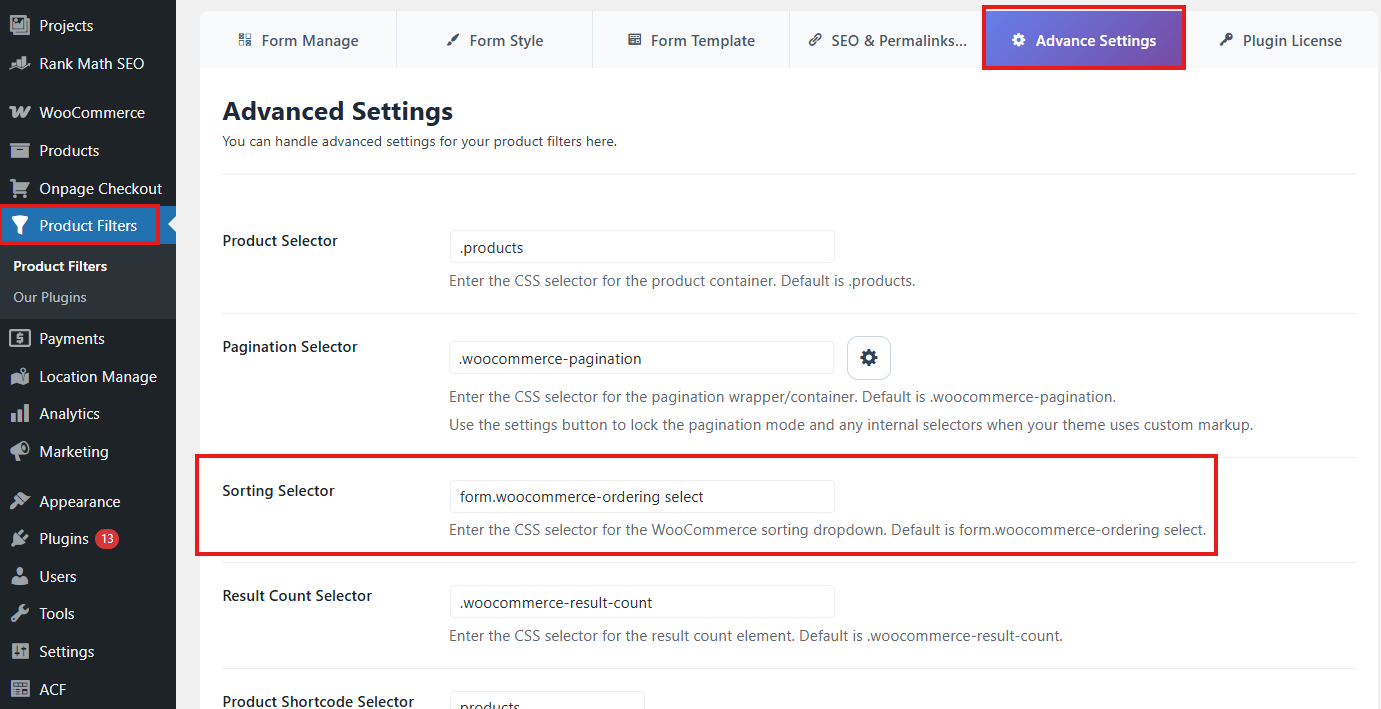
Default Sorting Selector
form.woocommerce-ordering select
This selector targets the standard WooCommerce sorting dropdown inside the WooCommerce ordering form.
For most WooCommerce themes, you do not need to change this value.
When Should You Change the Sorting Selector?
You should only change the sorting selector if AJAX sorting is not working correctly on your site.
This may happen when your theme or page builder uses a custom sorting dropdown instead of the default WooCommerce sorting markup.
Common cases include:
- Your theme replaces the default WooCommerce sorting dropdown.
- The sorting dropdown is created by a page builder widget.
- The sorting form uses a custom class or ID.
- The sorting dropdown is outside the standard WooCommerce loop.
- Sorting reloads the full page instead of updating products with AJAX.
- Sorting does not respond after filters are applied.
In these cases, you need to inspect your sorting dropdown and enter the correct CSS selector in the Sorting Selector field.
Example Custom Selectors
If your theme uses a custom sorting form like this:
<form class="custom-product-ordering">
    <select name="orderby">
        <option value="menu_order">Default sorting</option>
        <option value="popularity">Sort by popularity</option>
    </select>
</form>
You can use:
form.custom-product-ordering select
If your sorting dropdown has a custom ID:
<select id="shop-sort-order" name="orderby">
You can use:
#shop-sort-order
If your theme uses a custom wrapper:
<div class="product-sort-box">
    <select name="orderby"></select>
</div>
You can use:
.product-sort-box select
Compatibility with Custom Themes
Some WooCommerce themes modify the default shop layout, product loop, sorting dropdown, pagination, or result count markup. To improve compatibility, the plugin automatically adds stable classes to WooCommerce elements where possible.
For sorting, the plugin can inject a helper class into the WooCommerce ordering form:
plugincy-filter-orderby
This helps the plugin detect and manage the sorting dropdown more reliably across different themes.
However, if your theme completely replaces the default WooCommerce sorting structure, you may still need to update the Sorting Selector manually.
Recommended Setup for Custom Themes
For best compatibility, make sure your theme includes a sorting dropdown with the standard WooCommerce orderby field.
Example:
<form class="woocommerce-ordering" method="get">
    <select name="orderby" class="orderby">
        <option value="menu_order">Default sorting</option>
        <option value="popularity">Sort by popularity</option>
        <option value="rating">Sort by average rating</option>
        <option value="date">Sort by latest</option>
        <option value="price">Sort by price: low to high</option>
        <option value="price-desc">Sort by price: high to low</option>
    </select>
</form>
Recommended selector:
form.woocommerce-ordering select
Troubleshooting AJAX Sorting
Sorting does not work
Check that Product Sorting via AJAX is enabled from Product Filters → Advanced Settings.
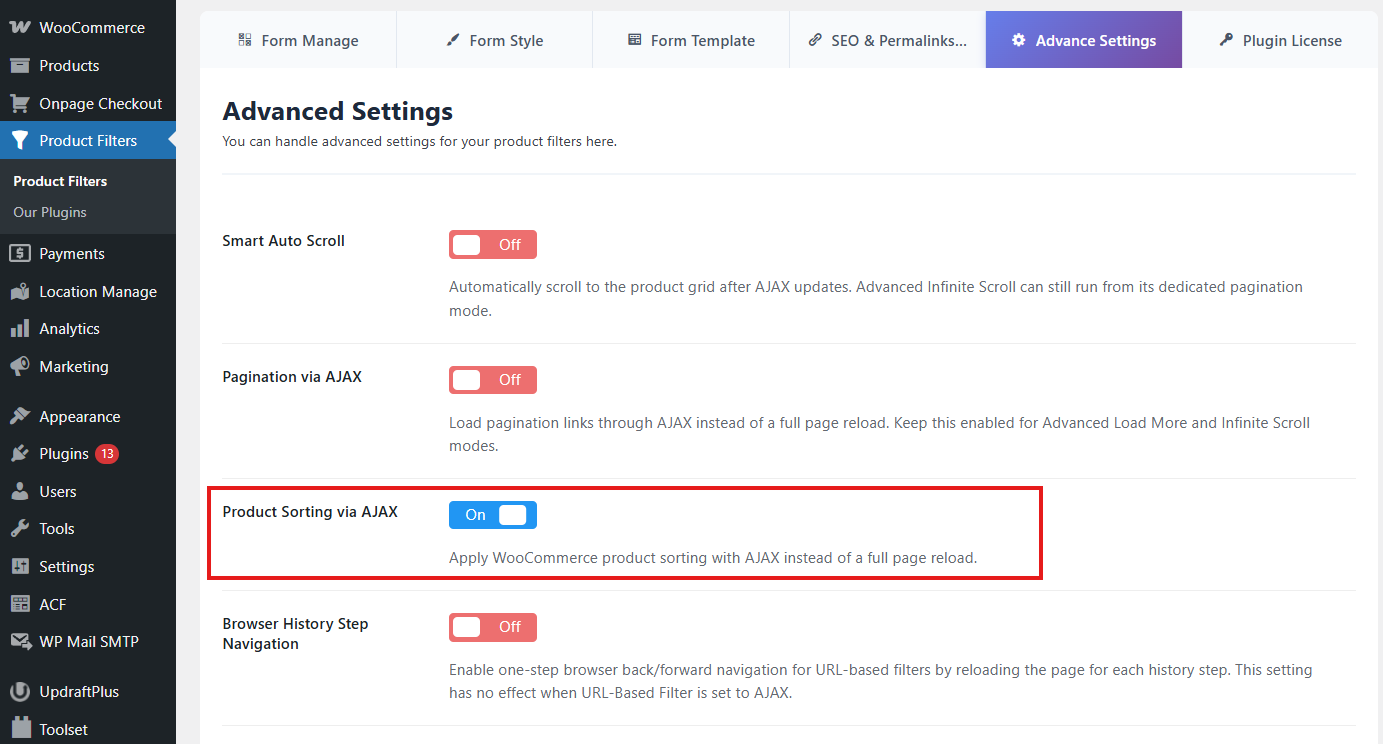
Sorting reloads the full page
Your theme may be using a custom sorting selector. Inspect the sorting dropdown and update the Sorting Selector field.
Sorting works before filtering but not after filtering
Make sure the sorting dropdown remains available after AJAX updates. If your theme replaces the sorting form dynamically, use a stable selector that still exists after filtering.
Sorting changes, but products do not update
Check your Product Selector in Advanced Settings. The plugin must be able to detect the product container correctly.
Default product selector:
ul.products
Sorting works, but pagination or result count does not update
Check the related selectors:
.woocommerce-pagination
.woocommerce-result-count
These selectors are managed separately from the sorting selector.
Best Practices
Use the default selector unless your theme requires a custom one.
Keep the sorting dropdown inside the WooCommerce product archive area when possible.
Avoid using multiple sorting dropdowns on the same page unless each one is handled properly by your theme.
After changing the selector, test sorting with filters, pagination, and product search to make sure everything works together.
Summary
The Product Sorting via AJAX option allows customers to sort products without a full page reload. The default sorting selector is:
form.woocommerce-ordering select
Most WooCommerce themes work with this selector automatically. If your theme uses a custom sorting dropdown, update the Sorting Selector field with the correct CSS selector to ensure smooth AJAX sorting compatibility.