
Dynamic AJAX Product Filters for WooCommerce includes several text management options that allow you to customize the wording displayed in filter widgets, dropdowns, buttons, search fields, empty-result messages, tooltips, and other frontend filter elements.
These options help you match the filter interface with your store’s language, tone, branding, and customer experience.
Text management is not limited to one place. Depending on the type of text you want to change, you may need to update settings from:
Product Filters → Advanced Settings
Product Filters → Form Style
Product Filters → Form Manage
Widget / shortcode / block display settings
Translation files or multilingual plugins
Why Text Management is Important
Clear and user-friendly filter text helps customers understand how to use the filters correctly.
With text management, you can customize:
- Filter titles
- Filter placeholders
- Search input text
- Select dropdown placeholder text
- Apply button text
- Reset button text
- Empty-result message
- Tooltip text
- Terms search text
- Filter-specific labels
- Button labels
- Additional helper text
- Text shown in selected/active filters
This is useful for stores in different languages, niche industries, custom product types, or stores that want a more branded filtering experience.
Text Management from Advanced Settings
Go to:
WordPress Dashboard → Product Filters → Advanced Settings
In Advanced Settings, you will find the main Text Manage section.
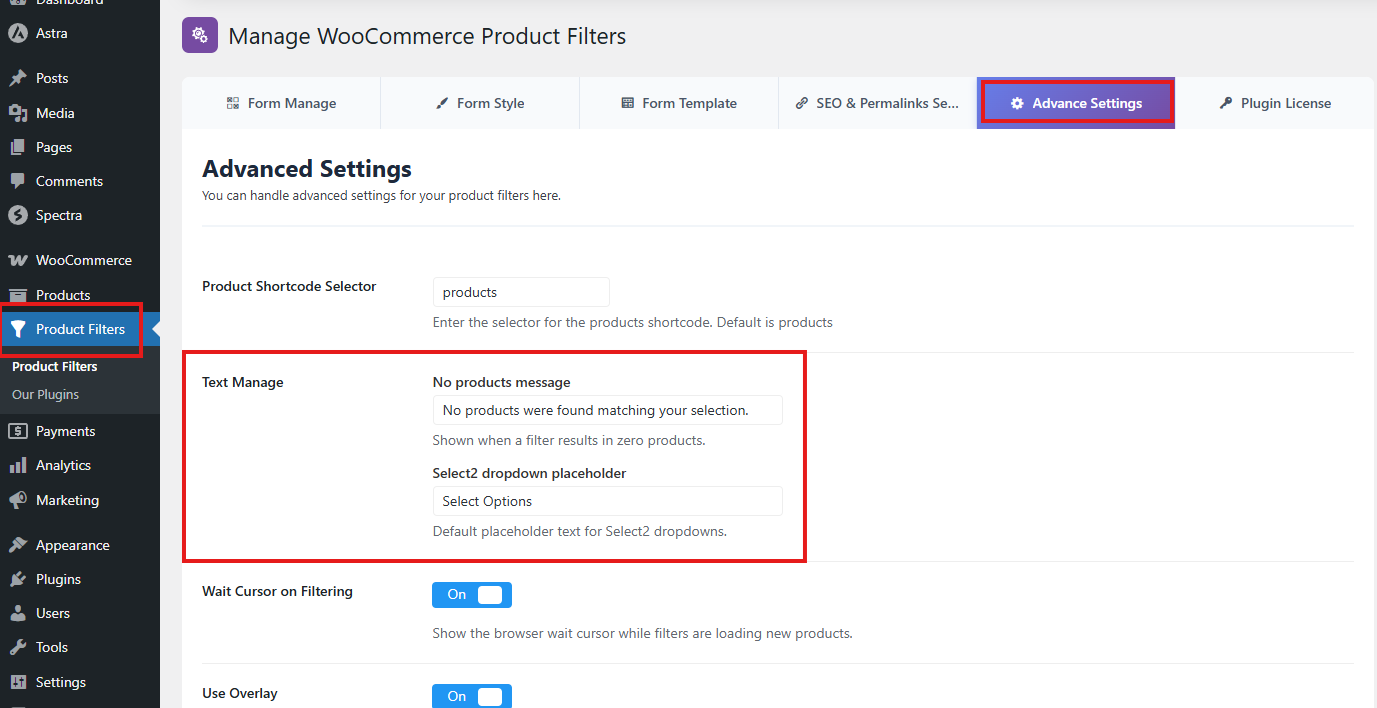
This section controls global frontend messages used by the filtering system.
No Products Message
The No products message is shown when customers apply filters and no matching products are found.
Default text:
No products were found matching your selection.
You can replace this with a custom message.
Example:
No items match your selected filters. Please try another option.
Or:
Sorry, we could not find any products for this combination.
When This Text Appears
This message appears when the filter result returns zero products.
For example, if a customer selects a color, size, brand, or price range that does not match any available products, this message will be shown in the product result area.
Recommended Examples
No products found. Try removing some filters.
We could not find products matching your selection.
No matching products available right now.
Select2 Dropdown Placeholder
The Select2 dropdown placeholder controls the default placeholder text shown in Select2-style dropdown filters.
Default text:
Select Options
You can change this to something more specific or user-friendly.
Example:
Choose an option
Select filter values
Choose one or more options
This is useful for dropdown-based filters, especially when using multi-select filter layouts.
Text Management from Form Style
Go to:
WordPress Dashboard → Product Filters → Form Style
The Form Style area includes many filter-specific text options. These settings allow you to customize text for individual filter types, such as category, tag, attributes, price, rating, brand, stock status, sale status, dimensions, SKU, discount, date filter, search, custom fields, and custom taxonomies.
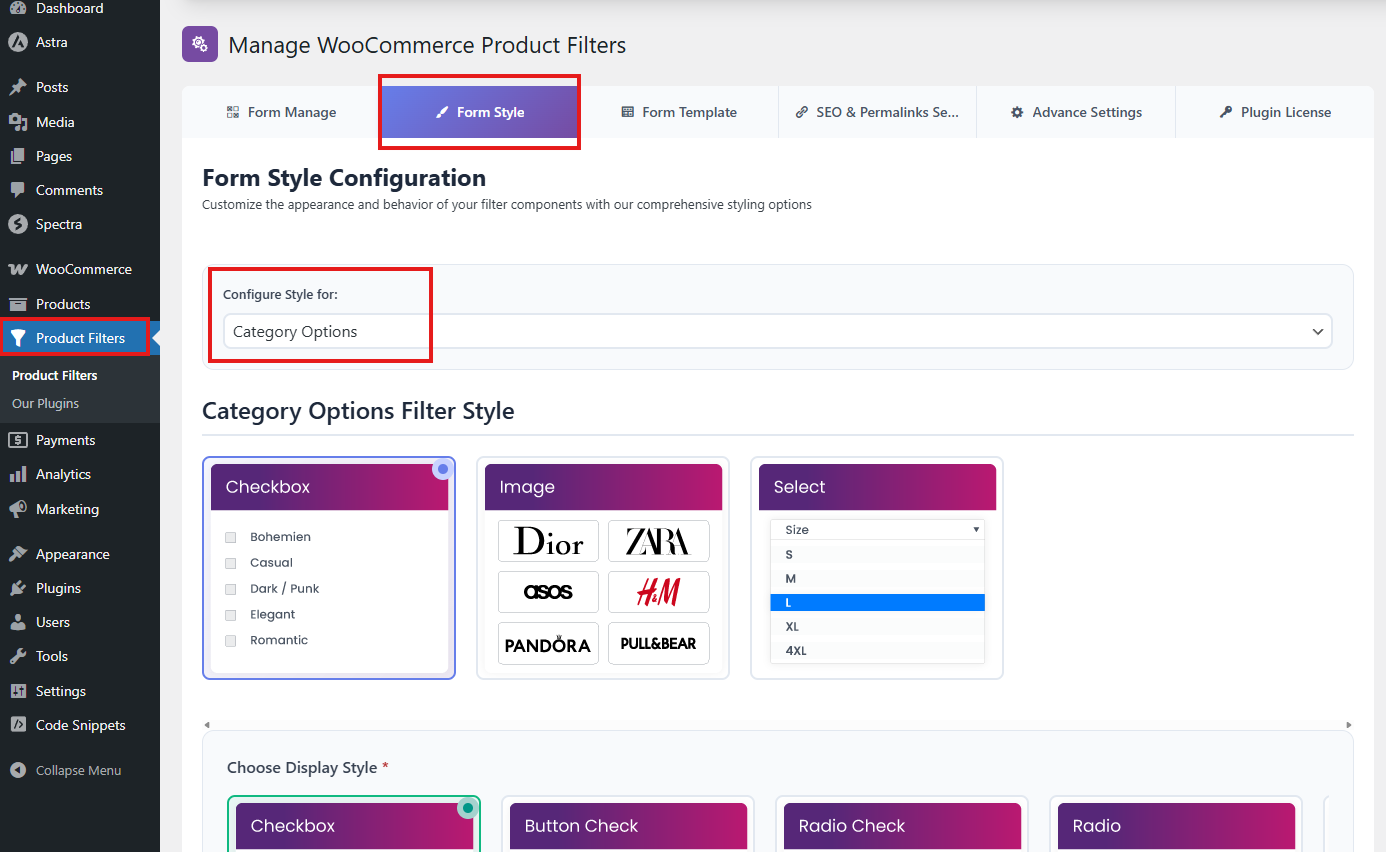
This is where most filter label and field-level text customization is managed.
Configure Style for Each Filter
In Form Style, first choose the filter you want to customize.
Examples:
Category Options
Tag Options
Attributes
Price
Rating
Brands
Authors
Stock Status
Sale Status
Featured Products
Dimensions
SKU
Discount
Post Date
Search Product
Custom Fields
Custom Taxonomies
Apply, Reset Button
After selecting a filter, you can customize the available text options for that specific filter.
Widget Title
The Widget Title option controls the title or heading displayed above a filter section.
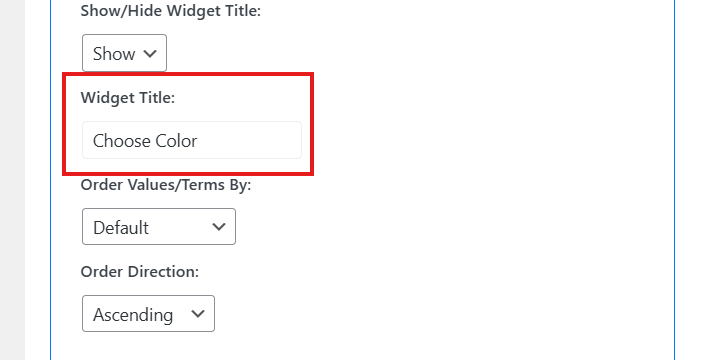
Example:
Color
Can be changed to:
Choose Color
Or:
Filter by Color
Example Use Cases
For category filter:
Shop by Category
For brand filter:
Choose Brand
For price filter:
Filter by Price
For rating filter:
Customer Rating
Placeholder Text
The Placeholder option controls the placeholder shown inside input fields, dropdowns, or searchable filter fields.
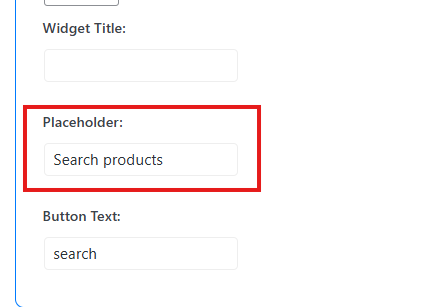
Example:
Search products
Can be changed to:
Search by product name
Or:
Type to search
Placeholders are useful for search fields, select fields, and filter inputs where customers need guidance.
Button Text
Some filter styles include button text options. These allow you to customize the text shown on buttons related to the selected filter type.
For example, search-style filters may use button text such as:
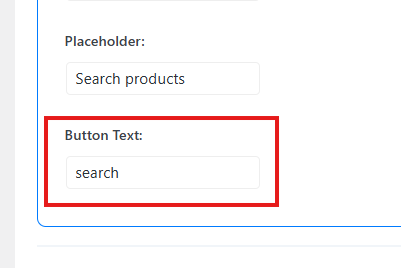
Search
You can change it to:
Find Products
Or:
Apply Search
The available button text options may depend on the selected filter type and style.
Apply Button Text
The Apply Button Text option controls the text shown on the apply button when apply-button behavior is enabled.
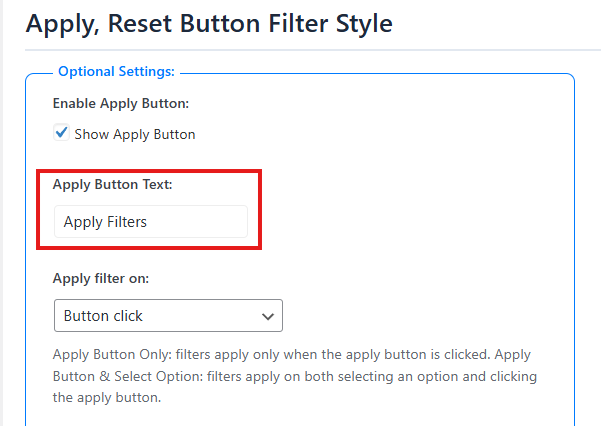
Common examples:
Apply
Apply Filters
Show Products
Filter Products
This is useful when you want customers to select multiple filter options first and then manually apply them.
Reset Button Text
The reset button text can be managed from the Apply, Reset Button style section.
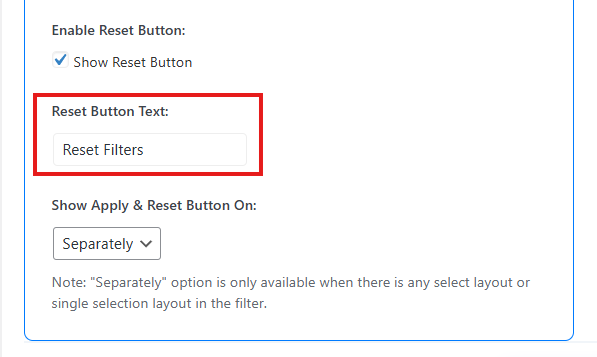
Common examples:
Reset
Reset Filters
Clear All
Clear Filters
Use clear and simple reset text so customers understand that clicking the button will remove selected filters.
Input Label
Some filter types include an Input Label option.
This can be used to customize labels displayed near input fields.
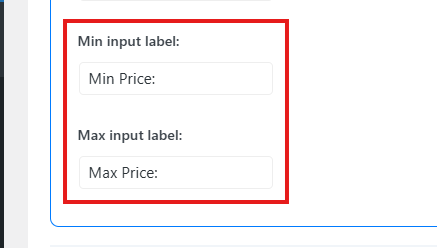
For example, a price filter may use labels like:
Min Price
Max Price
A dimension filter may use labels like:
Minimum Width
Maximum Width
A date filter may use labels like:
From
To
Use input labels when placeholders alone are not enough to explain the field.
Additional Text Fields
Some filters may include additional text options for special labels or helper text.
These may be used depending on the filter type.
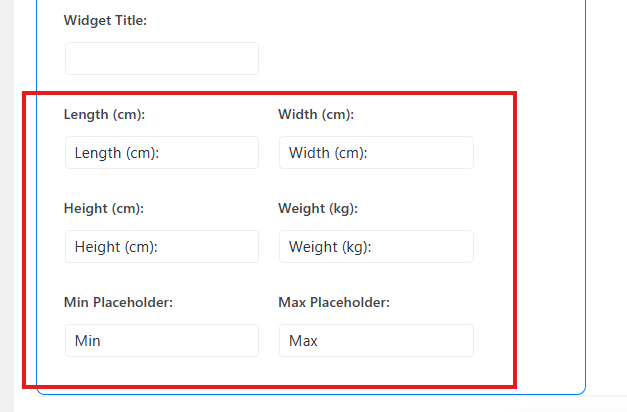
Examples include:
Minimum
Maximum
From
To
Search
For example, price, dimension, discount, SKU, and date filters may need extra text labels because they use input-based filtering instead of only checkbox/select options.
Terms Search Text
Some term-based filters include a terms search option. This allows customers to search inside a long list of filter terms.
For example, if you have many brands, colors, sizes, categories, or attributes, customers can search within those terms.
You can customize the search text or placeholder.
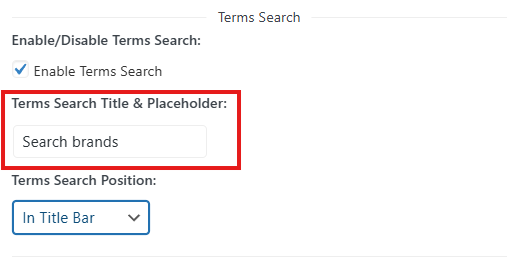
Example:
Search options
Can be changed to:
Search colors
Or:
Search brands
This is especially useful for stores with many terms.
Tooltip Text
If tooltip support is enabled for a filter, you can customize the tooltip text.
Tooltip text helps explain what a filter does.
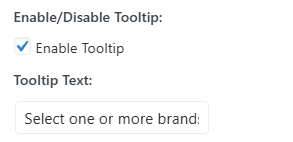
Example:
Select one or more brands to narrow your results.
For price filter:
Choose a price range to filter products.
For stock status:
Filter products based on availability.
Use tooltip text when a filter may not be obvious to customers.
Text Management from Form Manage
Go to:
WordPress Dashboard → Product Filters → Form Manage
Form Manage controls which filters are enabled and, in some cases, opens settings for specific filter types.
While Form Style handles most frontend label customization, Form Manage is still important because the available text options depend on which filters are enabled.
For example, if Show Custom Taxonomies is disabled, custom taxonomy text options will not be available in Form Style.
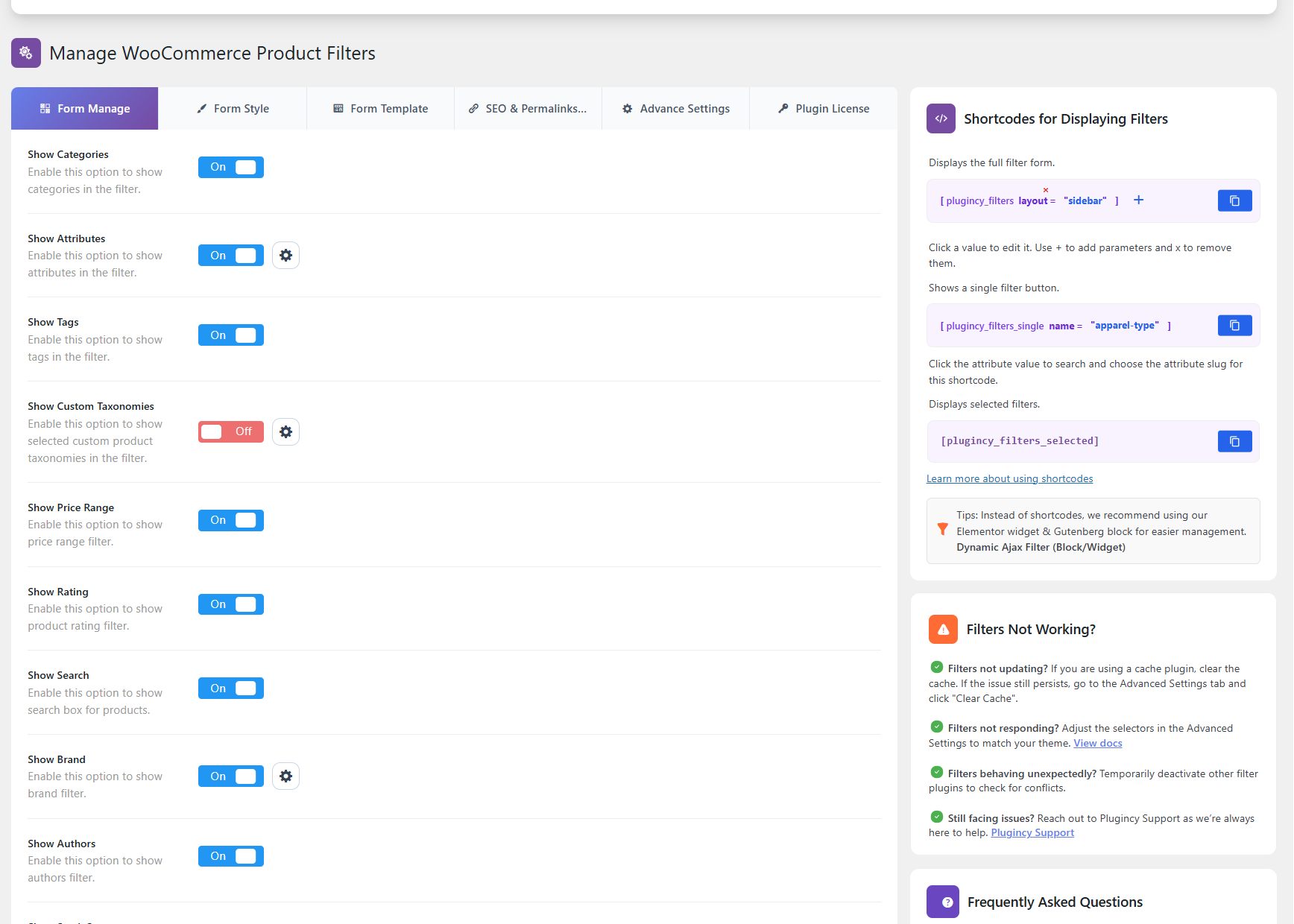
Filters That Affect Text Availability
Text options may appear or become relevant when these filters are enabled:
Show Categories
Show Attributes
Show Tags
Show Custom Taxonomies
Show Price Range
Show Rating
Show Search
Show Brand
Show Authors
Show Stock Status
Show Sale Status
Show Featured Products
Show Dimensions
Show SKU
Show Discount
Show Date Filter
Show Custom Fields Filter
After enabling a filter in Form Manage, go to Form Style to customize its title, placeholder, labels, and other text options.
Text Management for Active / Selected Filters
Some filter style settings include options related to active filters or selected filter display.
This controls how selected filter values appear after the customer chooses filter options.
For example, selected filters may appear as chips, badges, or active filter labels.
Recommended text style:
Selected Filters
Active Filters
Your Selection
If your site uses selected filter chips, make sure the text is short and clear.
Text Management for Custom Fields and Custom Taxonomies
The plugin supports text customization for custom fields and selected custom taxonomies.
To manage these texts:
- Enable Show Custom Fields Filter or Show Custom Taxonomies from Form Manage.
- Select the custom field or custom taxonomy from Form Style.
- Customize the available title, placeholder, labels, tooltip text, and term search text.
Example Custom Field Text
For a custom field named “Material Type”:
Widget Title: Material
Placeholder: Select material
Terms Search Text: Search materials
Tooltip Text: Filter products by material type.
Example Custom Taxonomy Text
For a custom taxonomy named “Collection”:
Widget Title: Collection
Placeholder: Select collection
Terms Search Text: Search collections
Tooltip Text: Choose a collection to narrow product results.
Text Management for Price, Dimension, Discount, SKU, and Date Filters
Input-based filters often need more text customization than checkbox filters.
These filter types may include labels, placeholders, additional text, or button text depending on the selected style.
Price Filter Text Examples
Widget Title: Price
Min Label: Min Price
Max Label: Max Price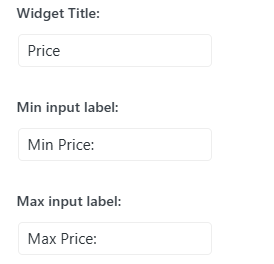
Dimension Filter Text Examples
Widget Title: Dimensions
Input Label: Product Size
Placeholder: Enter value
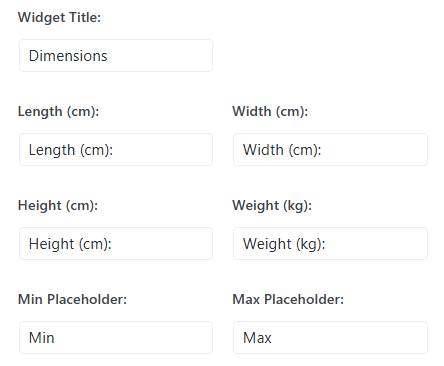
You can use more specific wording depending on the dimension:
Length
Width
Height
Weight
Discount Filter Text Examples
Widget Title: Discount
Placeholder: Enter discount percentage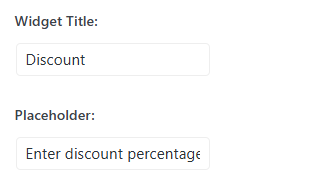
SKU Filter Text Examples
Widget Title: SKU
Placeholder: Enter product SKU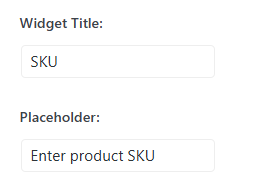
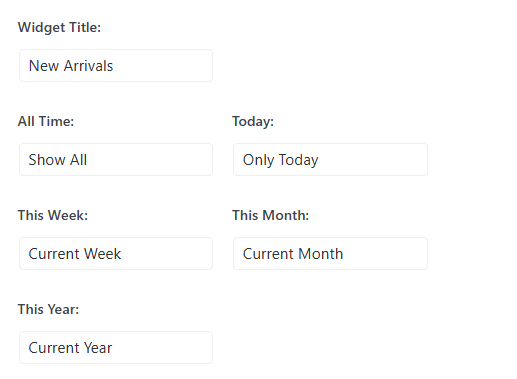
Date Filter Text Examples
Widget Title: New Arrivals
All Time: Show All
Today: Only Today
This Week: Current Week
This Month: Current Month
This Year: Current Year
Text Management for Tooltips
Tooltip text is useful when customers may need extra guidance.
Examples:
For category:
Choose a category to narrow your product results.
For attribute:
Select one or more product options.
For price:
Set your preferred price range.
For stock status:
Show products based on availability.
For brand:
Filter products by your preferred brand.
Keep tooltip text short and helpful.
Translation and Multilingual Text Management
If your store is multilingual, you can manage filter text in two ways:
- Customize the text directly from plugin settings.
- Translate plugin strings using a translation plugin or WordPress translation files.
For multilingual websites, use a translation plugin if you need different text for different languages.
Recommended approach:
Single-language store: Use plugin text settings
Multilingual store: Use plugin text settings plus translation plugin support
If a text field is saved from the plugin settings, translate that saved option through your multilingual plugin if required.
Best Practices for Text Management
Use short and clear text.
Avoid long filter titles because they may break the layout on mobile devices.
Use action words for buttons.
Good examples:
Apply Filters
Clear Filters
Show Products
Search
Avoid unclear button text like:
Go
Submit
Click Here
Use placeholders to guide customers.
Good examples:
Select brand
Search colors
Enter SKU
Keep terminology consistent across the site.
For example, do not use “Clear,” “Reset,” and “Remove” for the same action in different places unless necessary.
Test all text changes on desktop and mobile.
Troubleshooting
My custom text is not showing
Make sure you edited the correct section.
Use:
Advanced Settings → Text Manage
for global messages like no-products text and Select2 placeholder.
Use:
Form Style
for filter-specific titles, placeholders, buttons, labels, tooltips, and term search text.
The placeholder is not changing
Check whether the filter uses the global Select2 placeholder or its own filter-specific placeholder.
If it is a Select2 dropdown, update:
Advanced Settings → Text Manage → Select2 dropdown placeholder
If it is a specific filter input, update that filter from:
Form Style → Selected Filter → Placeholder
The no-products message is not changing
Update:
Product Filters → Advanced Settings → Text Manage → No products message
Then save changes and clear cache if your site uses caching.
Button text is not changing
Check the Apply, Reset Button section in Form Style.
Also confirm that apply/reset buttons are enabled for the selected filter layout.
Text is translated incorrectly
Check whether the text is coming from:
Plugin settings
Theme translation
WooCommerce translation
Multilingual plugin
If the text is saved in plugin settings, update it directly from the plugin settings or translate the saved option using your multilingual plugin.
Text looks broken on mobile
Use shorter text.
Long labels or button text may wrap into multiple lines on smaller screens.
Recommended mobile-friendly examples:
Apply
Reset
Filter
Clear
Search
Recommended Text Setup
For most stores, the following setup works well:
No products message: No products found. Try removing some filters.
Select2 placeholder: Select options
Apply button: Apply Filters
Reset button: Clear Filters
Search placeholder: Search products
Category title: Categories
Brand title: Brands
Price title: Price
Rating title: Rating
Terms search text: Search options
For mobile-focused stores:
Apply button: Show Products
Reset button: Clear
Select2 placeholder: Select
Search placeholder: Search
For multilingual stores:
Use simple text in plugin settings
Translate saved settings through your multilingual plugin
Keep button text short across all languages
Summary
Text management in Dynamic AJAX Product Filters for WooCommerce is available in multiple areas of the plugin.
Use Advanced Settings → Text Manage for global text such as:
No products message
Select2 dropdown placeholder
Use Form Style for filter-specific text such as:
Widget titles
Placeholders
Button text
Apply button text
Reset button text
Input labels
Terms search text
Tooltip text
Additional helper text
Use Form Manage to enable the filters whose text you want to customize.
With proper text management, you can make the filter interface clearer, more user-friendly, mobile-friendly, and better aligned with your store’s brand.