
Dynamic AJAX Product Filters for WooCommerce includes several user experience options that control how the shop page behaves while products are being filtered.
These options help customers understand that filtering is in progress, prevent accidental clicks during AJAX updates, and automatically move users to the updated product results when needed.
You can manage these options from:
WordPress Dashboard → Product Filters → Advanced Settings
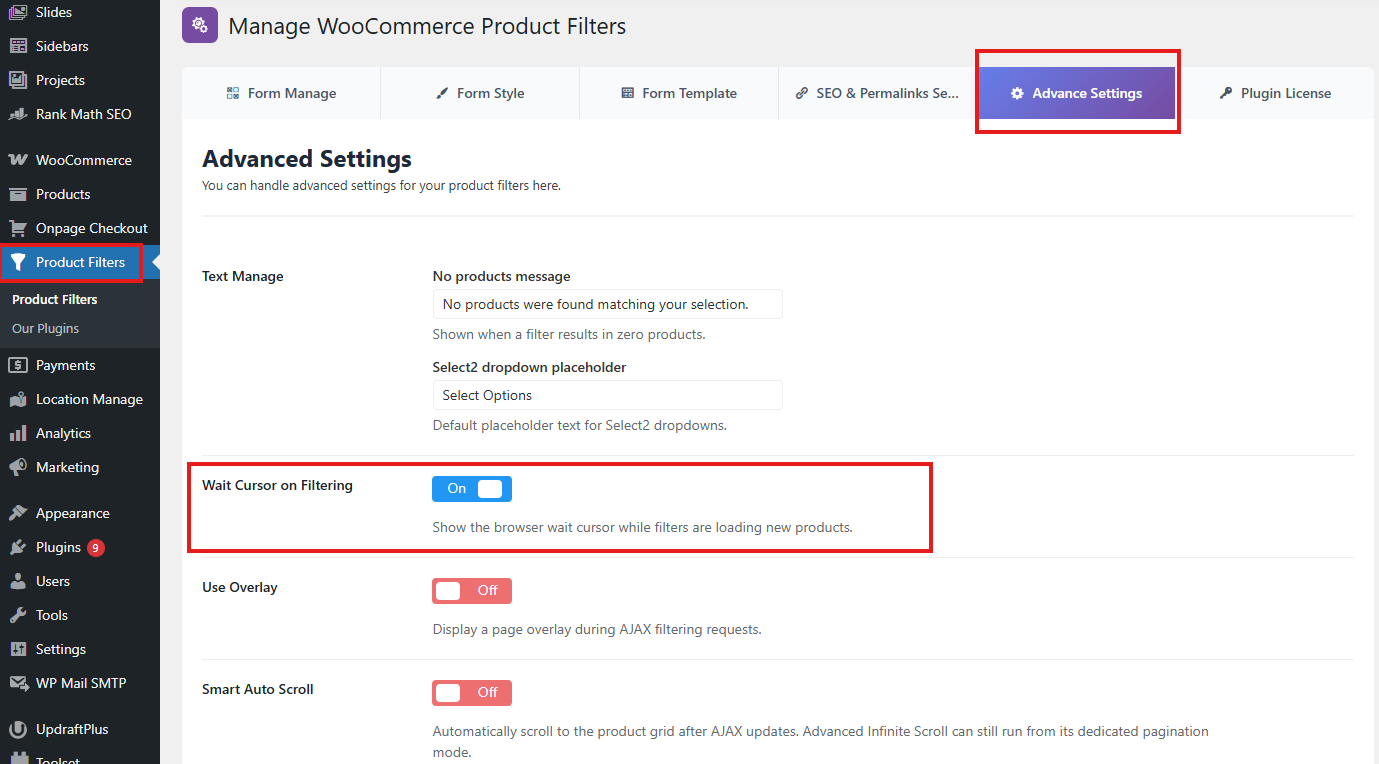
Wait Cursor on Filtering
The Wait Cursor on Filtering option changes the mouse cursor while the plugin is processing a filter request.
When enabled, customers will see a loading/wait cursor during AJAX filtering. This gives clear visual feedback that the selected filter is being applied.
Why use this option?
This option helps customers understand that the product list is updating in the background.
It is especially useful when:
- Your shop has many products.
- Filters take a short moment to process.
- The product area updates through AJAX without a full page reload.
- Customers may otherwise click multiple filters too quickly.

When should you disable it?
You may disable Wait Cursor on Filtering if:
- Your theme already shows its own loading cursor.
- You use a custom loader animation only.
- The cursor behavior conflicts with your theme or custom JavaScript.
- You want a more minimal filtering experience.
Use Overlay
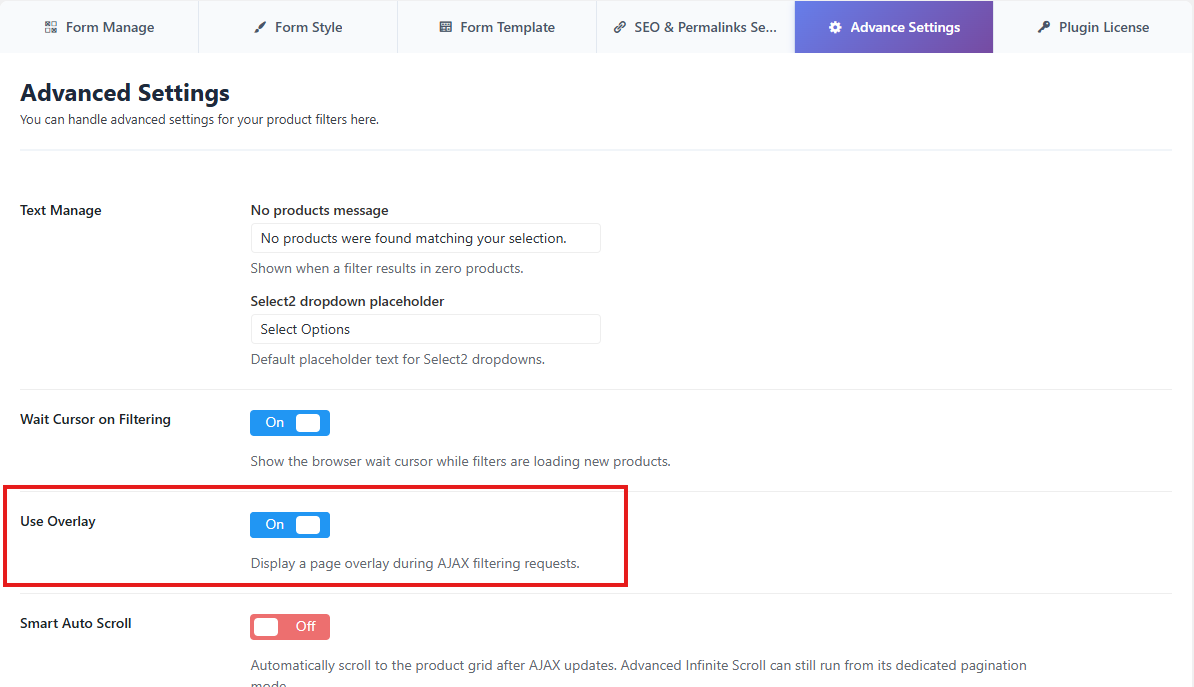
The Use Overlay option displays an overlay while products are being filtered.
When enabled, the plugin can visually cover the product area during AJAX updates. This helps customers understand that the product results are temporarily loading and prevents repeated clicks while the request is still processing.
How the overlay improves user experience
The overlay is useful because it:
- Shows that the product section is updating.
- Reduces accidental clicks during AJAX loading.
- Makes the filtering process feel smoother.
- Helps avoid confusion when products are being replaced dynamically.

When should you disable it?
You may disable Use Overlay if:
- Your theme already has a loading overlay.
- You are using a custom loader design.
- The overlay covers important custom elements.
- Your product layout uses custom sticky or floating content.
- You want customers to keep interacting with the page while filtering runs.
For heavily customized shop pages, disabling the overlay may help avoid layout conflicts.
Smart Auto Scroll
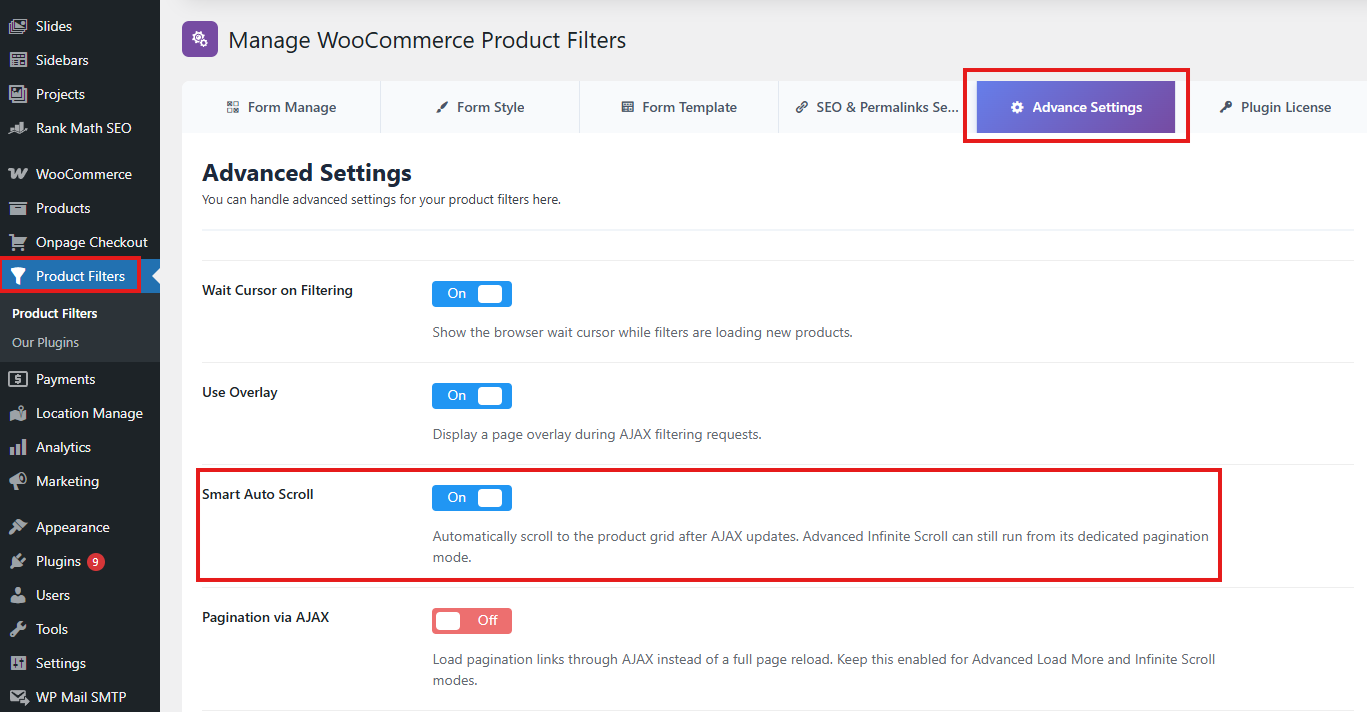
The Smart Auto Scroll option automatically moves the customer to the updated product area after a filter is applied.
This is helpful when the filter widget is placed far above the product list, inside a sidebar, in an off-canvas panel, or near the top of a long page.
How Smart Auto Scroll works
When a customer applies a filter, the plugin updates the product results and can automatically scroll the page toward the product section.
This helps customers immediately see the updated products without manually scrolling.
Why use this option?
Smart Auto Scroll is useful when:
- Filters are displayed above the products.
- Filters are shown in a sidebar.
- Filters are used on mobile devices.
- The product list is lower on the page.
- Customers may not notice that products have changed.
- Your shop page has large banners or content above the product loop.

When should you disable it?
You may disable Smart Auto Scroll if:
- Your filter widget and products are already visible together.
- Your theme has sticky headers that interfere with scrolling.
- Your layout uses tabs, accordions, popups, or off-canvas filters.
- Your page builder already controls scroll behavior.
- Automatic scrolling feels unexpected for your customers.
For custom layouts, disabling Smart Auto Scroll can create a more predictable browsing experience.
How These Options Affect the Filtering Experience
These three options work together to make AJAX filtering feel clear and responsive.
| Option | What it does | Best for |
|---|---|---|
| Wait Cursor on Filtering | Shows a wait cursor during filtering | Giving quick loading feedback |
| Use Overlay | Covers the product area while loading | Preventing repeated clicks and showing update progress |
| Smart Auto Scroll | Moves the page to the product results | Helping users see updated products immediately |
For most WooCommerce stores, keeping all three options enabled provides the best customer experience.
Recommended Settings
For standard WooCommerce shop pages:
Wait Cursor on Filtering: Enabled
Use Overlay: Enabled
Smart Auto Scroll: Enabled
For custom layouts or page-builder templates:
Wait Cursor on Filtering: Optional
Use Overlay: Disable if it conflicts with custom layout
Smart Auto Scroll: Disable if the page builder controls scrolling
For mobile-focused stores:
Wait Cursor on Filtering: Enabled
Use Overlay: Enabled
Smart Auto Scroll: Enabled
Smart Auto Scroll is especially helpful on mobile because customers often apply filters from the top of the page and need to return to the updated product results quickly.
Troubleshooting
The page scrolls too much after filtering
Disable Smart Auto Scroll from Advanced Settings.
This may happen when your theme has a sticky header, custom anchor links, or a page builder section that controls scrolling.
The overlay covers the wrong area
Check your Product Selector setting in Advanced Settings. The overlay is usually applied around the detected product area.
Default product selector:
ul.products
If your theme uses a custom product wrapper, update the Product Selector to match your theme.
Customers cannot click elements during filtering
This is expected when Use Overlay is enabled. The overlay helps prevent repeated clicks while AJAX filtering is running.
Disable Use Overlay if you want users to keep interacting with the page during filtering.
The cursor does not change
Check that Wait Cursor on Filtering is enabled.
Also check whether your theme or custom CSS overrides cursor styles.
Filtering feels slow or confusing
Enable Wait Cursor on Filtering, Use Overlay, and Show Loader together. This gives customers stronger visual feedback while products are updating.
Best Practices
Keep these UX options enabled for normal WooCommerce shop pages.
Disable only the option that conflicts with your theme or layout instead of disabling all AJAX behavior.
After changing these settings, test filtering on desktop, tablet, and mobile.
Also test filtering with sorting, pagination, search, and reset buttons to make sure the full filtering experience remains smooth.
Summary
The Wait Cursor on Filtering, Use Overlay, and Smart Auto Scroll options improve the AJAX filtering experience by giving customers clear feedback while products update.
Use them when you want a smoother, more guided filtering experience.
Disable them only when your theme, page builder, or custom layout already handles loading states or scroll behavior separately.