This section allows you to configure the behavior and placement of the Apply and Reset buttons.
Customize the Apply & Reset Button Widget
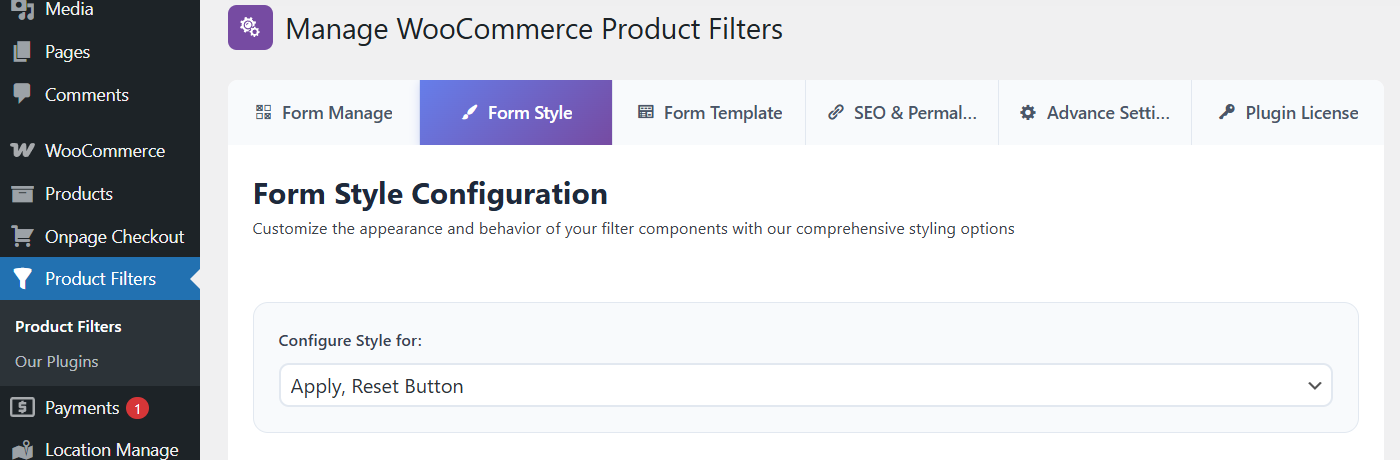
- Access Form Style Settings:
- Go to Product Filters > Form Style in your WordPress dashboard.
- Select Apply, Reset Button from Dropdown:
- From the Configure Style for dropdown menu, choose Apply, Reset Button.
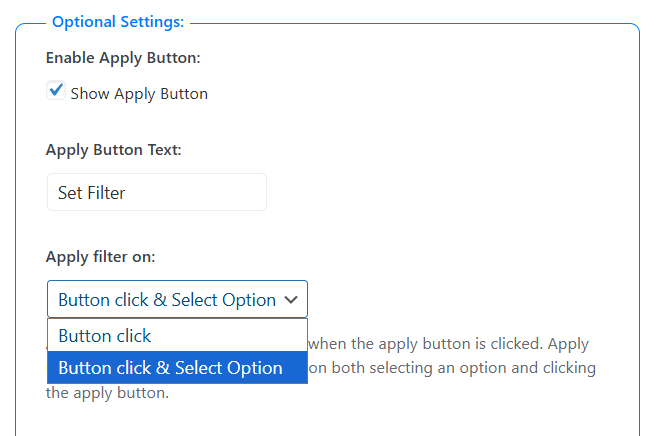
Enable Apply Button
Show Apply Button
Display an Apply button in the filter.
Apply Button Text
Set a custom label for the Apply button.
Apply Filter On
Defines when filters are applied:
- Button Click – Filters apply only after clicking the Apply button.
- Button Click & Select Option – Filters apply when selecting an option and when clicking the Apply button.
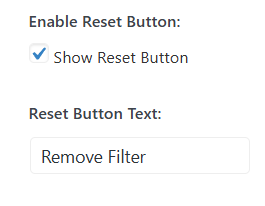
Enable Reset Button
Show Reset Button
Display a Reset button to clear selected filters.
Reset Button Text
Set a custom label for the Reset button.
Show Apply & Reset Button On
Controls button placement:
- Top – Display at the top of the filter
- Bottom – Display at the bottom of the filter
- Separately – Display buttons separately
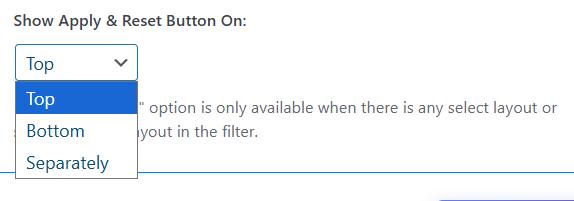
Note: The “Separately” option is available only when using a select layout or single selection layout.