
Dynamic AJAX Product Filters for WooCommerce automatically adds helper CSS classes to important WooCommerce product listing elements. These classes help the plugin detect product grids, pagination, sorting dropdowns, result counts, and individual product items more reliably across different themes, page builders, WooCommerce Blocks, and custom layouts.
These classes are especially useful when your theme does not use the default WooCommerce selectors.
Why Auto-Injected Classes Are Important
AJAX filtering needs to know which parts of the page should be updated after a filter is applied.
For example, when a customer selects a filter, the plugin may need to update:
Product grid
Pagination
Sorting dropdown
Result count
Product items
Many WooCommerce themes use standard markup, such as:
ul.products
.woocommerce-pagination
form.woocommerce-ordering select
.woocommerce-result-count
However, custom themes, block themes, and page builders may use different HTML structures.
To improve compatibility, the plugin can inject stable classes that are easier to use in selector settings.
Auto-Injected Class Reference
The plugin may add the following helper classes:
.plugincy-filter-products
.plugincy-filter-pagination
.plugincy-filter-orderby
.plugincy-filter-result-count
.plugincy-filter-product-item
Each class is used for a specific part of the product listing layout.
| Class | Purpose |
|---|---|
.plugincy-filter-products | Identifies the product grid or product list container |
.plugincy-filter-pagination | Identifies the pagination wrapper |
.plugincy-filter-orderby | Identifies the WooCommerce sorting/orderby area |
.plugincy-filter-result-count | Identifies the product result count area |
.plugincy-filter-product-item | Identifies each individual product item |
.plugincy-filter-products
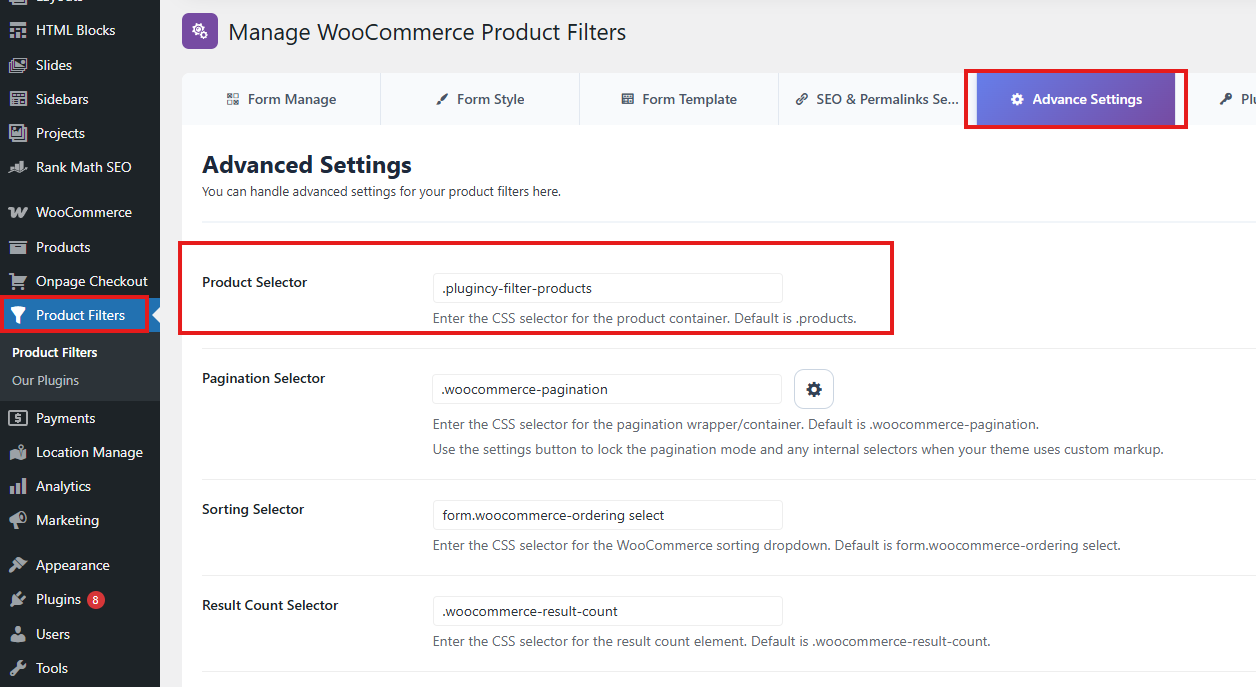
The .plugincy-filter-products class identifies the main product grid or product list container.
This is the most important class for AJAX filtering because the plugin needs to know which product section should be replaced after filters are applied.
Where It Is Useful
Use this class in the Product Selector setting when the default selector does not work.
Go to:
Product Filters → Advanced Settings → Product Selector
Recommended selector for block/custom layouts:
.plugincy-filter-products
When to Use It
Use .plugincy-filter-products if:
- Products do not update after applying filters.
- The wrong section of the page updates.
- Products disappear after filtering.
- You are using WooCommerce Blocks.
- You are using a block theme.
- Your theme does not use
ul.products. - A page builder creates a custom product grid wrapper.
Default Alternative
For standard WooCommerce themes, the default product selector is usually:
ul.products
If ul.products works correctly, you do not need to change it.
.plugincy-filter-pagination
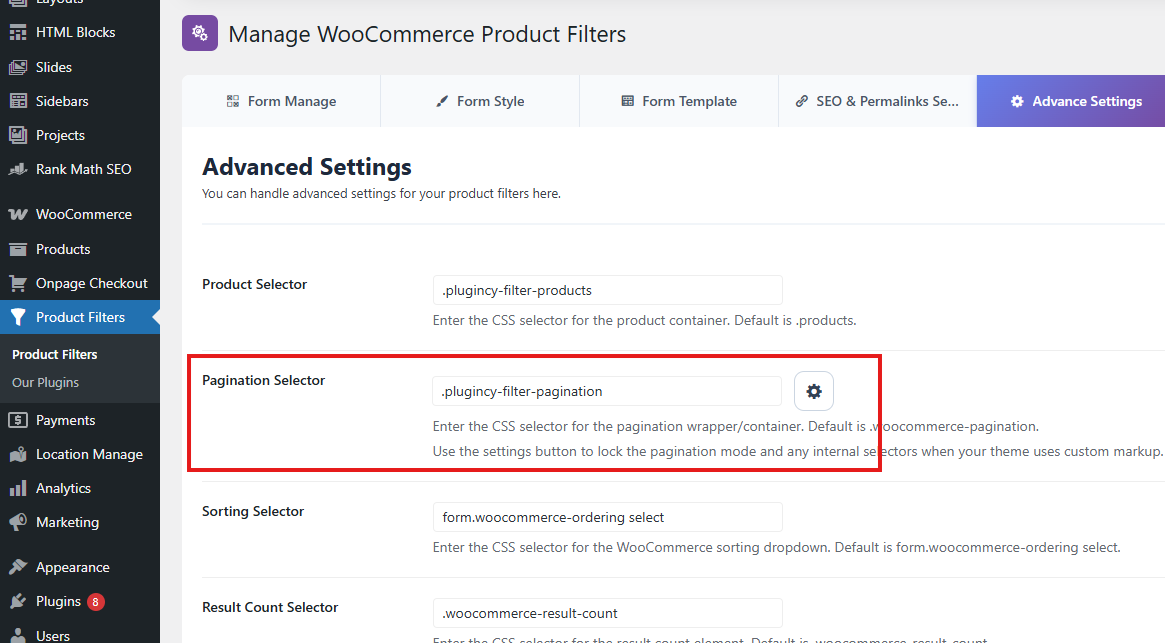
The .plugincy-filter-pagination class identifies the pagination wrapper.
This helps AJAX pagination work correctly after filters are applied.
Where It Is Useful
Use this class in the Pagination Selector setting.
Go to:
Product Filters → Advanced Settings → Pagination Selector
Recommended selector for block/custom layouts:
.plugincy-filter-pagination
When to Use It
Use .plugincy-filter-pagination if:
- Pagination does not update after filtering.
- Pagination reloads the full page instead of using AJAX.
- Pagination disappears after filters are applied.
- Your theme uses custom pagination markup.
- WooCommerce Blocks or Query Pagination blocks are used.
- Your theme does not use
.woocommerce-pagination.
Default Alternative
For standard WooCommerce themes, the default pagination selector is usually:
.woocommerce-pagination
If the default selector works correctly, keep it.
.plugincy-filter-orderby
The .plugincy-filter-orderby class identifies the sorting/orderby area.
WooCommerce sorting is usually displayed as a dropdown that lets customers sort products by popularity, rating, latest, price, and default order.
Where It Is Useful
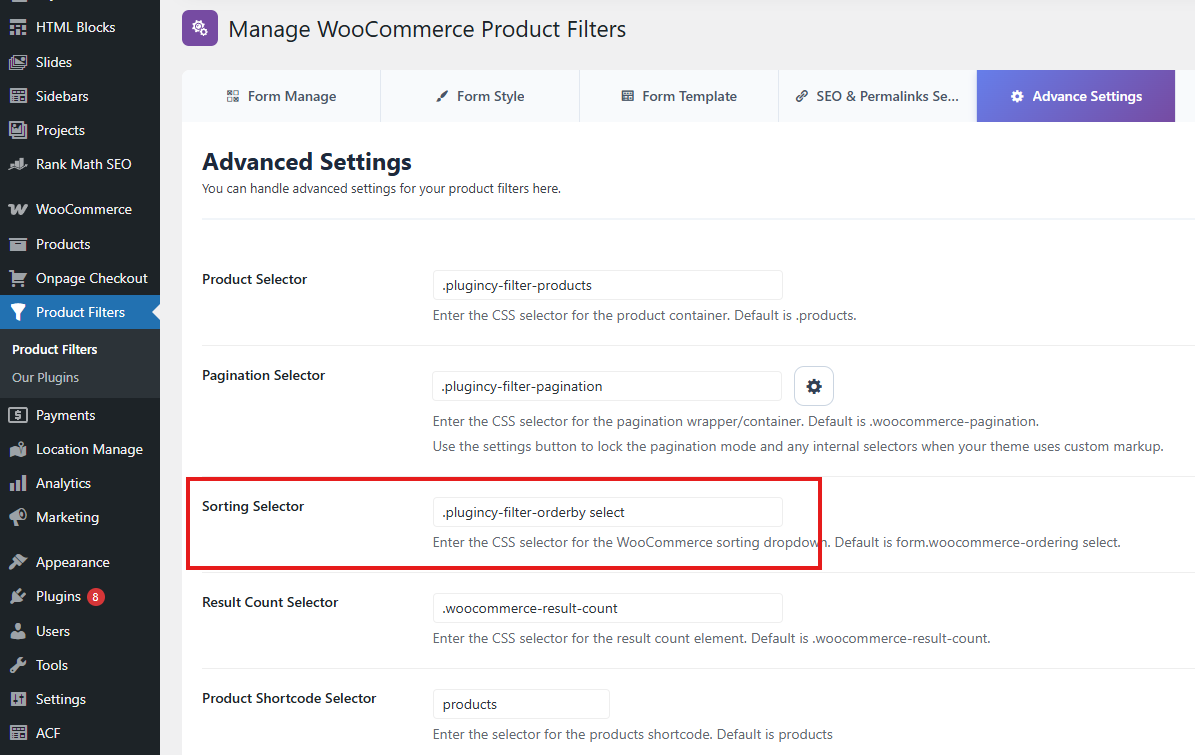
Use this class when troubleshooting sorting selector issues.
Go to:
Product Filters → Advanced Settings → Sorting Selector
Standard default selector:
form.woocommerce-ordering select
If your theme has a custom sorting wrapper, the injected class may help you identify the correct area.
Example selector:
.plugincy-filter-orderby select
When to Use It
Use .plugincy-filter-orderby if:
- Product sorting does not work with AJAX.
- Sorting reloads the page instead of updating products dynamically.
- Sorting works before filtering but not after filtering.
- Your theme changes the default WooCommerce sorting markup.
- A page builder controls the sorting dropdown.
- Sorting is generated inside a custom archive template.
Recommended Usage
If the sorting dropdown is inside the injected orderby wrapper, use:
.plugincy-filter-orderby select
If the default WooCommerce selector works, keep:
form.woocommerce-ordering select
.plugincy-filter-result-count
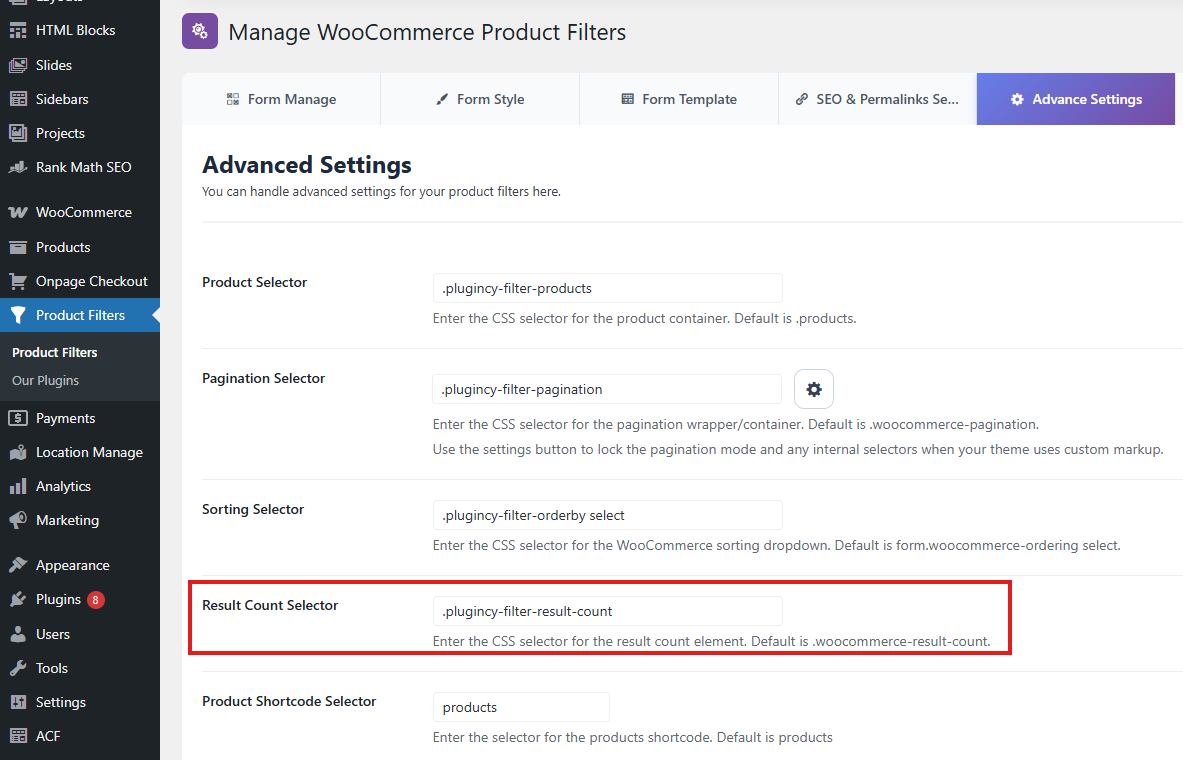
The .plugincy-filter-result-count class identifies the WooCommerce result count area.
The result count usually displays text such as:
Showing 1–12 of 48 results
This section should update when products are filtered.
Where It Is Useful
Use this class in the Result Count Selector setting.
Go to:
Product Filters → Advanced Settings → Result Count Selector
Recommended selector for custom layouts:
.plugincy-filter-result-count
When to Use It
Use .plugincy-filter-result-count if:
- Product results update but the result count does not.
- The result count shows the wrong number after filtering.
- Your theme uses custom result count markup.
- WooCommerce Blocks or a page builder changes the result count wrapper.
- The default selector does not exist in your theme.
Default Alternative
For standard WooCommerce themes, the default result count selector is usually:
.woocommerce-result-count
If the default selector works, you can keep it.
.plugincy-filter-product-item
The .plugincy-filter-product-item class identifies individual product cards/items inside the product grid.
This class is useful for styling, layout compatibility, and advanced theme troubleshooting.
Where It Is Useful
Use this class when you need to target individual product items in custom CSS or when debugging product grid layouts.
Example:
.plugincy-filter-product-item
When to Use It
Use .plugincy-filter-product-item if:
- Product cards need custom styling after AJAX updates.
- Your theme uses non-standard product item classes.
- Product item spacing changes after filtering.
- Product cards load correctly but layout styling is inconsistent.
- You need a stable selector for custom JavaScript or CSS.
Example CSS
.plugincy-filter-product-item {
    margin-bottom: 24px;
}
Use custom CSS only if your theme requires it.
Where to Configure Selectors
You can configure important selectors from:
WordPress Dashboard → Product Filters → Advanced Settings
Important selector fields include:
Product Selector
Pagination Selector
Sorting Selector
Result Count Selector
For standard WooCommerce themes, the default selectors usually work.
For block themes, custom themes, and page builders, the injected classes may be more reliable.
Recommended Selector Setup
Standard WooCommerce Theme
Use the default selectors:
Product Selector: ul.products
Pagination Selector: .woocommerce-pagination
Sorting Selector: form.woocommerce-ordering select
Result Count Selector: .woocommerce-result-count
WooCommerce Blocks or Block Themes
Use the injected classes:
Product Selector: .plugincy-filter-products
Pagination Selector: .plugincy-filter-pagination
Sorting Selector: .plugincy-filter-orderby select
Result Count Selector: .plugincy-filter-result-count
Custom Theme or Page Builder Layout
Start with the default selectors. If filtering does not update the correct area, use the injected classes:
.plugincy-filter-products
.plugincy-filter-pagination
.plugincy-filter-orderby select
.plugincy-filter-result-count
If your layout has multiple product grids, use a more specific selector that targets only the intended product grid.
WooCommerce Blocks Compatibility
WooCommerce Blocks and block themes may not use classic WooCommerce markup.
For example, a block-based product layout may not use:
ul.products
or:
.woocommerce-pagination
In these cases, the plugin’s injected classes help identify product and pagination areas more consistently.
Recommended selectors for WooCommerce Blocks:
Product Selector: .plugincy-filter-products
Pagination Selector: .plugincy-filter-pagination
This is especially useful for:
Product Collection blocks
Product Template blocks
Query Loop layouts
WooCommerce pagination blocks
Block-based archive templates
Full Site Editing themes
Custom Theme Troubleshooting
If filtering does not work correctly on a custom theme, check whether the theme uses standard WooCommerce markup.
Step 1: Inspect the product grid
Check if the product grid uses:
ul.products
If not, try:
.plugincy-filter-products
Step 2: Inspect pagination
Check if pagination uses:
.woocommerce-pagination
If not, try:
.plugincy-filter-pagination
Step 3: Inspect sorting
Check if sorting uses:
form.woocommerce-ordering select
If not, try:
.plugincy-filter-orderby select
Step 4: Inspect result count
Check if result count uses:
.woocommerce-result-count
If not, try:
.plugincy-filter-result-count
Common Issues and Solutions
Products do not update after filtering
Use:
.plugincy-filter-products
as the Product Selector.
Pagination disappears after filtering
Use:
.plugincy-filter-pagination
as the Pagination Selector.
Sorting reloads the full page
Use:
.plugincy-filter-orderby select
as the Sorting Selector.
Also make sure Product Sorting via AJAX is enabled.
Result count does not update
Use:
.plugincy-filter-result-count
as the Result Count Selector.
Product item styling breaks after AJAX filtering
Use .plugincy-filter-product-item in your custom CSS to style product cards consistently.
Example:
.plugincy-filter-product-item {
    clear: none;
}
Best Practices
Use default WooCommerce selectors first.
Use injected classes when default selectors do not work.
Use the most specific selector when multiple product grids exist on the same page.
Avoid using overly broad selectors such as:
div
section
.products
Broad selectors may cause the plugin to update the wrong part of the page.
After changing selectors, test:
Filtering
Pagination
Sorting
Result count
Reset button
Active filter chips
Mobile layout
WooCommerce archive pages
Category/tag/brand pages
Clear cache after changing selector settings.
Summary
Dynamic AJAX Product Filters for WooCommerce automatically injects helper classes to improve compatibility with themes, builders, WooCommerce Blocks, and custom layouts.
Important classes include:
.plugincy-filter-products
.plugincy-filter-pagination
.plugincy-filter-orderby
.plugincy-filter-result-count
.plugincy-filter-product-item
Use these classes in Advanced Settings when default WooCommerce selectors do not work correctly.
Recommended setup for block themes and custom layouts:
Product Selector: .plugincy-filter-products
Pagination Selector: .plugincy-filter-pagination
Sorting Selector: .plugincy-filter-orderby select
Result Count Selector: .plugincy-filter-result-count
These classes make AJAX filtering more reliable across classic WooCommerce themes, WooCommerce Blocks, block themes, page builders, and custom product archive layouts.