
Dynamic AJAX Product Filters for WooCommerce includes a Terms Search option that allows customers to search inside long filter option lists.
This is useful when a filter contains many terms, such as many categories, brands, colors, sizes, manufacturers, collections, materials, or custom taxonomy values.
Instead of scrolling through a long list, customers can type inside the filter section and quickly find the option they want.
What is Terms Search?
Terms Search adds a small search field inside a filter widget.
For example, if your Brand filter has many brands, customers can type a brand name inside the Brand filter and quickly find the matching brand option.
Example:
Brand Filter
Search brands...
Nike
Adidas
Puma
Samsung
Apple
Sony
This search only searches inside that filter’s available terms. It does not search products directly.
Difference Between Product Search and Terms Search
Dynamic AJAX Product Filters includes both product search and terms search, but they are used for different purposes.
| Feature | What it searches | Example |
|---|---|---|
| Product Search | Searches WooCommerce products | Search for “shirt” to find products with shirt in the title |
| Terms Search | Searches filter options inside a filter widget | Search “Nike” inside the Brand filter to find the Nike brand option |
Product Search
Product Search is a filter type that searches products by product title or keyword.
Example:
Search products
A customer may search:
running shoes
The product list updates and shows matching products.
Terms Search
Terms Search does not search product titles. It only helps customers find options inside a filter list.
Example:
Search brands
A customer may search:
Nike
The Brand filter list narrows down and shows matching brand terms.
The product list updates only after the customer selects a filter option.
When Should You Use Terms Search?
Use Terms Search when a filter has many options.
Recommended for:
Brand filters
Category filters
Attribute filters
Custom taxonomy filters
Custom field filters
Large tag lists
Manufacturer lists
Collection lists
Material lists
Compatibility lists
Terms Search is especially helpful when customers would otherwise need to scroll through many options.
Good Use Cases
Brand Filter
Use Terms Search if your store has many brands.
Example placeholder:
Search brands
Category Filter
Use Terms Search if your store has a large category tree.
Example placeholder:
Search categories
Attribute Filter
Use Terms Search for attributes with many terms, such as color, size, material, style, model, or compatibility.
Example placeholder:
Search colors
Search sizes
Search materials
Custom Taxonomy Filter
Use Terms Search for custom taxonomy filters with many terms.
Example:
Search collections
Search manufacturers
How to Enable Terms Search
To enable search inside a filter option list:
- Go to WordPress Dashboard.
- Navigate to Product Filters → Form Style.
- From Configure Style for, select the filter you want to customize.
- Enable Terms Search or Enable Terms Search.
- Enter the search placeholder/text.
- Choose the search position if available.
- Click Save Changes.
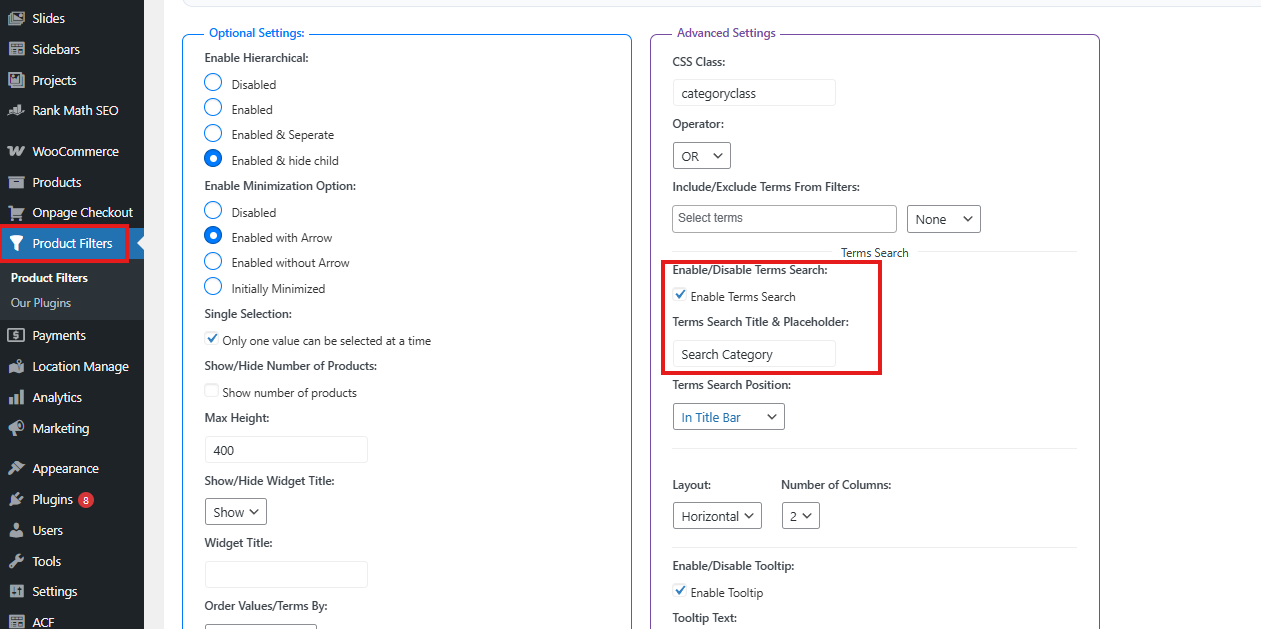
After saving, open the shop page and check the selected filter widget.
Supported Filter Types
Terms Search is best suited for term-based filters.
Common supported filters include:
Categories
Tags
Attributes
Brands
Authors
Stock Status
Sale Status
Featured Products
Custom Fields
Custom Taxonomies
For filters with only a few options, Terms Search may not be necessary.
For example, Stock Status usually has only a few options, so a search field may not improve the user experience.
Terms Search Placeholder/Text
The Terms Search Text option controls the placeholder or label shown inside the search field.
Use clear text that tells customers what they can search.
Examples:
Search options
Search brands
Search categories
Search colors
Search collections
Search manufacturers
Best Placeholder Examples
Use filter-specific placeholder text when possible.
| Filter | Recommended Placeholder |
|---|---|
| Category | Search categories |
| Brand | Search brands |
| Color | Search colors |
| Size | Search sizes |
| Material | Search materials |
| Collection | Search collections |
| Manufacturer | Search manufacturers |
| Compatibility | Search compatibility |
Avoid unclear text such as:
Search
or:
Type here
A specific placeholder helps customers understand what the search field does.
Search Position
The Terms Search Position option controls where the search field appears inside the filter widget.
Depending on the selected filter style, the search field may appear before or inside the term list.
Common positions include:
Before filter options
Inside the filter area
Above the term list
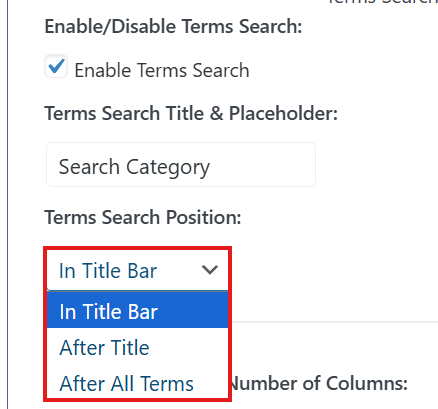
For most stores, placing the search field above the term list gives the best experience because customers see it before scrolling through options.
Recommended Position
For long lists, use:
Above the filter options
This makes the search field easy to find.
For compact layouts, use the position that best matches your filter design.
Example Setup for Brand Filter
To enable search inside the Brand filter:
- Go to Product Filters → Form Style.
- Select Brands from Configure Style for.
- Enable Terms Search.
- Set Terms Search Text to:
Search brands
- Set Terms Search Position to show the search field above the options.
- Save changes.
Customers can now search brand names inside the Brand filter.
Example Setup for Category Filter
To enable search inside the Category filter:
- Go to Product Filters → Form Style.
- Select Category Options from Configure Style for.
- Enable Terms Search.
- Set Terms Search Text to:
Search categories
- Save changes.
This is useful for stores with many product categories.
Example Setup for Attribute Filter
To enable search inside an attribute filter:
- Go to Product Filters → Form Style.
- Select Attributes.
- Choose the specific attribute, such as Color, Size, or Material.
- Enable Terms Search.
- Add a placeholder such as:
Search colors
or:
Search materials
- Save changes.
Customers can now search inside the selected attribute options.
Example Setup for Custom Taxonomy Filter
To enable search inside a custom taxonomy filter:
- Go to Product Filters → Form Style.
- Select Custom Taxonomies.
- Choose the specific custom taxonomy.
- Enable Terms Search.
- Add a placeholder such as:
Search collections
- Save changes.
This is helpful for stores with large custom taxonomy term lists.
Best Practices
Use Terms Search only when a filter has many options.
Use clear placeholder text.
Use filter-specific placeholders instead of generic text.
Place the search field above the options for long lists.
Do not enable terms search for very small filters unless needed.
Use Terms Search with max-height settings to make long lists easier to browse.
Test the search field on desktop and mobile.
Recommended Setup for Long Lists
Enable Terms Search: On
Terms Search Text: Search options
Terms Search Position: Above options
Max Height: Enabled or configured
Recommended Setup for Brand Filter
Enable Terms Search: On
Terms Search Text: Search brands
Terms Search Position: Above options
Recommended Setup for Attribute Filter
Enable Terms Search: On
Terms Search Text: Search attribute options
Terms Search Position: Above options
Troubleshooting
Terms Search field is not showing
Check that Enable Terms Search is enabled for the specific filter from:
Product Filters → Form Style
Also confirm that the selected filter style supports term lists.
Search text is not changing
Update the Terms Search Text field for the selected filter.
Then save changes and clear cache if needed.
Search field appears in the wrong place
Check the Terms Search Position setting and choose the position that best fits your filter layout.
Terms Search does not filter products
This is expected.
Terms Search only searches inside the filter option list. It does not directly search WooCommerce products.
To search products, use the plugin’s Search Product filter.
Search does not find a term
Check the exact term name in WooCommerce.
For example, if the term is saved as:
T-Shirt
Searching for a very different spelling may not match it.
Terms Search is unnecessary for small filters
If a filter has only two or three options, disable Terms Search for that filter to keep the interface cleaner.
Summary
Terms Search allows customers to search inside filter option lists.
Use it for long lists such as:
Brands
Categories
Attributes
Custom taxonomies
Custom fields
Manufacturers
Collections
Materials
It is different from Product Search. Product Search searches WooCommerce products, while Terms Search only helps customers find filter options inside a specific filter widget.
For best results, enable Terms Search on long filter lists, use clear placeholder text, and place the search field above the filter options.