
Dynamic AJAX Product Filters for WooCommerce allows customers to move between product pages without reloading the entire page. When Pagination via AJAX is enabled, only the product list, pagination area, and related WooCommerce result sections are updated dynamically.
This helps create a faster shopping experience and keeps selected filters active while customers browse paginated product results.
What is AJAX Pagination?
WooCommerce normally reloads the page when a customer clicks a pagination link, such as page 2, page 3, next, or previous.
With AJAX Pagination, the plugin handles pagination clicks dynamically. The product area updates through AJAX while the selected filters, sorting, and active filter state remain applied.
How to Enable Pagination via AJAX
To enable AJAX pagination:
- Go to your WordPress Dashboard.
- Navigate to Product Filters → Advanced Settings.
- Find the Pagination via AJAX option.
- Enable the option.
- Click Save Changes.
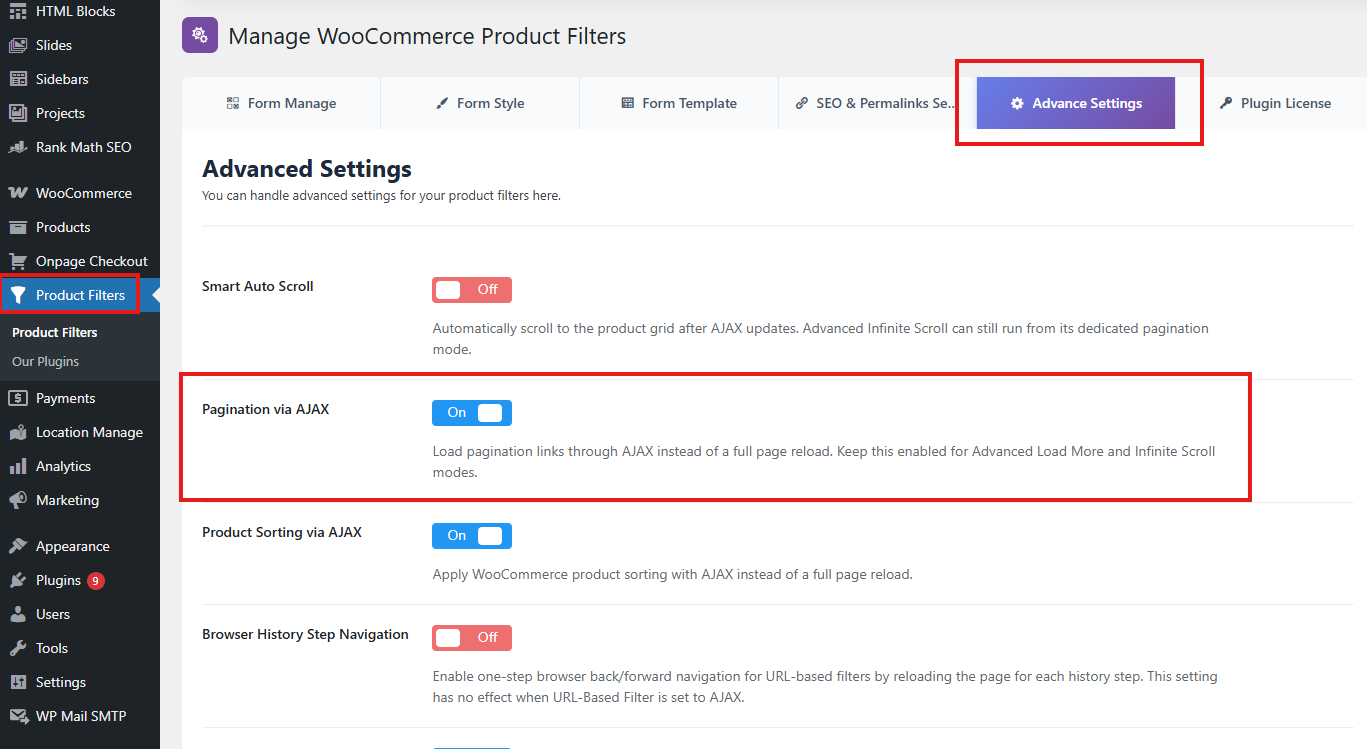
After enabling this option, pagination links on WooCommerce product listing pages will be handled through AJAX instead of a full page reload.
Pagination Selector
The Pagination Selector tells the plugin which pagination area should be controlled and updated after filtering.
The default WooCommerce pagination selector is:
.woocommerce-pagination
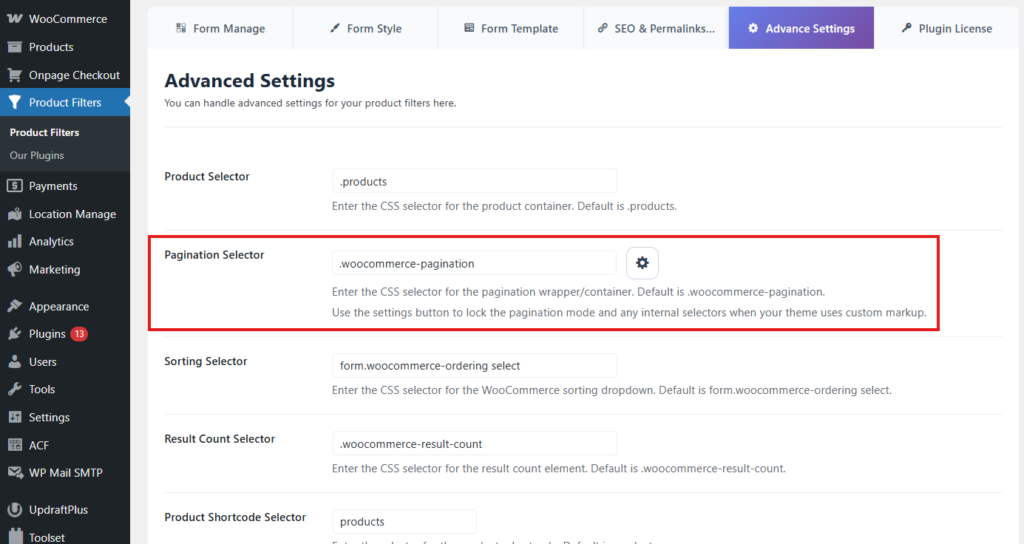
For most WooCommerce themes, this selector works without any change.
When Should You Change the Pagination Selector?
You should change the pagination selector only if AJAX pagination is not working correctly on your site.
This may happen when:
- Your theme uses custom pagination markup.
- Your page builder replaces the default WooCommerce pagination.
- Pagination links reload the full page instead of updating through AJAX.
- Pagination disappears after applying filters.
- The plugin cannot detect the pagination wrapper.
- Your theme uses a custom “Load More” button.
- Your theme uses infinite scroll pagination.
Example Custom Pagination Selectors
If your theme uses a custom pagination wrapper like this:
<nav class="shop-products-pagination">
    ...
</nav>
Use:
.shop-products-pagination
If your pagination uses a custom ID:
<div id="product-pagination">
    ...
</div>
Use:
#product-pagination
If your theme uses WordPress-style pagination:
<div class="nav-links">
    ...
</div>
Use:
.nav-links
Advanced Pagination Settings
Some themes do not use the standard WooCommerce numbered pagination. Instead, they may use previous/next buttons, a “Load More” button, or an infinite scroll trigger.
For those cases, the plugin includes advanced pagination settings.
These settings are useful when the normal Pagination Selector is not enough to detect or control your theme’s pagination system.
Advanced Pagination Mode
The Advanced Pagination Mode defines how the plugin should handle pagination behavior for custom layouts.
Common pagination types include:
- Numbered pagination
- Previous/next pagination
- Load More button pagination
- Infinite scroll style pagination
The default mode is usually suitable for standard WooCommerce numbered pagination.
Use advanced pagination mode only when your theme or page builder uses a non-standard pagination system.
Previous Button Selector
The Previous Selector is used when your theme has a separate previous-page button.
Example markup:
<a class="prev-page" href="/shop/page/2/">Previous</a>
Example selector:
.prev-page
Use this when the previous pagination button is not inside the main WooCommerce pagination wrapper or when the plugin cannot detect it automatically.
Next Button Selector
The Next Selector is used when your theme has a separate next-page button.
Example markup:
<a class="next-page" href="/shop/page/3/">Next</a>
Example selector:
.next-page
Use this when the next pagination button is custom-built or placed outside the standard WooCommerce pagination container.
Trigger Selector
The Trigger Selector is useful for custom pagination systems that rely on a button or trigger element.
This is commonly used for:
- Load More buttons
- Infinite scroll triggers
- Custom page-builder pagination buttons
Example Load More button:
<button class="load-more-products" data-page="2">
    Load More
</button>
Example selector:
.load-more-products
Infinite Scroll and Load More Compatibility
If your theme or page builder uses Load More or Infinite Scroll, the standard WooCommerce pagination selector may not be enough.
In that case, configure the advanced pagination settings based on your theme’s pagination structure.
For Load More pagination, use the button selector as the trigger selector:
.load-more-products
For infinite scroll, use the selector for the element that triggers the next product load. This may be a button, hidden link, or pagination trigger added by your theme.
Important: AJAX pagination support depends on how the theme or infinite scroll script loads products. If another script fully controls pagination and replaces the product loop independently, you may need to disable that script’s pagination behavior or use the plugin’s compatible selector settings.
Auto Pagination Class Normalization
To improve theme compatibility, the plugin automatically adds a stable class to detected pagination elements:
plugincy-filter-pagination
The plugin attempts to normalize pagination markup across:
- Default WooCommerce pagination
- WordPress navigation markup
- WooCommerce block pagination
- Core query pagination
- Theme pagination wrappers
- Pagination lists using
page-numbers - Pagination wrappers using
nav-links
This helps the plugin detect pagination more reliably, even when themes slightly modify WooCommerce’s default pagination structure.
Recommended Setup for Standard WooCommerce Themes
For most stores, use the default settings:
Pagination Selector: .woocommerce-pagination
Keep Pagination via AJAX enabled.
Use advanced pagination settings only when pagination does not work with the default selector.
Recommended Setup for Custom Themes
If your theme uses custom pagination, inspect the pagination markup and choose the most stable wrapper selector.
Good selector examples:
.woocommerce-pagination
.plugincy-filter-pagination
.shop-products-pagination
.product-pagination
nav.pagination
Avoid overly broad selectors like:
a
.pagination a
div
A selector that is too broad may cause the plugin to target the wrong element.
Troubleshooting AJAX Pagination
Pagination reloads the full page
Make sure Pagination via AJAX is enabled.
Then check whether your theme uses the default WooCommerce pagination wrapper:
.woocommerce-pagination
If not, update the Pagination Selector field with your theme’s pagination wrapper.
Pagination disappears after filtering
Check that the selected pagination wrapper still exists after AJAX filtering. Some themes replace or remove pagination markup when product results are updated.
Try using:
.plugincy-filter-pagination
or a more stable custom wrapper from your theme.
Pagination links do not respond
Your theme may be using custom JavaScript for pagination. In this case, configure the advanced pagination mode and add the correct previous, next, or trigger selector.
Load More button does not work
Add the Load More button class or ID as the trigger selector.
Example:
.load-more-products
Also make sure the product selector is correct, because the plugin needs to know where new products should be loaded.
Default product selector:
ul.products
Infinite scroll does not work correctly
Infinite scroll behavior depends on your theme or third-party script. Use the trigger selector if your theme provides a hidden or visible next-page trigger.
If another infinite scroll script conflicts with AJAX filtering, consider disabling that script on filtered product pages and using normal AJAX pagination instead.
Pagination works, but products do not update
Check the Product Selector in Advanced Settings.
Default product selector:
ul.products
If your theme uses a custom product wrapper, replace it with the correct selector.
Pagination works, but result count does not update
Check the Result Count Selector.
Default result count selector:
.woocommerce-result-count
Best Practices
Use the default pagination selector unless your theme requires a custom one.
Use the main pagination wrapper as the selector, not individual pagination links.
Use advanced pagination settings only for custom previous/next, load more, or infinite scroll layouts.
After changing pagination settings, test pagination with filters, sorting, search, and reset buttons.
Avoid running multiple pagination systems at the same time, such as theme infinite scroll plus plugin AJAX pagination, unless they are confirmed compatible.
Summary
The Pagination via AJAX option allows customers to browse product pages without a full page reload. The default pagination selector is:
.woocommerce-pagination
For custom themes, page builders, Load More buttons, or infinite scroll layouts, use the advanced pagination settings to define the correct previous, next, or trigger selector.
The plugin also adds normalized pagination classes, such as:
plugincy-filter-pagination
This improves compatibility with WooCommerce themes, block templates, and custom pagination structures.