

Trying to sort products in WooCommerce but not getting the order you want? This is one of the most common issues store owners face when managing product visibility and improving user experience. Whether you want to display best-selling items first or organize products by price, proper sorting plays a key role in how customers interact with your store.
Sorting products in WooCommerce helps you control how items appear on shop and category pages. By adjusting default sorting, using manual ordering, or applying advanced logic, you can guide customers toward the right products faster. Many users also search for how to sort products in WooCommerce when default options do not behave as expected or fail to match their sales strategy. When done correctly, sorting improves navigation, reduces confusion, and can directly impact conversions by highlighting the most relevant products at the right time.
Quick Answer
To sort products in WooCommerce, go to Appearance > Customize > WooCommerce > Product Catalog and set your default sorting option (such as price, popularity, or rating). You can also manually reorder products from Products > All Products using the drag and drop sorting feature. For advanced sorting like stock-based or dynamic sorting, a plugin is required.
To make this clearer, here are the main ways you can sort products:
- Change default sorting: Set how products appear globally across your shop page using built-in WooCommerce settings. This controls the first impression customers see when they land on your store.
- Manual product sorting: Use drag and drop to arrange products in a custom order. This is useful when you want to push specific items, promotions, or featured products to the top.
- Category-level sorting: Control product order inside specific categories. This helps when different categories need different sorting logic based on product type or customer behavior.
- Advanced sorting with plugins: Add features like sorting by stock status, custom attributes, or real-time AJAX sorting. This is essential for larger stores or when default sorting feels limited.
This quick setup covers most use cases, but if your sorting is not working properly or feels restricted, the next sections will break down exactly why and how to fix it.
What “Sort Products in WooCommerce” Actually Means
Before applying any settings or fixes, it helps to understand what product sorting really controls inside WooCommerce. This section gives a clear picture so the next steps make more sense.
- Default sorting system (built-in logic): WooCommerce comes with a predefined sorting system that includes options like menu order, popularity, rating, and latest products. When no custom rule is applied, this default logic decides how products appear on the shop page. Many users searching for sort products in WooCommerce are trying to adjust this behavior to better match their store goals.
- Global vs category-level sorting: Sorting can work at two levels. Global sorting applies across the entire shop page, while category-level sorting controls how products appear inside specific categories. This is important because different product groups often need different display priorities.
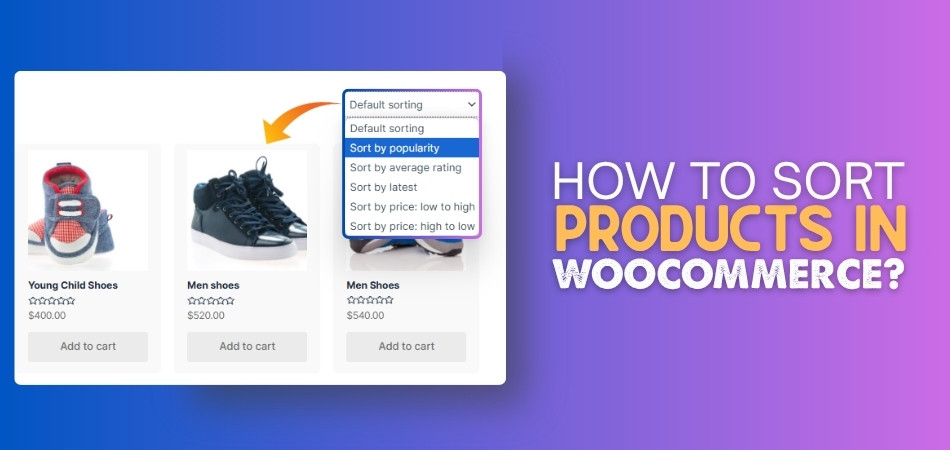
- Frontend (user-controlled) sorting: Customers can also sort products using the dropdown on the shop page. This allows them to switch between price, popularity, or latest items. However, this only works within the limits set by your backend configuration.
- Backend (admin-controlled) sorting: Store owners control the default sorting logic from the backend. This includes setting the default order, arranging products manually, or defining how WooCommerce should prioritize items automatically.
- Dynamic vs static sorting behavior: Static sorting stays fixed based on your settings, while dynamic sorting changes in real time based on user actions or filters. Advanced stores often need dynamic sorting for better performance and user experience.
Understanding how WooCommerce sorting works helps you avoid confusion and makes it easier to choose the right method for better product visibility and conversions.
Why Product Sorting Matters?
Now that you understand what sorting means, the next step is to see why it actually matters for your store performance. Many store owners ignore this, but product order directly affects how users browse, click, and buy.
- Improves product discovery: When products are sorted properly, customers can quickly find what they are looking for without scrolling too much. This reduces frustration and keeps users engaged, especially in stores with large catalogs where poor sorting can easily confuse visitors.
- Highlights high-converting products: Sorting allows you to push best-selling or high-margin products to the top. Instead of relying on random order, you can guide customers toward items that already perform well, increasing the chances of conversion.
- Reduces bounce rate: If visitors land on a shop page and see irrelevant or poorly ordered products, they leave quickly. Proper sorting keeps the most relevant products visible first, which encourages users to stay longer and explore more.
- Supports different buying behaviors: Some customers prefer sorting by price, while others look for top-rated or newest products. Offering structured sorting options helps different types of buyers navigate your store in a way that suits them.
- Increases average order value (AOV): By strategically placing products, you can influence what customers see first. Showing premium or bundled products higher in the list often leads to higher cart value without changing pricing.
Product sorting is not just a design choice. It directly impacts how users interact with your store and plays a key role in improving conversions and overall sales.
Default WooCommerce Sorting Options (Explained Clearly)
Before moving to advanced setups, it is important to understand the built-in sorting options WooCommerce already provides. These are the foundation for anyone trying to sort products in WooCommerce effectively.
- Default sorting (Custom + Menu Order): This option uses manual product order set by you. You can drag and arrange products in any sequence, and WooCommerce will follow that exact order. It is useful when you want full control over product positioning.
- Sort by popularity (Sales-based): Products are arranged based on total sales. Items that sell more appear higher. This is helpful for showcasing proven products and building trust with new visitors.
- Sort by average rating: Products with higher customer ratings appear first. This works well for stores that rely on reviews to influence buying decisions and want to highlight top-rated items.
- Sort by latest (New arrivals): Recently added products show at the top. This is ideal for stores that frequently launch new items and want returning customers to quickly spot what is new.
- Sort by price (Low to high / High to low): Customers can view products based on pricing preference. This is especially useful for price-sensitive buyers who want to compare options quickly.
These default options cover basic needs, but many users searching for WooCommerce change default sorting or WooCommerce custom product sorting find them limited for real-world use cases.
Default WooCommerce sorting works for simple stores, but growing stores often need more control to match user behavior and sales strategy.
How to Sort Products in WooCommerce (Step-by-Step)
Now that you know the available options, here is how to actually apply sorting in your store. These methods cover both basic and slightly advanced use cases so you can choose what fits your setup.
1. Change Default Sorting (Global Setting)
This controls how products appear by default across your shop page.
- Go to Appearance > Customize > WooCommerce > Product Catalog
- Find the Default Product Sorting option
- Choose from options like popularity, rating, latest, or price
- Publish changes
This is the easiest way to handle WooCommerce change default sorting without touching individual products.
2. Sort Products Manually (Drag and Drop)
Use this when you want full control over product order.
- Go to Products > All Products
- Click on the Sorting view (or enable menu order)
- Drag and drop products into your desired order
- Save changes
This method is ideal for promotions, featured items, or seasonal campaigns.
3. Sort Products Within Categories
Sometimes you need different sorting for different categories.
- Go to Products > Categories
- Select a category and open it
- Adjust product order manually or apply sorting rules
This helps when each category has different priorities, such as price-focused vs premium products.
4. Use Attributes for Sorting (Advanced Setup)
For more structured sorting, attributes can help.
- Create attributes like size, brand, or color
- Assign them to products
- Use sorting logic based on these attributes
This is useful for stores with variations and complex catalogs.
5. Add Advanced Sorting with Plugins
Default WooCommerce has limits. For more control:
- Enable sorting by stock status
- Apply multi-criteria sorting (price + rating)
- Use AJAX sorting without page reload
- Combine filtering and sorting
This is where most users move when searching for WooCommerce advanced product sorting or WooCommerce AJAX sorting.
WooCommerce offers multiple ways to sort products, but choosing the right method depends on your store size and how much control you need over product visibility.
Common Sorting Problems & Fixes
Even after setting everything correctly, many users still face issues when trying to sort products in WooCommerce. This is where most searches like WooCommerce sorting not working or product order random come from. Below are the most common problems and how to fix them.
- WooCommerce sorting not working properly: Sometimes changes do not reflect on the frontend. This usually happens due to caching from themes, plugins, or server-level cache. Clear all caches and refresh permalinks to ensure updated sorting is applied correctly.
- Default sorting not applying: You may set a default option, but WooCommerce still shows a different order. This often happens when manual menu order is enabled or overridden by theme settings. Check if custom sorting is taking priority over your selected default.
- Products showing in random order: This issue appears when no clear sorting rule is active or conflicts exist. Ensure that either default sorting or manual ordering is properly configured. Also check for plugins that modify product queries.
- Sort by price not working correctly: Price sorting can break if variable products or custom pricing plugins are involved. Make sure all product prices are set correctly and consistent across variations. Recalculate product lookup tables if needed.
- Sorting conflicts with themes or plugins: Some themes override WooCommerce sorting behavior, and certain plugins inject custom queries. Temporarily disable third-party plugins to identify the conflict and test sorting again.
- AJAX sorting not updating results: If you are using AJAX-based sorting, results may not refresh due to JavaScript conflicts or outdated scripts. Check browser console errors and ensure scripts are loading properly.
Most sorting issues are caused by conflicts or misconfigurations. Fixing them requires checking settings, clearing cache, and ensuring no plugin or theme overrides your sorting logic.
Where Default WooCommerce Falls Short
Now that you’ve seen how sorting works and how to fix common issues, it becomes clear that default WooCommerce has limitations. This is exactly why many users search for WooCommerce advanced product sorting or better alternatives.
- Limited sorting logic: WooCommerce only supports basic options like price, popularity, and rating. You cannot create custom rules such as prioritizing high-margin or fast-selling products automatically.
- No conditional sorting (smart rules): You cannot sort products based on conditions like “in-stock first” or “featured products first.” This becomes a major issue for stores managing inventory actively.
- No real-time (AJAX) sorting: Default sorting reloads the page every time a user changes the option. This slows down browsing and creates a poor experience, especially on mobile devices.
- No multi-criteria sorting: You cannot combine conditions like price + rating or stock + popularity. Modern eCommerce stores often need layered logic to display the most relevant products.
- Weak experience for large stores: As your product count grows, default sorting becomes less effective. It does not scale well for stores with hundreds or thousands of products.
- Limited control over user experience: Customers can only use a basic dropdown. There is no advanced UI for combining filters and sorting together, which reduces usability.
Why This Matters for Store Growth?
When users search for WooCommerce custom product sorting or WooCommerce AJAX sorting, they are usually hitting these limitations. At this stage, basic settings are no longer enough.
This is where advanced solutions come in, especially those that combine sorting + filtering + real-time updates.
Default WooCommerce sorting is enough to start, but growing stores need smarter control to improve user experience and drive more conversions.
Advanced Product Sorting with AJAX Filters (High Conversion Section)
Once you outgrow the default options, the next step is moving to advanced sorting. This is where most store owners shift when they need better control, faster performance, and improved user experience.
- Real-time sorting without page reload: AJAX-based sorting updates products instantly when users change sorting options. This removes page reload delays and creates a smoother browsing experience, especially on mobile devices where speed matters most.
- Combine sorting with filtering: Instead of using sorting alone, you can let users filter products by price, category, attributes, or stock, and then apply sorting on top. This creates a much more refined product discovery process.
- Sort by custom conditions (smart logic): Advanced systems allow sorting based on stock status, featured products, best sellers, or even custom rules. This gives you full control over how products are prioritized in different situations.
- Multi-criteria sorting: You can combine multiple factors like price + rating or popularity + availability. This is not possible with default WooCommerce but is essential for stores with larger catalogs.
- SEO-friendly sorting URLs: Some advanced setups generate clean URLs for sorted and filtered pages. This helps search engines understand your product structure and can improve visibility for long-tail searches.
- Better mobile and UX experience: Modern sorting interfaces are designed for easy use on all devices. Users can sort and filter products quickly without confusion, which increases engagement and conversion chances.
When You Should Use Advanced Sorting
You should consider upgrading if:
- You have a large product catalog
- Customers struggle to find products easily
- You want to highlight specific products strategically
- Default sorting feels too limited for your needs
Advanced sorting transforms how users interact with your store by making product discovery faster, smarter, and more aligned with buying behavior.
Plugin Recommendation
At this stage, it is clear that default WooCommerce sorting is not enough for growing stores. If you want full control over WooCommerce advanced product sorting and better user experience, using a dedicated plugin becomes the practical solution.

Dynamic AJAX Product Filters for WooCommerce (Plugincy)
This plugin is built for stores that need both sorting and filtering in one system. Instead of relying on basic dropdown sorting, it allows you to create a complete product discovery experience.
- Advanced sorting + filtering combined: You can sort products by price, popularity, rating, or custom logic while also applying filters like category, attributes, and stock. This creates a more structured and user-friendly browsing flow.
- Fast AJAX-based sorting: Products update instantly without page reload. This improves speed and keeps users engaged, which is important for reducing drop-offs.
- Custom sorting logic support: You can prioritize in-stock products, featured items, or high-performing products. This gives you control over what customers see first.
- Built for large WooCommerce stores: Handles large product catalogs smoothly without slowing down performance. This is important when default sorting starts to break down.
- SEO-friendly filtering structure: Clean URLs for filtered and sorted pages help improve visibility for long-tail searches like WooCommerce filter and sort products.
- Flexible layout options: Works with different layouts like sidebar filters, top bar filters, or mobile-friendly designs.
If your goal is better control, faster browsing, and higher conversions, using an advanced sorting and filtering plugin is the most effective upgrade for WooCommerce.
Step-by-Step Guide to Upgrade WooCommerce Product Sorting with a Dynamic AJAX Plugin
If your store has many products, managing sorting and filtering manually can become difficult. Using a plugin makes this process much easier and more efficient. With the Dynamic AJAX Product Filters for WooCommerce plugin, you can sort and filter products instantly without reloading the page, which improves both speed and user experience.
As a powerful WooCommerce AJAX product filter, it allows you to combine sorting and filtering in one smooth system. This helps customers find the right products faster while keeping navigation simple and responsive. Below is a step-by-step guide to help you set it up correctly.
Step 1: Install the Plugin
- From your WordPress dashboard, go to Plugins > Add New
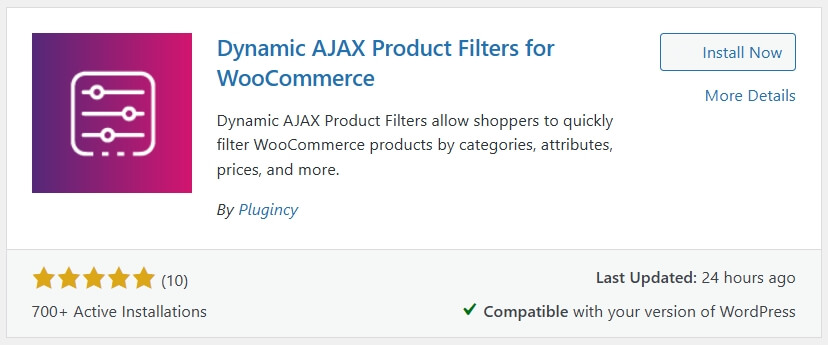
- Search for: Dynamic AJAX Product Filters for WooCommerce
- Click “Install Now“, then “Activate”
Step 2: Add Filter Widgets to Your Store
Once installed:
- Go to Appearance > Widgets
- Choose the sidebar or product filter area
- Drag widgets like:
- Filter by Price
- Filter by Category
- Filter by Attribute (e.g., color, size)
- Click Save
If you’re using Elementor or Gutenberg, you can use the plugin’s shortcodes or blocks to add filters anywhere.
Step 3: Make Sure the Sorting Dropdown Appears (Optional)
If your theme doesn’t show the sorting dropdown by default:
- Edit your theme’s archive-product.php file
- Add this line where you want the dropdown:
<?php do_action( ‘woocommerce_catalog_ordering’ ); ?> - Save the file
Now, the dropdown will appear above the product listings.
Step 4: Sorting and Filtering Work Together Automatically
This plugin integrates smoothly with WooCommerce sorting. Once set up:
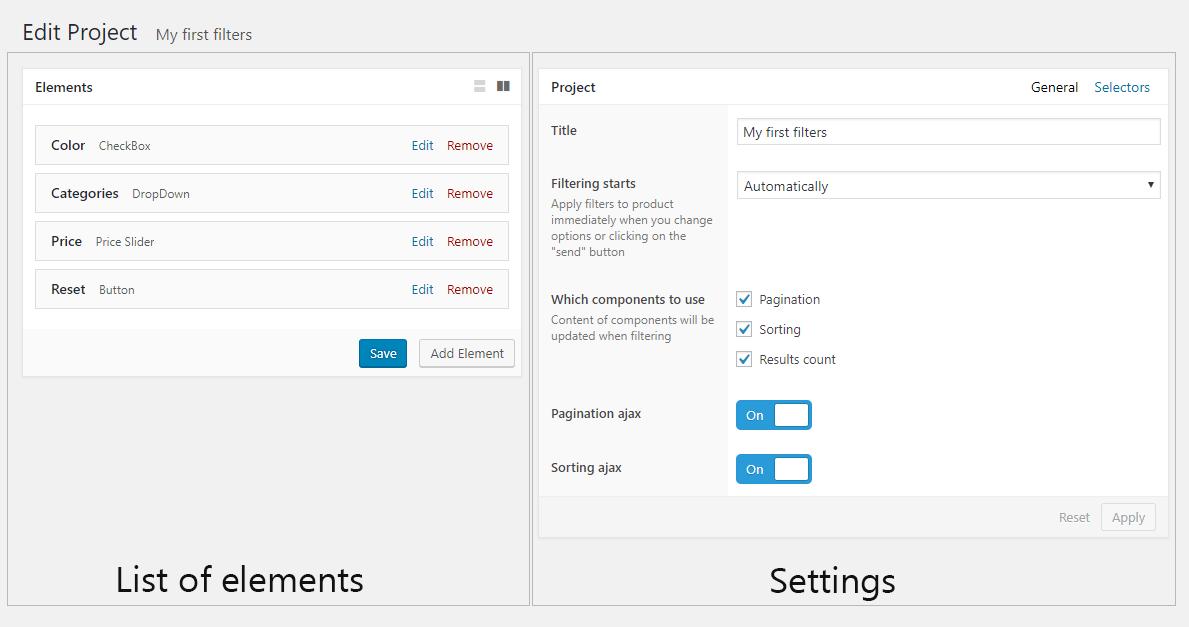
- Filters and sorting update results instantly
- No page reloads—everything works via AJAX
- Shoppers can filter by size, color, price, then sort by rating or price—seamlessly
No extra setup is needed to make this work. It just does.
Step 5: Customize Look and Behavior (Optional)
Want to personalize how sorting works or looks?
- Change dropdown text labels
- Adjust mobile positioning with CSS
- Create custom sorting rules (e.g., sort by stock levels)
Tips Before You Customize:
- Always test changes on a staging site
- Clear your WooCommerce and browser cache after updates
- Test on both desktop and mobile for best results
Sorting products the right way makes your store easier to shop. You can use WooCommerce tools or plugins, depending on what you need. Try out different methods to see what works best. Clear sorting helps visitors stay longer and buy more.
Comparison Table: Default vs Advanced Product Sorting
To make the difference clearer, here is a side-by-side comparison between default WooCommerce sorting and advanced AJAX-based sorting solutions. This helps users quickly decide what fits their needs.
| Feature | Default WooCommerce Sorting | Advanced AJAX Sorting (Plugin-Based) |
|---|---|---|
| Sorting Options | Basic (price, popularity, rating, latest) | Advanced + custom logic |
| Manual Product Order | Limited (drag and drop only) | Flexible + rule-based control |
| Real-time Updates | No (page reload required) | Yes (instant AJAX updates) |
| Multi-criteria Sorting | Not supported | Supported (combine conditions) |
| Sorting by Stock Status | Not available | Available |
| UX Experience | Basic dropdown | Interactive and user-friendly |
| Performance on Large Stores | Limited | Optimized for large catalogs |
| SEO Optimization | Minimal | SEO-friendly filter URLs |
| Mobile Experience | Average | Smooth and responsive |
What This Comparison Means
- If you have a small store with simple needs, default WooCommerce sorting may be enough.
- If you want better control, faster browsing, and improved conversions, advanced sorting is the better choice.
- Most users searching for WooCommerce product filter and sorting plugin fall into the second category.
Choosing the right sorting system depends on your store size and goals, but advanced solutions clearly offer more flexibility and better performance.
Best Sorting Strategy for Maximum Conversions
Now that you’ve seen the tools and differences, the real question is how to use sorting strategically. This section focuses on practical ways to sort products in WooCommerce to increase engagement and sales.

- Show best-selling products first: Displaying top-selling items at the top builds instant trust. Customers often follow what others are buying, so this approach helps new visitors make quicker decisions and improves overall conversion rates.
- Prioritize in-stock products: Always push available products higher in the list. Showing out-of-stock items first frustrates users and leads to drop-offs. This is especially important for stores managing inventory across multiple products.
- Use price-based sorting for deal-driven users: If your audience is price-sensitive, sorting by price (low to high) helps them quickly find affordable options. This works well for competitive niches where pricing plays a big role.
- Highlight featured or high-margin products: Manually or dynamically push products that generate higher profit. This allows you to guide customer attention without changing pricing or running discounts.
- Combine sorting with filtering: Sorting works best when paired with filters. Let users narrow down options first, then apply sorting to refine results. This improves navigation and makes product discovery faster.
- Adjust sorting by category intent: Different categories need different strategies. For example, fashion stores may prioritize new arrivals, while electronics may focus on popularity or rating.
Pro Tip for Store Owners
Do not rely on a single sorting method. Test different strategies based on user behavior and track which one performs better. Small changes in product order can lead to noticeable improvements in sales.
A smart sorting strategy is not fixed. It evolves based on your products, customers, and business goals to maximize conversions over time.
Who Needs Advanced Product Sorting?
Not every WooCommerce store requires advanced sorting from the start, but as your store grows, the need becomes clear. This section helps users understand when upgrading is necessary and why many search for WooCommerce advanced product sorting solutions.
- Large WooCommerce stores (100+ products): When your catalog grows, default sorting becomes less effective. Customers cannot easily browse through many products, so advanced sorting helps organize items in a more meaningful and user-friendly way.
- Multi-category stores: Stores with different product types need different sorting logic. For example, one category may need price sorting, while another may need popularity or new arrivals. Advanced sorting allows this flexibility.
- Stores with frequent inventory changes: If stock levels change often, showing in-stock products first becomes important. Default WooCommerce does not support this well, which is why many users look for custom sorting options.
- High-competition niches: In competitive markets, user experience matters more. Better sorting helps customers find relevant products faster, giving your store an advantage over competitors.
- Stores using filters heavily: If your store already uses filters like price, size, or brand, adding advanced sorting improves the overall experience. Users can filter and sort together, making navigation smoother.
- Conversion-focused stores: Stores that actively optimize for sales often use sorting to highlight best-performing or high-margin products. This allows better control over what customers see first.
If your store is growing or you want better control over product visibility, advanced sorting is not optional. It becomes a core part of improving user experience and increasing sales.
Advanced product sorting is essential for stores aiming to scale, improve navigation, and guide customers toward the right products more effectively.
Common Mistakes to Avoid
Even after learning how to sort products in WooCommerce, many store owners make small mistakes that reduce the effectiveness of their setup. Avoiding these will help you get better results from your sorting strategy.
- Relying only on default sorting: Many users stick with basic options like popularity or latest products without testing other methods. This limits control and may not match how your customers actually browse or buy products.
- Ignoring mobile user experience: A large portion of users browse from mobile devices. If sorting is slow or confusing on smaller screens, users may leave quickly. Always ensure sorting works smoothly on mobile.
- Not testing sorting performance: Setting a sorting method once and forgetting it is a common mistake. You should test different sorting strategies and track which one improves engagement and conversions.
- Overloading sorting options: Giving too many sorting choices can confuse users. Keep options simple and relevant so customers can make quick decisions without hesitation.
- Not combining sorting with filtering: Sorting alone is not enough for large stores. Without filters, users still struggle to narrow down products. Combining both creates a better browsing experience.
- Ignoring stock-based visibility: Showing out-of-stock products at the top can frustrate users. Always prioritize available items to improve satisfaction and reduce drop-offs.
Small mistakes in sorting can lead to poor user experience even if your products are good. Fixing these issues helps you fully benefit from your WooCommerce setup.
Avoiding common sorting mistakes ensures better navigation, improved user experience, and stronger conversion performance for your store.
FAQ
How do I sort products in WooCommerce?
You can sort products by going to Appearance > Customize > WooCommerce > Product Catalog and selecting a default sorting option like price, popularity, or rating. For manual control, use drag and drop sorting from the Products section.
Why is WooCommerce sorting not working?
Sorting issues usually happen caching, theme conflicts, or plugin interference. Clear cache, check theme settings, and disable conflicting plugins to fix the problem.
Can I sort products by stock status in WooCommerce?
By default, WooCommerce does not support sorting by stock status. To show in-stock products first, you need a plugin that allows custom sorting logic.
How to create custom product sorting in WooCommerce?
Custom sorting can be done using manual ordering, custom code, or plugins. For advanced logic like combining multiple conditions, plugins are the easiest and most effective option.
What is the best plugin for WooCommerce product sorting?
Plugins that offer AJAX-based sorting and filtering are considered the best. They provide real-time updates, better user experience, and more control over product display.
Does product sorting affect SEO?
Sorting itself does not directly impact SEO, but it improves user experience, reduces bounce rate, and increases engagement. These factors indirectly help your rankings.
Final Thoughts
Sorting products in WooCommerce is not just a basic setting. It is a core part of how users explore your store and decide what to buy. From default sorting to advanced logic, every step you take to improve product order directly affects user experience and sales performance.
If you are running a small store, basic sorting options may work for now. But as your catalog grows and customer expectations increase, relying only on default WooCommerce features will limit your results. This is where combining sorting + filtering + real-time updates becomes important for better navigation and faster decision-making.
Many users searching for how to sort products in WooCommerce or WooCommerce advanced product sorting are actually looking for more control and flexibility. Using the right approach allows you to highlight the right products, reduce confusion, and guide customers toward purchase.
If you want better control, smoother browsing, and higher conversions, upgrading your sorting system with an advanced solution is the logical next step.
Smart product sorting helps users find products faster and improves conversions, making it a key factor in long-term WooCommerce store growth.
