The Slidario dashboard is the first page under Slidario. It shows how your sliders perform over the last 30 days, what needs your attention, and shortcuts to create a slider or start from a template. The banner greets you with your slider count and views today, and has Browse templates and Create slider buttons.

Stat cards
Active sliders, Views · 30 days, Clicks with the click rate, and Add to cart from sliders. Each card has a small trend line and a change compared with the 30 days before.
Performance and Top sliders
Performance charts views and clicks per day; switch between 7d, 30d and 90d. Top sliders lists the five sliders with the most clicks and their click rate (CTR).
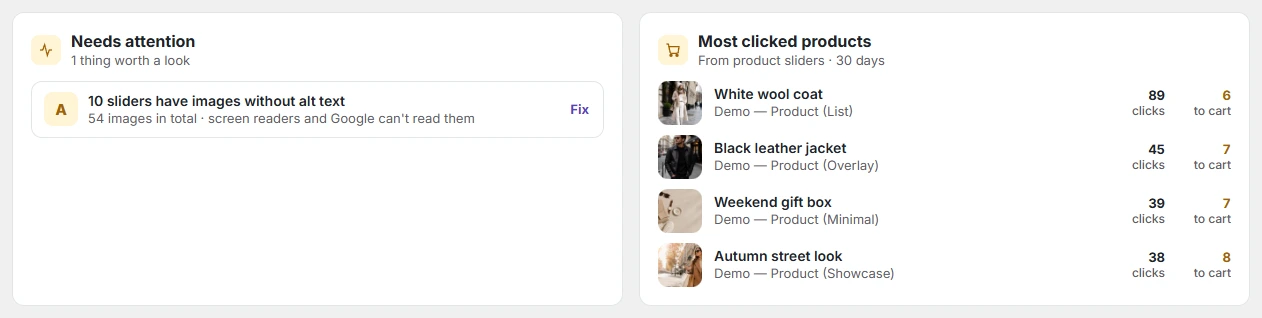
Needs attention and Most clicked products
Needs attention shows up to four alerts with a button to fix each one:
- out-of-stock products in a product slider (Review);
- images without alt text (Fix);
- a schedule that starts within 7 days or ends within 3 days (Open);
- a published slider that is not placed on any page (Copy the shortcode).
Most clicked products lists the products shoppers click most in product sliders, with clicks and add-to-cart counts.
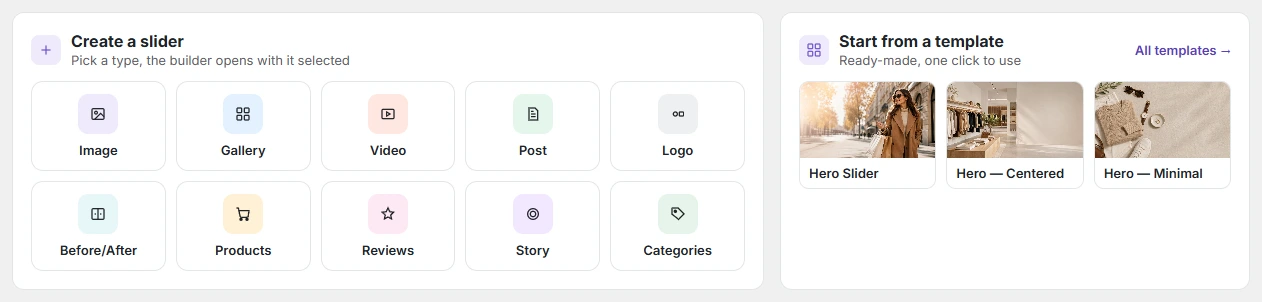
Create a slider and Start from a template
Click a type to open the builder with that type selected, or open a template.
Recent sliders
The five sliders you edited last, with type and style, the pages they are placed on, a shortcode you can copy with one click, and views in the last 30 days.

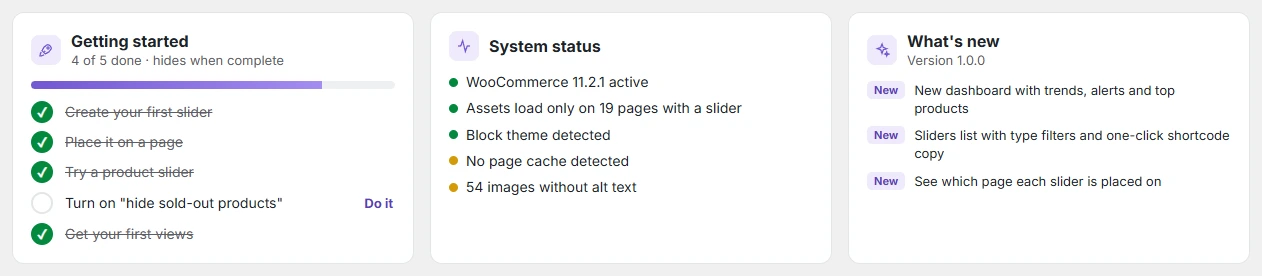
Getting started, System status and What’s new
Getting started is a five-step checklist (create a slider, place it, try a product slider, turn on “hide sold-out products”, get your first views); it hides when everything is done. System status shows whether WooCommerce is active, on how many pages slider files load, the theme type, a page cache and images without alt text.