
Display rules in Slidario Pro show a slider only when conditions match: the visitor’s device, the page type, whether they are new or returning or logged in, and a date range. When the rules do not match, the slider can show nothing or another slider in the same place.
This feature is part of Slidario Pro and works while your Pro license is active. In the free plugin it shows with a PRO badge.
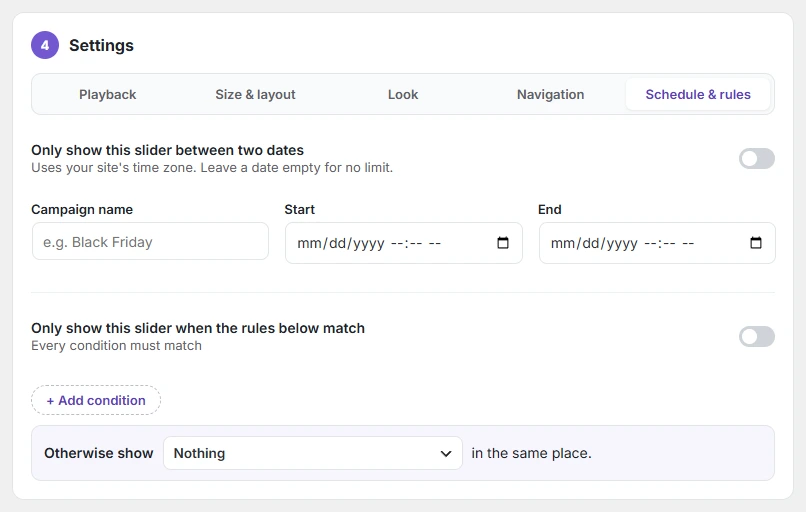
Add rules
- Open the slider and go to 4 Settings → Schedule & rules.
- Turn on Only show this slider when the rules below match. Every condition must match.
- Click + Add condition (up to 10) and set each row.
- Under Otherwise show, choose Nothing or another slider.
- Click Update.
| Condition | Options |
|---|---|
| Device is / is not | Mobile, Tablet, Desktop |
| Page is / is not | Home page, Shop, Product category, Product, Cart, Checkout, Blog post, Other page |
| Visitor is / is not | New shopper (first visit), Returning shopper, Logged in, Not logged in |
| Date | Between a start and an end date |
Example: show a “Welcome, 10% off” slider to new shoppers on mobile, and your best sellers to everyone else.
Device and visitor rules are checked in the visitor’s browser, so they work on cached pages too. A visit counts as “first visit” for 30 minutes.