
Auto-placement in Slidario Pro shows a slider on every product page, the shop, category pages or the cart without adding a block or shortcode. It can also replace WooCommerce’s own “Related products”, upsell or cross-sell sections with your slider.
This feature is part of Slidario Pro and works while your Pro license is active. In the free plugin it shows with a PRO badge.
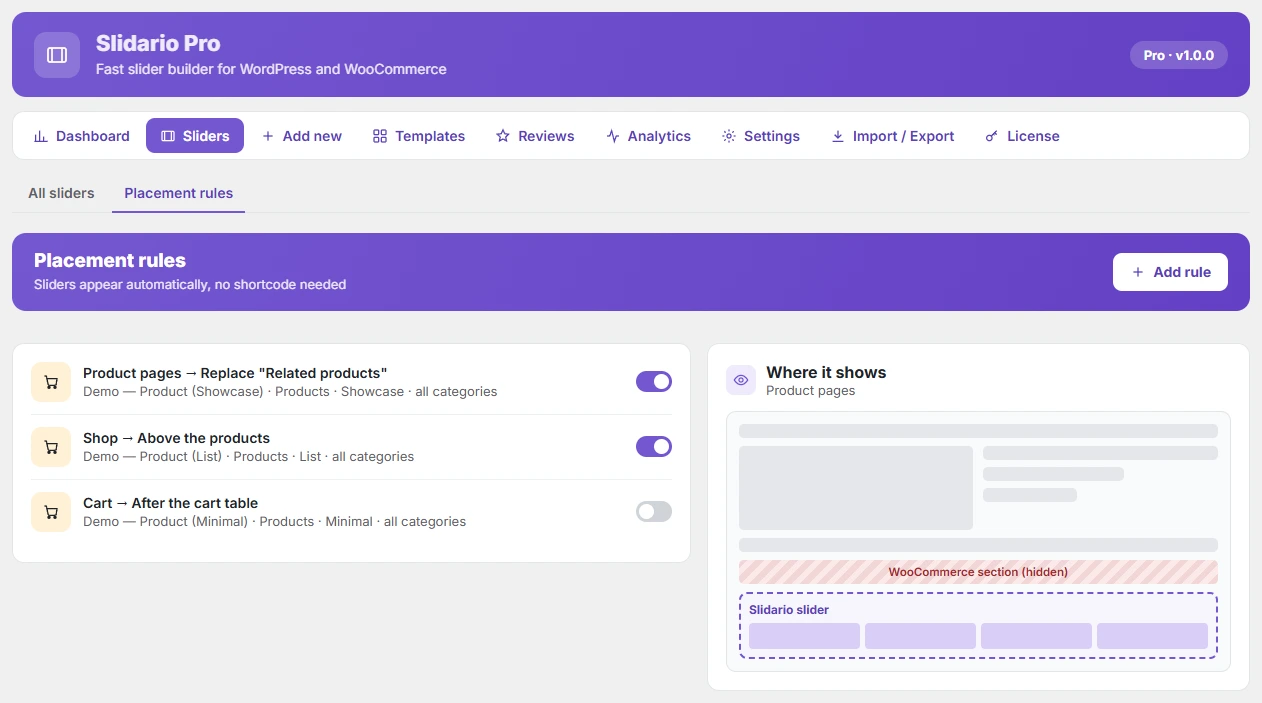
Add a rule
- Go to Slidario → Sliders → Placement rules and click Add rule.
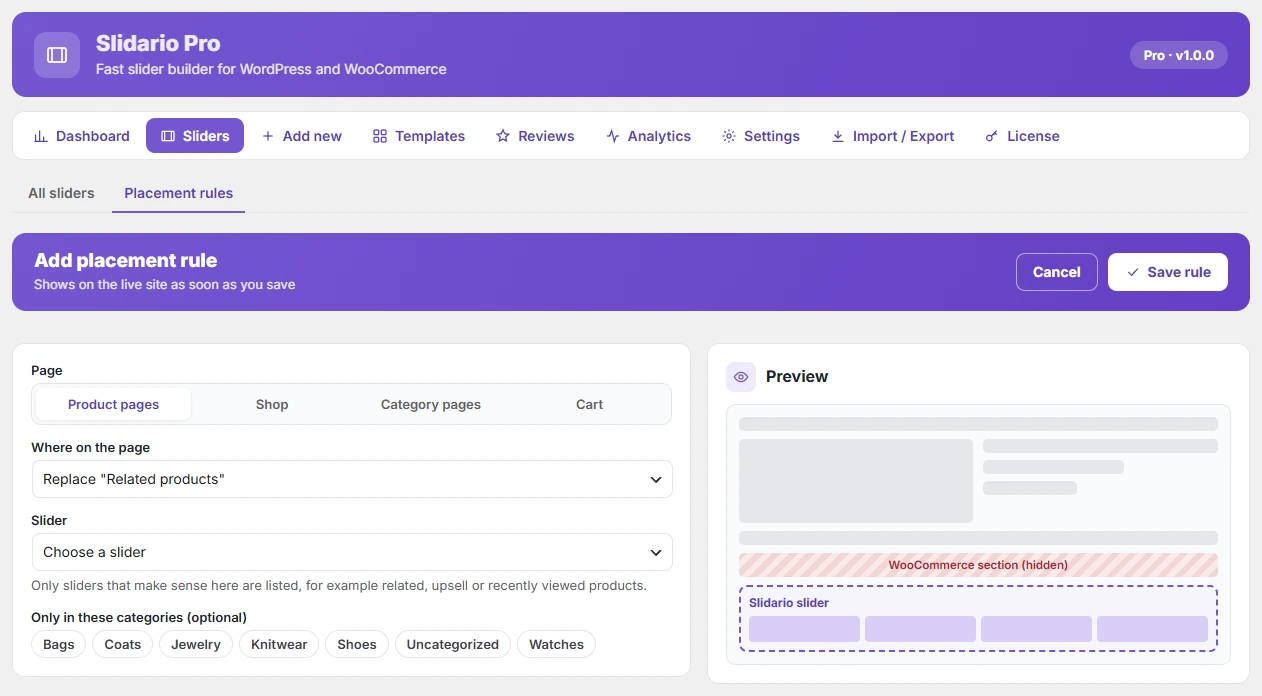
- Choose the Page: Product pages, Shop, Category pages or Cart.
- Choose Where on the page.
- Choose the Slider. Only slider types that make sense in that place are listed.
- Optional, for product and category pages: Only in these categories.
- Click Save rule. It is live right away.
| Page | Where on the page | Slider types |
|---|---|---|
| Product pages | Replace “Related products” | Products |
| Product pages | Replace “You may also like” (upsells) | Products |
| Product pages | After the product summary | Products, Reviews, Image, Video |
| Product pages | Under the Add to cart button | Products, Reviews |
| Shop | Above the products / Below the products | Products, Categories, Image |
| Category pages | Above the products / Below the products | Products, Categories, Image |
| Cart | After the cart table | Products |
| Cart | Replace “You may be interested in…” (cross-sells) | Products |
Use the switch on each rule to turn it off without deleting it. Open a rule to edit it or click Delete rule. Rules work with classic and block themes.