
This feature is part of AI Visibility & Brand Mention Tracker Pro. In the free version the place where it lives shows a blurred sample of what it does and a button to get Pro.
Client reporting shows a client what you did and what it changed. There are two ways to send it: a PDF report you download and send, and an email report that goes out on its own, every week, 2 weeks or month. Both use the same design and the same numbers, with your agency’s name and logo.
Step 1: Add your agency branding
- Go to AI Visibility → Client report.
- Under Report branding, enter Your agency name.
- Paste a Logo URL: upload the logo in Media → Add New, open it and copy its File URL. PNG or SVG with a transparent background looks best.
- Click Save.
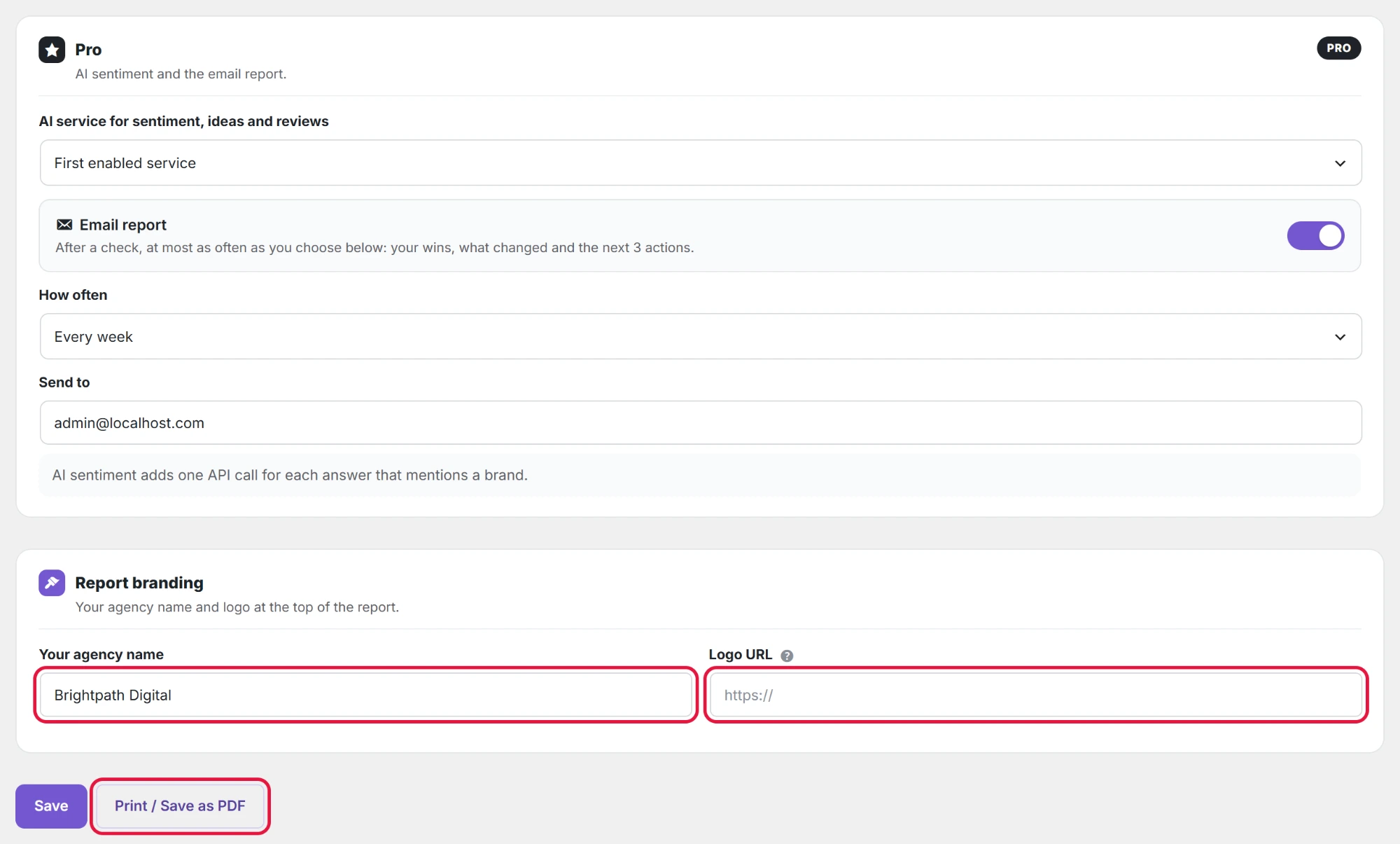
Leave the name and logo empty to use the site’s own name and logo. That suits a brand that reports to its own team.
Step 2: Send the report as a PDF
- On the same page, check the report preview below the settings.
- Click Print / Save as PDF.
- In the print window, choose Save as PDF as the printer and save the file.
- Send the PDF to your client.
The page header, menus and buttons are left out of the PDF; only the report is printed.
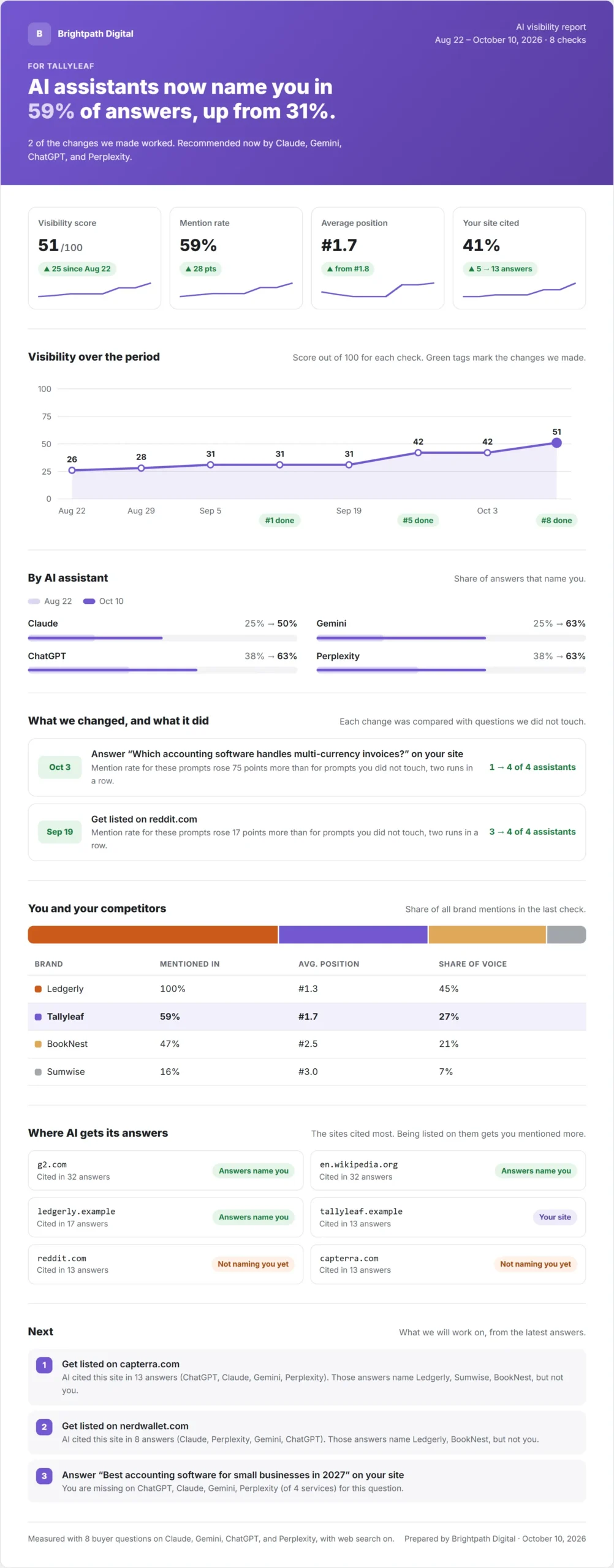
What the report shows
The report covers the last 8 checks. From top to bottom:
| Section | What it shows |
|---|---|
| Cover | Your agency name and logo, the client’s brand, the dates and number of checks, and the headline, for example “AI assistants now name you in 59% of answers, up from 31%.” |
| Four numbers | Visibility score, mention rate, average position and how often the client’s site is cited, each with its change since the first check and a small trend line. |
| Visibility over the period | The score for each check. Green tags mark the checks where you finished a change. |
| By AI assistant | ChatGPT, Claude, Gemini and Perplexity: share of answers that name the client, first check against the latest. |
| What we changed, and what it did | Each suggestion that worked, with the date and how many assistants name the client before and after. |
| You and your competitors | Share of voice bar, and mention rate, average position and share of voice for the client and each competitor. |
| Where AI gets its answers | The sites AI cites most, and whether those answers name the client yet. |
| Next | The three things you will work on, from the latest answers. |
Step 3: Send it by email
- At the top of the Client report page, switch on Email report.
- In How often, choose every week, every 2 weeks or every month.
- In Send to, enter the email address: yours, or your client’s.
- Click Save.
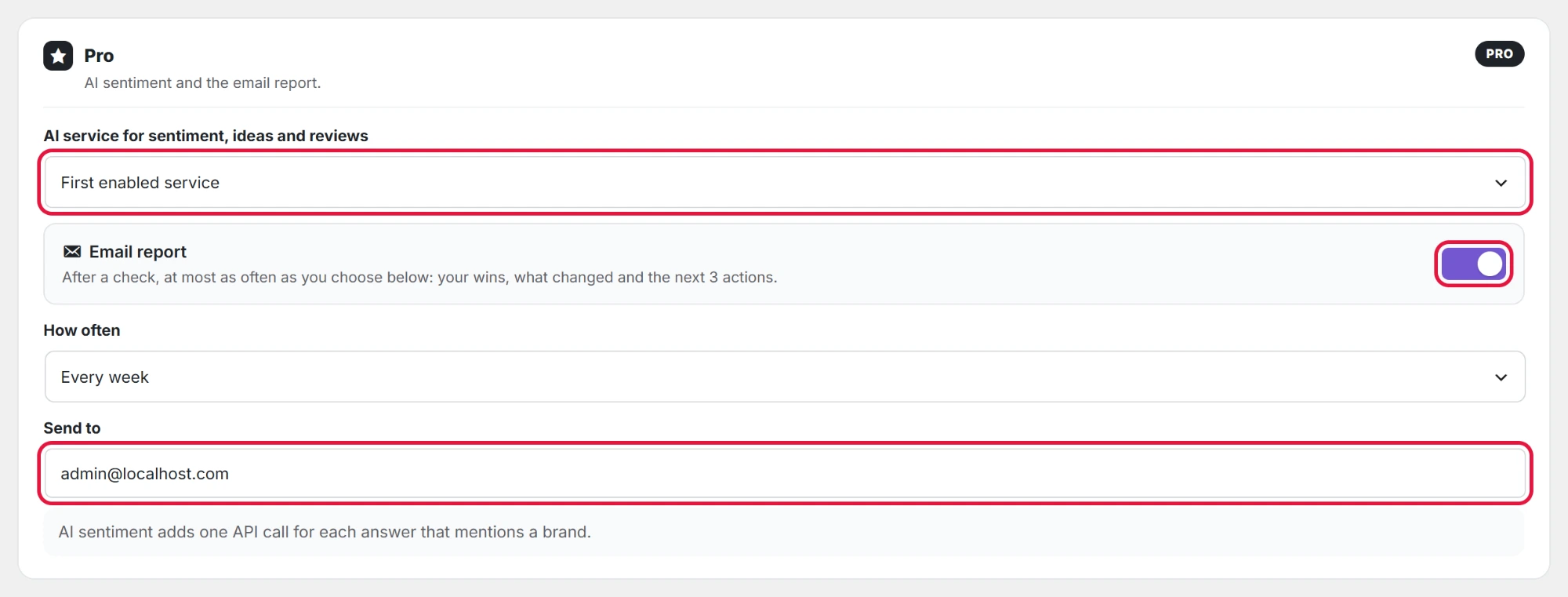
The email goes out after a check finishes, no more often than you chose, even with daily checks. Its subject is the news: a suggestion that worked, or the change in the visibility score, for example “▲ Visibility 42 → 51 · Tallyleaf”.
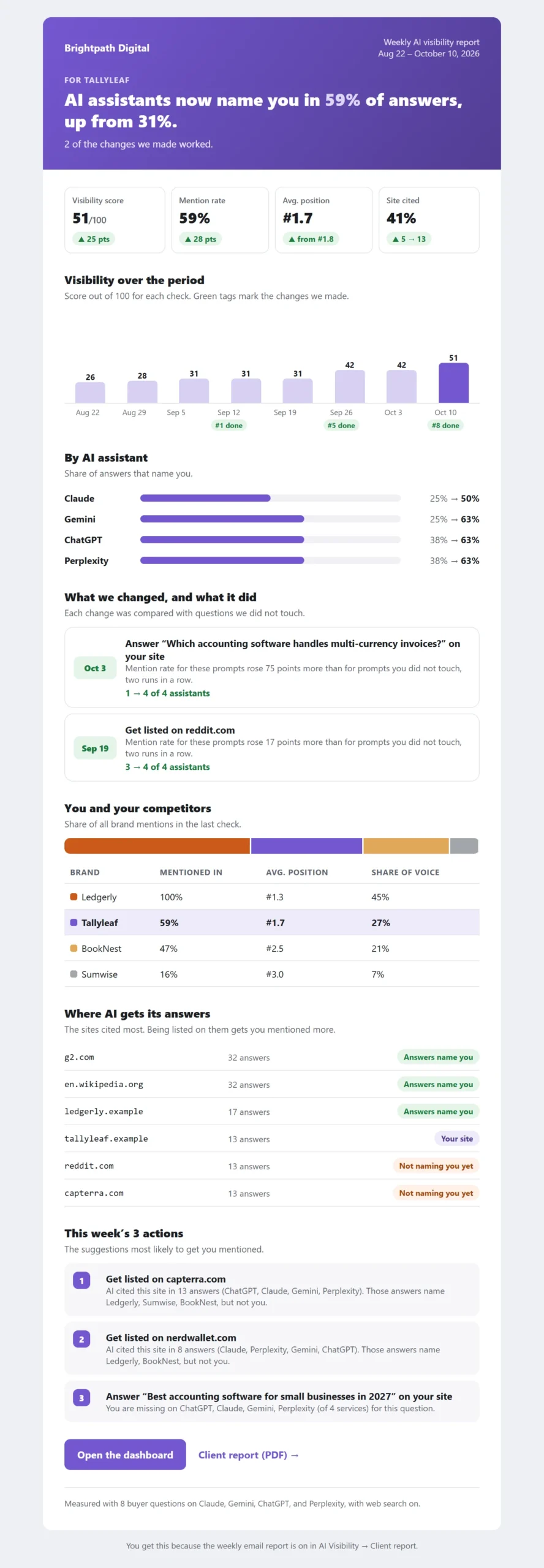
The email is sent with WordPress’s own mail. If it does not arrive, install an SMTP plugin (for example WP Mail SMTP) so your site can send email reliably, and check the spam folder.
AI service for sentiment, ideas and reviews
The first setting on this page chooses which of your enabled AI services does the Pro AI work (sentiment, prompt ideas, deep reviews and AI drafts). First enabled service uses the first one with a key.
In the free version
The Client report tab shows how the report works and a full sample report made with demo data, with the agency name and logo at the top. The Wins page links to it under See a sample report.
Tips for agencies
- Install the plugin on each client’s site, so each report has that client’s own brand, prompts and competitors.
- Mark suggestions done as you work. The report’s “What we changed” section and the green tags come from them.
- Send the first report after at least two or three checks, so the trend has something to show.