
Prompts are the questions buyers ask ChatGPT, Claude, Gemini and Perplexity. Tracking the right ones shows you exactly where AI recommends you and where it names someone else.
Add prompts
- Go to AI Visibility → Prompts.
- Type one question, or several with one per line.
- Choose the type and country, then click Add prompt.
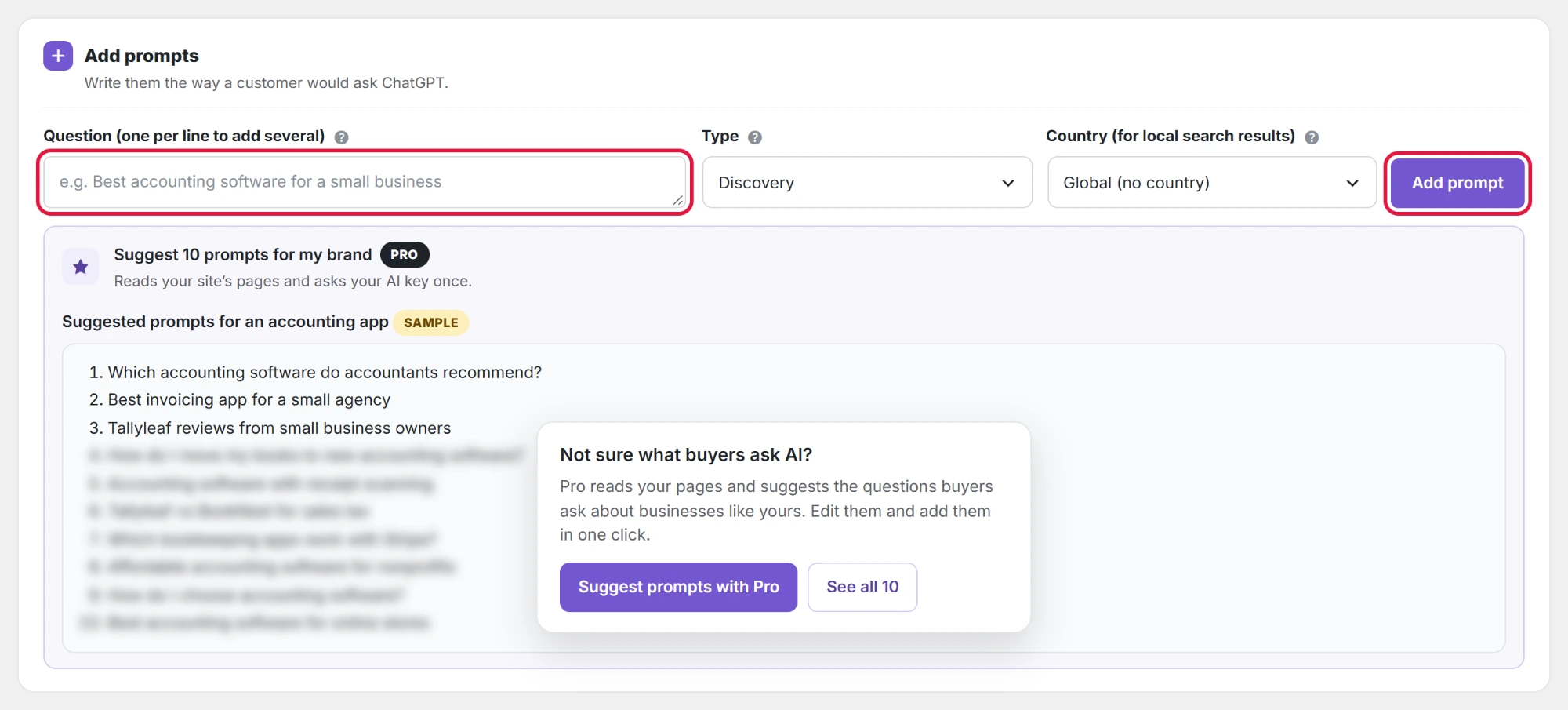
Each active prompt is sent to every enabled AI service on each run. Not sure what to ask? Pro reads your own pages and suggests 10 buyer questions PRO, and writing prompts the way buyers really ask has patterns that work.
See what a run costs
Under the list, Each run shows how many API calls one check makes: active prompts × enabled services × samples per prompt, next to your monthly limit. Pausing prompts lowers it at once.

Manage tracked prompts
The Tracked prompts table shows the position each AI service gave you in the last run, so you can see at a glance where you are missing.
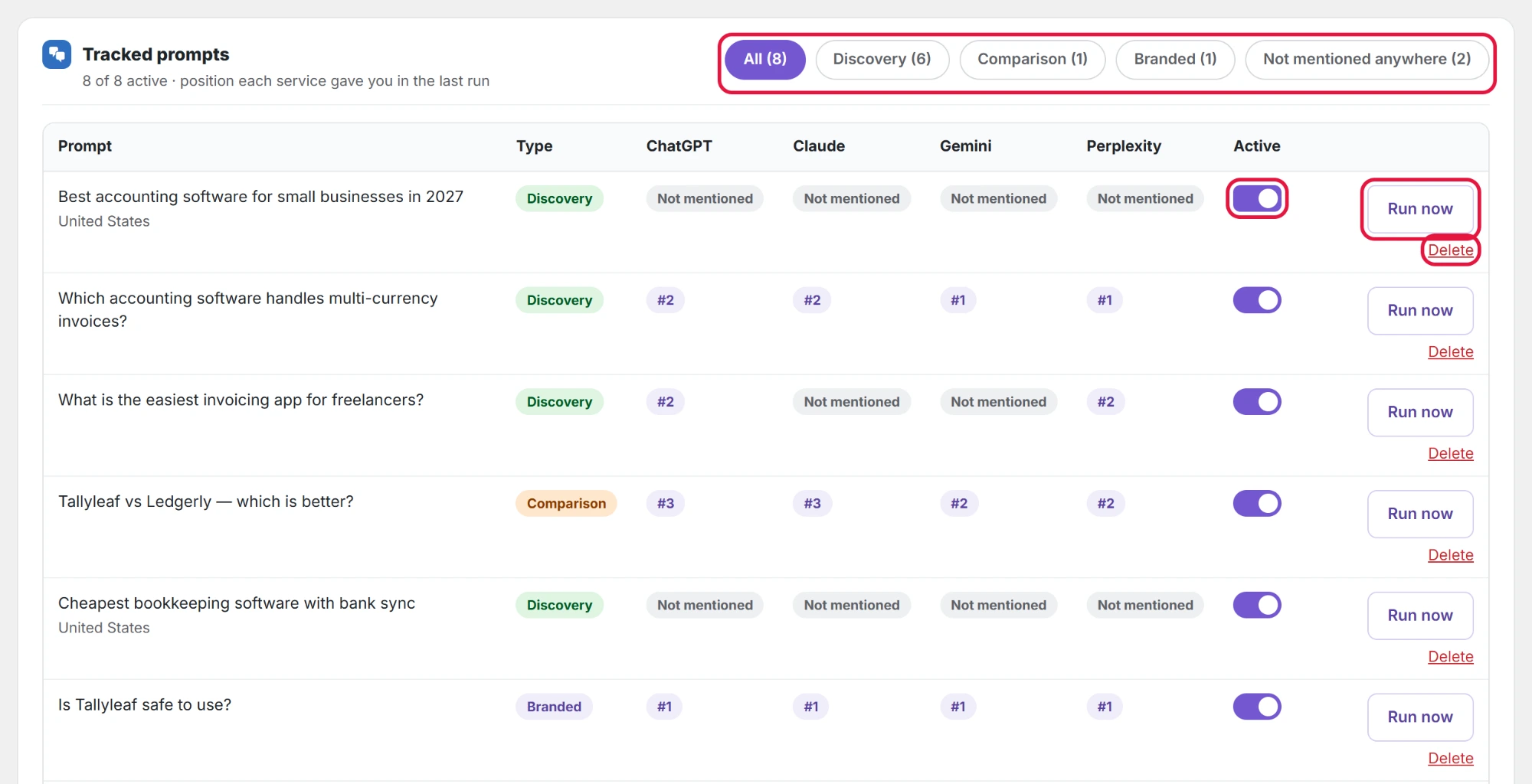
- Filters: All, Discovery, Comparison, Branded, and Not mentioned anywhere (prompts where no service names you).
- On/off switch: pause a prompt without deleting its history. Paused prompts are skipped in runs.
- Run now: asks every enabled service this one prompt right away. The message “Check started for this prompt.” confirms it.
- Delete: removes the prompt and its answers, after you confirm.
Pausing is better than deleting when you only want to save API calls; the history stays for comparison.