
Set up the plugin in about five minutes and see whether ChatGPT, Claude, Gemini and Perplexity name your brand when buyers ask. You need one API key; you can add the others later.
The Get started list
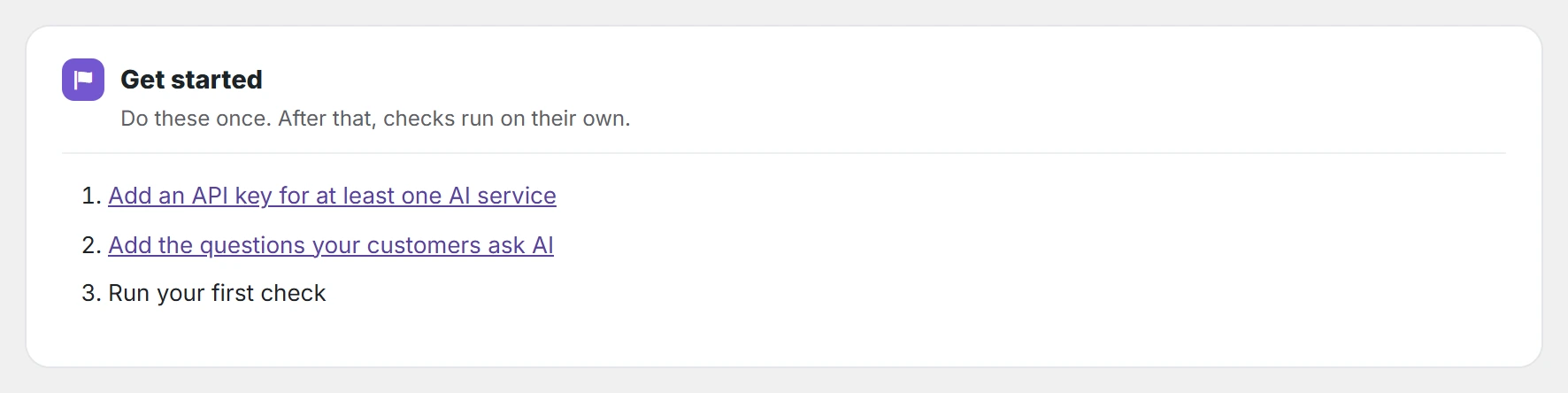
Right after you activate the plugin, the AI Visibility Dashboard shows a Get started list with the three steps below. Each line opens the page where you do it and is ticked off when it is done. The list goes away after your first check.
Step 1: Add an API key and your brand
- Go to AI Visibility → Settings.
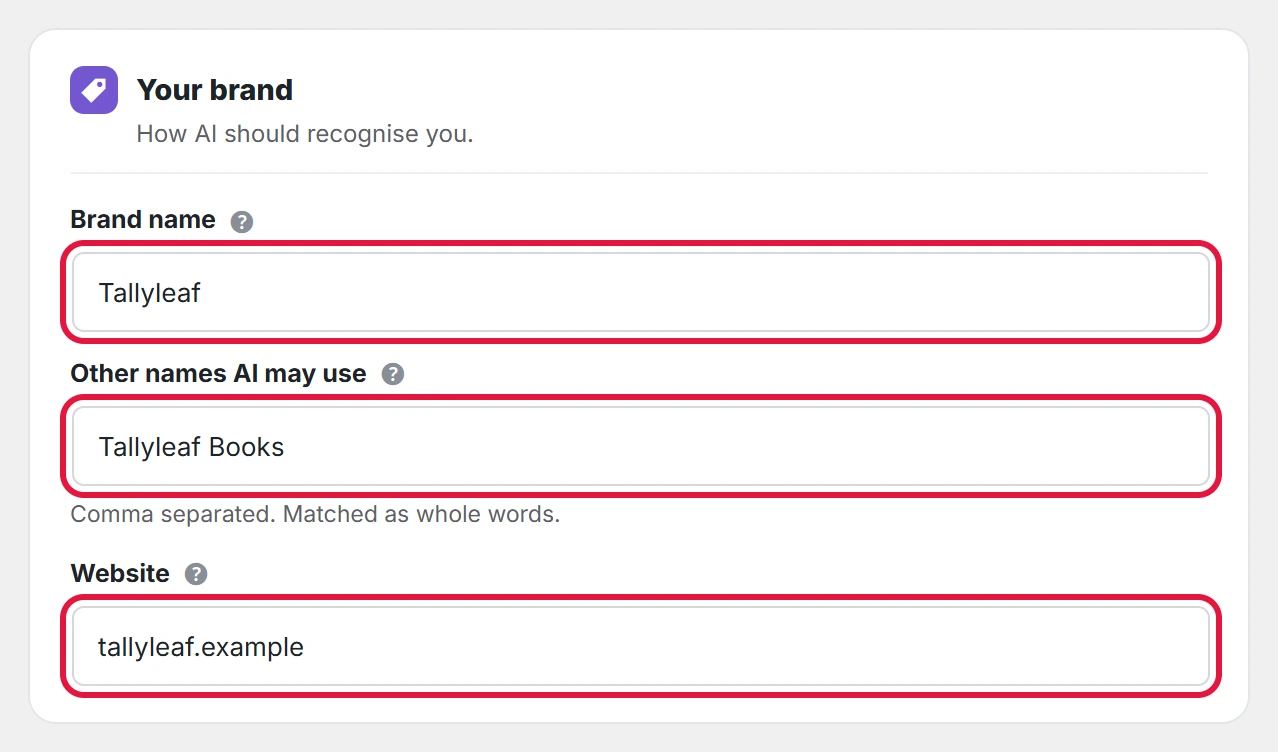
- Under Your brand, enter your Brand name, any Other names AI may use (short name, old name, abbreviation; comma separated) and your Website.
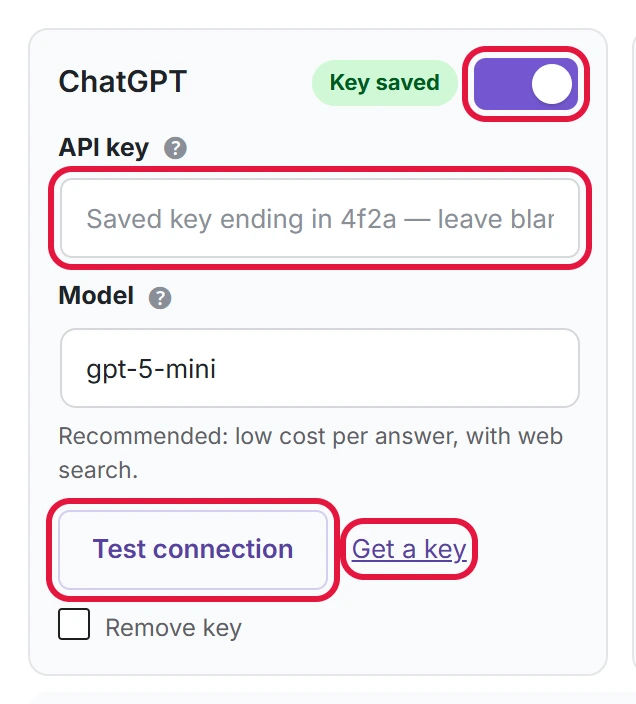
- Under AI services — your own API keys, switch on a service, paste its API key and click Test connection.
- Click Save settings.

Each service gives you a key on its developer page, and getting an API key for ChatGPT, Claude, Gemini or Perplexity takes a few minutes.
Step 2: Add the questions your customers ask
- Go to AI Visibility → Prompts.
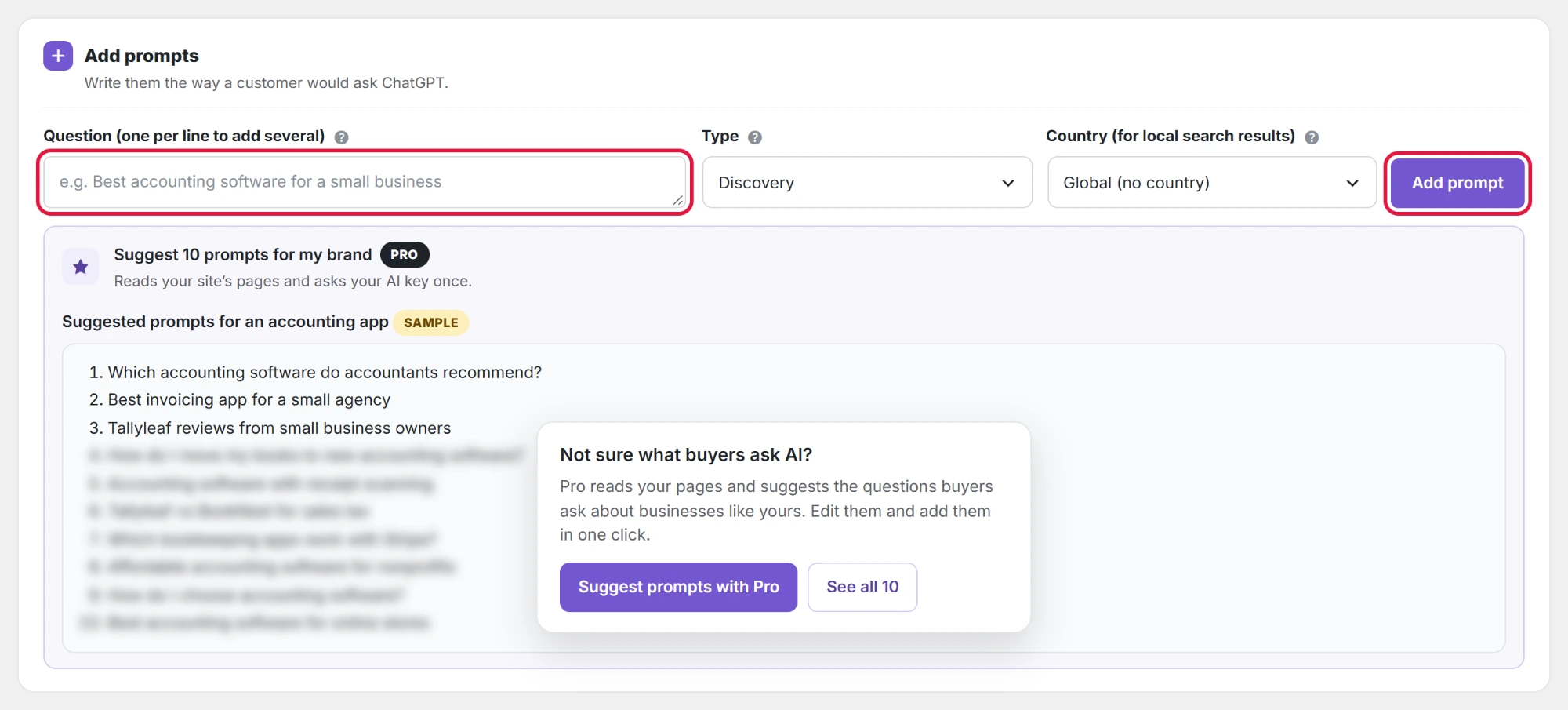
- Type a question the way a buyer would ask ChatGPT, for example “Which accounting software is best for a small business?”. Add several at once, one per line.
- Choose the Type (discovery, comparison or branded) and, if it matters, a Country.
- Click Add prompt.
Under the list, Each run shows how many API calls a check uses: active prompts × services × samples, and your monthly limit.

Start with 5 to 10 prompts. You can pause a prompt later to save API calls without losing its history.
Step 3: Add competitors (optional)
On AI Visibility → Competitors, add the brands you compete with and any other names AI may use for them. Brands AI already names in your answers appear under Discovered in your answers; click one to add it.

Step 4: Run the check
- Click Run check now on the Dashboard.

- The message “Check started. Results appear as answers arrive.” shows, and the check runs in the background in small batches. A progress bar shows how many answers are done.
- When it finishes, the Dashboard, Results, Competitors and Suggestions fill in.
After that, checks run every week on their own. To change it, go to Settings → Runs & limits → Schedule: Weekly, Manual only, or Daily PRO.
The Dashboard then shows your visibility score, mention rate, position and share of voice, and reading the Dashboard explains what each number means.