
The Dimension Filter allows customers to filter WooCommerce products by product dimensions such as length, width, height, and weight. This is useful for stores where product size or weight is important for customer decision-making, such as furniture, hardware, home décor, appliances, shipping-based products, and custom product catalogs.
With Dynamic AJAX Product Filters for WooCommerce, you can display dimension-based filters and let customers narrow down products using input fields or range/slider layouts. The product list updates with AJAX, so customers can refine results without reloading the page.
The plugin includes a Dimension Filter Settings popup/modal where you can choose which dimension fields are shown and control the order in which they appear. You can also customize the frontend labels for Length, Width, Height, and Weight from the style settings.
Step 1: Add Dimensions to WooCommerce Products
Before using the Dimension Filter, make sure your WooCommerce products have dimension values.
- Go to your WordPress Dashboard.
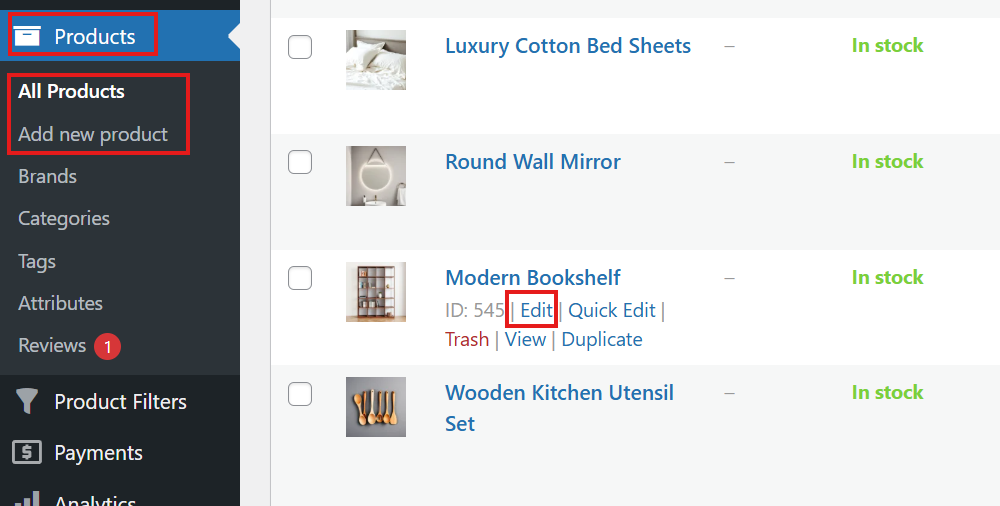
- Navigate to Products > All Products.
- Edit the product where you want to add dimension values.
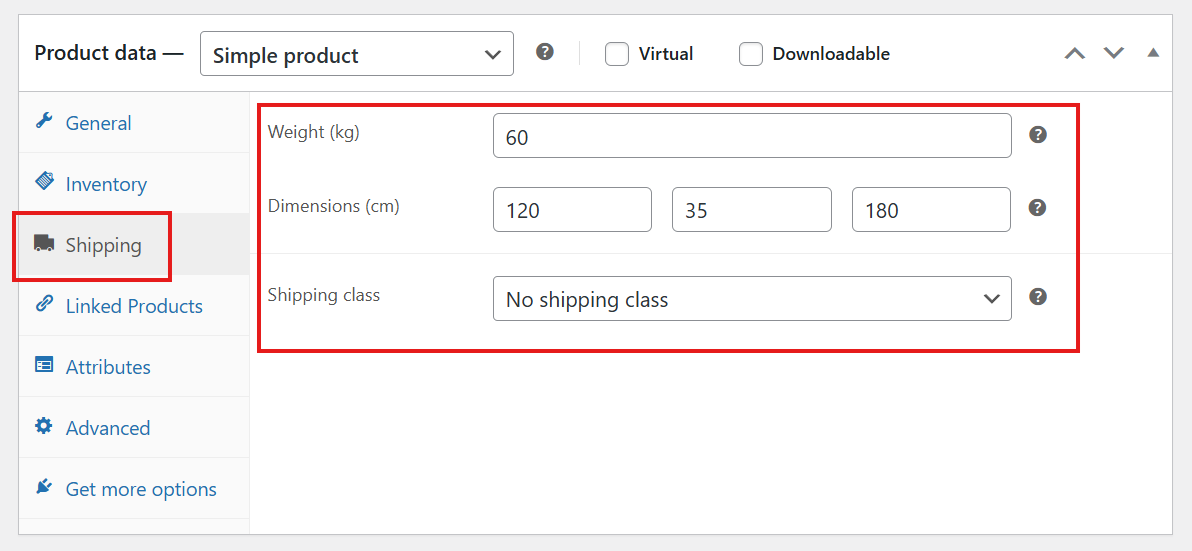
- Go to the Product data section.
- Open the Shipping tab.
- Enter product values for Weight, Length, Width, and Height.
- Click Update or Publish.
Step 2: Enable the Dimension Filter
After adding dimension values to your products, enable the Dimension Filter from the product filter settings.
- Go to Product Filters > Form Manage.
- Find the option named Show Dimensions.
- Turn the option On.
- Click Save Changes.
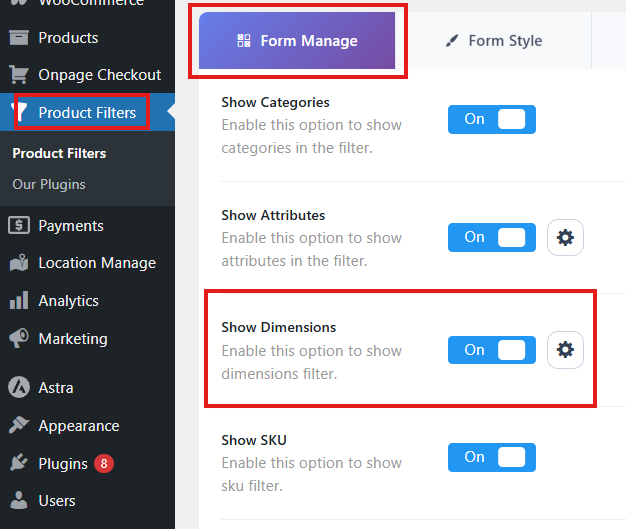
Once this option is enabled, the Dimension Filter becomes available in your product filter form.
Step 3: Open Dimension Filter Settings
Next to the Show Dimensions option, click the settings icon to open the Dimension Filter Settings popup/modal.
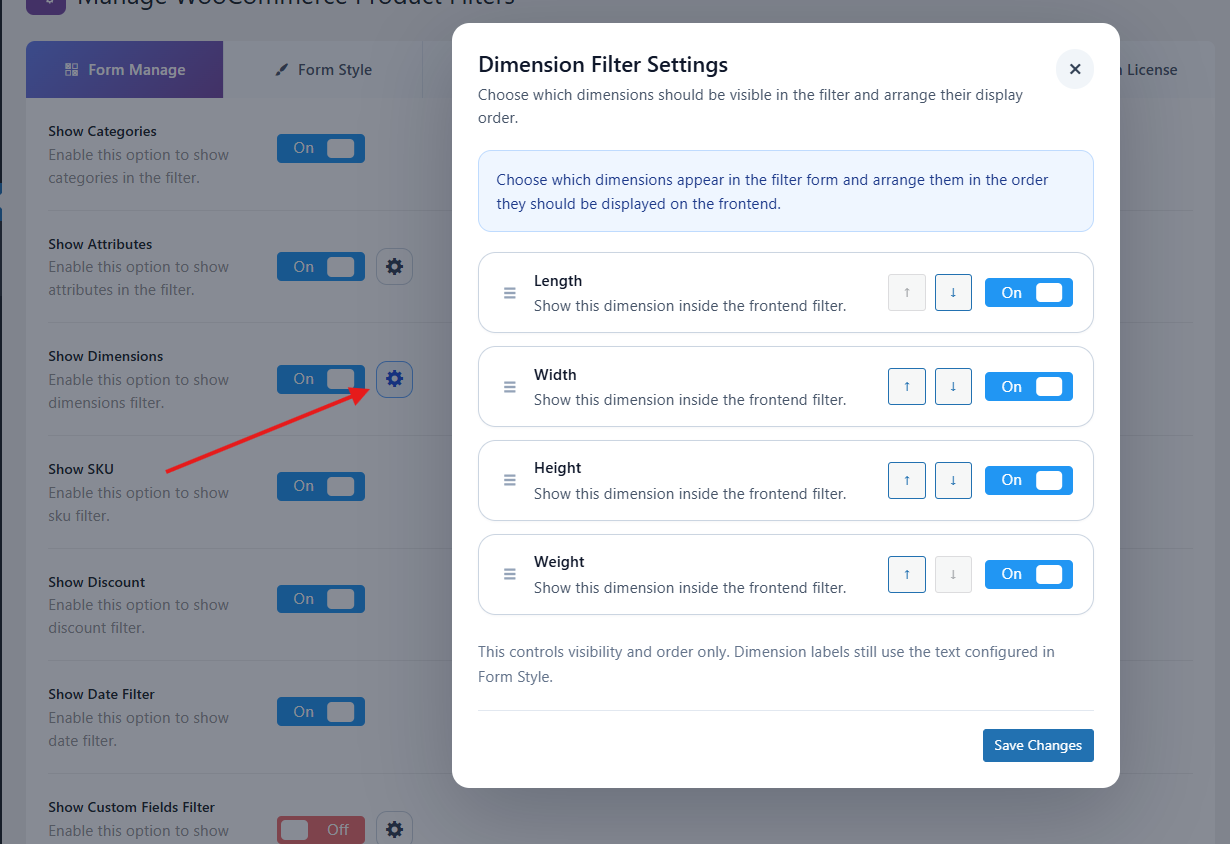
This popup allows you to manage how dimension fields should appear on the frontend.
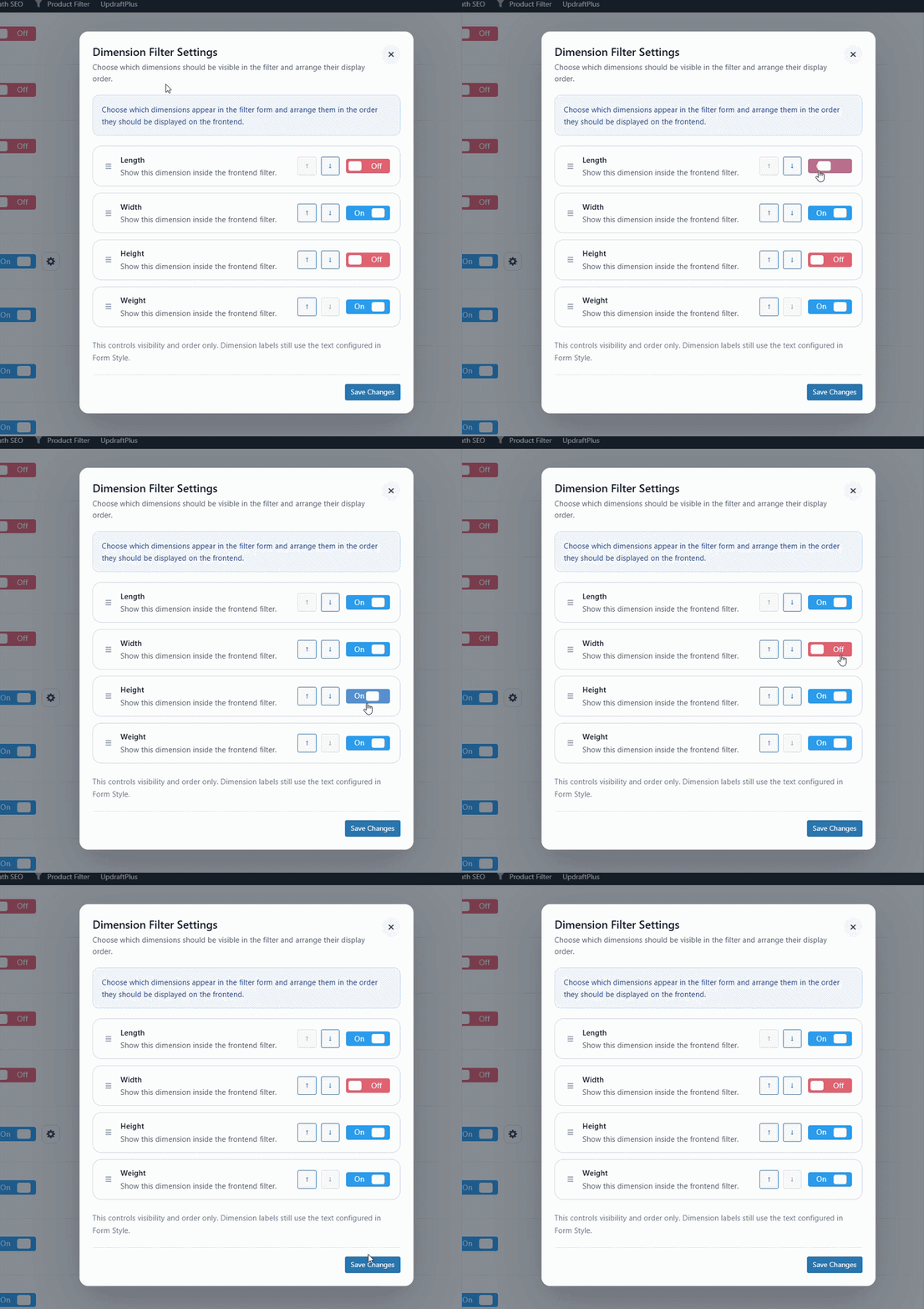
Step 4: Choose Which Dimension Fields to Display
Inside the Dimension Filter Settings popup, you can enable or disable individual dimension fields.
Available dimension fields:
- Length
- Width
- Height
- Weight
Turn on only the fields you want customers to use. For example, if your store only needs filtering by product width and height, you can disable length and weight.
Step 5: Reorder Dimension Fields
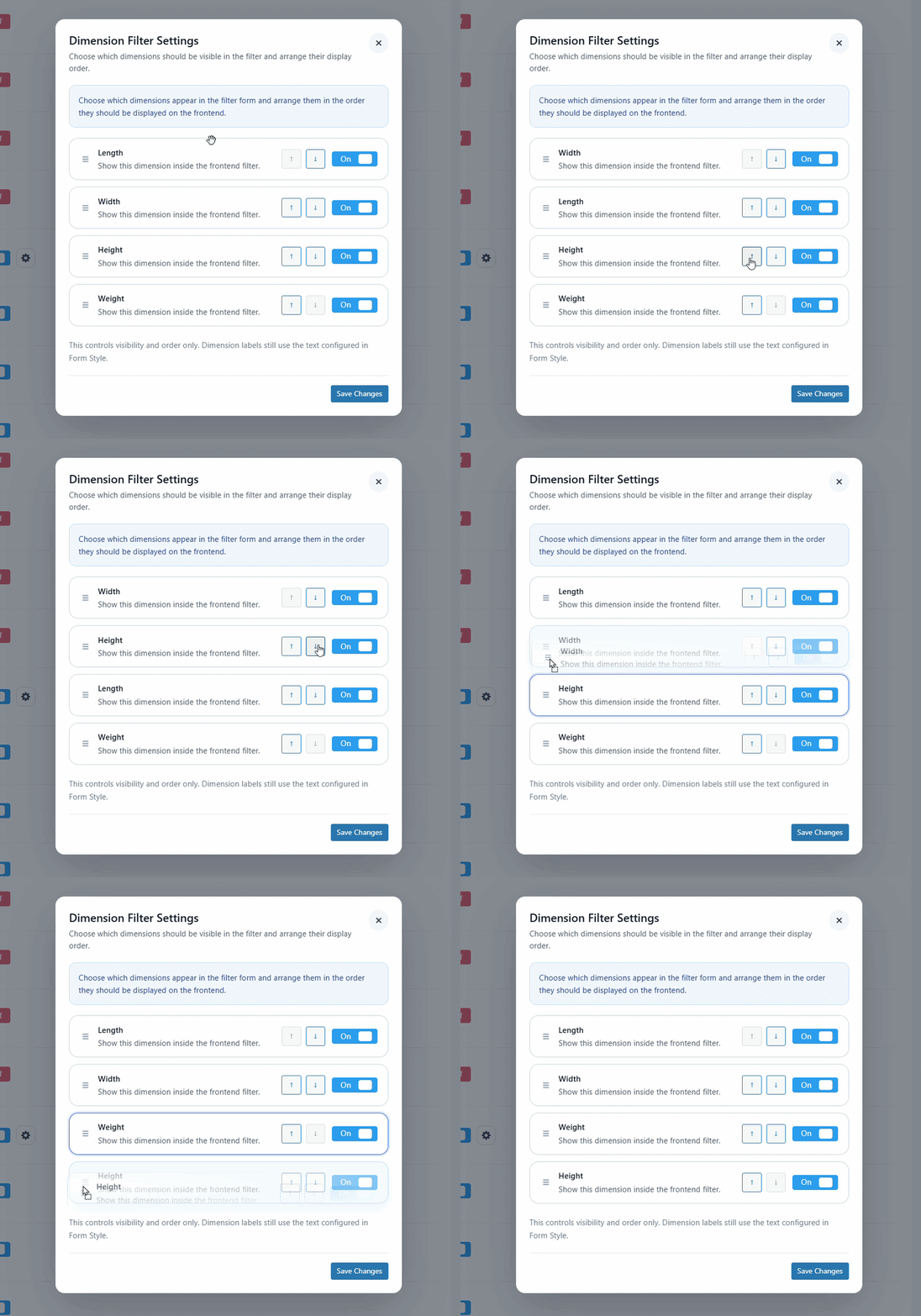
The Dimension Filter Settings popup also lets you control the display order of dimension fields.
You can keep the default order, such as:
- Length
- Width
- Height
- Weight
Or arrange the fields in another order, such as:
- Weight
- Height
- Width
- Length
This is useful when you want the most important dimension field to appear first.
Step 6: Save Dimension Settings
After choosing the visibility and order of the dimension fields:
- Close or apply the Dimension Filter Settings popup.
- Click Save Changes on the main settings page.
- Visit your shop or archive page to check the result.
Step 7: Customize the Dimension Filter Layout
Before customizing, ensure that the Dimension Filter is enabled in your store.
- From your WordPress dashboard, go to Product Filters > Form Style.
- From Configure Style for, choose Dimensions.
- You will see two filter styles:
- Dimensions: Displays minimum and maximum input boxes for each option (Length, Height, Width, Weight).
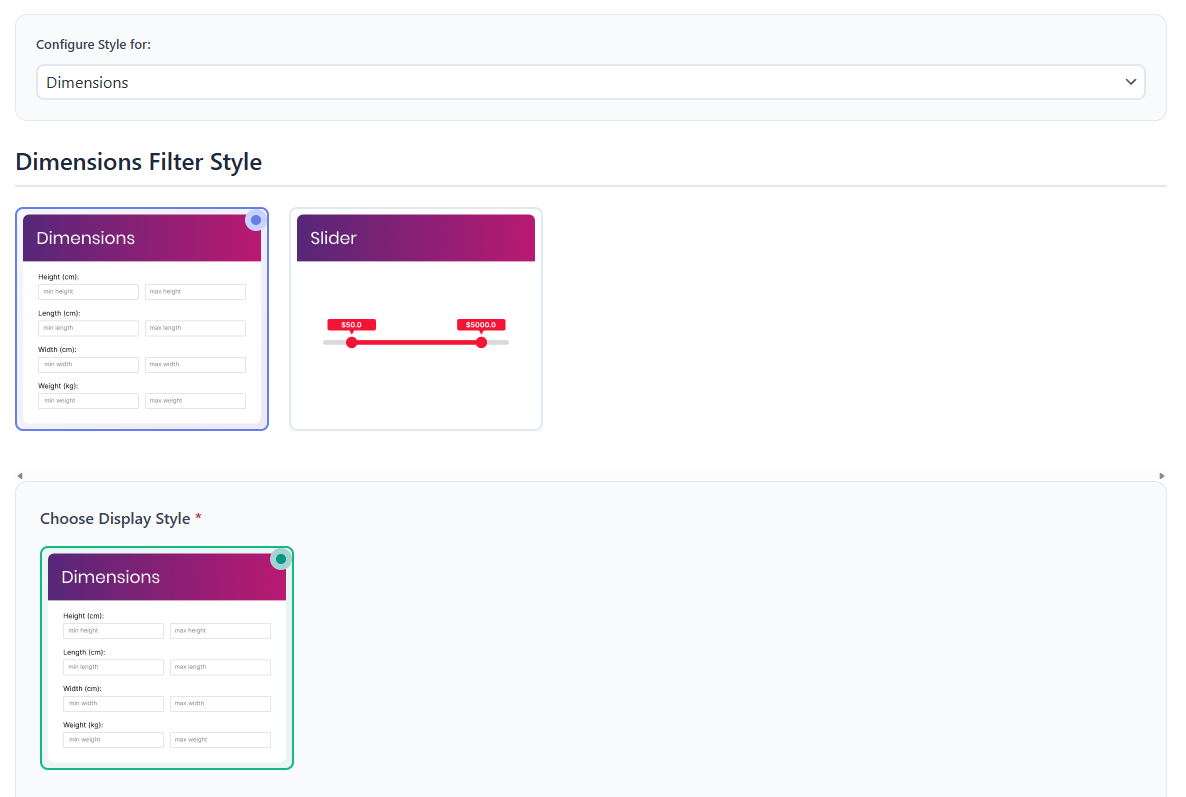
- Slider: Provides three display options:
- Slider: Displays range slider controls for dimension filtering.
- Slider 2: Displays an alternative slider style for dimension filtering.
- Input Price Range: Displays minimum and maximum input fields for dimension ranges.
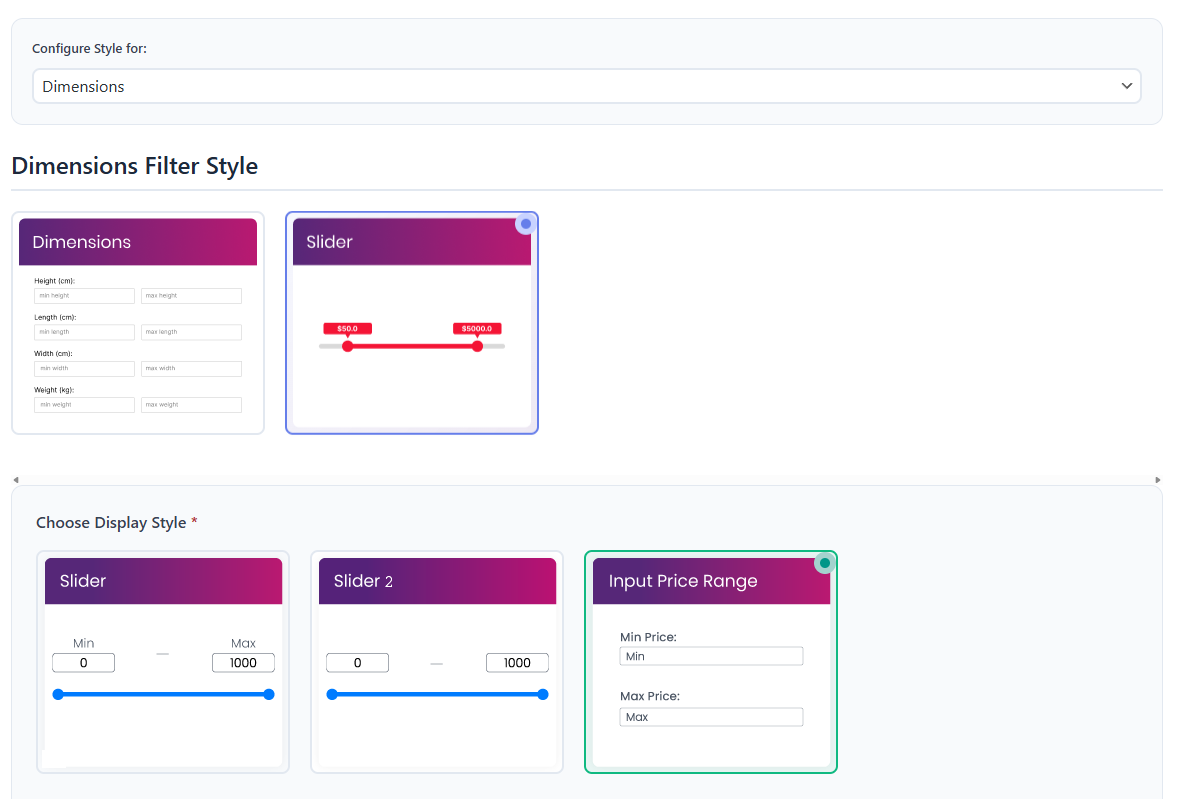
- Choose the style that best fits your store’s design and customer needs.
You can also customize the frontend labels used for each dimension field. The default labels are:
- Length Label: Length (cm):
- Width Label: Width (cm):
- Height Label: Height (cm):
- Weight Label: Weight (kg):
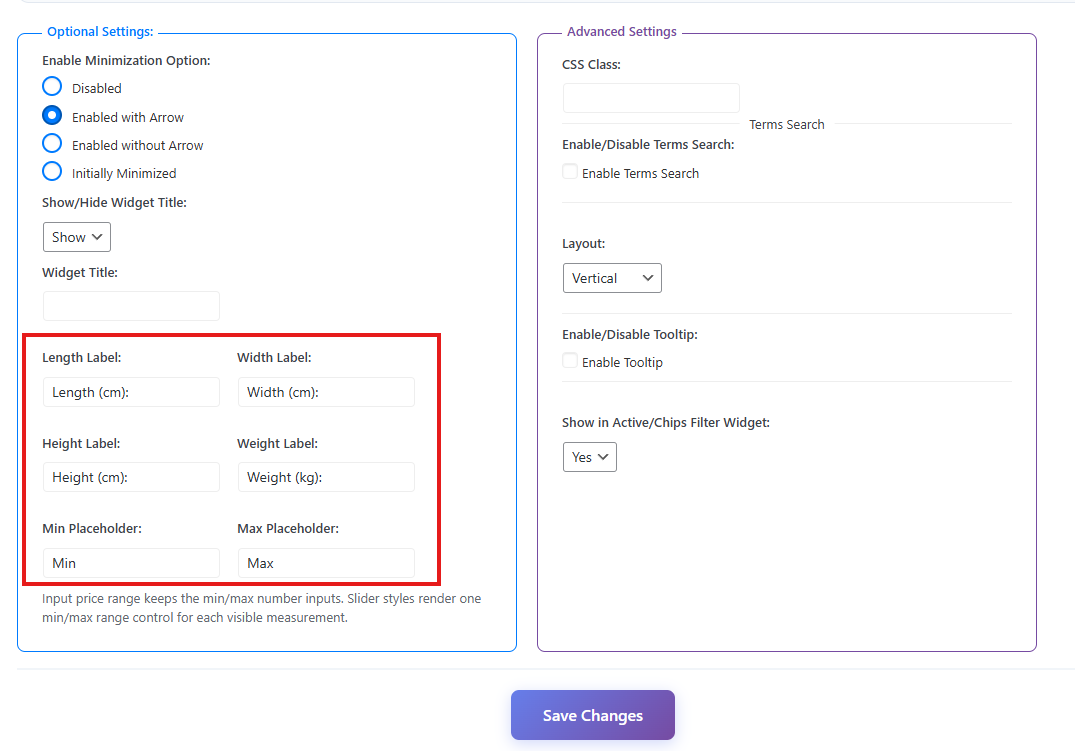
Use these label settings if your store uses different units or if you want to translate the dimension labels for your customers.
Step 8: Display the Product Filter with the Block Editor
You can display the filter form on any page using the WordPress block editor. Use the main shortcode:
[plugincy_filters]
Add the filter to a page
- Go to Pages and edit the page where you want to show the filter.
- Click the + icon to add a new block.
- Search for Shortcode.
- Add the Shortcode block.
- Paste
[plugincy_filters]into the block. - Click Update or Publish.
You can also use the filter in a block-based widget area, sidebar, or archive template if your theme supports the Site Editor.
Expected Result
After completing the setup, customers will be able to filter products by selected dimension fields.
For example, customers can filter products by:
- Minimum and maximum length
- Minimum and maximum width
- Minimum and maximum height
- Minimum and maximum weight
The product list will update using AJAX and show products that match the selected dimension range.
Example Use Cases
- Furniture Store: Customers can filter tables, chairs, sofas, or cabinets by width, height, or length.
- Shipping-Based Store: Customers can filter products by weight to find lighter or heavier items.
- Hardware Store: Customers can filter tools, parts, or materials by exact size range.
- Custom Product Catalog: If only certain dimensions matter, you can hide unused dimension fields from the Dimension Filter Settings popup.
Notes
- Dimension values must be added to WooCommerce products first.
- If a product does not have dimension data, it may not appear when customers filter by that dimension.
- You can enable or disable individual dimension fields from the Dimension Filter Settings popup.
- You can reorder dimension fields based on your preferred display order.
- You can customize Length, Width, Height, and Weight labels from the Form Style settings.
- After changing dimension settings, clear your cache if you are using a caching plugin.
Troubleshooting
Dimension Filter is not showing
Please check the following:
- Show Dimensions is enabled in Product Filters > Form Manage.
- The filter shortcode or block is added to the page, sidebar, or archive template.
- The product filter settings are saved.
- Cache has been cleared.
Some dimension fields are missing
If Length, Width, Height, or Weight is missing on the frontend, open the Dimension Filter Settings popup and confirm that the field is enabled. Also check whether products have values for that dimension in the WooCommerce product shipping settings.
No products appear after filtering
This usually means the selected range does not match any product data. Check that your products have correct dimension values and that the store’s measurement units match the labels shown in the filter.