
Featured product filters help customers quickly find the products you want to highlight in your WooCommerce store. With Dynamic AJAX Product Filters for WooCommerce, you can display a dedicated Featured Products filter on the frontend and let shoppers narrow results by Featured or Not Featured.
Step 1: Mark Products as Featured in WooCommerce
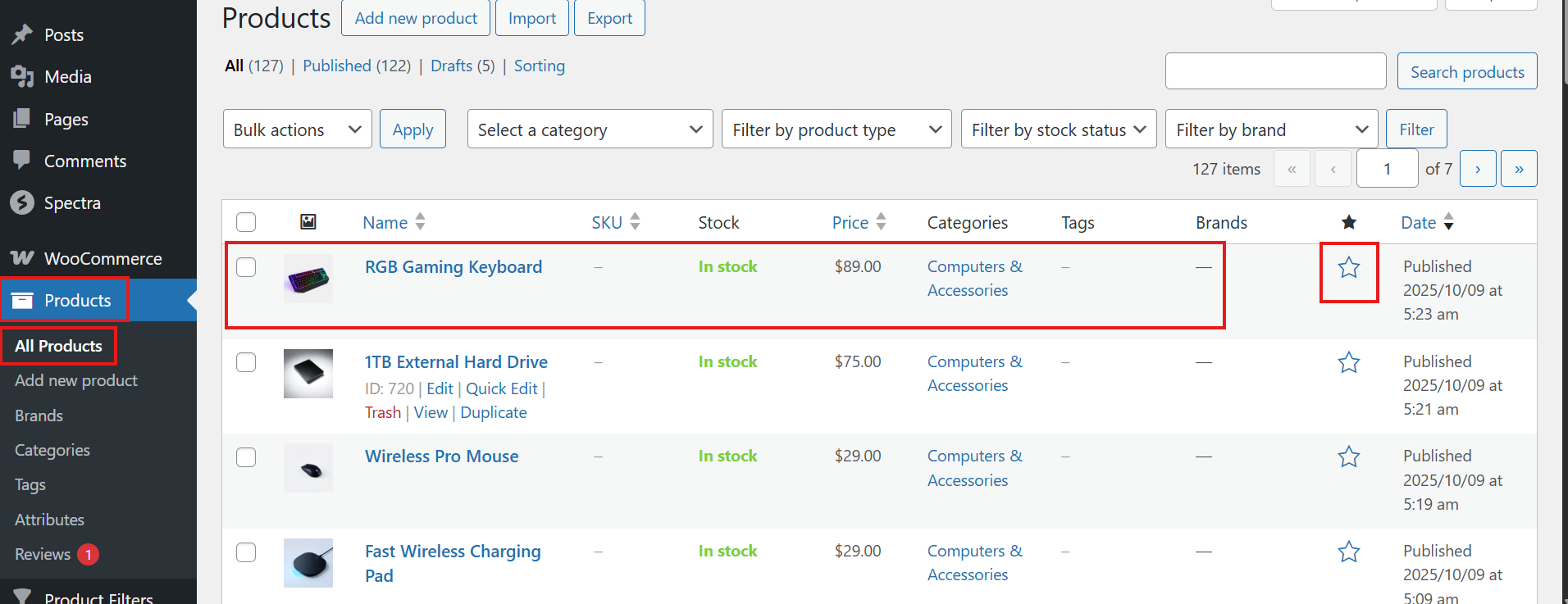
- Go to Products > All Products in your WordPress dashboard.
- Click the star icon in the Featured column for the product you want to highlight.
- You can also use Quick Edit and enable Featured, or open the product edit screen and mark it as featured from the catalog visibility settings.
- Repeat this for any other products you want to include as featured products.
Step 2: Manage Featured Products in the Filter Widget Form
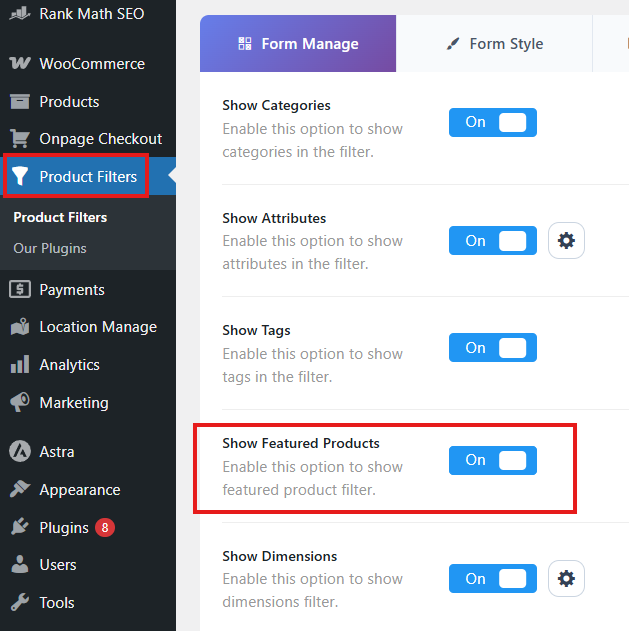
- Go to Product Filters > Form Manage in your WordPress dashboard.
- Find the Show Featured Products option.
- Toggle this option on or off to control whether the Featured Products filter appears in the widget.
Note: The Featured Products filter requires an active premium license.
Step 3: Style/Design/Customize the Featured Products Widget
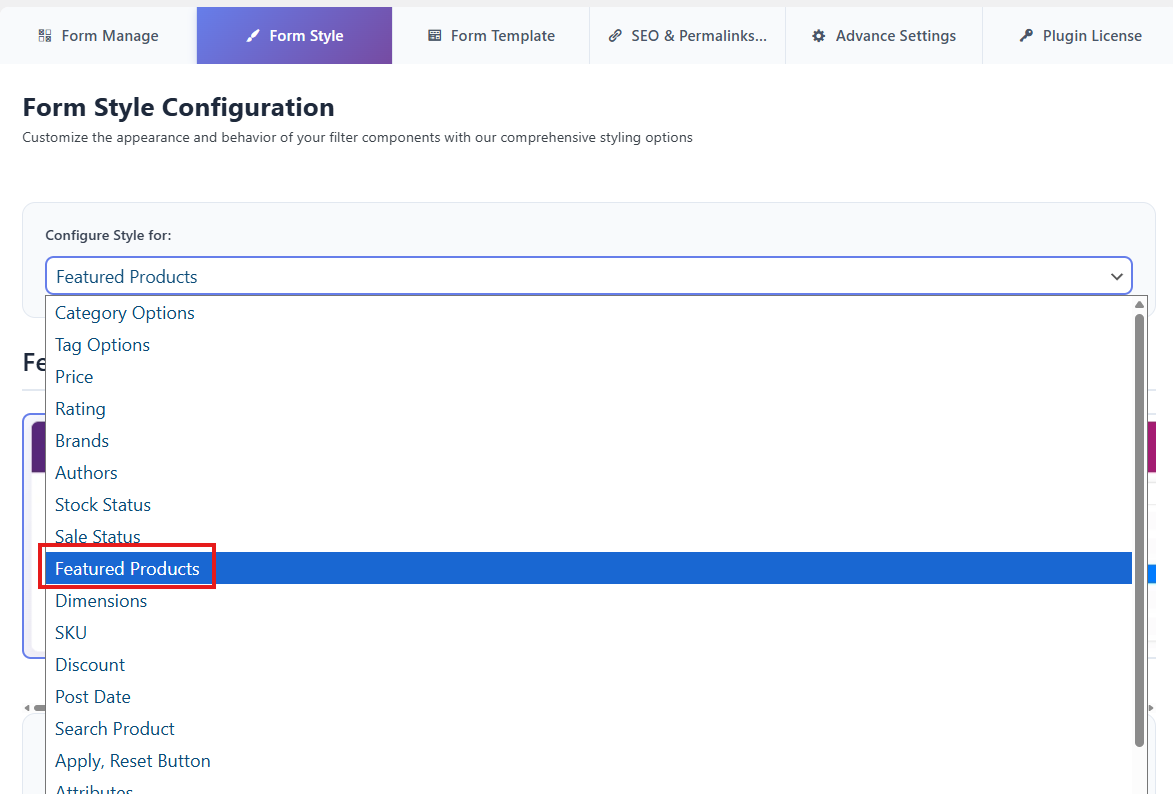
- Go to Product Filters > Form Style in your WordPress dashboard.
- From the Configure Style for dropdown menu, choose Featured Products.
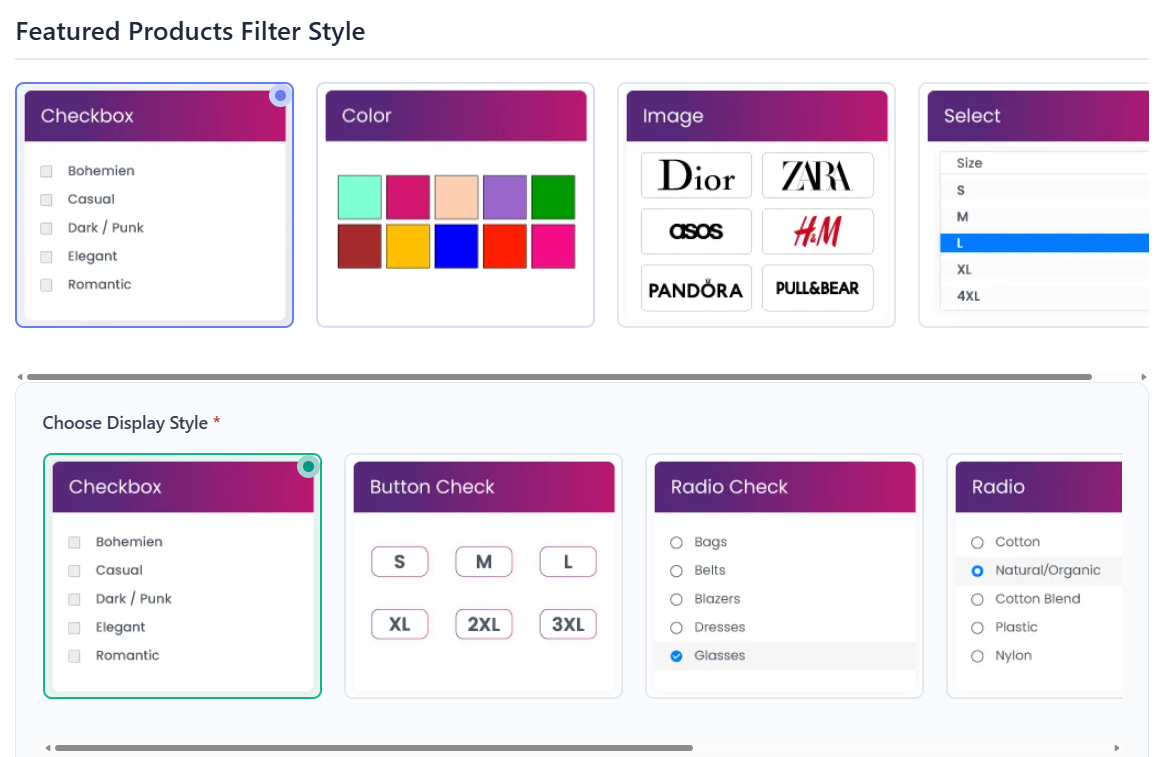
- Select one of the available style options, such as Checkbox, Color, Image, or Select.
- Configure the related suboptions based on the design and behavior you want for the widget.
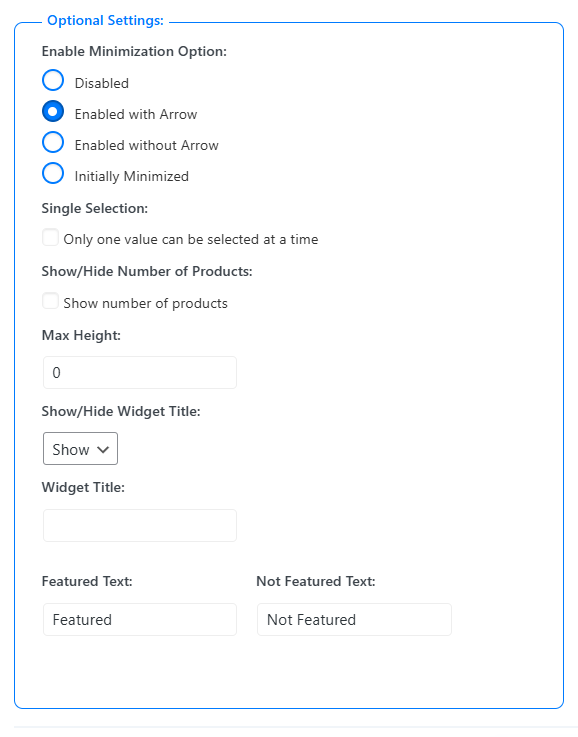
Optional Settings
- Enable Minimization Option: Control whether the widget stays expanded or can be collapsed.
- Single Selection: Allow only one value to be selected at a time.
- Show / Hide Number of Products: Display the product count beside each option.
- Max Height: Set a height limit for the filter list. Enter 0 to disable the limit.
- Show / Hide Widget Title: Control whether the widget title is visible on the frontend.
- Widget Title: Set a custom title for the filter widget.
- Featured Text: Set the custom label for products marked as featured. Default: Featured.
- Not Featured Text: Set the custom label for products that are not marked as featured. Default: Not Featured.
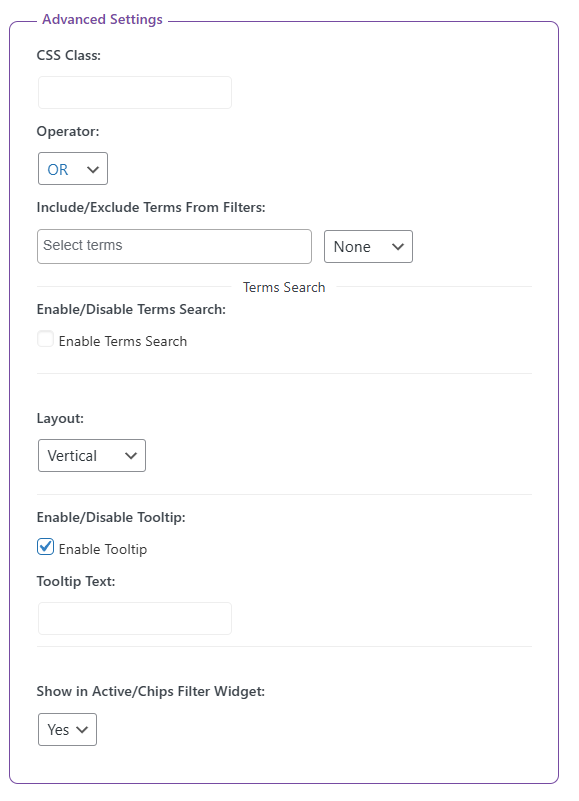
Advanced Settings
- CSS Class: Add a custom CSS class for styling or JavaScript targeting.
- Operator (OR / AND): Control how multiple selected values are applied.
- Include / Exclude Terms From Filters: Choose which values should appear in the filter.
- Terms Search: Add a search field to help users find filter values quickly.
- Tooltip Settings: Show extra information for filter values.
- Show in Active / Chips Filter Widget: Display selected values in the Active Filters or Chips widget.
After customizing the Featured Products widget, click Save to apply your changes.
Step 4: Display the Product Filter on Your Webpage
- Open the page, post, or widget area where you want to display the filters.
- Add the shortcode plugincy_filters to the desired location.
- If you also want to show products on the same page, you can add the shortcode products.
Once completed, customers will be able to filter products by Featured and Not Featured status on your WooCommerce store using the Dynamic AJAX Product Filters plugin.