
Product Exclusions allow you to remove selected products from Dynamic AJAX Product Filters results. This is useful when you want to hide specific products, or hide all products from selected categories, tags, brands, or custom taxonomies from filtered shop results.
This feature helps store owners keep filter results clean and controlled without manually changing product visibility in WooCommerce. Remember, Product Exclusions is a Pro feature. Please activate a valid Pro license to use this option.
What You Can Exclude
Using Product Exclusions, you can exclude products by:
- Specific Products
- Product Categories
- Product Tags
- Brands
- Custom Taxonomies
When a product matches any exclusion rule, it will be removed from the filtered product results.
Step 1: Open Advanced Settings
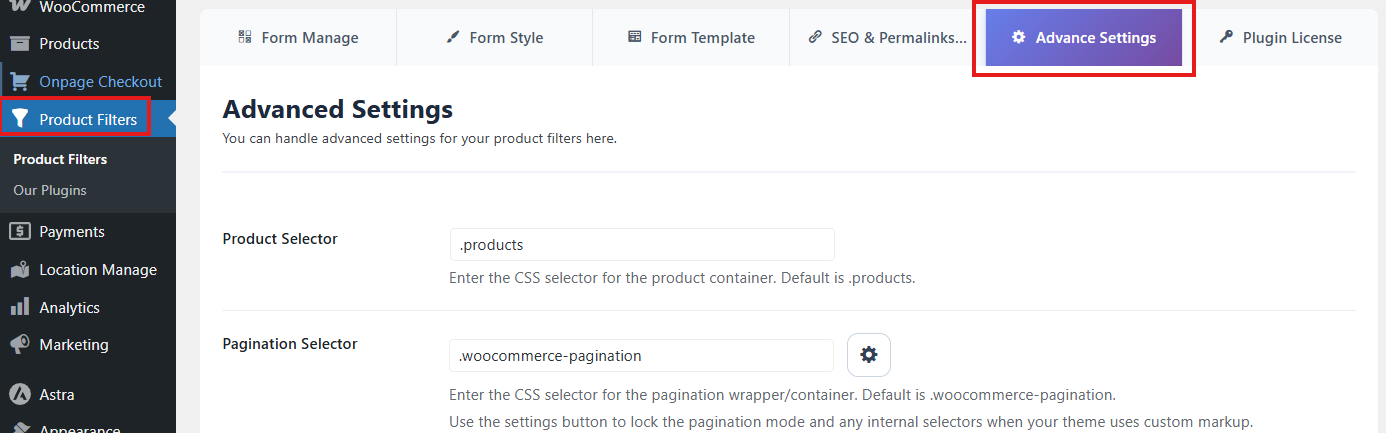
- Go to your WordPress Dashboard.
- Navigate to Product Filters → Advanced Settings.
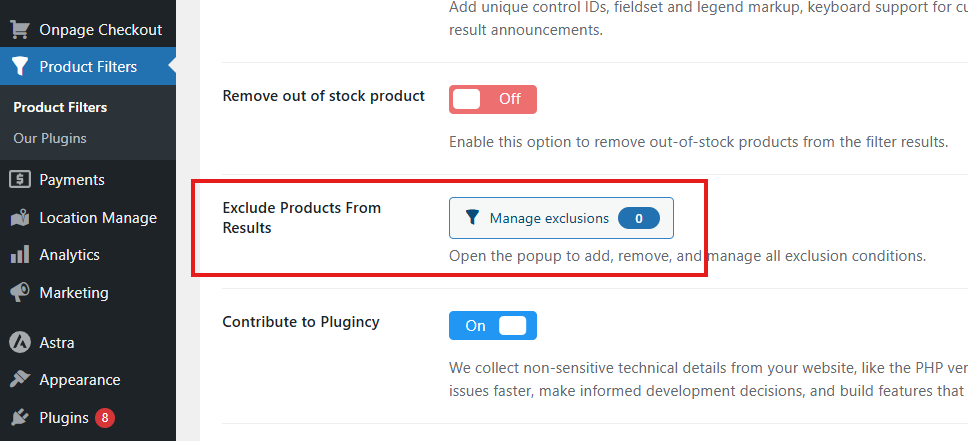
- Find the option named Exclude Products From Results.
Step 2: Open Product Exclusion Rules
- Click the Manage exclusions button.
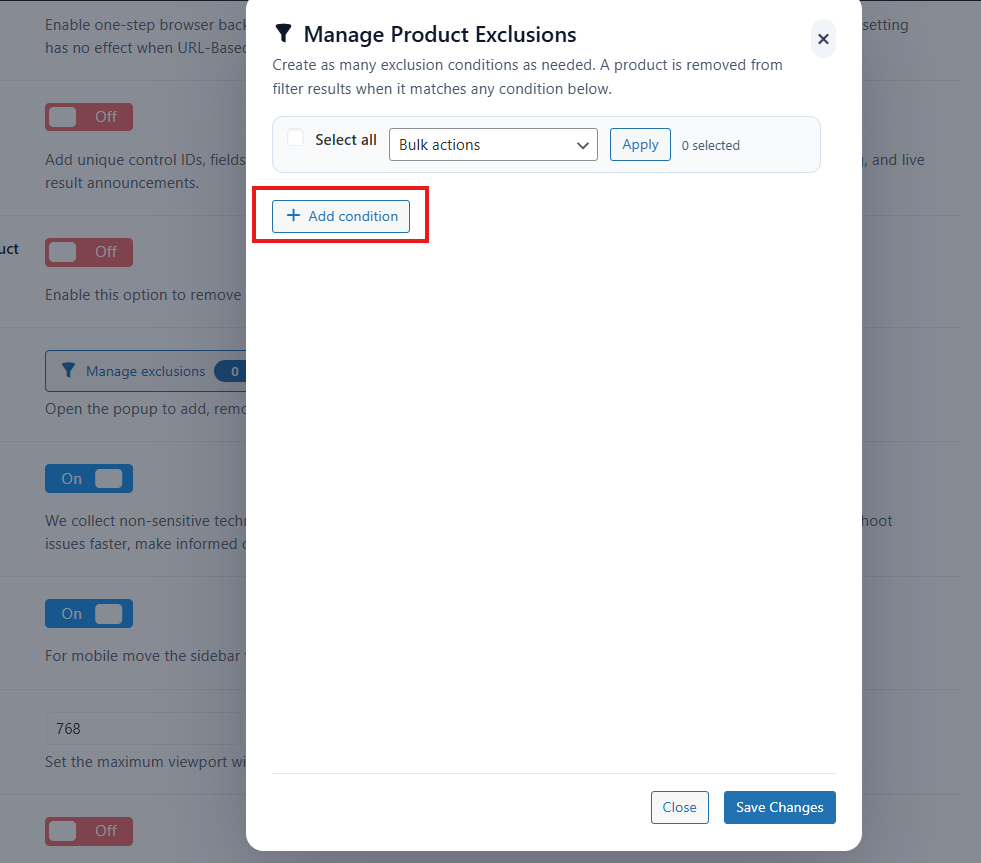
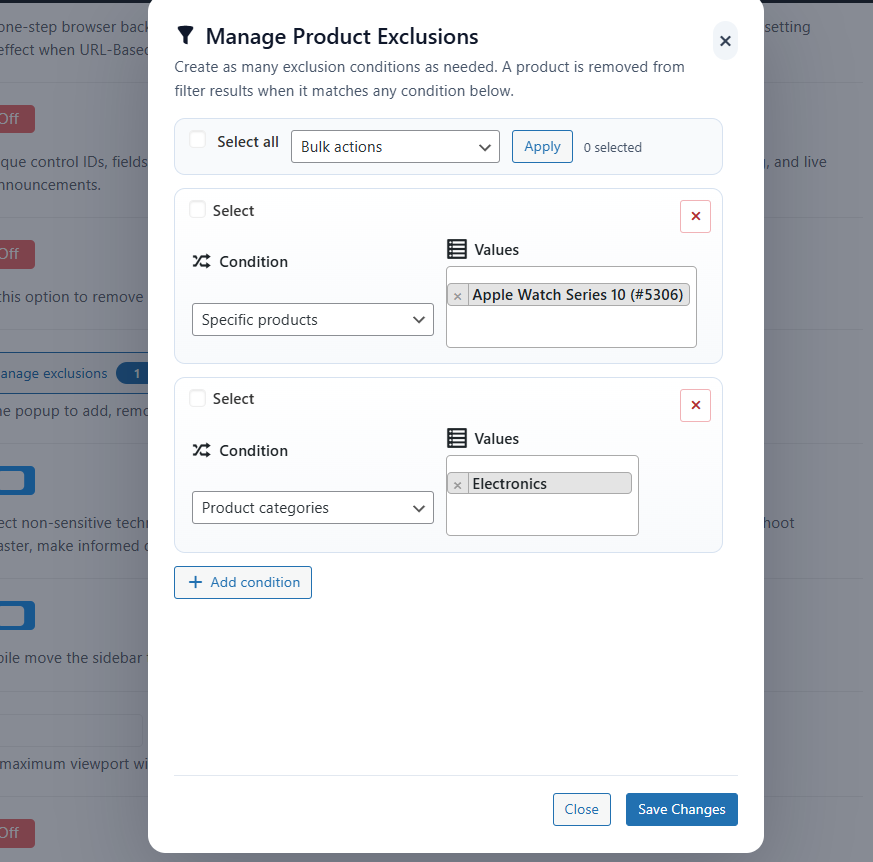
- A popup/modal will open where you can manage exclusion conditions.
- Click Add Condition to create a new exclusion rule.
Step 3: Select an Exclusion Condition
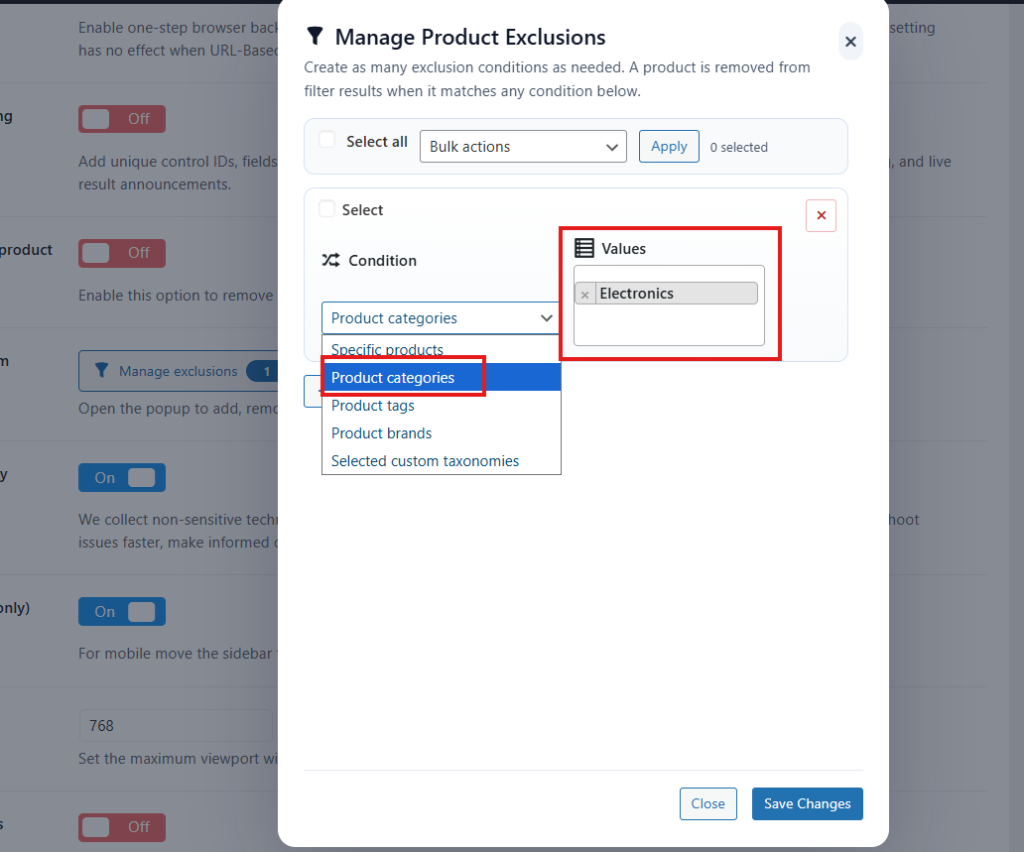
Each exclusion rule has two main fields:
Condition
Choose how you want to exclude products.
Available condition types:
- Specific products – Exclude selected products directly.
- Product categories – Exclude all products assigned to selected categories.
- Product tags – Exclude all products assigned to selected tags.
- Brands – Exclude all products assigned to selected brands.
- Custom taxonomies – Exclude products assigned to selected custom taxonomy terms.
Values
Select the products, categories, tags, brands, or taxonomy terms you want to exclude.
Example:
If you choose Product categories as the condition and select Electronics, all products from the Electronics category will be removed from filter results.
Step 4: Add Multiple Exclusion Rules
You can add more than one exclusion rule.
For example, you can exclude:
- A specific product
- All products from a category
- Products from a selected brand
- Products from a custom taxonomy term
Each rule works together, so any product matching one of the selected rules will be excluded from the results.
Step 5: Save Changes
After adding your exclusion rules:
- Click Save Changes.
- Visit your shop or product archive page.
- Apply filters and check the product results.
Expected Result
Products matching the exclusion rules will no longer appear in filter results.
For example:
- If you exclude a product directly, that product will not appear in filtered results.
- If you exclude a category, products from that category will not appear.
- If you exclude a brand, products from that brand will be removed from the results.
- If you exclude a custom taxonomy term, products assigned to that term will be excluded.
Example Use Cases
Hide Seasonal Products
If you sell seasonal products, you can exclude old or inactive seasonal items from filter results without deleting them from your store.
Hide Products From a Specific Category
If a category is not ready for customers yet, you can exclude all products from that category.
Hide Specific Products
If you want to keep a product published but prevent it from appearing in filtered results, exclude that product directly.
Hide Products From a Brand
If a brand is temporarily unavailable, exclude that brand from filter results until it is ready again.
Notes
- Product Exclusions are available in the Pro version.
- Excluded products are removed from product filter results.
- Category-based exclusions may also affect products inside child categories, depending on your category structure.
- If no exclusion rule is added, the plugin will show products normally.
- After changing exclusion rules, clear your cache if you are using a caching plugin.
Troubleshooting
Excluded products are still showing
Please check the following:
- Make sure the exclusion rule has been saved.
- Clear your site cache and browser cache.
- Check if the product is assigned to the selected category, tag, brand, or taxonomy term.
- Make sure you are testing on a page where Dynamic AJAX Product Filters is active.
- If you are using a page builder or custom product layout, confirm that the filter is connected to the correct product listing.