
Dynamic AJAX Product Filters for WooCommerce includes a global option to remove out-of-stock products from filtered results. This setting is different from the Stock Status filter because it works automatically in the background instead of giving customers a stock status option to choose.
When enabled, out-of-stock products are excluded from the product results and filter calculations.
What is Global Out-of-Stock Removal?
The Remove out of stock product option removes out-of-stock WooCommerce products from filter results.
This means customers will only see products that are available for purchase or currently in stock.
You can manage this option from:
WordPress Dashboard → Product Filters → Advanced Settings
How to Enable Remove Out-of-Stock Products
To enable this option:
- Go to Product Filters → Advanced Settings.
- Find Remove out of stock product.
- Enable the option.
- Click Save Changes.
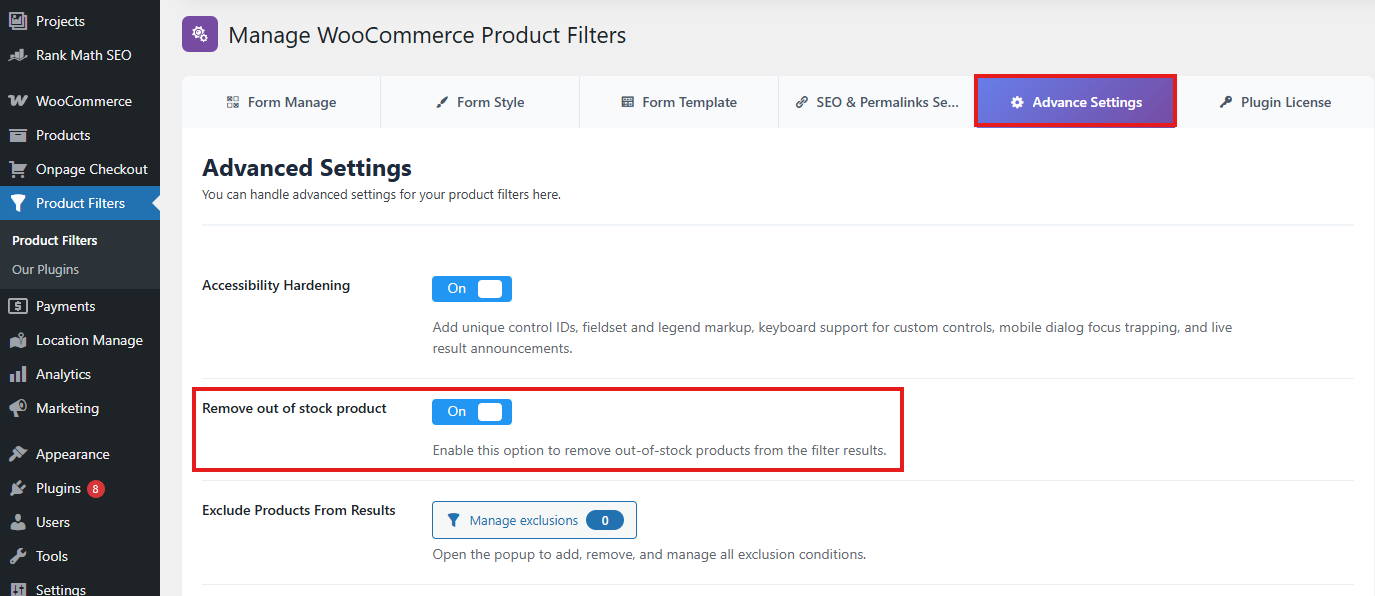
After enabling it, out-of-stock products will be removed from the filtered product results.
Difference Between Global Out-of-Stock Removal and Stock Status Filter
The plugin includes both:
Remove out of stock product
Stock Status filter
These are related, but they are not the same.
| Feature | What it does | Customer sees it? |
|---|---|---|
| Remove out of stock product | Automatically hides out-of-stock products from results | No |
| Stock Status filter | Lets customers choose stock status options | Yes |
Remove Out-of-Stock Product
This is a global background setting.
When enabled, customers do not need to select anything. The plugin automatically removes out-of-stock products from the result list.
Use this when you never want customers to see unavailable products while filtering.
Example:
Customer selects: Category = Shoes
Result: Only in-stock shoes are shown
Out-of-stock shoes are not shown.
Stock Status Filter
The Stock Status filter is a visible filter option that customers can use.
It may allow customers to filter products by statuses such as:
In stock
Out of stock
On backorder
Use this when you want customers to control which stock status they want to view.
Example:
Customer selects: Stock Status = In stock
Result: In-stock products are shown
Or:
Customer selects: Stock Status = Out of stock
Result: Out-of-stock products are shown
Which Option Should You Use?
Use Remove out of stock product when:
You always want to hide unavailable products
You do not want customers to see out-of-stock items
You want cleaner product results
You want filter counts to focus on available products
Your store does not accept backorders
Use Stock Status filter when:
You want customers to choose stock status manually
You allow backorders
You want customers to view out-of-stock products
You want to show availability as a filter option
You sell products that may return soon
You can also use both, but this should be done carefully. If global out-of-stock removal is enabled, the Out of stock option may not be useful because out-of-stock products are already excluded.
How It Affects Product Results
When global out-of-stock removal is enabled, out-of-stock products are excluded from product results.
Example:
Total products in category: 20
In-stock products: 14
Out-of-stock products: 6
With global out-of-stock removal enabled, customers will see:
14 products
With the option disabled, customers may see:
20 products
depending on other WooCommerce and theme settings.
How It Affects Filter Counts
This setting can also affect filter option counts.
When out-of-stock products are removed, filter counts should be calculated based on products that are allowed to appear in the results.
Example:
Brand: Nike
Total Nike products: 10
In-stock Nike products: 7
Out-of-stock Nike products: 3
With global out-of-stock removal enabled, the Brand filter may count Nike as:
Nike (7)
instead of:
Nike (10)
This helps customers avoid selecting filter options that mostly lead to unavailable products.
Why Filter Counts May Change
Filter counts are based on the products currently available for filtering.
If out-of-stock products are removed, counts may become lower because unavailable products are no longer included in the filter calculation.
This is expected behavior.
When to Use Global Out-of-Stock Removal
Enable this option if your store focuses only on products customers can buy now.
Recommended for:
Fashion stores with seasonal inventory
Food or grocery stores
Beauty stores
Electronics stores with limited stock
Stores that do not allow backorders
Stores where unavailable products should not appear in search or filters
This setting is useful when showing out-of-stock products creates confusion or reduces conversions.
When Not to Use It
Do not enable global out-of-stock removal if:
You want customers to see out-of-stock products
You accept backorders
You use out-of-stock products for lead generation
You want customers to sign up for restock notifications
You sell products that regularly return to stock
You want customers to compare available and unavailable products
In these cases, use the Stock Status filter instead, or keep out-of-stock products visible.
Recommended Setup
For stores that only sell available products:
Remove out of stock product: Enabled
Show Stock Status filter: Disabled or optional
For stores that allow customers to filter by availability:
Remove out of stock product: Disabled
Show Stock Status filter: Enabled
For stores that allow backorders:
Remove out of stock product: Disabled
Show Stock Status filter: Enabled
Compatibility with WooCommerce Stock Settings
This option depends on WooCommerce product stock status.
Make sure your products have the correct stock status set in WooCommerce:
In stock
Out of stock
On backorder
If a product has incorrect stock data in WooCommerce, the filter result may also be incorrect.
Troubleshooting
Out-of-stock products are still showing
Check that Remove out of stock product is enabled from:
Product Filters → Advanced Settings
Then clear your site cache and test again.
Also check the product’s WooCommerce stock status. The product must be marked as out of stock in WooCommerce.
Filter counts look lower than expected
This is normal when out-of-stock products are removed.
Counts are based on available products after the exclusion is applied.
Stock Status filter does not show out-of-stock products
If global out-of-stock removal is enabled, out-of-stock products are already excluded.
Disable Remove out of stock product if you want customers to filter and view out-of-stock products.
Products on backorder are not behaving as expected
Check the product’s WooCommerce stock status and backorder settings.
If your store accepts backorders, it may be better to keep global out-of-stock removal disabled and use the Stock Status filter instead.
Recently updated stock status is not reflected
Clear any caching plugin, server cache, CDN cache, or object cache.
Also check whether your inventory system updates WooCommerce stock status correctly.
Best Practices
Use global out-of-stock removal when unavailable products should never appear in filtered results.
Use the Stock Status filter when customers should choose availability manually.
Avoid enabling global removal if you want to promote restock notifications or backorder products.
Keep WooCommerce stock statuses accurate.
Test category, brand, price, attribute, search, sorting, and pagination after enabling this option.
Clear cache after changing stock settings.
Summary
The Remove out of stock product option globally excludes out-of-stock products from filter results.
It is different from the Stock Status filter:
Remove out of stock product = automatic background exclusion
Stock Status filter = visible customer filter option
Enable global removal when you only want customers to see available products.
Disable it when you want customers to view or filter out-of-stock and backorder products.