
The Advanced Settings section allows you to configure detailed behaviors for Dynamic Ajax Product Filters, including product and pagination selectors, text messages, filter behavior, exclusions, mobile layout, cache management, and import/export options. Use this section to ensure the filters work seamlessly with your theme, shortcodes, and WooCommerce setup.
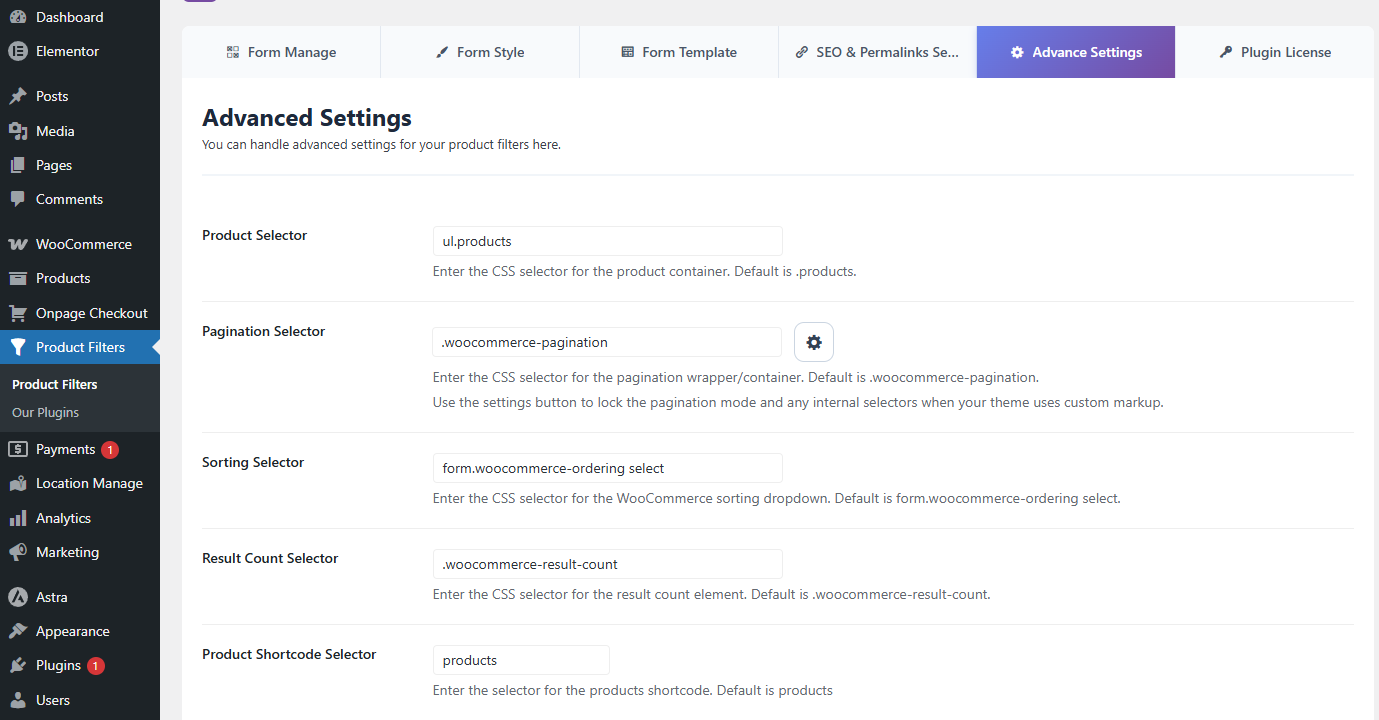
1. Selector Settings
These options define the containers and elements that the plugin interacts with:
- Product Selector
Enter the CSS selector for the container holding filtered products, typically.products. - Pagination Selector
Enter the CSS selector for the pagination container so AJAX-based pagination works correctly, usually.woocommerce-pagination ul.page-numbers. - Product Shortcode Selector
Enter the selector for WooCommerce product shortcodes used on pages, for exampleproducts.
2. Text Manage
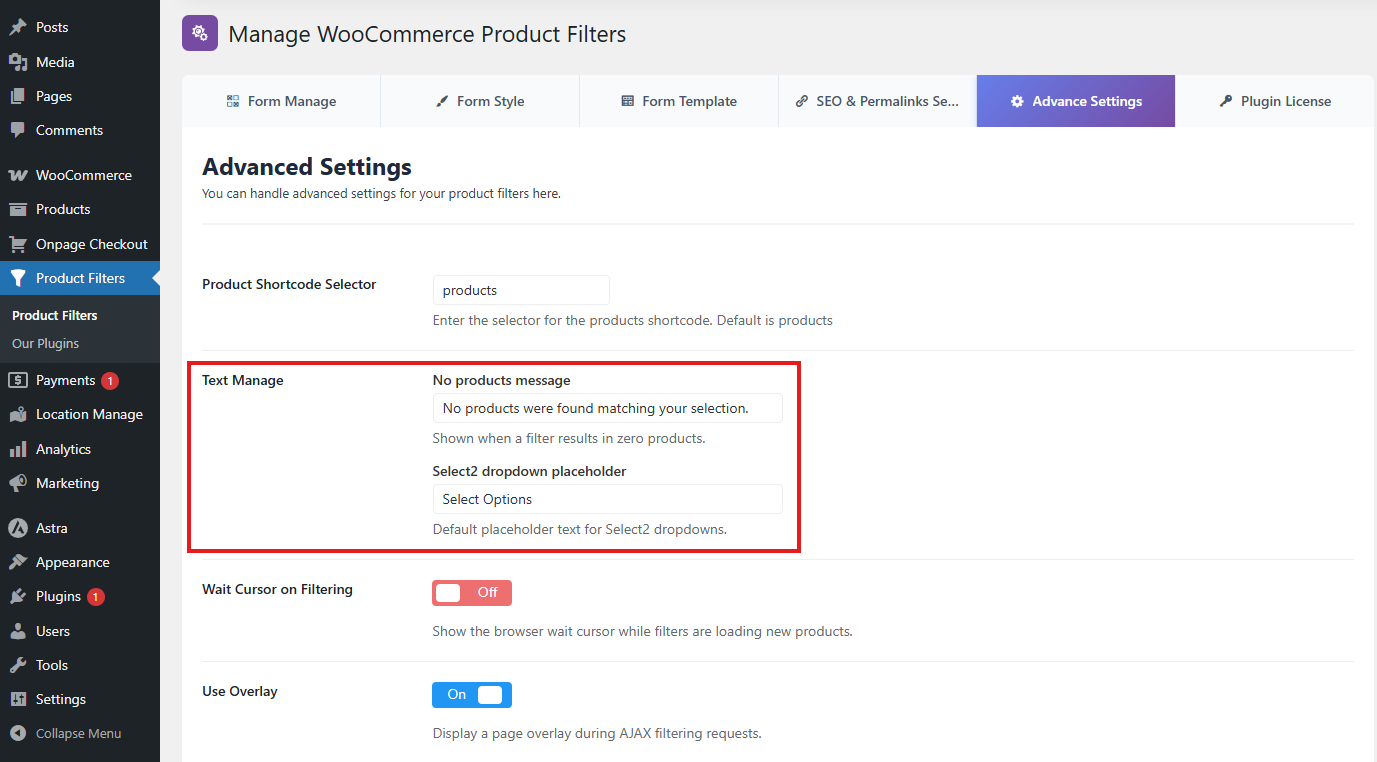
Customize the text messages displayed in filters:
- No Products Message
Text shown when a filter returns zero products. Typically, it reads: No products were found matching your selection. - Select2 Dropdown Placeholder
Placeholder text displayed inside Select2 dropdown filters, usually: Select Options.
3. Product & Filter Behavior
Control how filters handle products and default selections:
- Remove Out of Stock Product
Enable this option to remove out-of-stock products from filter results. - Make Default Options Selected
Enable this option to automatically select the default values set via shortcodes or pages.
4. Mobile Settings
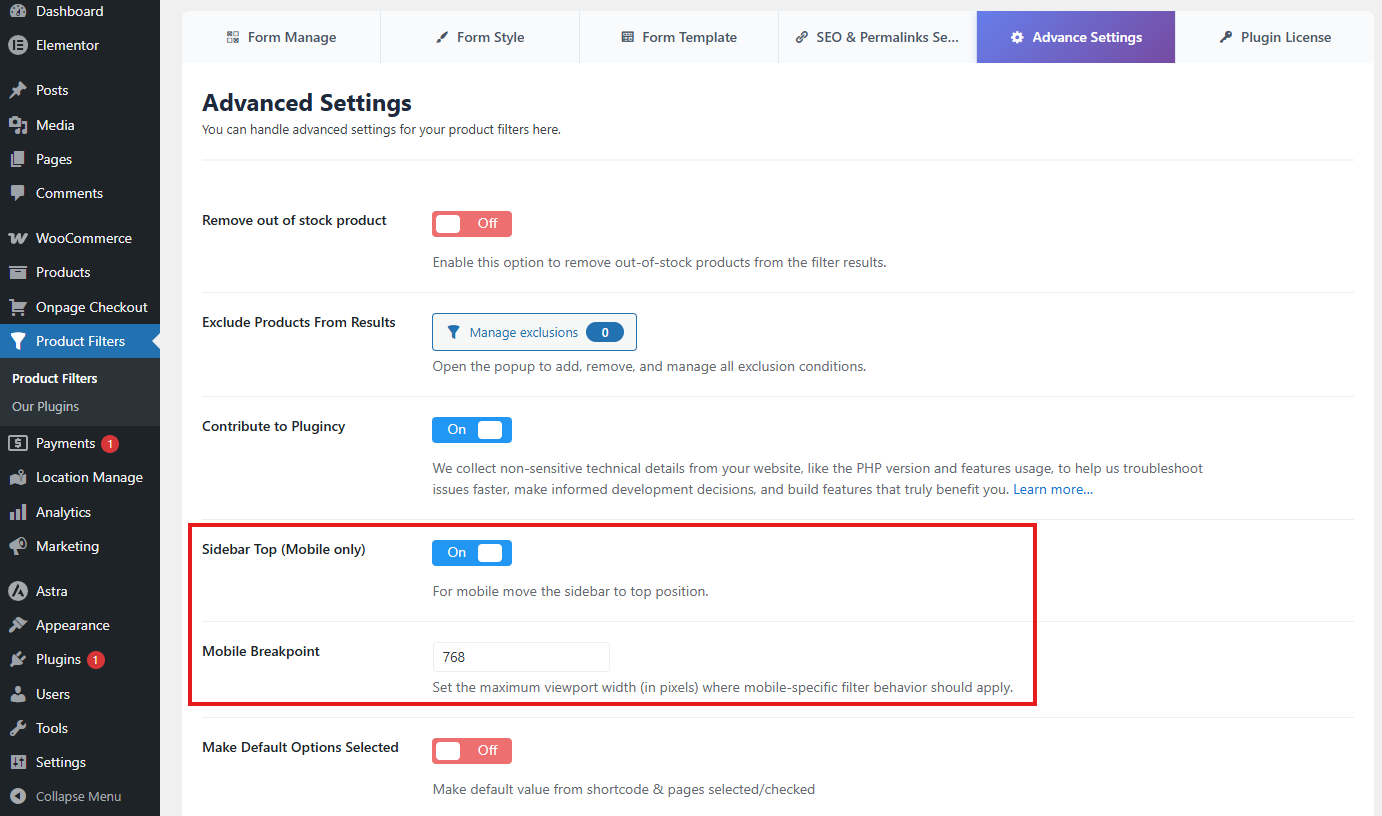
Optimize filter behavior on mobile devices:
- Sidebar Top (Mobile Only)
Enable this option to move the filter sidebar to the top position on mobile devices. - Mobile Breakpoint
Set the maximum viewport width (in pixels) where mobile-specific filter behavior should apply, e.g.,768.
5. Contribution
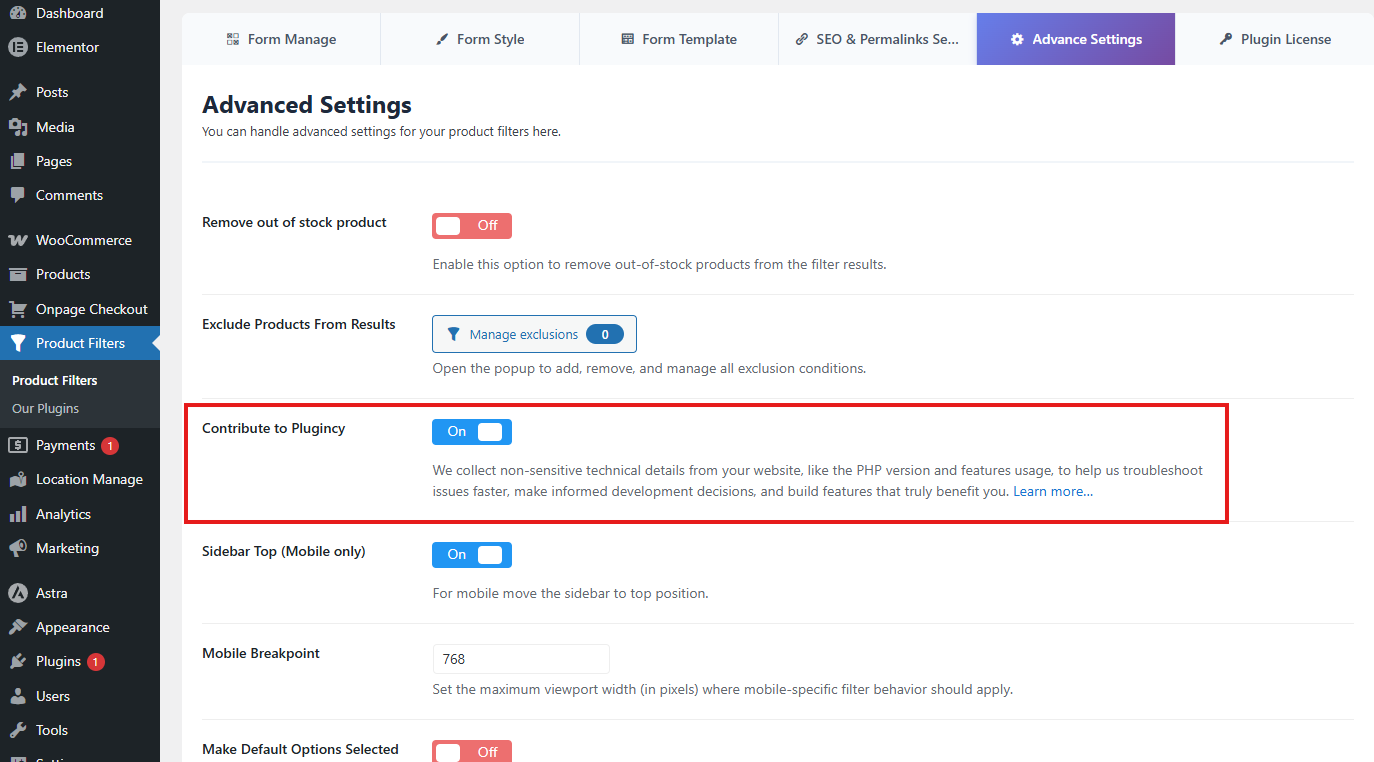
- Contribute to Plugincy
Enable this option to share non-sensitive technical details like PHP version and feature usage. This helps the plugin team troubleshoot issues, make development decisions, and build better features.
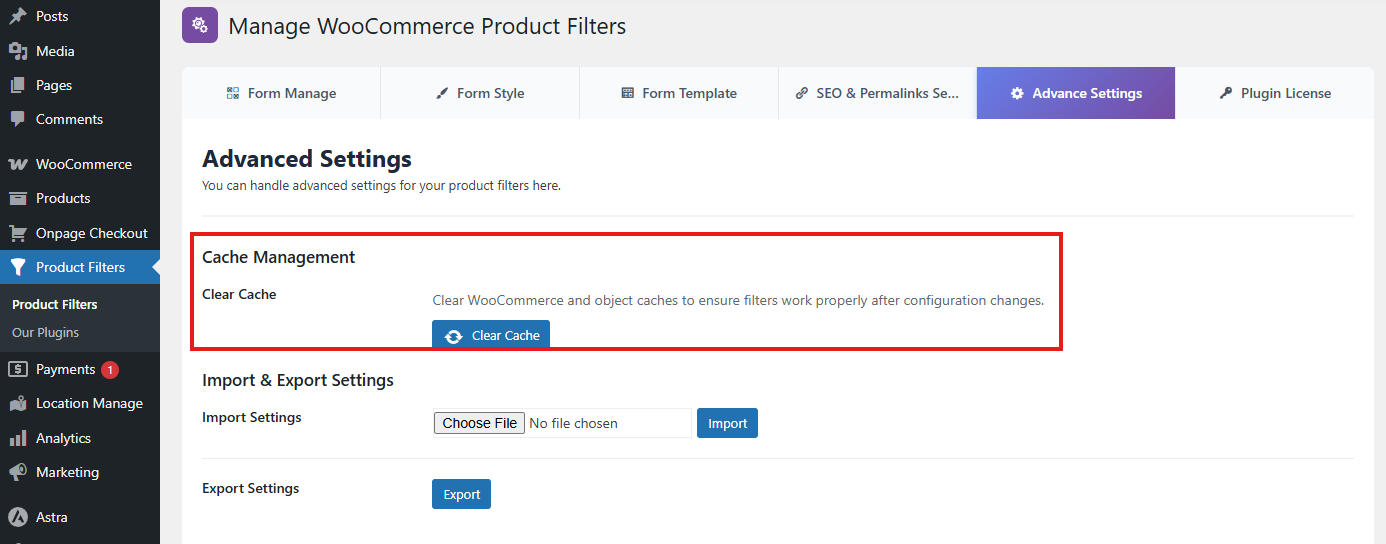
6. Cache Management
- Clear Cache
Clears WooCommerce and object caches to ensure that filters work correctly after configuration changes.
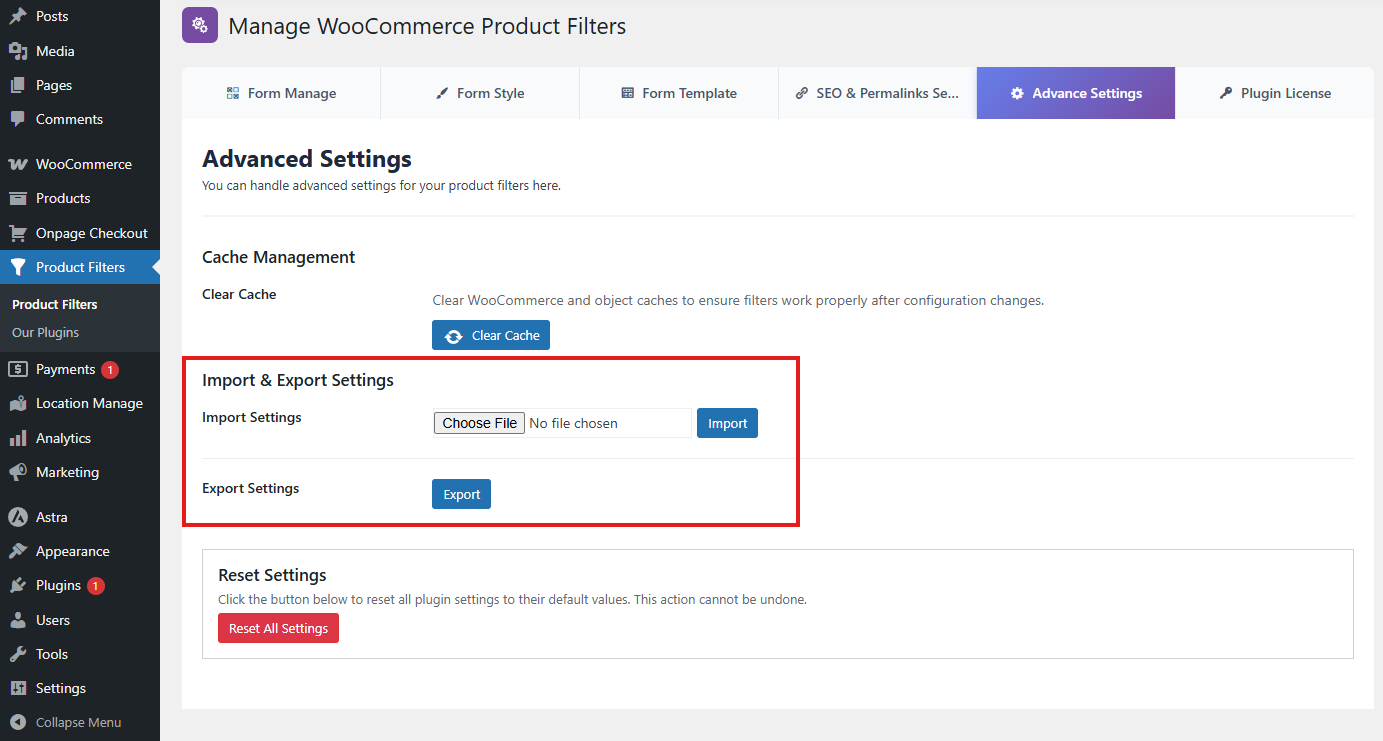
7. Import & Export Settings
- Import Settings
Upload a previously exported settings file to apply the configuration to the plugin. - Export Settings
Download your current plugin configuration for backup or to migrate settings to another site.
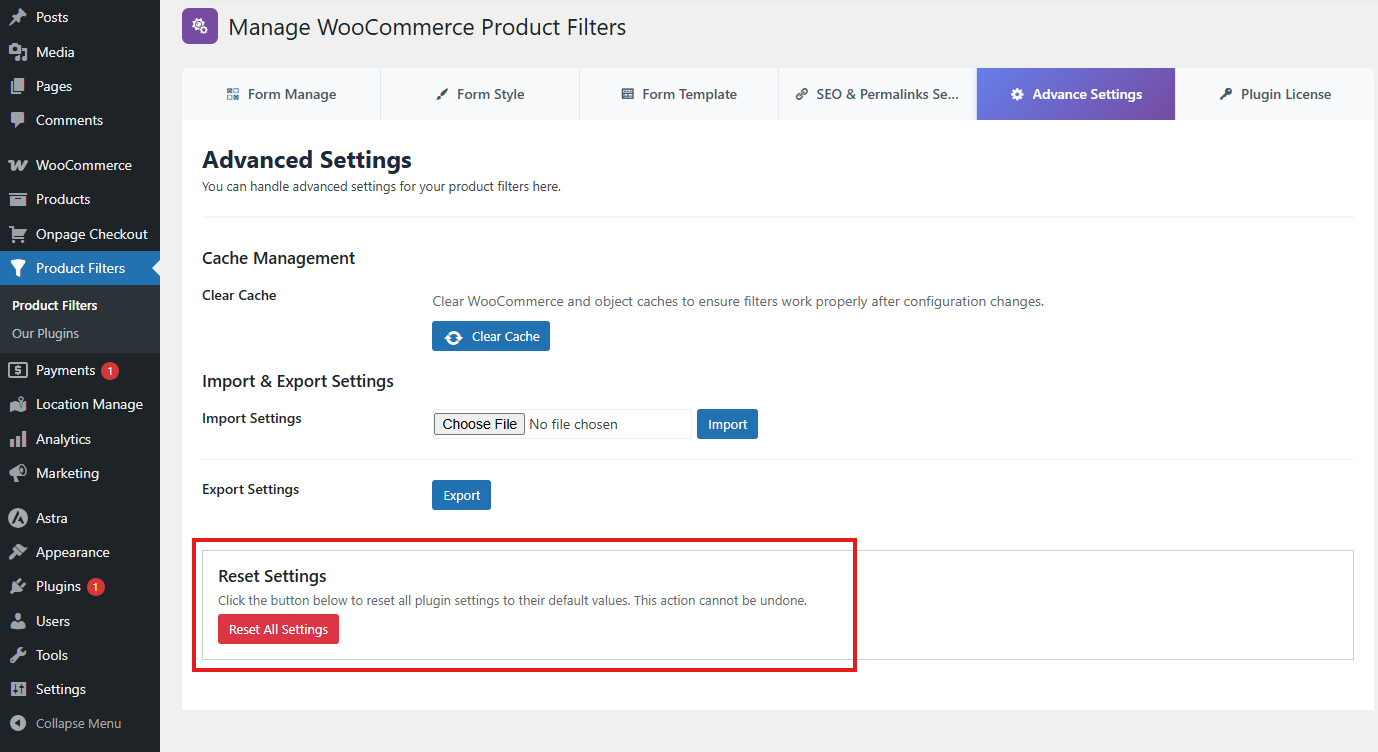
8. Reset Settings
- Reset All Settings
Restore all plugin settings to their original values. This action is permanent and cannot be undone.
✅ Tip:
After making changes to selectors or filter behavior, clear the cache to ensure the updates are reflected. Consider exporting your settings before resetting the plugin to defaults.