
The Form Templates section allows you to choose a pre-designed filter layout and customize its colors to match your store’s branding. Each template offers a unique visual style while maintaining performance and usability.
Choosing a Template
Browse available templates and use Quick Preview to see how each design looks before activation. Once selected, click Activate to apply the template to your filters.
Available Templates
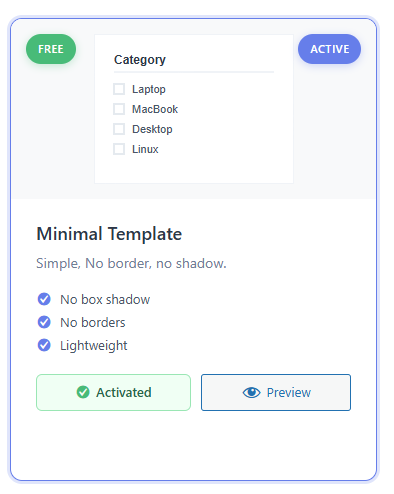
Minimal Template (Free)
A lightweight, distraction-free design suitable for clean and simple layouts.
- No box shadow
- No borders
- Lightweight and minimal appearance
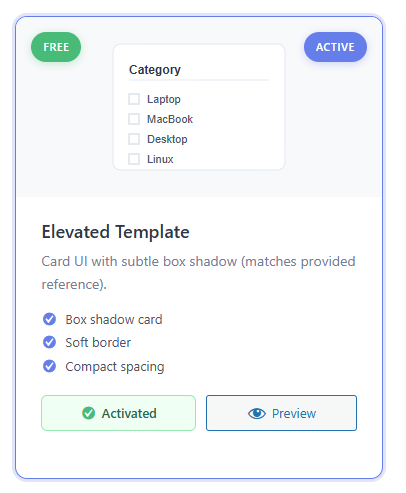
Elevated Template (Free)
A card-style layout with subtle elevation for better visual separation.
- Box shadow card design
- Soft borders
- Compact spacing
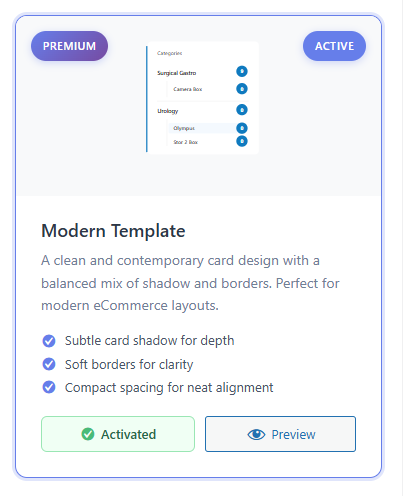
Modern Template (Premium)
A clean and contemporary card design ideal for modern eCommerce stores.
- Subtle card shadow for depth
- Soft borders for clarity
- Compact spacing for neat alignment
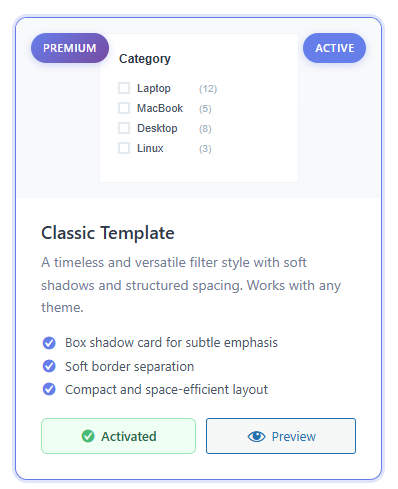
Classic Template (Premium)
A timeless and versatile design that blends well with most themes.
- Box shadow card for subtle emphasis
- Soft border separation
- Space-efficient layout
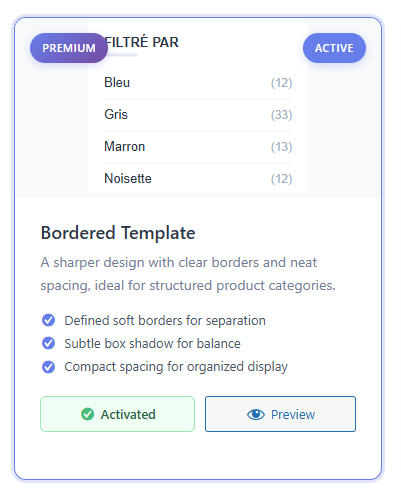
Bordered Template (Premium)
A sharper and more structured design for clearly defined product categories.
- Defined soft borders for separation
- Subtle box shadow for balance
- Organized and compact spacing
More Templates
Additional templates are currently under development and will be available in future updates.
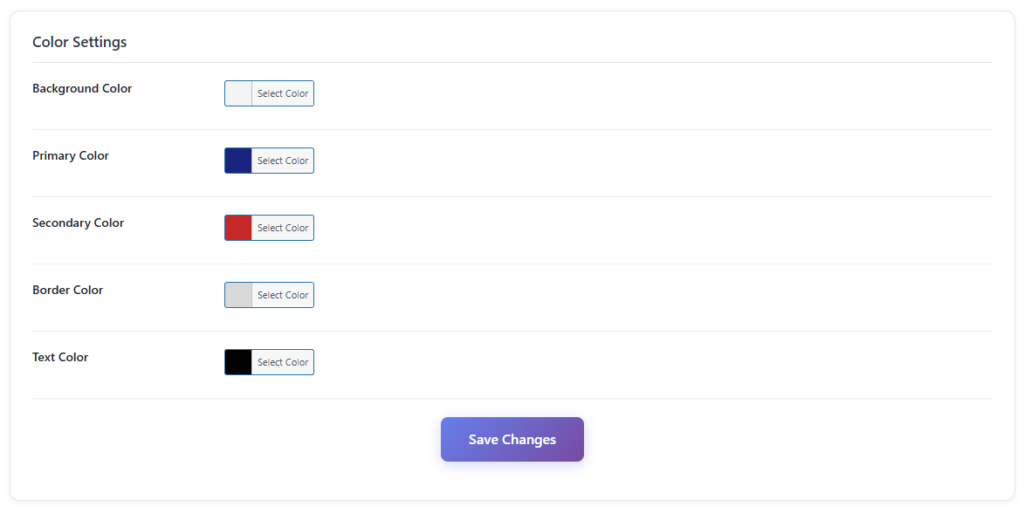
Color Settings
Customize the selected template’s colors to match your store design.
- Background Color – Sets the background color of the filter container
- Primary Color – Used for highlights and active elements
- Secondary Color – Used for secondary accents
- Border Color – Defines the border color of filter elements
- Text Color – Controls the color of filter text
✅ Tip:
Use the color settings to ensure filters blend seamlessly with your theme and maintain consistent branding across your store.