
This guide explains how to manage what appears in your filter section using Global Settings. You can:
- Remove any filter option
- Exclude specific Attributes from the filter section
- Exclude specific Custom Fields from the filter section
1. Remove Any Filter Option
Steps
- Go to WordPress Dashboard → Product Filters → Form Manage
- Find the filter option you want to remove (example: Rating).
- Disable the Rating option.
- Click Save Changes.
- Visit your Shop page and reload the page.
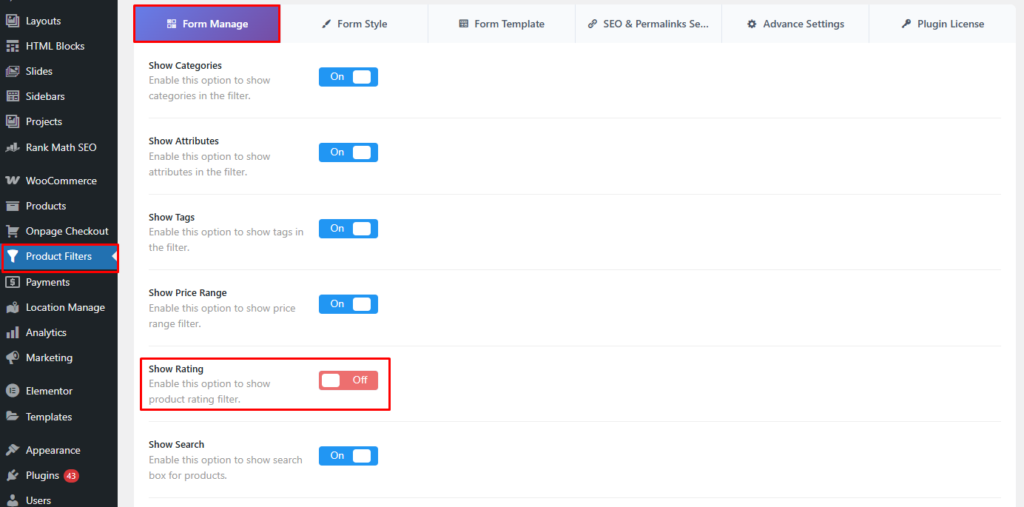
Expected Result
- The Rating filter will no longer appear on the shop page.
Re-enable the Filter
- Go back to the plugin dashboard.
- Enable the Rating option.
- Click Save Changes.
- Reload the shop page.
2. Exclude Attributes From the Filter Section
If you have multiple attributes (example: Color and Processor) but want to show only one of them, you should use Exclude Attribute.
Important Note
- Disabling the main Attributes option will disable all attributes at once.
- To hide only specific attributes, use Exclude Attribute in Advanced Settings.
Steps
- Go to WordPress Dashboard → Product Filters → Form Manage.
- Look for the Show Attributes option.
- Beside the Show Attribute option, there is a gear icon.
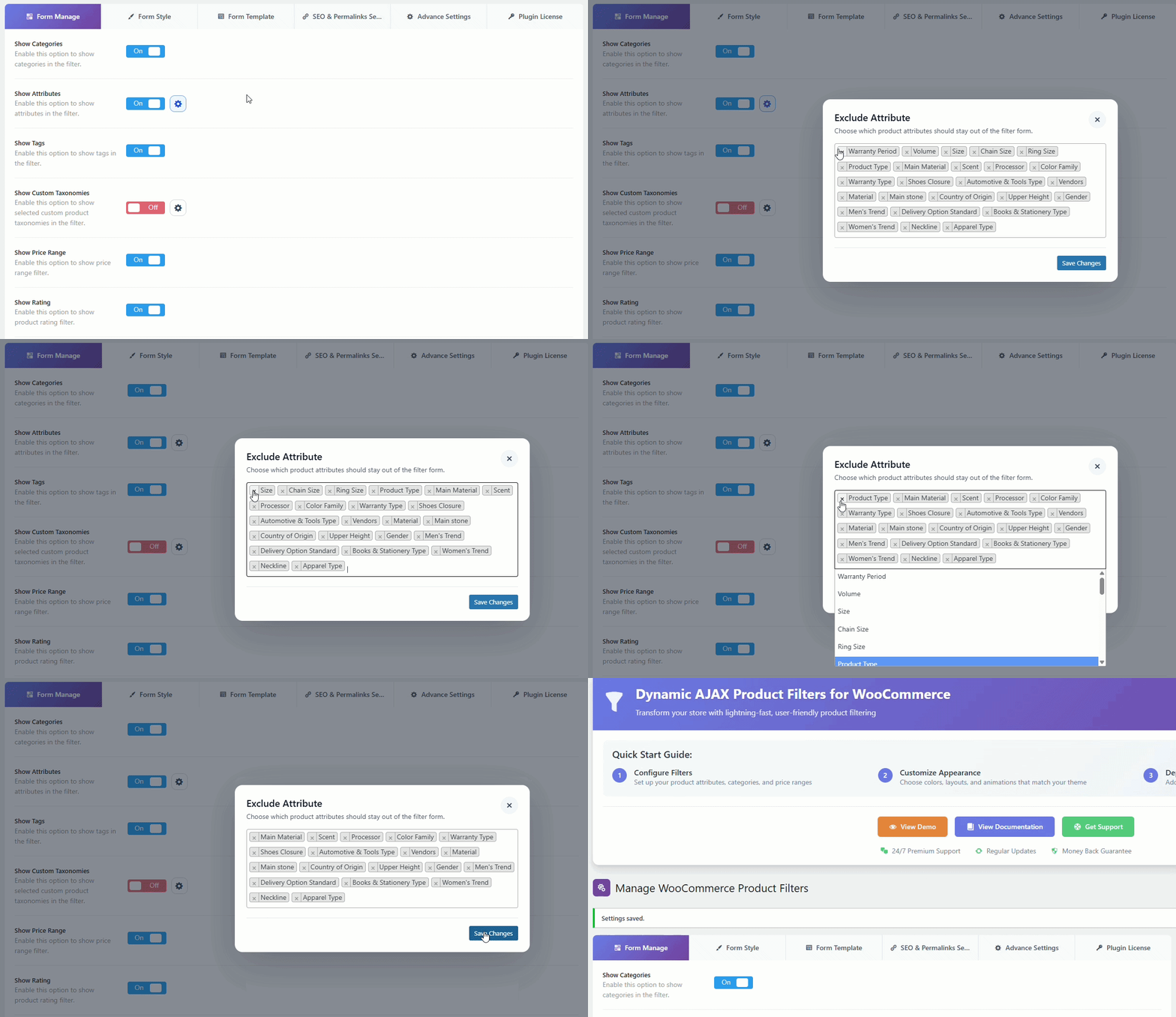
- Click on it and select the attribute(s) you want to hide.
- To select multiple items, hold Ctrl (Windows) or Command (Mac) while clicking.
- Click Save Changes.
- Visit the Shop page and reload.
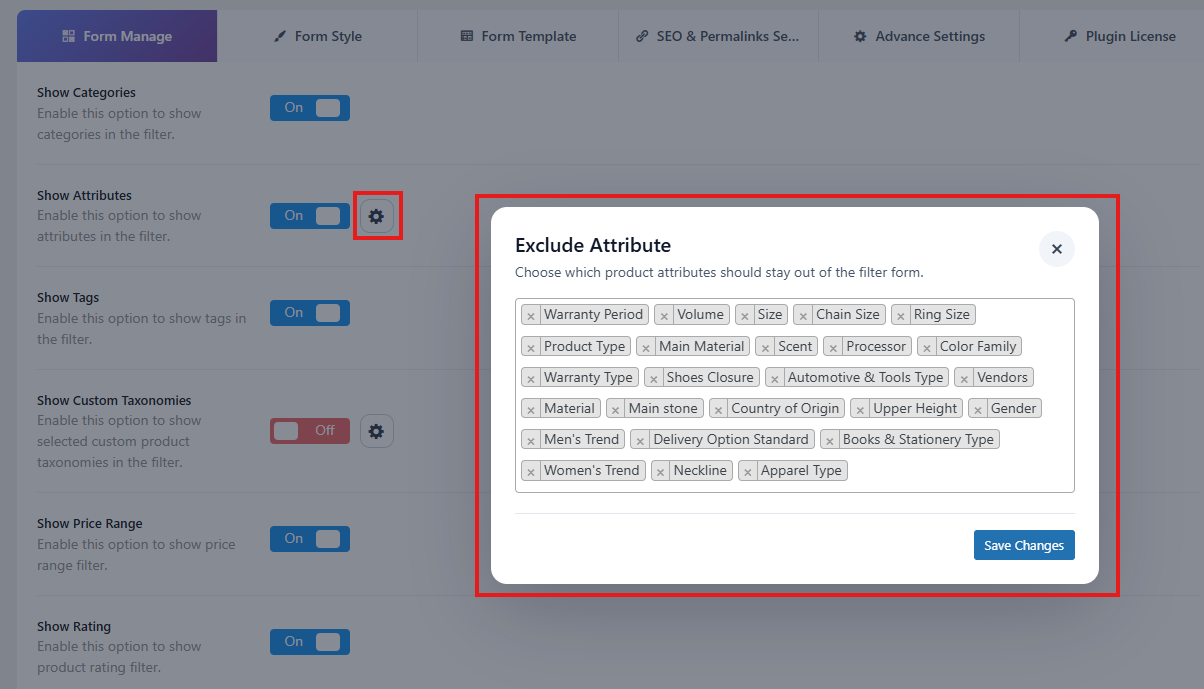
Expected Result
- The excluded attribute(s) will be removed from the filter section.
- Other attributes will remain visible.
Restore an Excluded Attribute
- Go to Form Manage and look for the Show Attribute.
- Click on the Gear icon again.
- Hold Ctrl/Command and click the excluded attribute again to unselect it.
- Click Save Changes.
- Reload the shop page.
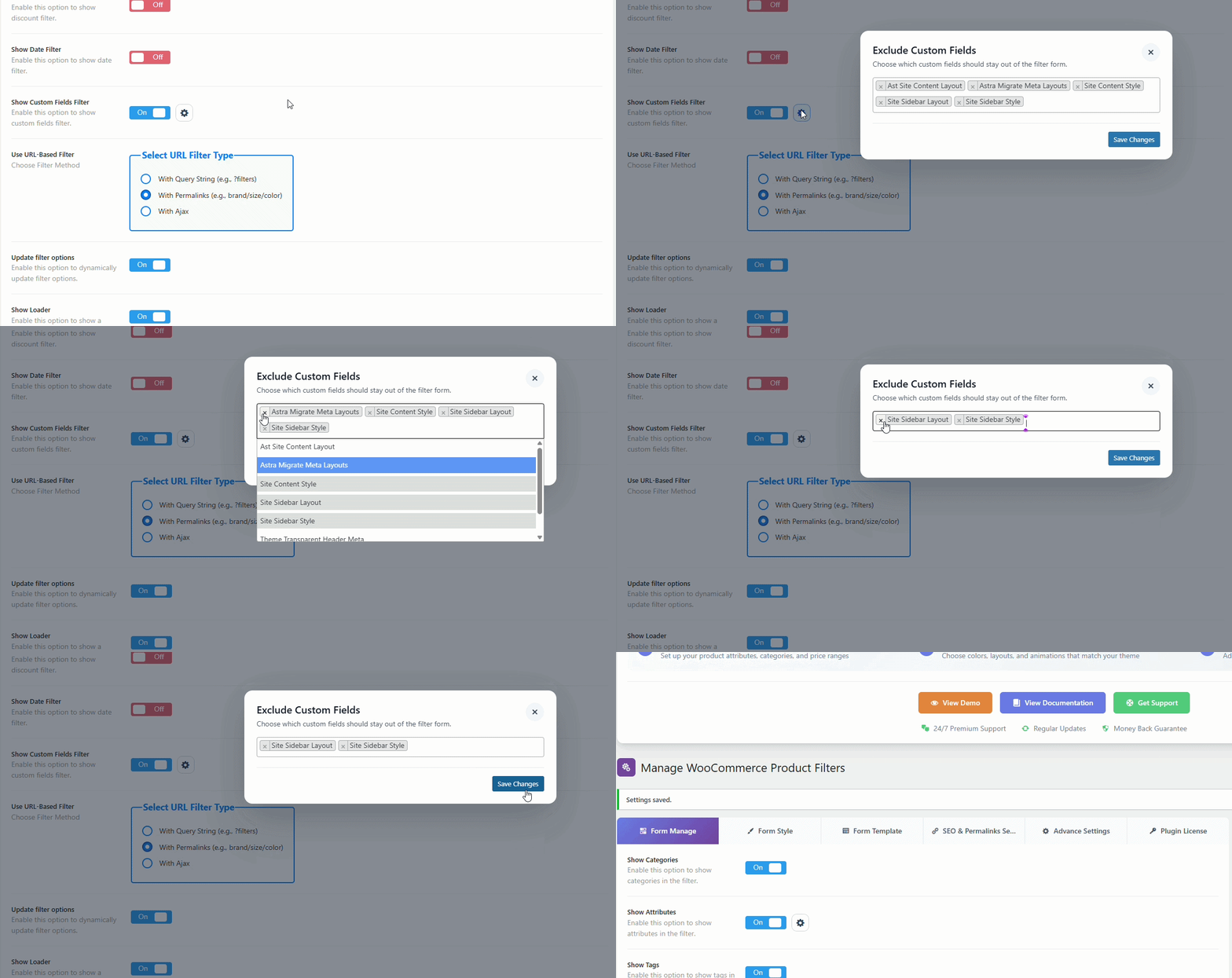
3. Exclude Custom Fields From the Filter Section
If your store uses multiple custom fields, you can choose which ones appear in the filters. For example, you can hide all custom fields except Total Sales.
Steps
- Go to WordPress Dashboard → Product Filters → Form Manage.
- Look for the Show Custom Fields option.
- Beside the Show Custom Fileds option, there is a gear icon.
- Click on the gear icon and select the custom field(s) you want to hide.
- To hide most fields and keep only one visible:
- Select all fields you want to exclude (Ctrl/Command + click)
- Leave the field you want to show unselected
- To hide most fields and keep only one visible:
- Click Save Changes.
- Visit the Shop page and reload.
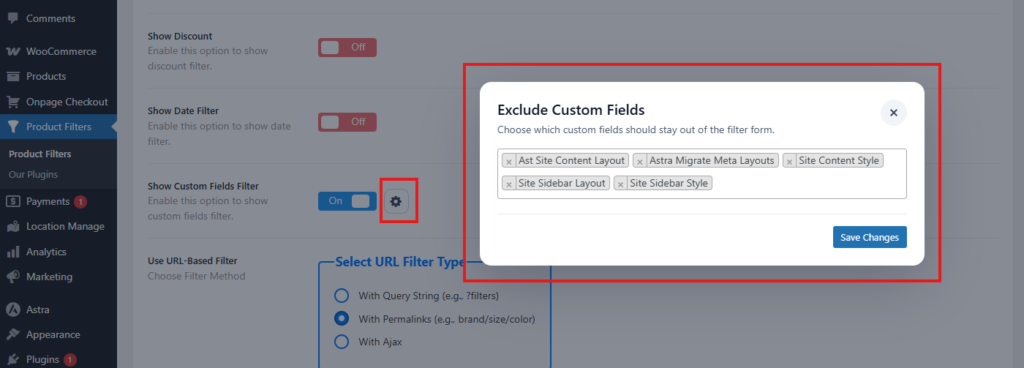
Expected Result
- All excluded custom fields will be hidden from the filter section.
- Only the remaining custom fields will be visible.
Show All Custom Fields Again
- Go back to Exclude Custom Fields.
- Unselect the hidden options (Ctrl/Command + click).
- Click Save Changes.
- Reload the shop page.
Summary
Using Global Settings, you can easily control what appears in your shop filters:
- Disable any filter option to remove it from the shop page
- Exclude specific attributes without disabling all attributes
- Exclude specific custom fields and show only the ones you want