
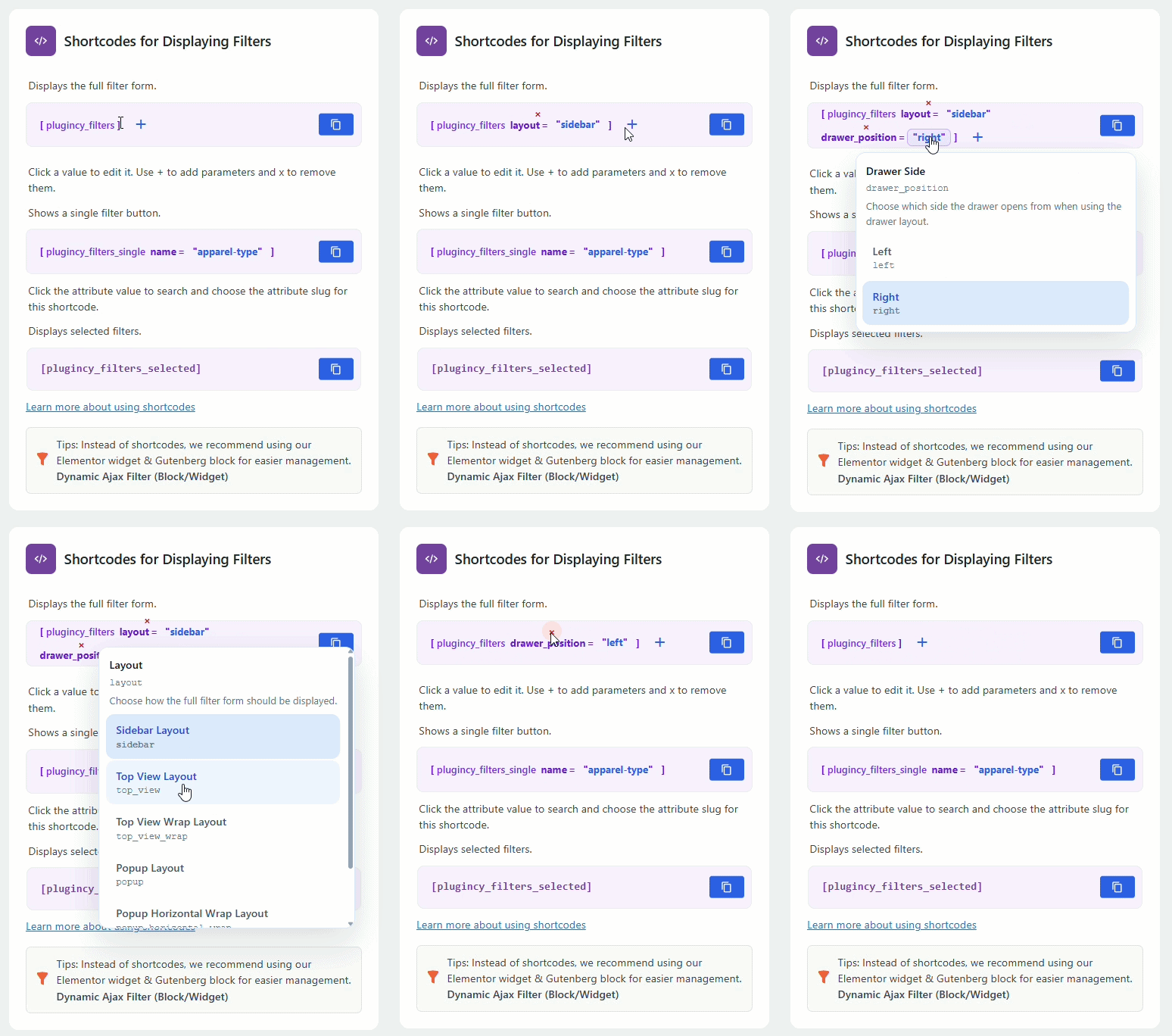
The Shortcode Builder helps you generate ready-to-use filter shortcodes for Dynamic AJAX Product Filters for WooCommerce. Instead of writing shortcode manually, you can select the available options from the builder and copy the generated shortcode directly into any page, post, widget area, or page builder.
This is useful when you want to place product filters in custom layouts, landing pages, shop sections, or WooCommerce product shortcode pages.
What Is the Shortcode Builder?
The Shortcode Builder is an admin tool that lets you quickly create filter shortcodes without remembering shortcode parameters.
Using the builder, you can:
- Generate the main filter shortcode.
- Create shortcode output for selected filter settings.
- Copy the shortcode and paste it anywhere on your site.
- Use filters inside Gutenberg, Elementor, other page builders, widgets, or custom templates.
The plugin already supports displaying filters with the [plugincy_filters] shortcode, and the builder makes this process easier for non-technical users.
When Should You Use the Shortcode Builder?
Use the Shortcode Builder when you want to:
- Add filters to a custom WooCommerce page.
- Display filters outside the default shop sidebar.
- Place filters inside a page builder layout.
- Add filters above, beside, or below product listings.
- Create a reusable shortcode without manually typing it.
- Avoid shortcode formatting mistakes.
Step 1: Open the Shortcode Builder
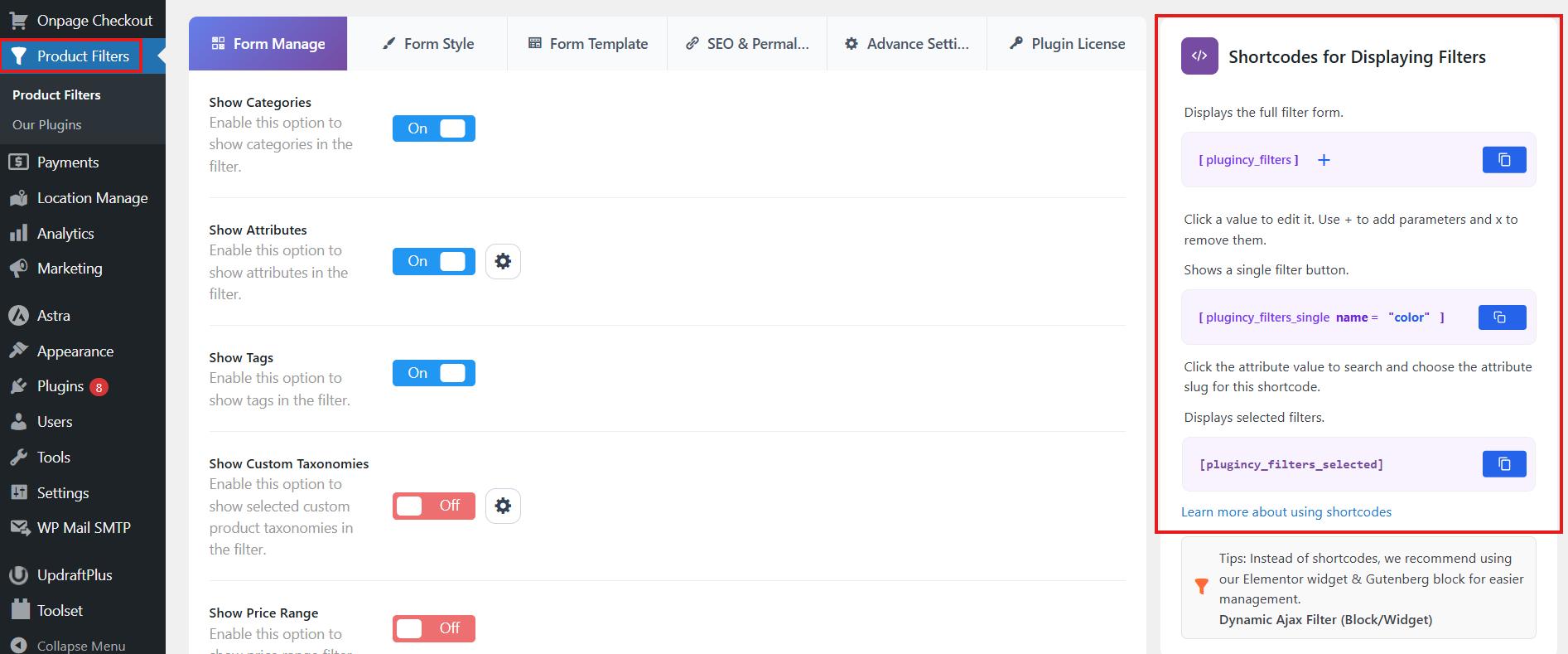
- Go to your WordPress Dashboard.
- Navigate to Product Filters.
- Open the Shortcode Builder section.
- You will see the available shortcode configuration options.
Step 2: Configure the Shortcode Options
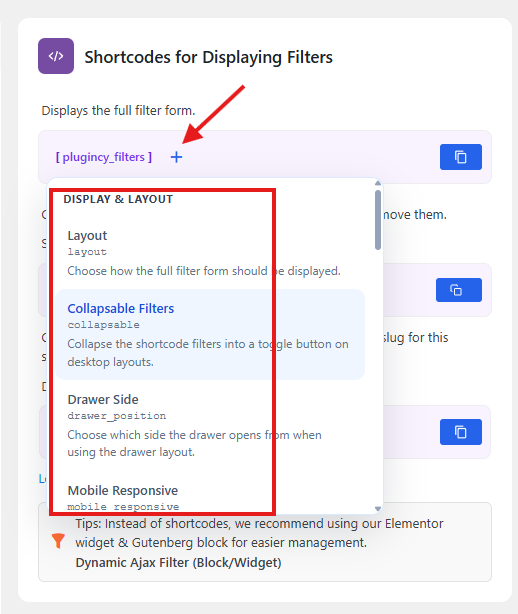
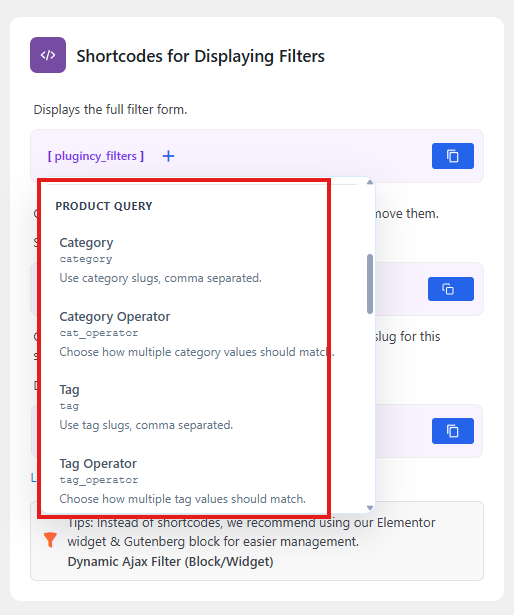
Inside the Shortcode Builder, choose the options you want to include in your filter shortcode.
Depending on your plugin setup, the builder may include options such as:
- Filter type
- Filter layout
- Filter style
- Selected filter fields
- Page-specific filter settings
- Default selected values
- Product listing compatibility options
After selecting your preferred options, the builder will generate the shortcode automatically.
Step 3: Copy the Generated Shortcode
Once the shortcode is generated:
- Review the shortcode output.
- Click Copy Shortcode.
- The shortcode will be copied to your clipboard.
Example shortcode:
[plugincy_filters]
You can then paste it into any supported WordPress area.
Step 4: Add the Shortcode to a Page or Post
To display the filters on a page:
- Go to Pages → Add New or edit an existing page.
- Add a Shortcode block.
- Paste the generated shortcode.
- Click Update or Publish.
- Visit the page and test the filter.
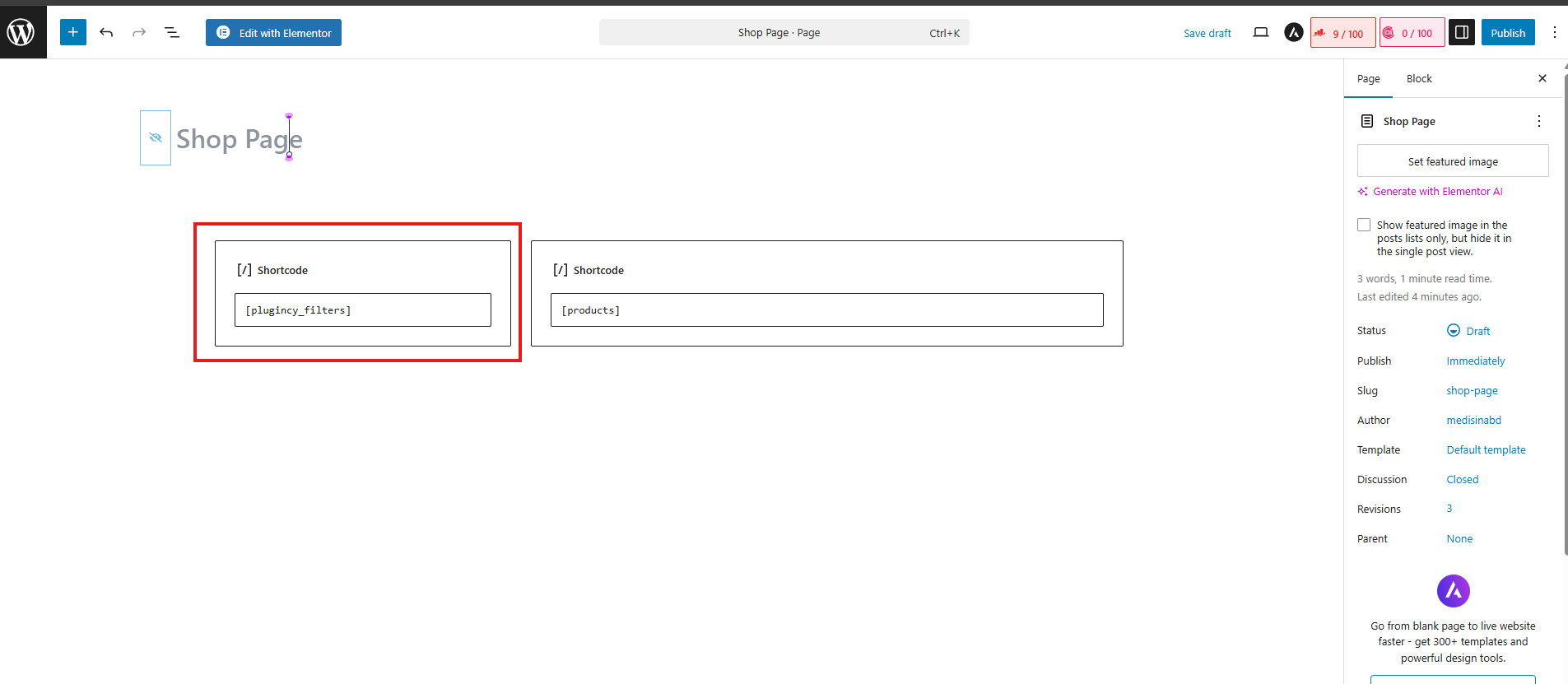
Step 5: Use the Shortcode With WooCommerce Products
If you are creating a custom shop page, you may also want to display WooCommerce products on the same page.
Example:
[plugincy_filters][products]
The filter shortcode displays the filter interface, and the WooCommerce products shortcode displays the product listing. The plugin includes compatibility with WooCommerce product shortcodes, and the advanced settings include a Product Shortcode Selector option for shortcode-based product layouts.
Step 6: Use the Shortcode in Elementor or Other Page Builders
You can also use the generated shortcode inside popular page builders.
Elementor Example
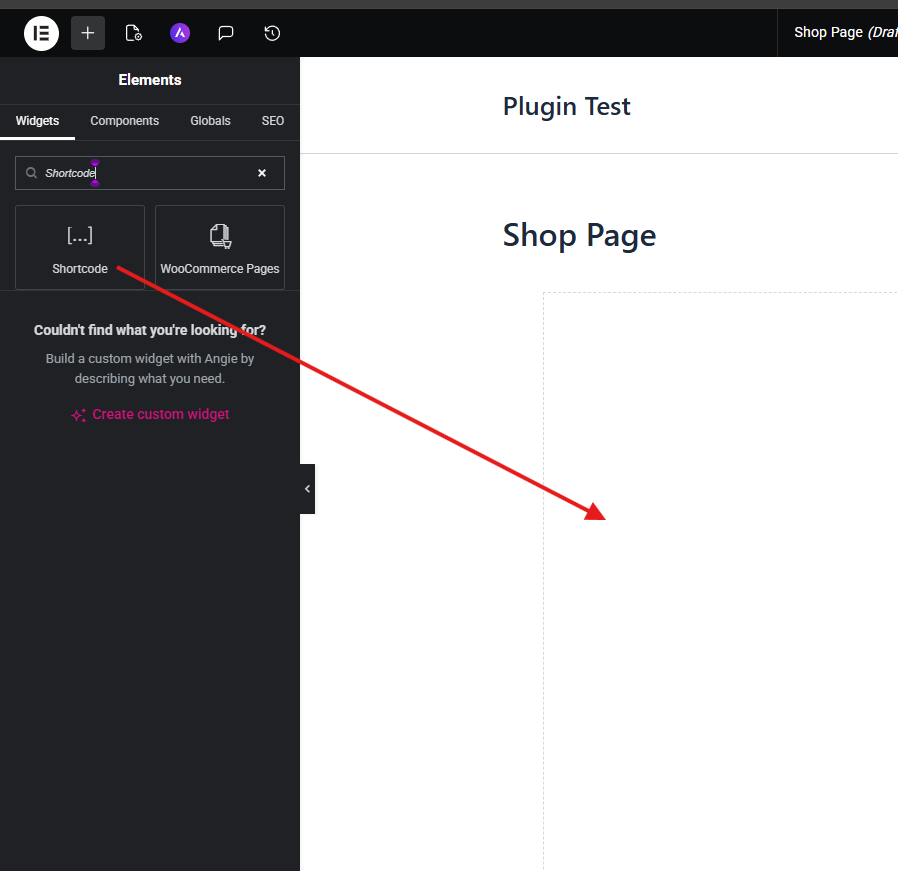
- Edit your page with Elementor.
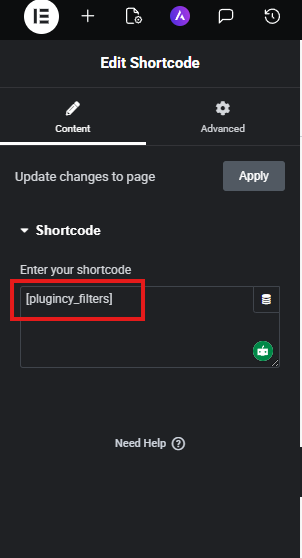
- Drag the Shortcode widget into your layout.
- Paste the generated shortcode.
- Update the page.
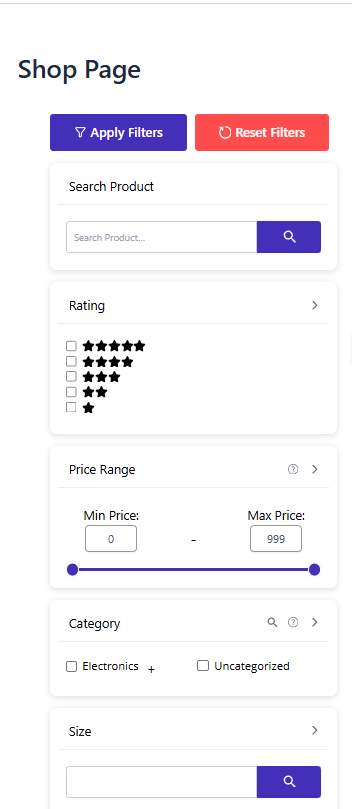
- Preview the filter on the frontend.
Other Page Builders
For other builders, use their shortcode, HTML, text, or code module and paste the generated shortcode there.
Step 7: Display the Shortcode Using PHP
Developers can also display the generated shortcode inside theme files.
Example:
<?php echo do_shortcode('[plugincy_filters]'); ?>
This is useful when you want to place filters directly inside a theme template such as:
sidebar.phparchive-product.phpheader.php- Custom WooCommerce templates
- Custom landing page templates
Expected Result
After adding the generated shortcode, the product filter will appear on the frontend. Customers will be able to filter products instantly using AJAX without reloading the page.
If the shortcode is added above or beside a product listing, the filter will update the matching products based on the selected options.
Common Use Cases
Custom Shop Page
Use the Shortcode Builder to generate a filter shortcode and place it above a WooCommerce products shortcode.
Example:
[plugincy_filters]
[products columns="4" limit="12"]
Landing Page Filters
Add filters to promotional or campaign pages where you only show selected products.
Sidebar Filter
Paste the generated shortcode into a sidebar widget or block area.
Page Builder Layout
Use the shortcode inside Elementor, Divi, WPBakery, Beaver Builder, Gutenberg, or any builder that supports shortcode output.
Notes
- The main filter shortcode is usually:
[plugincy_filters]
- For a single filter display, the plugin also supports:
[plugincy_filters_single name=""]
The name value should be replaced with the filter name you want to display.
- Make sure the shortcode is placed on a page where WooCommerce products are available.
- If you are using WooCommerce product shortcodes, check the Product Shortcode Selector in Advanced Settings.
- If filters do not update products, verify that the correct product container selector is configured.
- Clear your cache after changing shortcode or filter settings.
Troubleshooting
Shortcode is showing as plain text
Make sure you inserted it inside a proper Shortcode block, shortcode widget, or page builder shortcode module.
Filters appear, but products do not update
Check the following:
- Confirm that the page has a WooCommerce product listing.
- Go to Product Filters → Advanced Settings.
- Check the Product Selector field.
- If using WooCommerce products shortcode, check the Product Shortcode Selector field.
- Clear cache and test again.
Filters are not showing
Please check:
- The plugin is active.
- The shortcode is copied correctly.
- The shortcode is placed in a supported content area.
- The page builder is not escaping or disabling shortcodes.
- The filter settings are enabled from the plugin admin panel.
Product shortcode page is not filtering correctly
If you are using:
[products]
or another WooCommerce product shortcode, make sure the Product Shortcode Selector is configured correctly in Advanced Settings. The default selector is usually products.