
Advanced Pagination gives you more control over how Dynamic AJAX Product Filters handles pagination on WooCommerce product listings. It is useful when your theme, page builder, or custom product layout uses non-standard pagination markup.
With this setting, you can define the exact pagination mode and selectors used for AJAX pagination, including numbered pagination, previous/next pagination, load more buttons, and infinite scroll.
When Should You Use Advanced Pagination?
Use Advanced Pagination when:
- Pagination is not working correctly after filtering.
- Your theme uses custom pagination markup.
- You are using a custom product loop or page builder layout.
- The next/previous buttons are not detected automatically.
- You want to use Load More or Infinite Scroll with AJAX filtering.
- Pagination reloads the full page instead of updating products through AJAX.
Step 1: Open Advanced Settings
- Go to your WordPress Dashboard.
- Navigate to Product Filters > Advanced Settings.
- Find the Pagination Selector option.
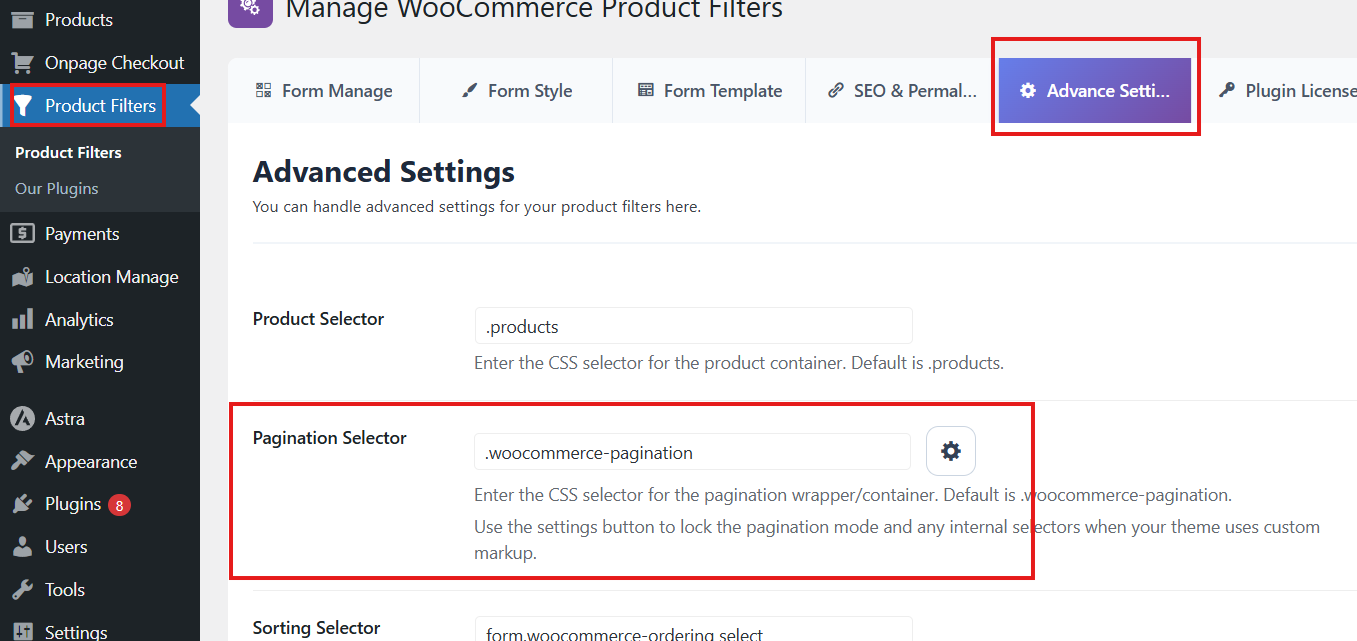
Step 2: Set the Pagination Selector
The Pagination Selector is the outer pagination wrapper/container used by your theme.
Default value:
.woocommerce-pagination
Use this field to target the main pagination container.
Example:
.woocommerce-pagination
If your theme uses a custom pagination wrapper, enter that selector instead.
Example:
.my-custom-pagination
Step 3: Open Advanced Pagination Settings
Next to the Pagination Selector field, click the settings icon to open the Advanced Pagination popup/modal.
This popup lets you define the exact pagination mode and the selectors used inside the pagination container.
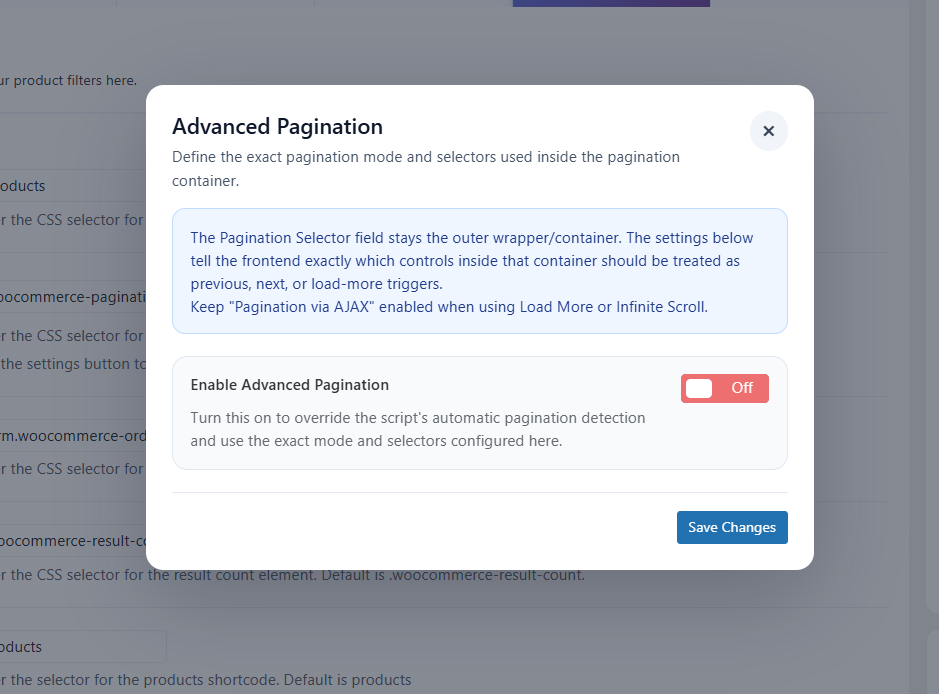
Step 4: Enable Advanced Pagination
Inside the popup, turn on Enable Advanced Pagination.
Use this option when you want to override the plugin’s automatic pagination detection and manually define the pagination behavior.
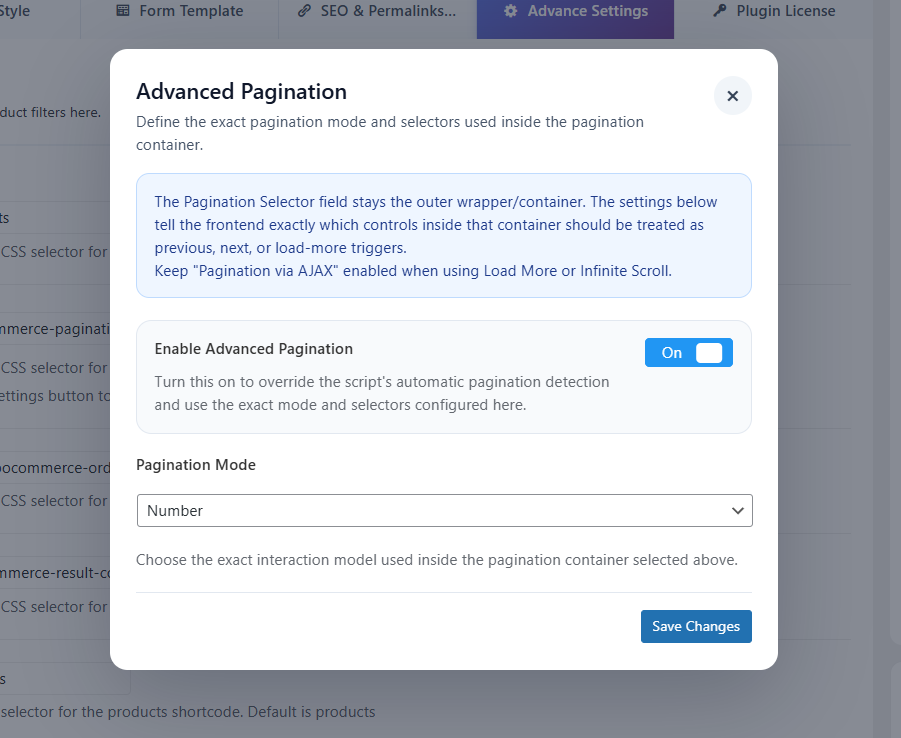
Step 5: Select Pagination Mode
Choose the pagination mode used by your product listing.
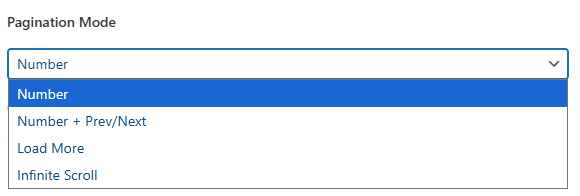
Available modes:
Number
Use this option when your pagination only uses page numbers.
Example:
1 2 3 4
This is the best option for standard WooCommerce pagination.
Number + Prev/Next
Use this option when your pagination includes page numbers and previous/next buttons.
Example:
← Previous 1 2 3 Next →
When using this mode, you can define separate selectors for the Previous and Next buttons.
Load More
Use this option when your product listing uses a Load More button instead of numbered pagination.
Example:
Load More
When using Load More, make sure Pagination via AJAX is enabled.
Infinite Scroll
Use this option when more products should load automatically as the customer scrolls down the page.
When using Infinite Scroll, make sure Pagination via AJAX is enabled.
Step 6: Configure Previous and Next Selectors
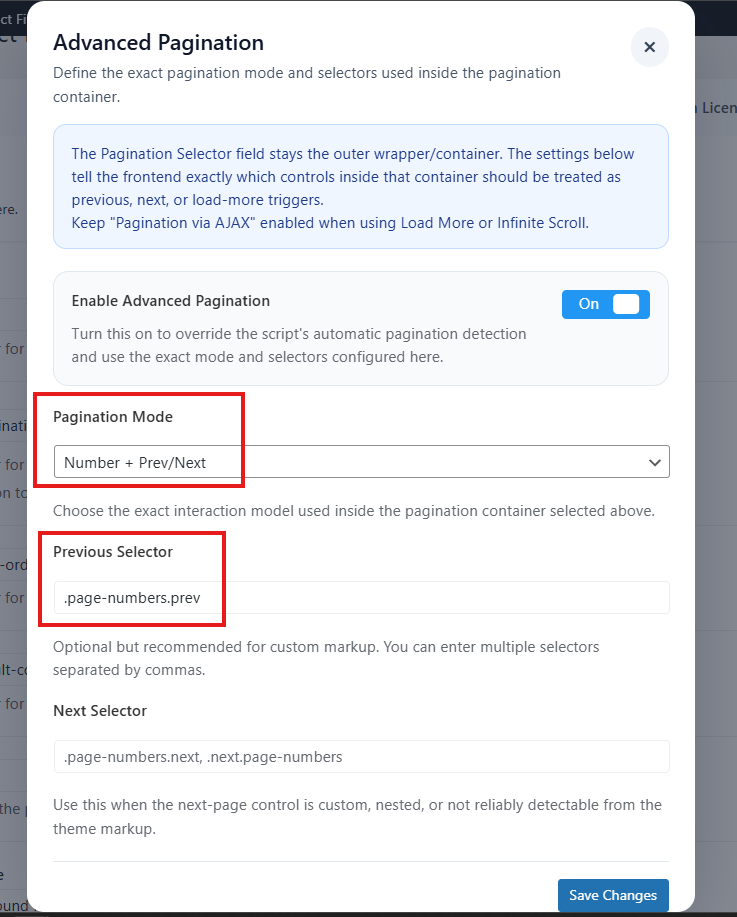
If you select Number + Prev/Next, you can configure:
Previous Selector
Enter the selector for the previous-page button.
Example:
.page-numbers.prev
You can also add multiple selectors separated by commas.
Example:
.page-numbers.prev, .prev.page-numbers
Next Selector
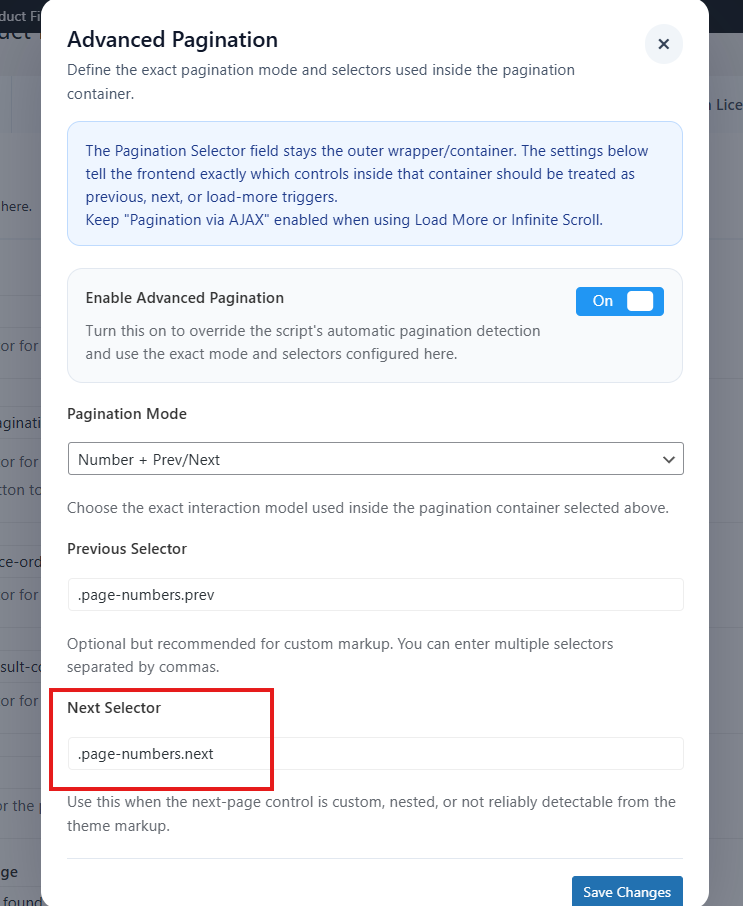
Enter the selector for the next-page button.
Example:
.page-numbers.next
Multiple selectors are also supported.
Example:
.page-numbers.next, .next.page-numbers
Step 7: Configure Next Trigger Selector
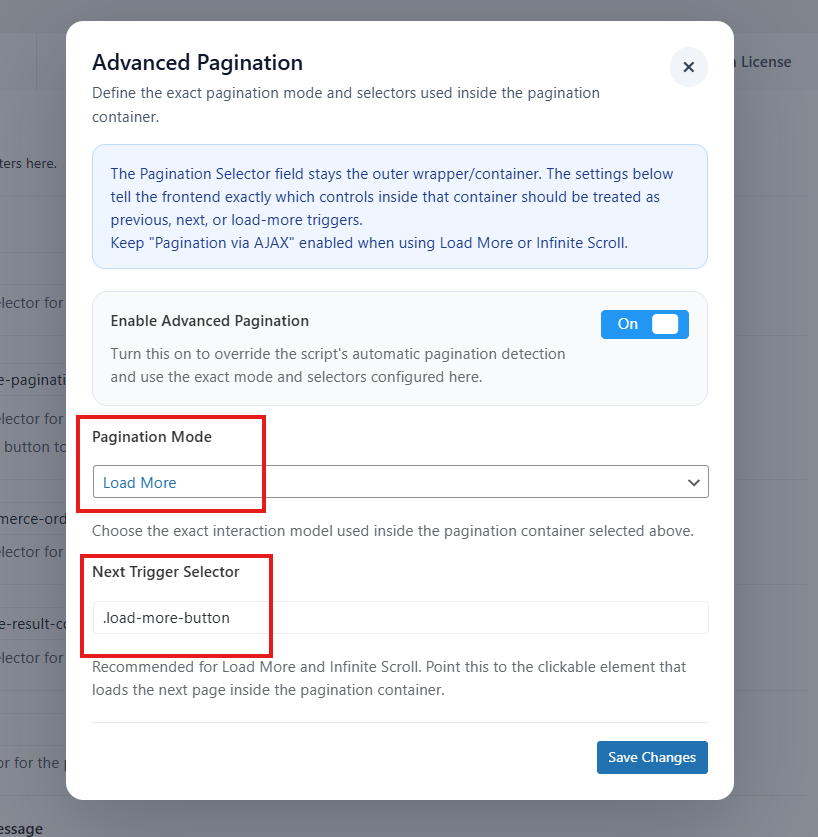
If you select Load More or Infinite Scroll, configure the Next Trigger Selector.
This selector should target the clickable element that loads the next page.
Example:
.load-more-button
Another example:
.page-numbers.next
Use this when your theme uses a custom Load More button or a hidden next-page trigger for infinite scroll.
Step 8: Save Changes
After configuring Advanced Pagination:
- Close or apply the popup settings.
- Click Save Changes on the Advanced Settings page.
- Clear cache if your site uses a caching or optimization plugin.
- Test pagination on the frontend.
Expected Result
After setup, pagination should work correctly with AJAX filtering.
Depending on your selected mode:
- Numbered pagination will update products through AJAX.
- Previous/Next buttons will navigate filtered results correctly.
- Load More will load additional products without breaking the active filters.
- Infinite Scroll will load more products while keeping the current filter state.
Example Configurations
Standard WooCommerce Pagination
Use this setup for most WooCommerce themes.
Pagination Selector: .woocommerce-pagination
Advanced Pagination: Off
Or, if automatic detection does not work:
Pagination Selector: .woocommerce-pagination
Advanced Pagination: On
Pagination Mode: Number
Pagination With Previous and Next Buttons
Pagination Selector: .woocommerce-pagination
Advanced Pagination: On
Pagination Mode: Number + Prev/Next
Previous Selector: .page-numbers.prev
Next Selector: .page-numbers.next
Load More Button
Pagination Selector: .woocommerce-pagination
Advanced Pagination: On
Pagination Mode: Load More
Next Trigger Selector: .load-more-button
Pagination via AJAX: On
Infinite Scroll
Pagination Selector: .woocommerce-pagination
Advanced Pagination: On
Pagination Mode: Infinite Scroll
Next Trigger Selector: .page-numbers.next
Pagination via AJAX: On
Important Notes
- The Pagination Selector should target the outer pagination container.
- The Previous Selector, Next Selector, and Next Trigger Selector should target elements inside the pagination container.
- Keep Pagination via AJAX enabled when using Load More or Infinite Scroll.
- If your theme uses custom pagination markup, inspect the page HTML and copy the correct CSS selector.
- After changing pagination settings, clear cache and test in an incognito/private browser window.
- If your product listing comes from a shortcode or page builder, make sure the product container selector is also configured correctly.
Troubleshooting
Pagination is not working after filtering
Check the following:
- Make sure the Pagination Selector is correct.
- Enable Advanced Pagination.
- Select the correct Pagination Mode.
- Clear site cache and browser cache.
- Test again on the frontend.
Next or Previous button is not working
Use Number + Prev/Next mode and set the correct selectors.
Example:
Previous Selector: .page-numbers.prev
Next Selector: .page-numbers.next
If your theme uses different classes, replace these selectors with your theme’s actual pagination classes.
Load More button is not working
Check:
- Pagination Mode is set to Load More.
- Next Trigger Selector points to the Load More button.
- Pagination via AJAX is enabled.
- The Load More button exists inside or near the pagination container.
Infinite Scroll is not loading more products
Check:
- Pagination Mode is set to Infinite Scroll.
- Next Trigger Selector is correct.
- Pagination via AJAX is enabled.
- The page has more products available.
- Lazy loading or optimization plugins are not blocking scripts.
Products reload the full page instead of AJAX
Check:
- Pagination via AJAX is enabled.
- Advanced Pagination is configured correctly.
- The pagination selector is correct.
- Your theme or page builder is not replacing pagination after page load.