
Accessibility Hardening improves the frontend accessibility behavior of Dynamic AJAX Product Filters. It helps make filter widgets easier to use for customers who navigate with keyboards, screen readers, or other assistive technologies.
This option is useful when you want to improve the accessibility quality of your WooCommerce product filters and provide a better filtering experience for more users.
When Should You Use Accessibility Hardening?
Use this option when you want to:
- Improve keyboard navigation for filter widgets.
- Improve screen reader support.
- Make filter controls easier to understand.
- Strengthen accessibility attributes in the filter markup.
- Improve the usability of AJAX filter updates.
- Make your store more accessible for all customers.
Step 1: Open Advanced Settings
- Go to your WordPress Dashboard.
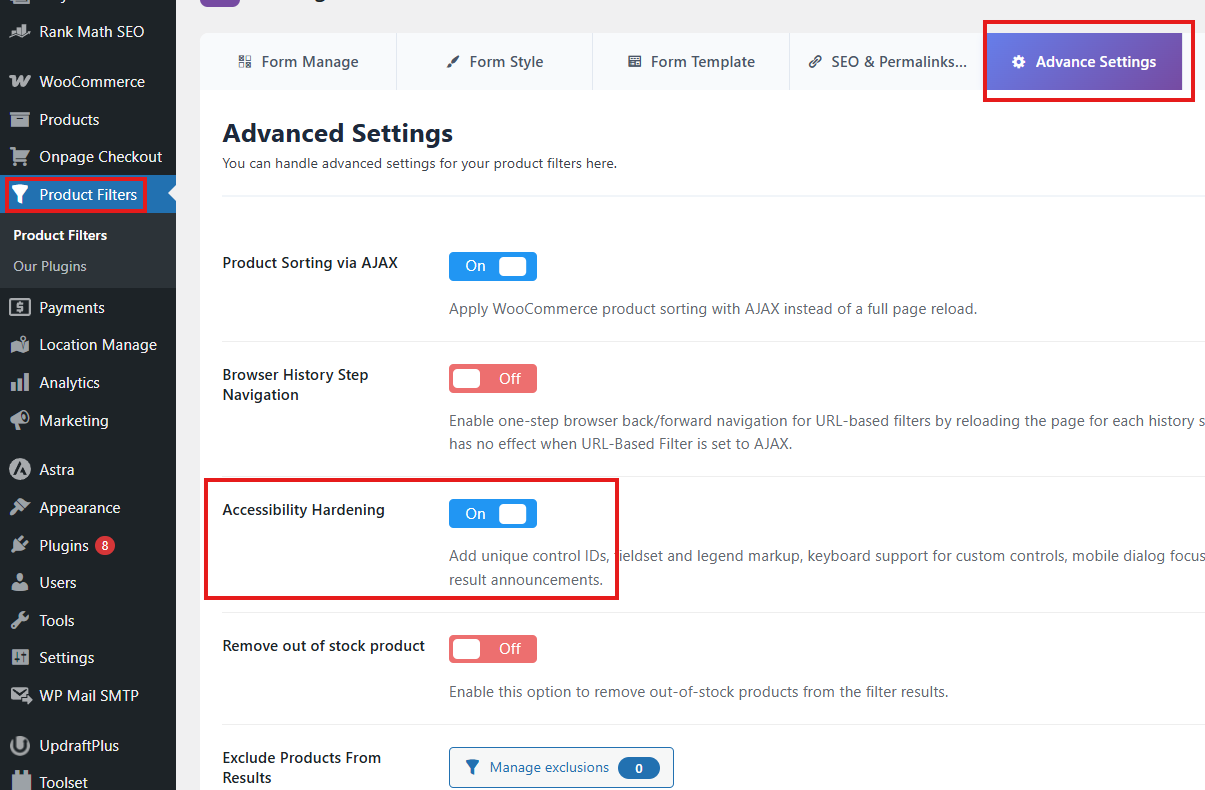
- Navigate to Product Filters > Advanced Settings.
- Find the option named Accessibility Hardening.
Image: Accessibility Hardening option in Advanced Settings
Step 2: Enable Accessibility Hardening
Turn on Accessibility Hardening.
When enabled, the plugin applies additional accessibility improvements to the filter interface.
Step 3: Save Changes
After enabling the option:
- Click Save Changes.
- Visit your shop or product archive page.
- Test the filter using keyboard navigation.
- Confirm that filter controls can be accessed and used properly.
Expected Result
After enabling Accessibility Hardening, the filter interface should provide improved accessibility behavior on the frontend.
This may help with:
- Keyboard-focused interactions
- Screen reader-friendly filter controls
- Better accessible labels or attributes
- More stable interaction with AJAX filter updates
Recommended Testing
After enabling this option, test the filter interface using:
Keyboard Navigation
Use the keyboard to move through filter controls.
Common keys:
- Tab to move forward
- Shift + Tab to move backward
- Enter or Space to activate controls
Make sure customers can reach and use all filter options without a mouse.
Screen Reader Review
Test the filter with a screen reader to confirm that filter labels and controls are understandable.
Common screen readers include:
- NVDA
- VoiceOver
- JAWS
- Narrator
Mobile Accessibility
Check the filter on mobile devices and confirm that filter controls are easy to tap, open, close, and select.
Example Use Case
A customer visits your shop page and uses only a keyboard to browse products.
With Accessibility Hardening enabled, the customer should be able to move through the filter options, select values, reset filters, and update product results more reliably.
Notes
- Accessibility Hardening is available in the Pro version.
- This option is recommended for stores that want improved usability and accessibility.
- The exact accessibility improvements may depend on the filter layout, theme, page builder, and selected widget styles.
- Accessibility Hardening does not replace full accessibility testing of your entire website.
- If your theme or page builder overrides filter markup, test carefully after enabling this option.
- Clear your cache after changing this setting if you use a caching or optimization plugin.
Troubleshooting
Keyboard navigation still feels difficult
Check the following:
- Your theme is not removing focus styles.
- The filter layout is not hidden behind inaccessible popups or overlays.
- Custom CSS is not disabling outlines or focus indicators.
- The selected filter style supports keyboard interaction.
Screen reader does not announce filter controls correctly
Please check:
- Accessibility Hardening is enabled.
- Filter labels are visible or properly configured.
- The widget title and option labels are meaningful.
- Your theme or page builder is not replacing the filter markup.
AJAX updates are not announced clearly
Some screen reader behavior can depend on the theme, browser, and frontend markup. Test with multiple browsers and screen readers where possible.
Also check whether caching or JavaScript optimization plugins are delaying or combining scripts in a way that affects AJAX updates.
Focus is lost after applying filters
Check:
- Accessibility Hardening is enabled.
- JavaScript optimization is not breaking filter scripts.
- The product container selector is correct.
- No custom theme script is forcing focus away from the filter area.