
The Dynamic AJAX Product Filters plugin allows you to filter products by attributes in WooCommerce. Here’s a step-by-step guide to setting up attribute filters, including customization options for the attribute widget.
Step 1: Create Attributes and Terms
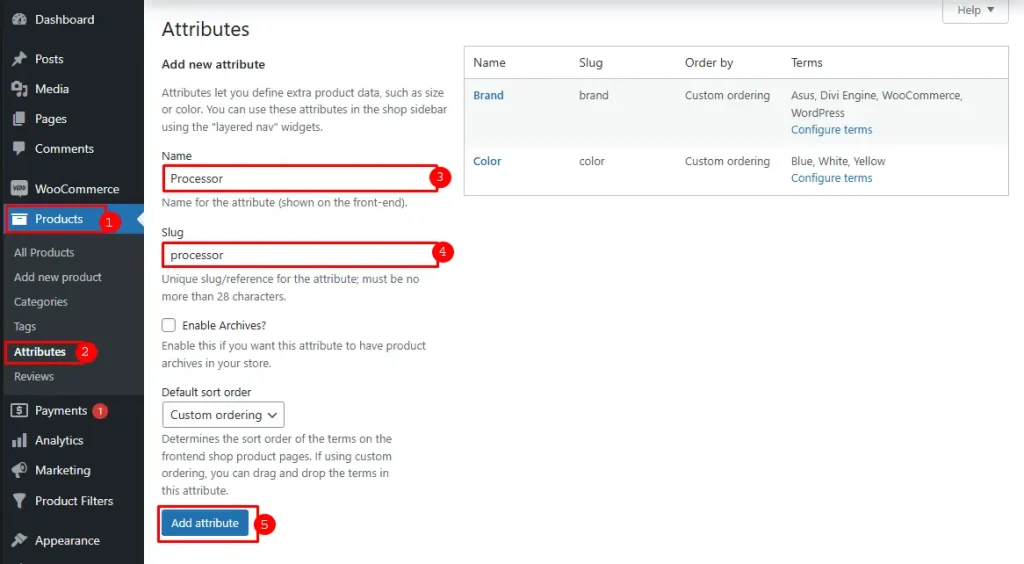
- Navigate to Attributes:
- Go to Products > Attributes in your WordPress dashboard.
- Add a New Attribute:
- In the Add new attribute section, fill in the required fields:
- Name: Enter the name of the attribute (e.g., Processor).
- Slug: Create a URL-friendly version of the attribute name (e.g., processor).
- Click the Add Attribute button.
- In the Add new attribute section, fill in the required fields:
- Add Terms to the Attribute:
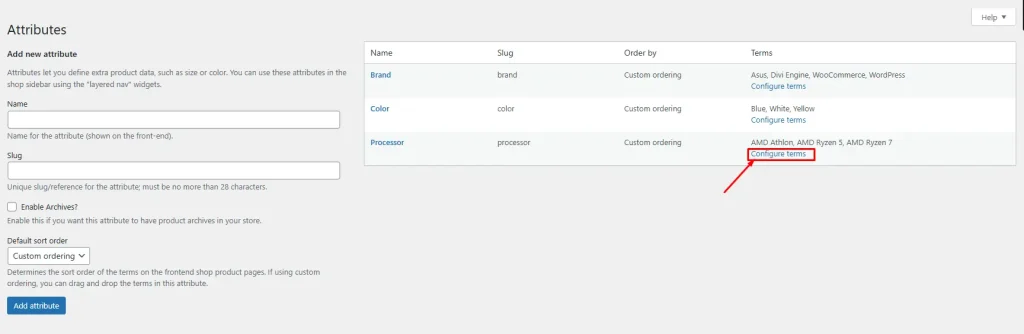
- After creating the attribute, click on the Configure terms link next to the attribute.
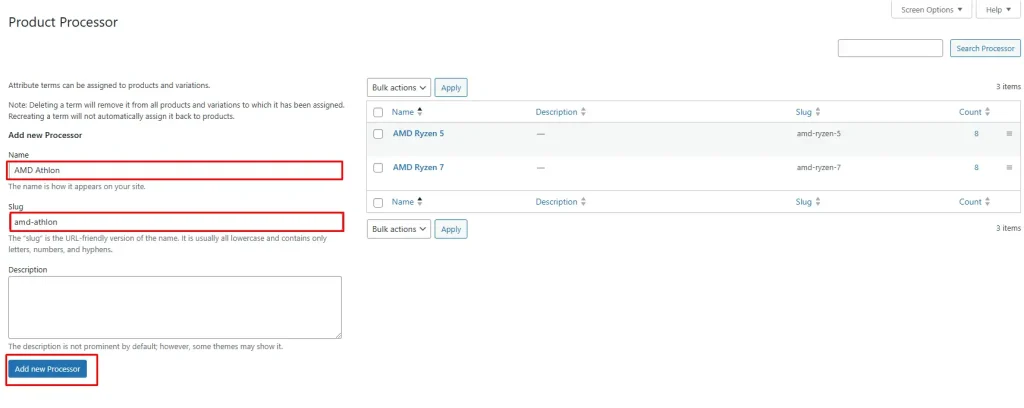
- In the Add new term section, enter the name of the term (e.g., AMD Athlon) and click Add New Processor. Repeat this for all terms you want to add (e.g., AMD Ryzen 5, AMD Ryzen 7).
Step 2: Assign Attributes to Products
- Go to All Products:
- Navigate to Products > All Products.
- Edit or Add a New Product:
- Click on an existing product to edit it or click Add New to create a new product.
- Assign Attributes:
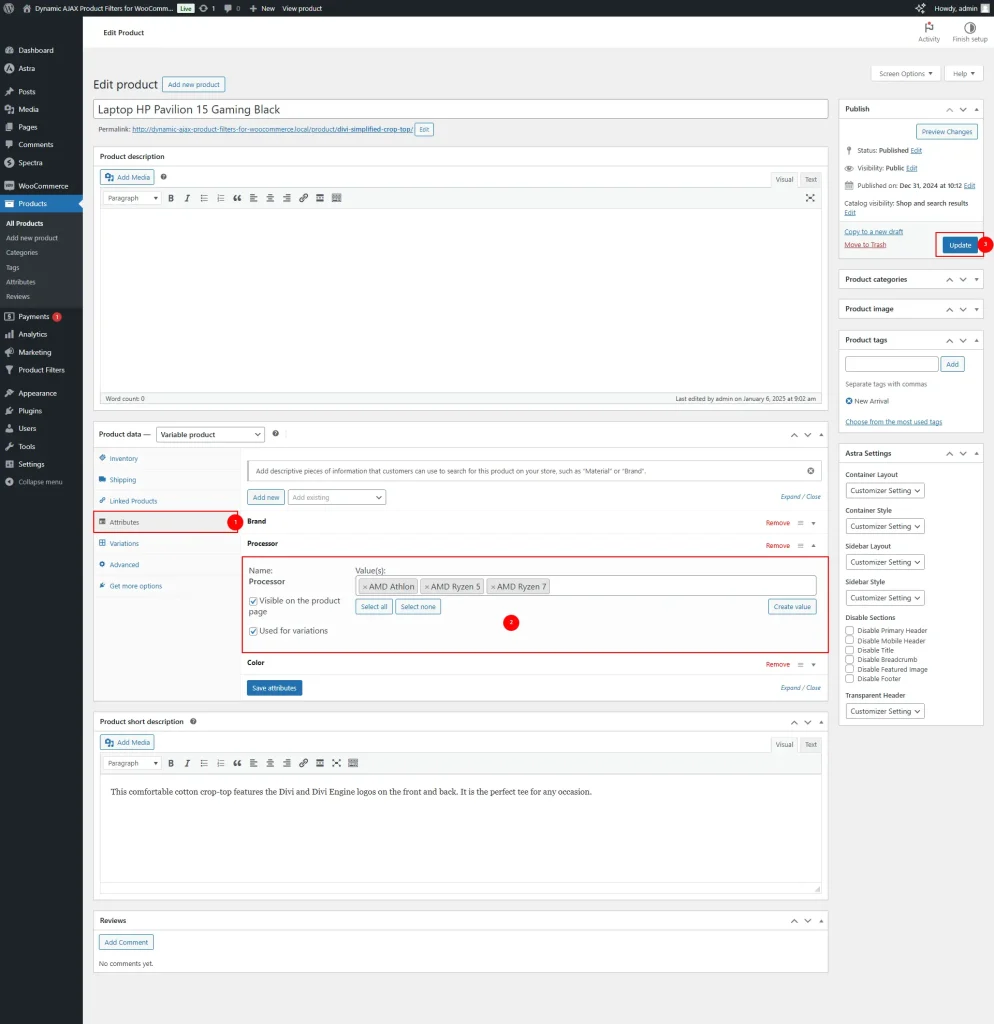
- In the product edit screen, locate the Product data section.
- Click on the Attributes tab.
- Select the attribute you created from the dropdown and click Add.
- Check the box for the term(s) you want to assign to the product.
- Click Save attributes and then click Update or Publish to save your changes.
Step 3: Manage Attributes in the Filter Widget Form
- Access Filter Settings:
- Go to Product Filters > Form Manage in your WordPress dashboard.
- Show Attributes:
- In the settings, find the Show Attributes option.
- Toggle this option on or off to control whether the attribute filter appears in the widget.
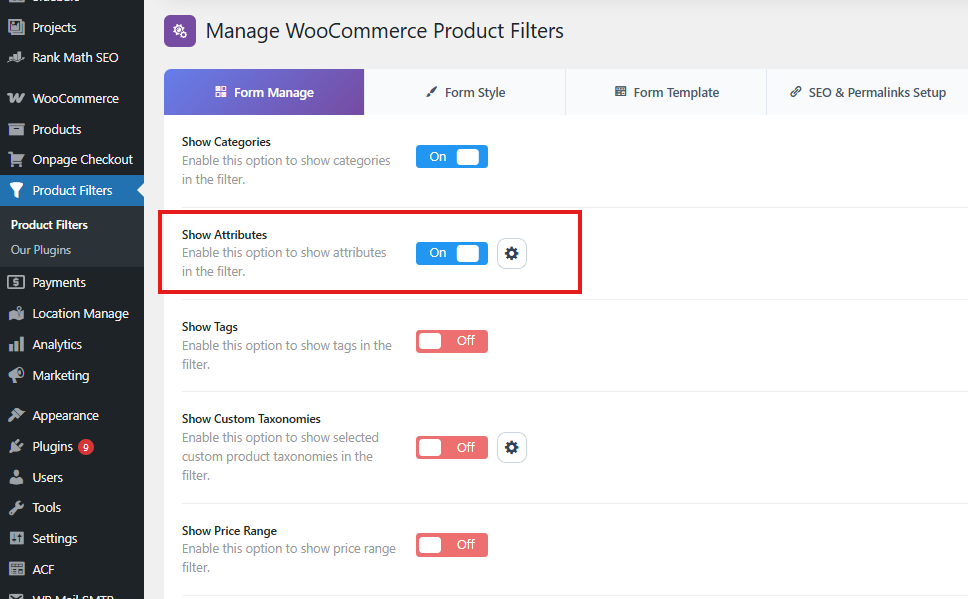
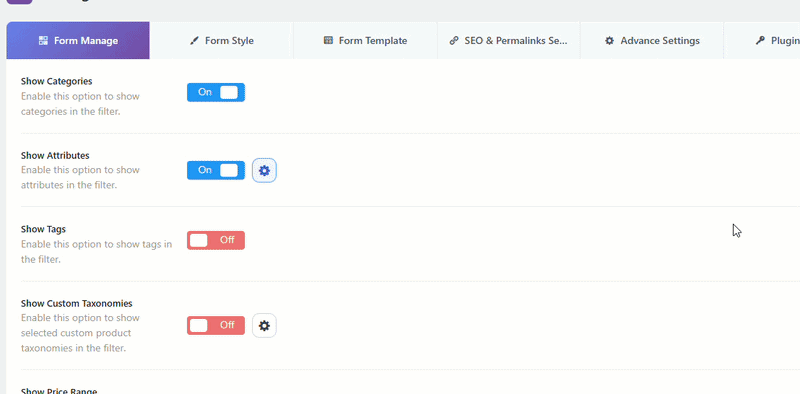
- Beside the Show Attribute, you’ll see a gear option.
- Click on it, and choose which attribute you do not want to show on the filter
Step 4: Style/Design/Customize the Attribute Widget
- Access Form Style Settings:
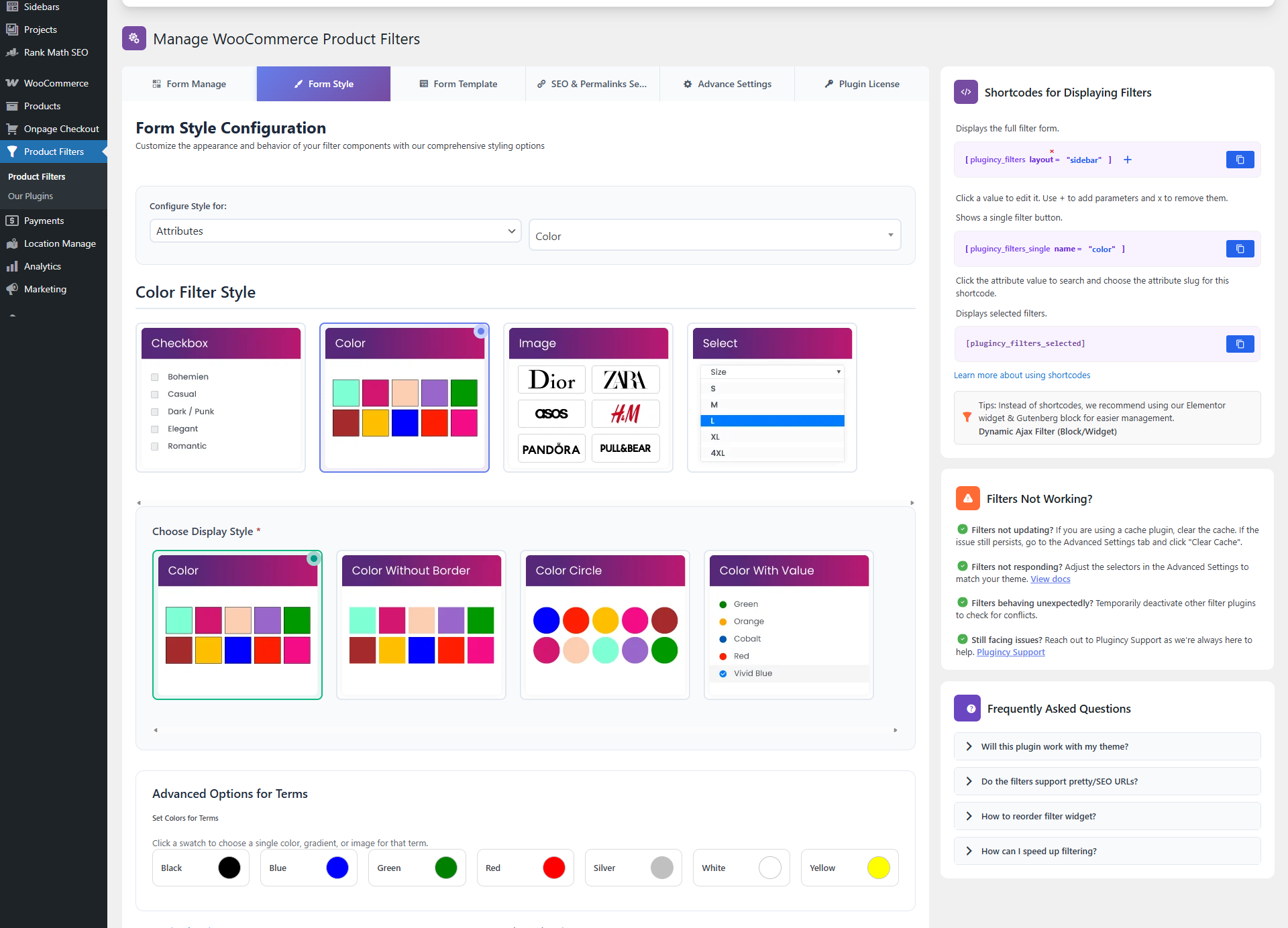
- Go to Product Filters > Form Style in your WordPress dashboard.
- Select Attribute from Dropdown:
- From the Configure Style for dropdown menu, choose the attribute you want to customize (e.g., Color).
- Choose Attribute Style Options:
- Select one of the style options:
- Checkbox
- Color
- Image
- Select
- Each option provides a different way for users to interact with the attribute filter.
- Select one of the style options:
- Select Suboptions:
- Based on the style option you choose, configure the suboptions to customize the appearance and functionality of the attribute widget. This may include selecting colors for the color option or uploading images for the image option.
Optional Settings
The Optional Settings section allows you to control the appearance, behavior, and ordering of individual filter widgets.
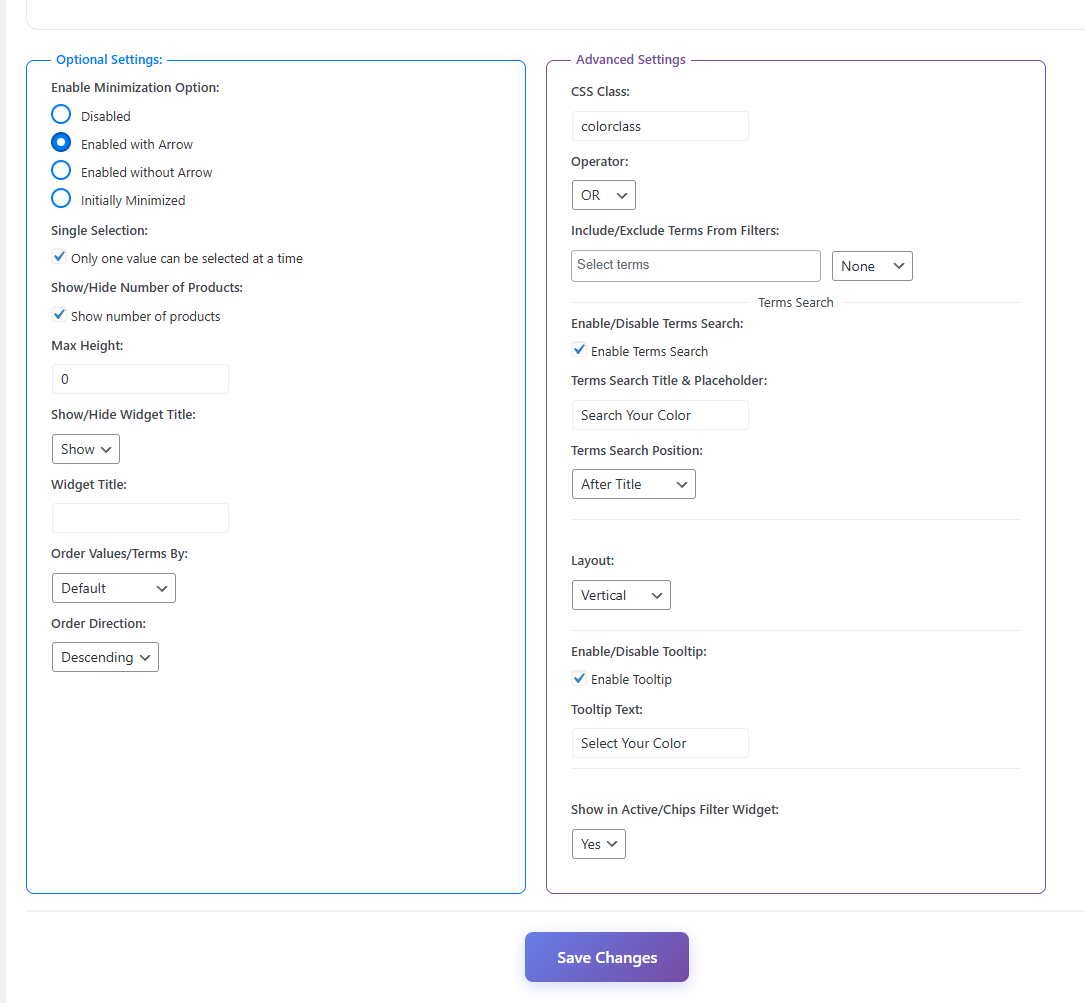
Enable Minimization Option
Controls whether the filter widget can be collapsed.
- Disabled – Filter always stays expanded
- Enabled with Arrow – Toggle using an arrow icon
- Enabled without Arrow – Toggle without showing an icon
- Initially Minimized – Filter loads in collapsed state
Single Selection
Allows only one filter value to be selected at a time.
Show / Hide Number of Products
Displays the product count next to each filter term.
Max Height
Sets a maximum height for the filter list.
- Enter 0 to disable height restriction
- Useful for long lists with scrolling
Show / Hide Widget Title
Controls the visibility of the filter title on the frontend.
- Show – Display title
- Hide – Hide title
Widget Title
Set a custom title for the filter widget.
Order Values / Terms By
Controls how filter values are sorted.
- Default
- Alphabetically (A–Z)
- Numeric
- Month & Year
- Menu Order
- Product Count
Order Direction
Defines sorting order.
- Ascending
- Descending
Advanced Settings
The Advanced Settings section lets you fine-tune filter behavior, appearance, and user interaction, including term logic, search options, tooltips, and auto-suggestion.
CSS Class
Add a custom CSS class to the filter widget for custom styling or JavaScript targeting.
Operator (OR / AND)
Controls how multiple selected terms are applied:
- OR – Products matching any selected term
- AND – Products matching all selected terms
Include / Exclude Terms From Filters
Control which terms are displayed:
- None – Show all terms
- Include – Show only selected terms
- Exclude – Hide selected terms
Terms Search
Helps users quickly find filter options, especially useful for long term lists.
- Enable / Disable Terms Search – Show or hide the search field
- Terms Search Title & Placeholder – Set label and placeholder text
- Terms Search Position
- In title bar
- After title
- After all terms
- Layout
- Vertical
- Horizontal (Add Number of Columns)
Tooltip Settings
Provides additional information for filter terms.
- Enable / Disable Tooltip
- Tooltip Text – Set tooltip content
Show in Active / Chips Filter Widget
Displays selected filter terms in the Active Filters or Chips widget for easy visibility and removal.
After customizing the category widget, make sure to click Save Changes to apply your changes.
Step 5: Display the Product Filter on Your Webpage
- Insert Filter Shortcode:
- Visit the page where you want to display the product filter.
- Add the shortcode
plugincy_filtersto the desired location (e.g., in a page or widget).
- Optional Product Shortcode:
- If you want to display products alongside the filters, you can also include the shortcode
products.
- If you want to display products alongside the filters, you can also include the shortcode
- Customize Sidebar or Page:
- You can add the filter shortcode to a sidebar widget or directly within a page’s content.
Once you have completed these steps, customers will be able to filter products by attributes on your webpage using the Dynamic AJAX Product Filters plugin. The customizable attribute widget enhances the user experience, allowing users to find products that meet their specific criteria efficiently.