
The Dynamic AJAX Product Filters plugin allows you to set up price filters that enhance the shopping experience. Here’s a detailed guide on how to customize the price design, including all available suboptions.
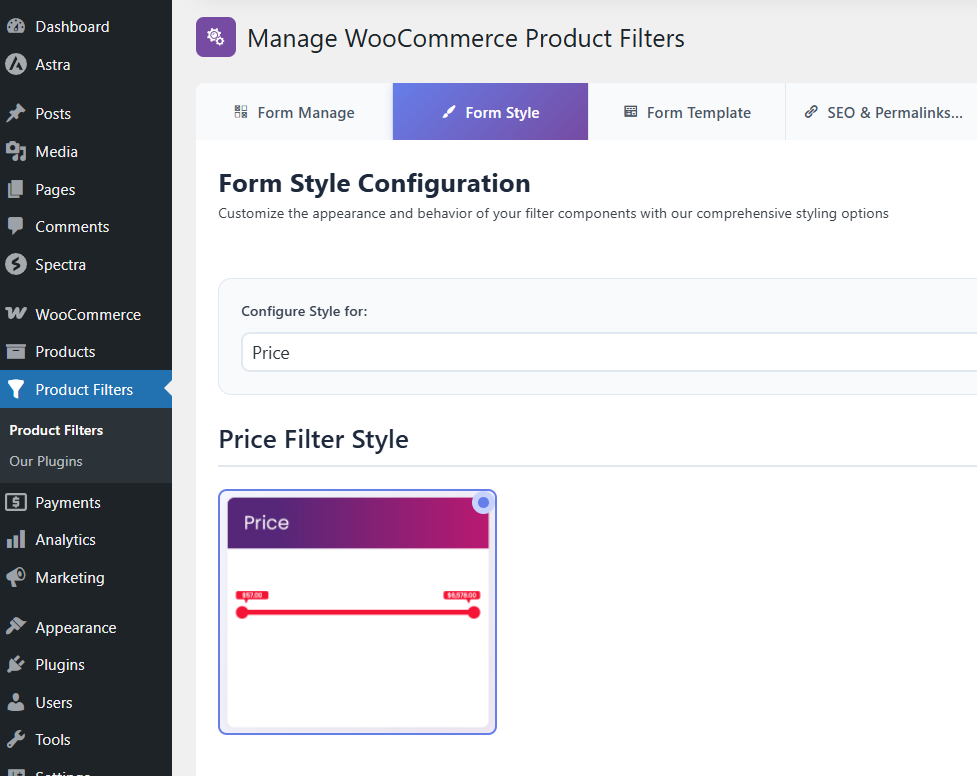
Step 1: Access Form Style Settings
- Navigate to Form Style:
- Go to Product Filters > Form Style in your WordPress dashboard.
- Select Price Attribute:
- From the Configure Style for dropdown, choose the Price option to customize the price filter.
Step 2: Choose Price Style Options
- Select Attribute Style Options:
- Choose Price as the attribute style option. This will enable the various price filter design options available for customization.
Step 3: Customize Price Suboptions
After selecting Price as the style, you will see several suboptions to choose from:
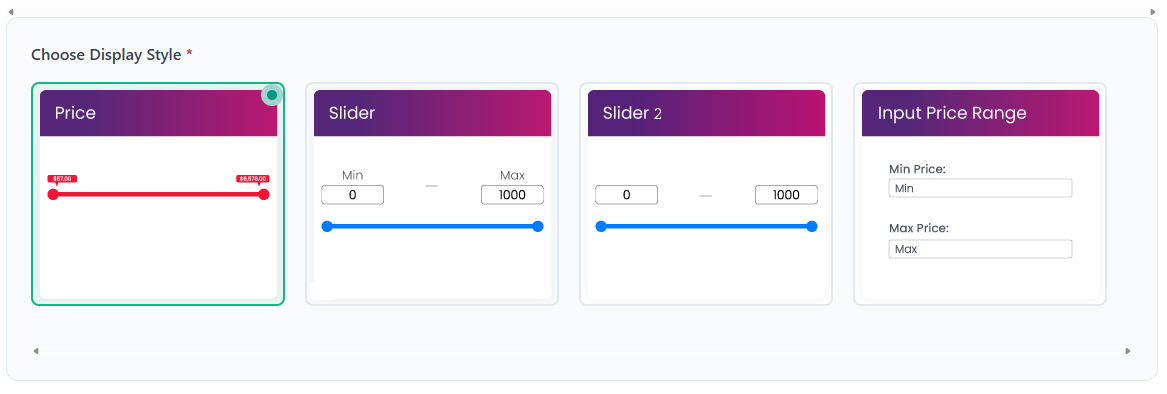
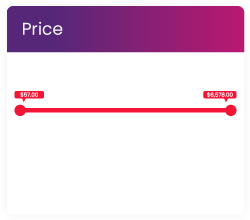
- Price: It’s a Slider Without Input
- This option displays a slider that allows users to select a price range. The slider visually represents the price range without any input fields. Users can drag the slider handles to set their desired minimum and maximum prices. This design is intuitive and provides a quick way for users to filter products based on price.
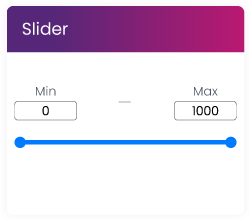
- Slider: Slider with Input
- This option features a slider combined with input boxes for minimum and maximum price values. Users can drag the slider to adjust the price range and can also manually enter specific values in the input fields. This dual functionality offers flexibility and precision, allowing users to easily set their desired price limits.
- Slider 2: Slider without Min and Max value
- This style presents only price values. Users can drag the slider to adjust the price range and can also manually enter specific values in the input fields. This dual functionality offers flexibility and precision, allowing users to easily set their desired price limits.
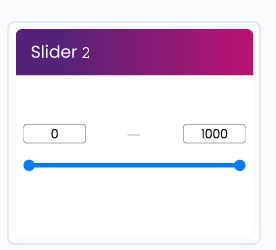
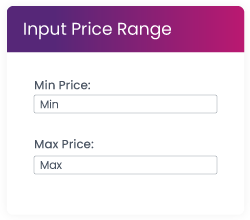
- Input Price Range: Without Slider, Only Input Box
- This style presents only input fields for users to set their minimum and maximum price values, without a slider. Users can enter the desired prices directly into the boxes. This is ideal for users who prefer typing their values rather than using a slider, providing a straightforward and efficient way to specify price ranges.
Step 4: Set Minimum and Maximum Prices Label
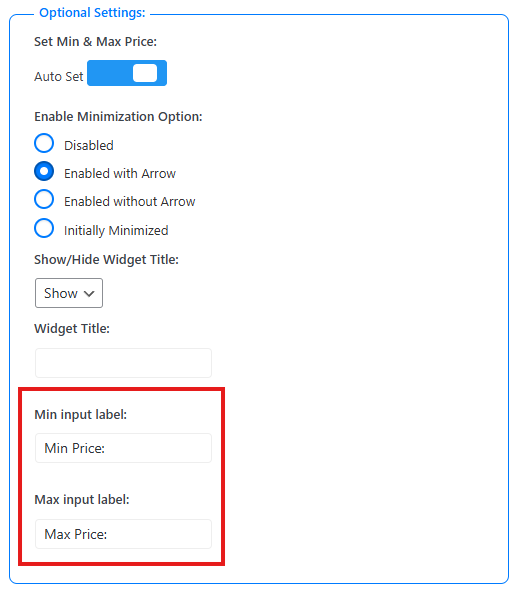
- Scroll down to the Optional Settings section, where you can set your minimum and maximum prices:
- Minimum Price: Enter the label for the minimum price.
- Maximum Price: Enter the label for the maximum price.
Step 5: Save Changes
After customizing your desired price filter options, be sure to click the Save button to apply your changes.
Once you have completed these steps and saved your settings, your product filter will display the customized price design options. Users will have a functional and user-friendly way to filter products based on price, improving their overall shopping experience.