
All sections
Getting StartedForm ManageFilters ByDisplaying FiltersFilter Design & StylingSearch, Sorting & PaginationAdvanced Filter Logic & Query BehaviorSEO & Filter URLsMobile & User ExperienceCompatibilityImport, Export & ResetAdvanced SettingsForm TemplatesDeveloper DocumentationTroubleshooting & DebuggingApply & Reset Button
The block is the easiest way to add filters if you use the normal WordPress editor. You add it like any other block and choose its options in the panel beside it.
Add the block
- Go to Pages and open the page, or create a new one.
- Click the + button at the top of the editor.
- Search for Dynamic Ajax Filter and click it.
- If the page has no products, add a Shortcode block too and type
[products]in it. - Click Update or Publish.
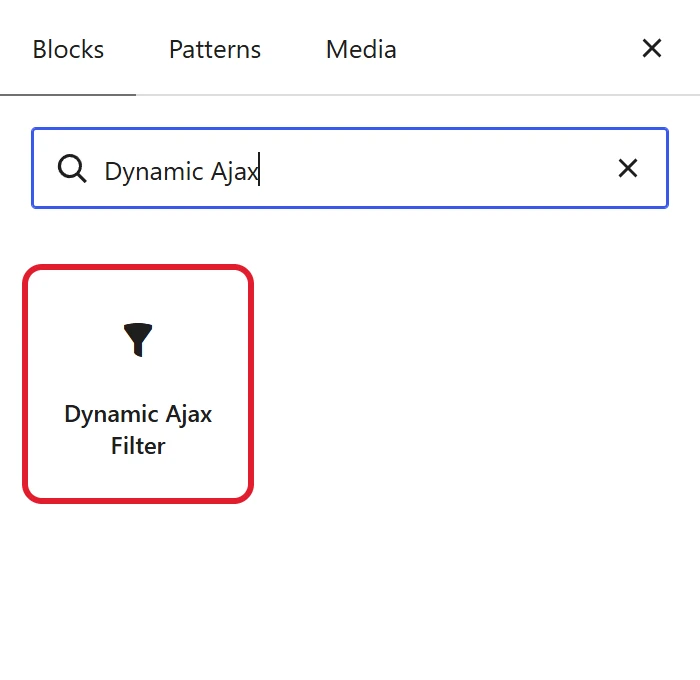
Choose what it shows
Click the block, and its settings open on the right. In the free plugin, some of them are marked (PRO).
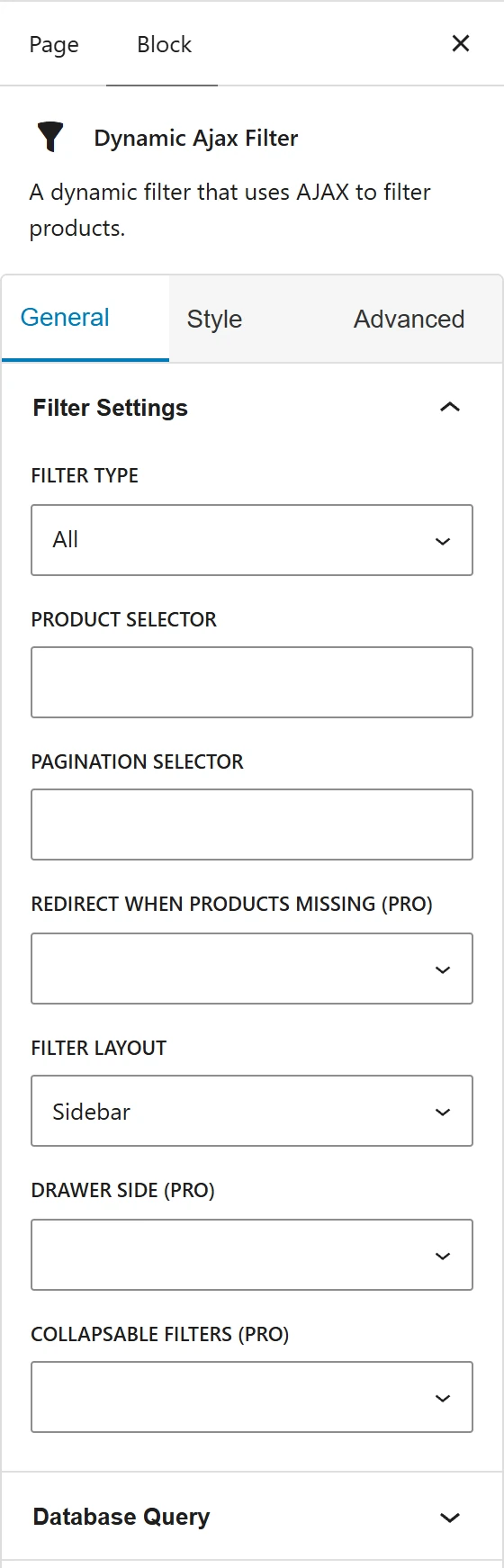
First pick the filter type:
| Type | Shows | Good for |
|---|---|---|
| All | All the filters you turned on | Most pages. Start here. |
| Single | One filter, as a button | A quick row of buttons, on a page that also has the main filter |
| Selected | What the shopper has chosen | Placing above the product list, on a page that also has the main filter |
For Single, type the attribute’s slug in the Attribute ID field, such as color. You can find the slug under Products > Attributes.
Other settings
- Filter Layout: where filters sit, such as a sidebar or a bar above the products. The Pro version adds popups and drawers.
- Product Selector and Pagination Selector: technical settings that tell the filter where your theme keeps its products and page numbers. Leave them alone unless filters do not work. Our guide to managing selectors shows how to find them.
- Mobile Responsive Style: how the filter looks on phones. See the mobile style guide.
- Form Manage: lets this one filter show different filters from your main settings, and change their order.
The block also has styling panels for colours, spacing and fonts, so you can match your design without any code. To add your own CSS class, use Extra Class Name in the block’s Advanced panel.
A simple shop layout
- Add a Columns block with a narrow column and a wide one.
- Put the Dynamic Ajax Filter block in the narrow column.
- Put a Shortcode block with
[products]in the wide column.
You can compare the result with our block demo page.
If something goes wrong
- The block is not listed: check that the plugin is active, then reload the editor.
- Products do not change: make sure the page has a product list, then check the Product Selector.
- Single shows a red message: the attribute is missing. Type its slug.