
The Carts tab in Cart Recovery shows the carts that have been tracked by the plugin. From this page, store admins can review abandoned cart details, check customer information, view cart value, inspect products, and manually manage recovery actions.
Use this page to understand which customers left without completing checkout and decide what action should be taken next.
Where to find tracked carts
From your WordPress dashboard, go to:
Onpage Checkout → Cart Recovery
Then open the Carts tab.
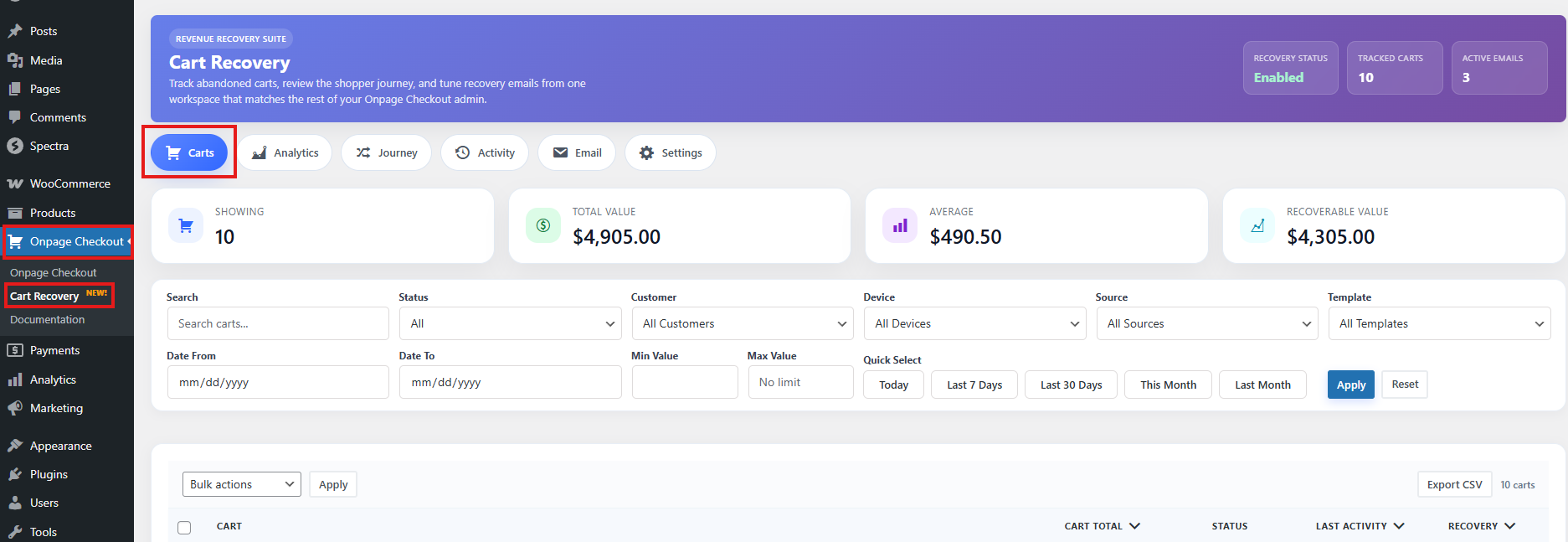
This is the main workspace for reviewing tracked, abandoned, restored, and recovered carts.
Tracked carts table
The tracked carts table gives you a quick overview of each saved cart.
Depending on your screen settings and license access, the table may show information such as:
| Column | Description |
|---|---|
| Customer | Customer name or guest customer label |
| Customer email address, if available | |
| Cart Total | Total value of the cart |
| Products | Product summary or product context |
| Status | Current cart status |
| Updated | Last time the cart was updated |
| Abandoned | Time the cart was marked abandoned |
| Restored | Time the cart was restored |
| Recovered | Time the cart became a completed order |
| Emails | Recovery email history |
| Actions | Manual cart management actions |
Some customer/contact fields may require an active Pro license.
Customer information
Each tracked cart can include customer details collected from WooCommerce session, checkout, or logged-in account data.
Cart Recovery may show:
- Customer name
- Email address
- Customer ID
- Phone number
- Billing details
- Shipping details
- Customer type, such as guest or registered customer
- IP address
- Browser/user agent details
If the customer is a guest and has not entered enough checkout information, some fields may be empty.
Why customer information may be missing
Customer information may be missing if:
- The customer did not enter an email address.
- The customer was not logged in.
- The customer left before reaching checkout.
- Cart Recovery was enabled after the cart session started.
- The cart does not meet tracking requirements.
- The feature is license-restricted.
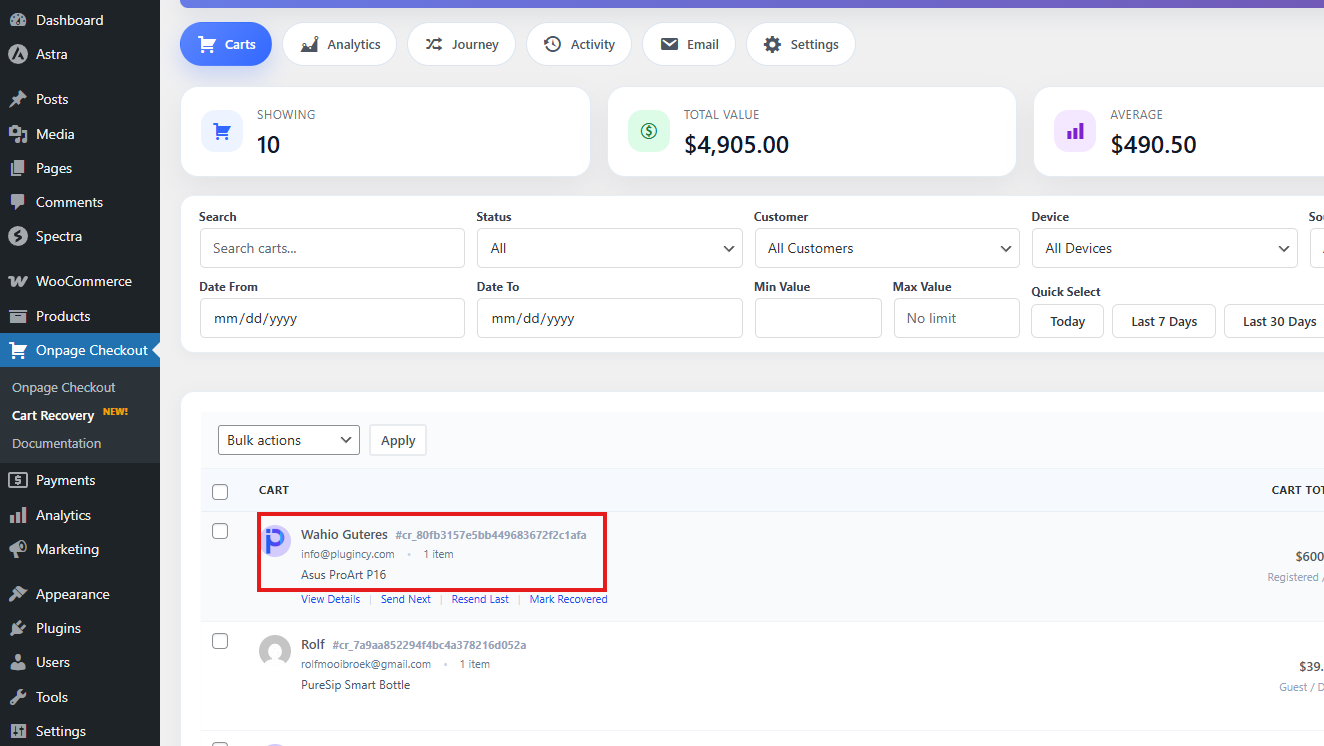
Cart total and product summary
Each cart record can show the cart value and a summary of products in the cart.
This helps you quickly identify:
- High-value abandoned carts
- Popular abandoned products
- Carts with multiple products
- Carts worth manual follow-up
- Carts that may need a discount or reminder email
The product summary may include product names and item context based on the cart snapshot saved by the plugin.
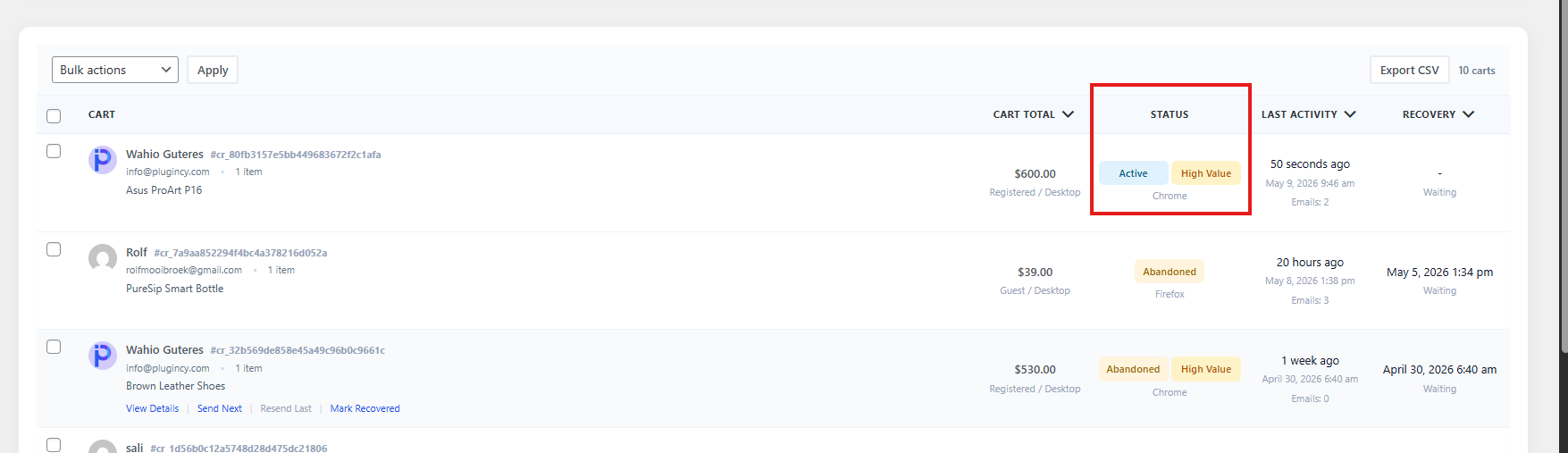
Cart statuses
Cart Recovery uses cart statuses to show where each cart is in the recovery process.
Active
The cart is still considered active. The customer has not completed checkout, but the cart has not passed the inactivity timeout yet.
Abandoned
The cart has been inactive longer than the configured inactivity timeout and is now eligible for recovery.
Restored
The customer returned to the store after the cart was previously abandoned. This can happen when the customer clicks a recovery email link or revisits the site.
Recovered
The customer completed checkout after the cart was abandoned, restored, or involved in recovery email activity.
Archived
The cart has been archived by an admin. Archived carts are kept for recordkeeping but are not treated as active recovery items.
Ignored
The cart has been ignored by an admin. Use this for carts that should not be followed up.
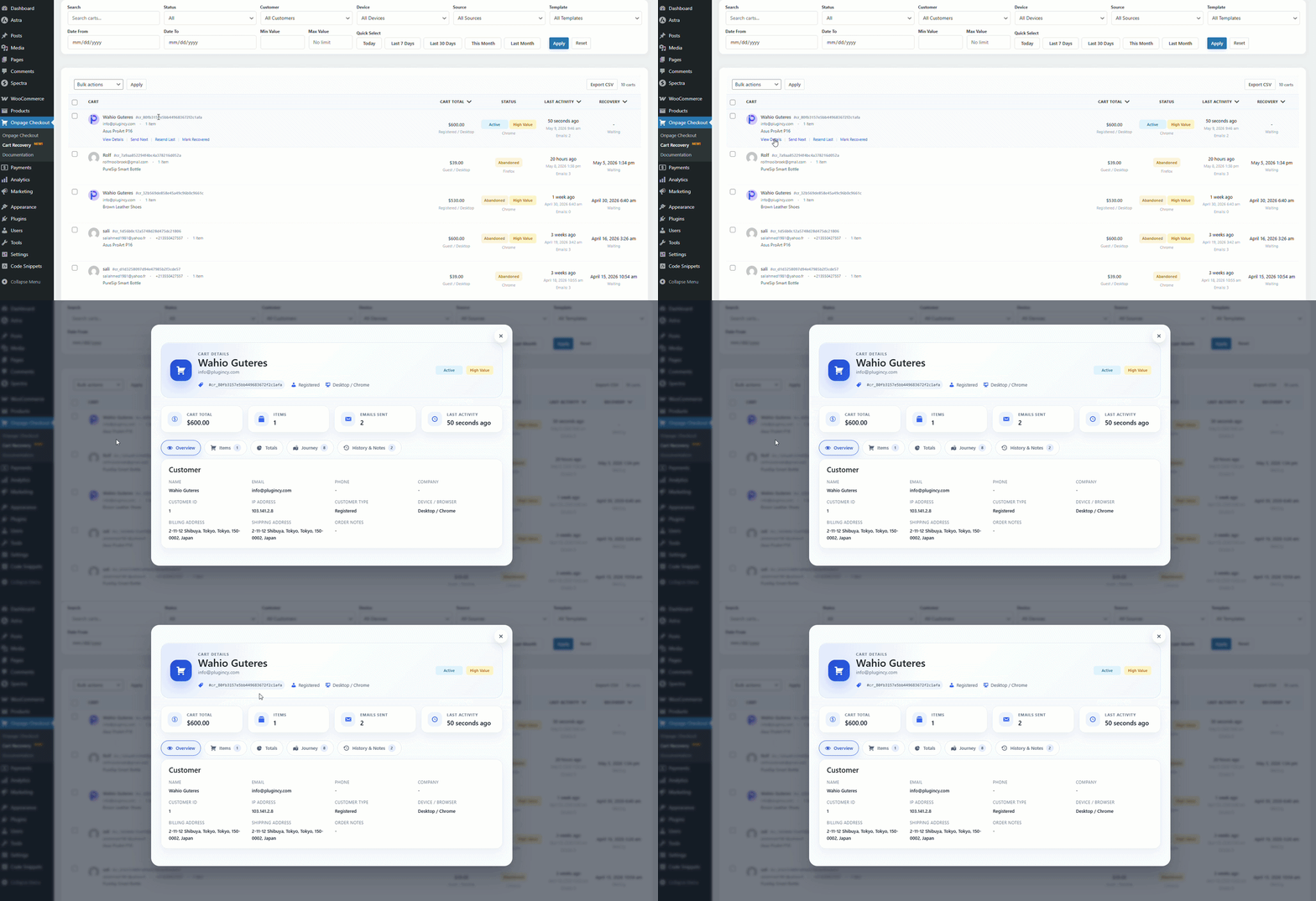
View cart details
To inspect a cart more closely, open its details view from the Carts table.
The cart details view may include:
- Customer profile
- Email address
- Cart total
- Currency
- Product list
- Quantity
- Cart status
- Created date
- Updated date
- Abandoned date
- Restored date
- Recovered date
- Recovered order ID
- Checkout data
- Email history
- Customer journey
- Technical details such as IP address and user agent
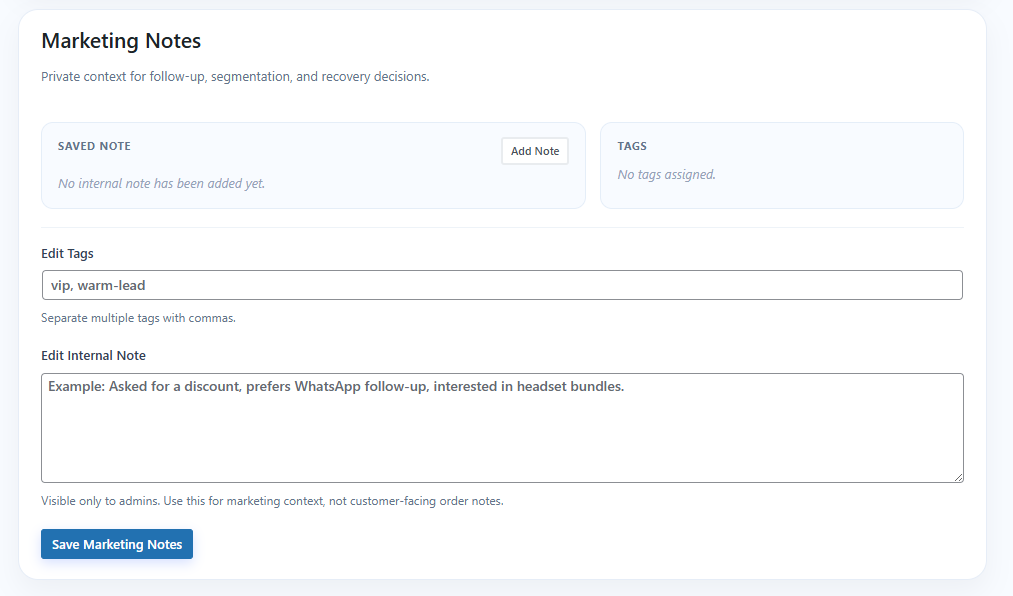
- Internal notes and tags
Use the details view when you need more context before taking manual action.
Internal notes and tags
Cart Recovery can store admin notes and tags for tracked carts. View Details > History & Notes
Use notes and tags to organize carts internally.
Examples:
High value cart
Customer asked about shipping
Follow up manually
Wholesale lead
Do not email again
VIP customer
Notes and tags are useful when multiple team members manage abandoned cart recovery.
Recommended tag examples
| Tag | When to use |
|---|---|
| High Value | Cart total is unusually high |
| Manual Follow-up | Customer may need personal contact |
| Discount Offered | A coupon or special offer was sent |
| Support Needed | Customer may have had a checkout issue |
| Ignore | Cart should not be actively recovered |
Manual cart actions
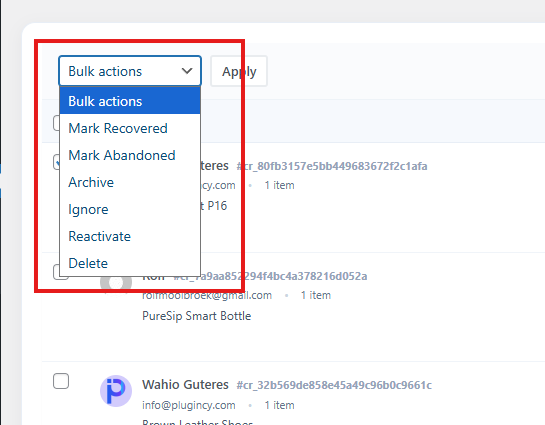
The Carts tab includes manual actions that let admins control individual cart records. From Bulk option you can select multiple carts and you can give manual cart actions.
Mark as abandoned
Use Mark as Abandoned when you want to manually move a cart into abandoned status.
This can be useful when:
- You know the customer has left the checkout process.
- You want the cart to become eligible for recovery emails.
- You are testing the recovery flow.
- The cart did not automatically change status as expected.
After marking a cart as abandoned, it may become eligible for recovery emails depending on email settings, customer email availability, sending window, max email rules, and license access.
Mark as recovered
Use Mark as Recovered when you want to manually mark a cart as recovered.
This can be useful when:
- The customer completed the purchase through another method.
- The order was placed manually.
- You recovered the sale through support or phone/email follow-up.
- You want analytics to reflect a manually recovered cart.
When a cart is marked as recovered, it is treated as completed from a recovery perspective.
Archive
Use Archive when you want to keep a cart record but remove it from active recovery management.
Archive is useful for:
- Old carts
- Carts that no longer need action
- Carts you want to keep for reporting
- Carts that should not appear in active workflows
Archived carts are not the same as deleted carts. They remain stored unless removed by retention/cleanup rules.
Ignore
Use Ignore when a cart should not be processed for recovery.
Ignore is useful for:
- Test carts
- Staff carts
- Spam or fake customer data
- Carts that should not receive recovery emails
- Special customer cases
Ignored carts are skipped from active recovery processing.
Reactivate
Use Reactivate when you want to return an archived or ignored cart back to normal processing.
Reactivate is useful if:
- A cart was archived by mistake.
- A cart was ignored by mistake.
- You want the cart to become eligible for recovery again.
- You want to continue tracking future activity for that cart.
Delete
Use Delete when you want to permanently remove a cart record from Cart Recovery.
Delete is useful for:
- Test data
- Incorrect records
- Privacy requests
- Spam carts
- Cleanup of unnecessary data
Be careful when deleting carts. Deleted cart records may no longer appear in analytics, journey history, or activity reports.
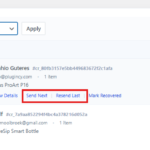
Resend last email
Use Resend Last Email when you want to send the most recently used recovery email template again.
This can be useful when:
- The customer says they did not receive the email.
- An email failed or was missed.
- You want to manually retry the last recovery message.
- You are testing email deliverability.
Before using this action, make sure the customer email address is valid.
Send next email
Use Send Next Email when you want to manually send the next available recovery email in the sequence.
This can be useful when:
- You want to move the customer to the next step in the recovery sequence.
- You do not want to wait for the automatic delay.
- You are testing the email sequence.
- You want to send a follow-up manually.
The next email depends on your enabled email templates and which templates have already been sent for that cart.
Best practices for managing carts
Focus on high-value carts first
Prioritize carts with higher totals or important products. These carts are often worth manual review.
Exclude internal users
Avoid tracking staff and admin carts by excluding internal roles in Cart Recovery settings.
Use notes and tags
Notes and tags help your team understand what happened with each cart.
Avoid over-emailing
Do not resend recovery emails too many times. Use manual email actions only when there is a clear reason.
Archive instead of deleting when unsure
If you may need the cart later for reporting, archive it instead of deleting it.
Delete only when appropriate
Delete carts when they are test records, spam, duplicates, or must be removed for privacy reasons.
Troubleshooting
I do not see any carts in the table
Possible reasons:
- Cart Recovery is not enabled.
- No customer has entered identifiable information yet.
- Customers are leaving before entering email or checkout details.
- WooCommerce sessions are not working correctly.
- The carts are excluded by product, category, role, or settings.
- The cart total is zero and free cart tracking is disabled.
A cart is not becoming abandoned
Check:
- Inactivity timeout setting
- WordPress cron
- Cart updated time
- Exclusion settings
- Whether the cart has enough customer information
Manual email actions are not working
Check:
- Customer email address exists and is valid.
- Recovery email templates are enabled.
- Your Pro license is active.
- WordPress emails are sending correctly.
- The cart is not unsubscribed.
- The cart has not reached the max emails per cart limit.
Cart details are locked or hidden
Some Cart Recovery details and actions may require an active Pro license. Check your license status from:
Onpage Checkout → Plugin License