
This section explains the advanced Floating Cart settings, including grouped cart items, coupon and summary sections, shipping options, product recommendations, and common troubleshooting steps.
Use these settings to improve the shopping experience inside the Floating Cart drawer and help customers complete checkout faster.
Group Cart Items
You can group products inside the Floating Cart so customers can review cart items more easily.
This is useful when a cart contains multiple products from different categories, brands, locations, or custom groups.
For example, instead of showing all products in one long list, the cart can group them like this:
Clothing
- T-Shirt
- Hoodie

Accessories
- Cap
- Belt
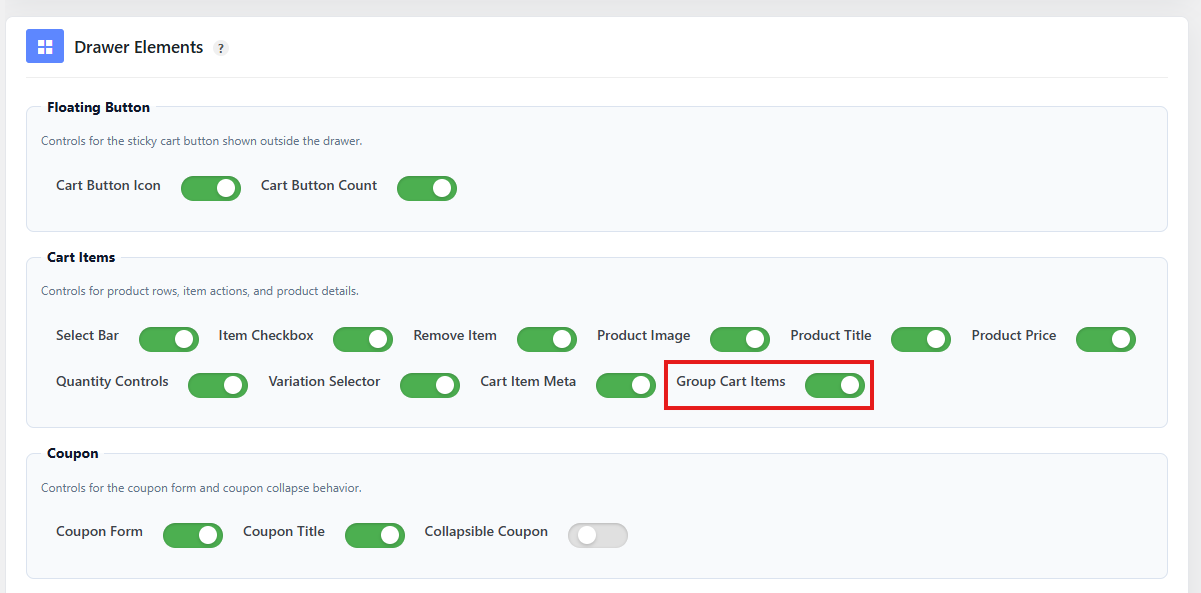
Grouping makes the cart easier to scan, especially for stores with many products.
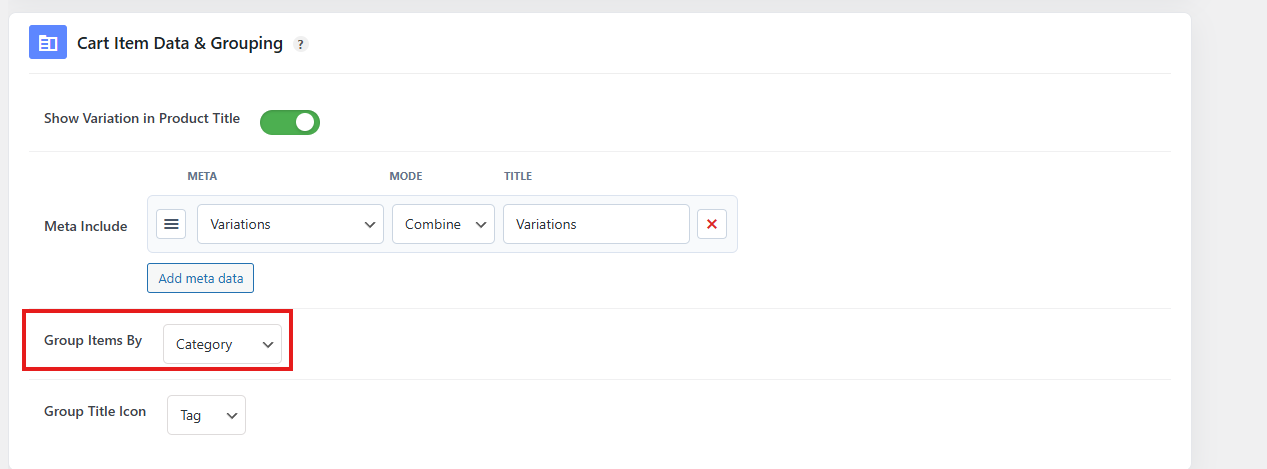
Group by Category
When grouping by category, products are grouped using their WooCommerce product category.
Example:
Shoes
- Running Shoes
- Sneakers

Shirts
- Polo Shirt
- T-Shirt
Use this option for stores where product categories are meaningful to customers.
Recommended for:
- Fashion stores
- Grocery stores
- Electronics stores
- Multi-category shops
- General WooCommerce stores
Group by Brand
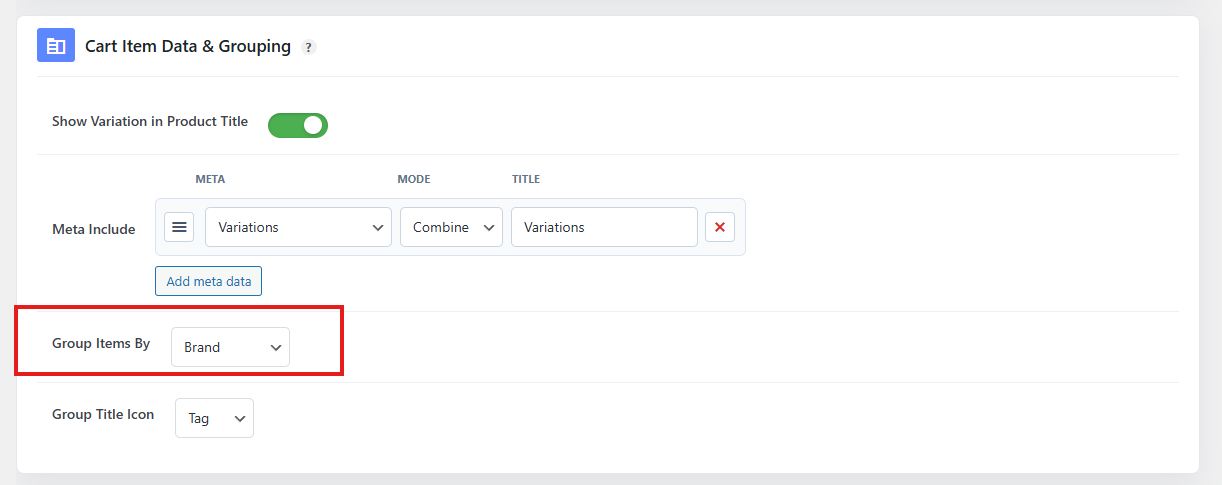
When grouping by brand, products are grouped by product brand.
Example:
Brand A
- Product 1
- Product 2

Brand B
- Product 3
Use this option if your store uses brand taxonomies.
The plugin checks common brand taxonomies such as product brand and brand attributes when grouping cart items.
Recommended for:
- Fashion stores
- Electronics stores
- Beauty stores
- Marketplace-style stores
- Stores where customers often shop by brand
Group by Custom Meta
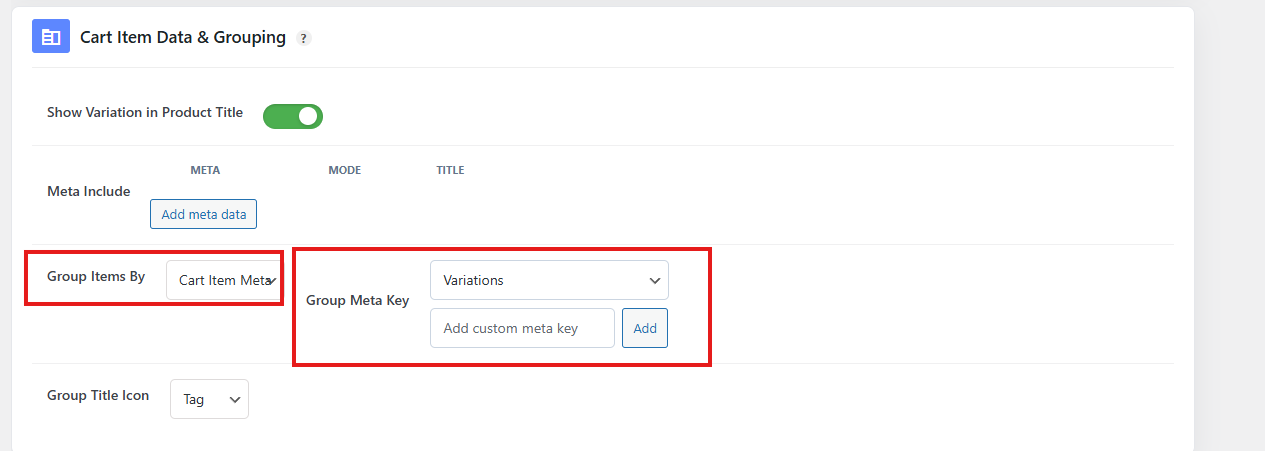
When grouping by custom meta, products are grouped by a selected cart item meta value.
Example:
Warehouse A
- Product 1
- Product 2

Warehouse B
- Product 3
This is useful when cart items include custom metadata from another plugin or custom store logic.
Good use cases:
- Multi-location inventory
- Delivery zones
- Vendor names
- Pickup locations
- Product add-on groups
- Booking/session groups
To use this option, enter the meta key you want to group by.
Example:
pickup_location
If no matching meta value is found, the item may be placed into a fallback group such as Other.
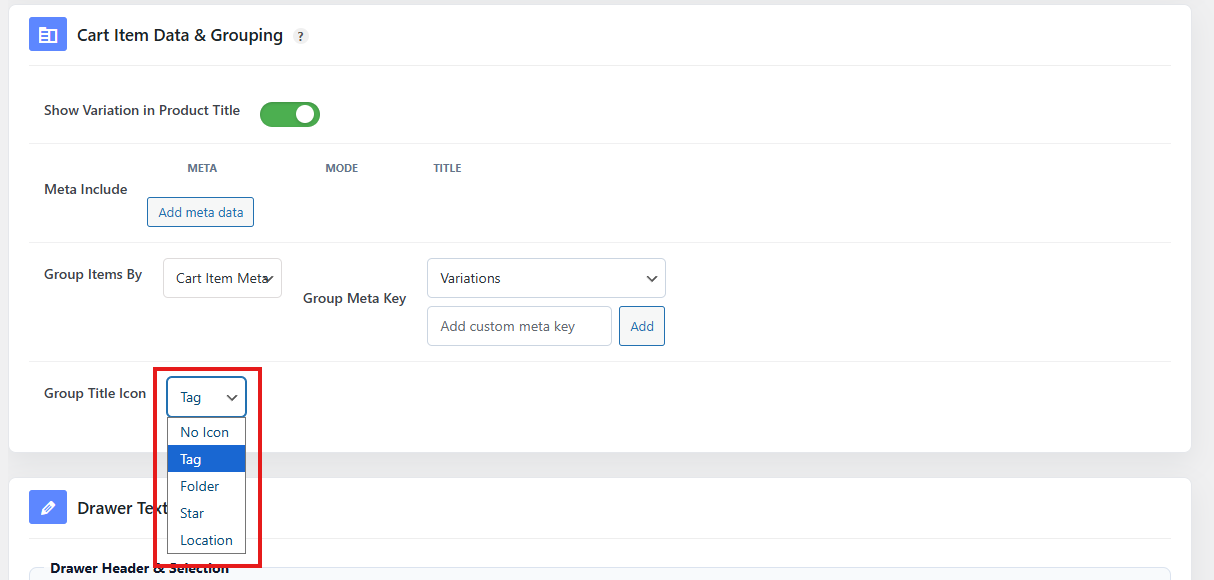
Group Icon
You can choose an icon for group headings inside the Floating Cart.
Available group icon options may include:
| Icon | Best For |
|---|---|
| None | Minimal cart layout |
| Tag | Category or label-based grouping |
| Folder | Category-based grouping |
| Star | Featured or brand grouping |
| Location | Location, pickup, or inventory grouping |
Choose None if you want a clean text-only group heading.
Choose Location if grouping by warehouse, branch, pickup point, or delivery location.
Coupon Section
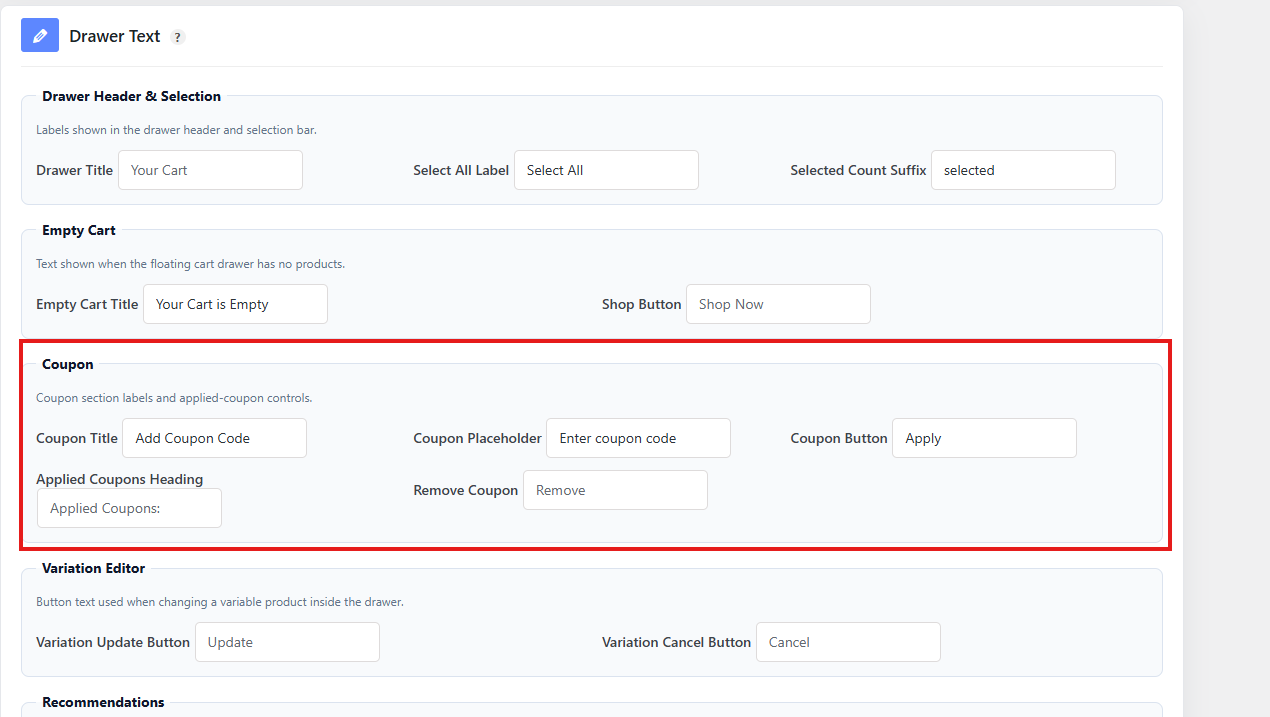
The Floating Cart can show a coupon form so customers can apply discount codes directly from the cart drawer.
This helps customers apply coupons without visiting the cart page or checkout page first.
The coupon section may include:
- Coupon title
- Coupon input field
- Apply coupon button
- Coupon message or feedback
Recommended setting: Enabled if your store uses coupons regularly.
Disable the coupon section if:
- Your store does not use coupon codes.
- Coupons are only applied automatically.
- You want a cleaner cart drawer.
Coupon Title
You can show or hide the coupon title.
Example title:
Have a coupon?
or:
Apply Discount Code
Use a clear title so customers understand what the field is for.
Recommended labels:
- Have a coupon?
- Apply Coupon
- Discount Code
- Promo Code
Collapsible Coupon Section
The coupon section can be collapsible.
When enabled, customers can expand the coupon area only when they need it.
This keeps the cart drawer cleaner.
Recommended setting: Enabled
A collapsible coupon section is especially useful on mobile because it saves vertical space.
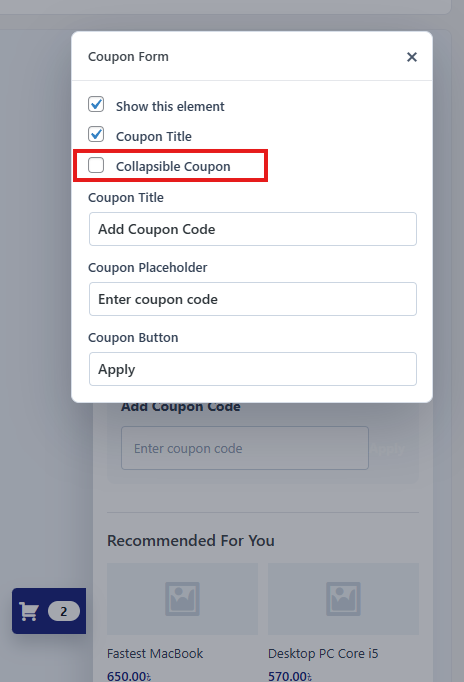
Coupon Initially Collapsed
You can choose whether the coupon section should be collapsed by default.
Recommended setting:
| Store Type | Recommendation |
|---|---|
| Coupon-focused store | Disabled |
| Regular store | Enabled |
| Mobile-first store | Enabled |
| Store with automatic discounts | Enabled |
If your store frequently promotes coupon codes, keep the coupon section open.
If coupons are optional, keep it collapsed.
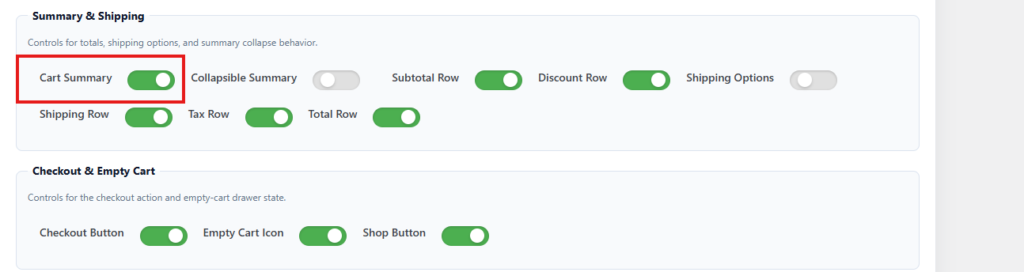
Cart Summary Section
The summary section shows the customer’s cart totals.
Depending on your settings, it can show:
- Subtotal
- Discount
- Shipping
- Tax
- Total
Recommended setting: Enabled
Customers should be able to see the final cost before clicking checkout.
Collapsible Summary Section
The summary section can also be collapsible.
Use this if your cart drawer has many sections, such as item meta, coupon, recommendations, and shipping methods.
Recommended setting:
| Cart Layout | Recommendation |
|---|---|
| Simple cart | Disabled |
| Long cart drawer | Enabled |
| Mobile cart drawer | Enabled |
| Cart with recommendations | Enabled |
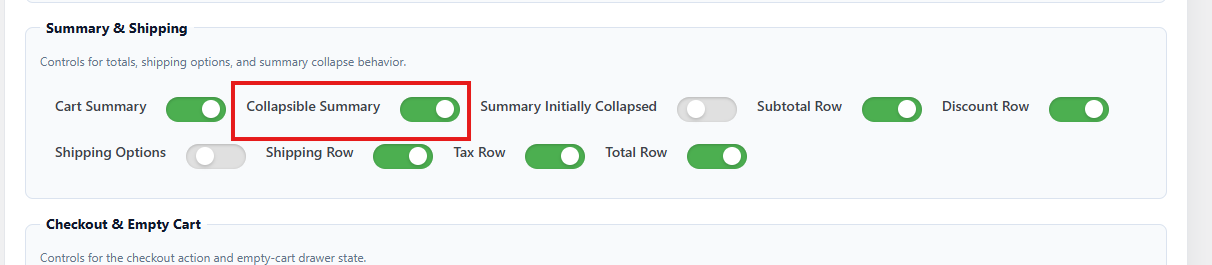
For most stores, keeping the total visible is important. If you make the summary collapsible, make sure the final total or checkout button remains easy to find.
Subtotal, Discount, Shipping, Tax, and Total
You can show or hide different parts of the cart summary.
| Setting | Recommended Use |
|---|---|
| Subtotal | Show before discounts, shipping, and taxes. |
| Discount | Show when coupons or discounts are used. |
| Shipping Total | Show when shipping cost is calculated. |
| Tax Total | Show when your store charges tax. |
| Total | Always recommended. |
Recommended setup:
Subtotal
Discount
Shipping
Tax
Total

For stores without tax or shipping, you can hide those rows.
Shipping Options Inside Floating Cart
The Floating Cart can show available shipping methods inside the drawer.
This allows customers to choose a shipping method before going to checkout.
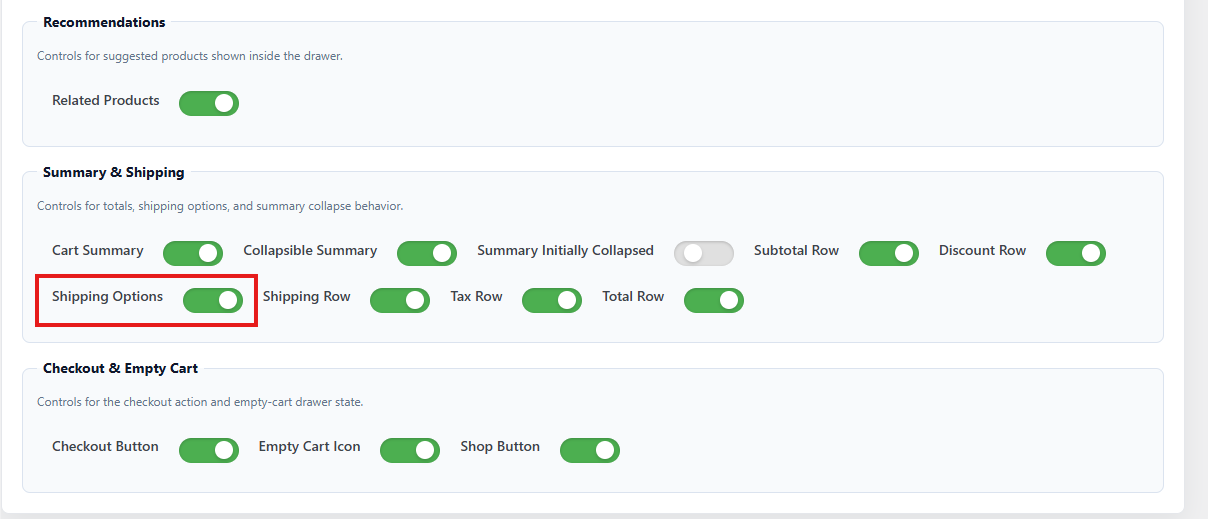
Shipping options may appear as selectable radio buttons.
Use this option if:
- Your store has multiple shipping methods.
- Shipping cost affects the final total.
- Customers often compare delivery options.
- You want customers to see shipping earlier in the checkout flow.
Shipping options may not appear if:
- The cart does not need shipping.
- No shipping zone/rate is available.
- WooCommerce shipping is not configured.
- The customer address is required before rates can be calculated.
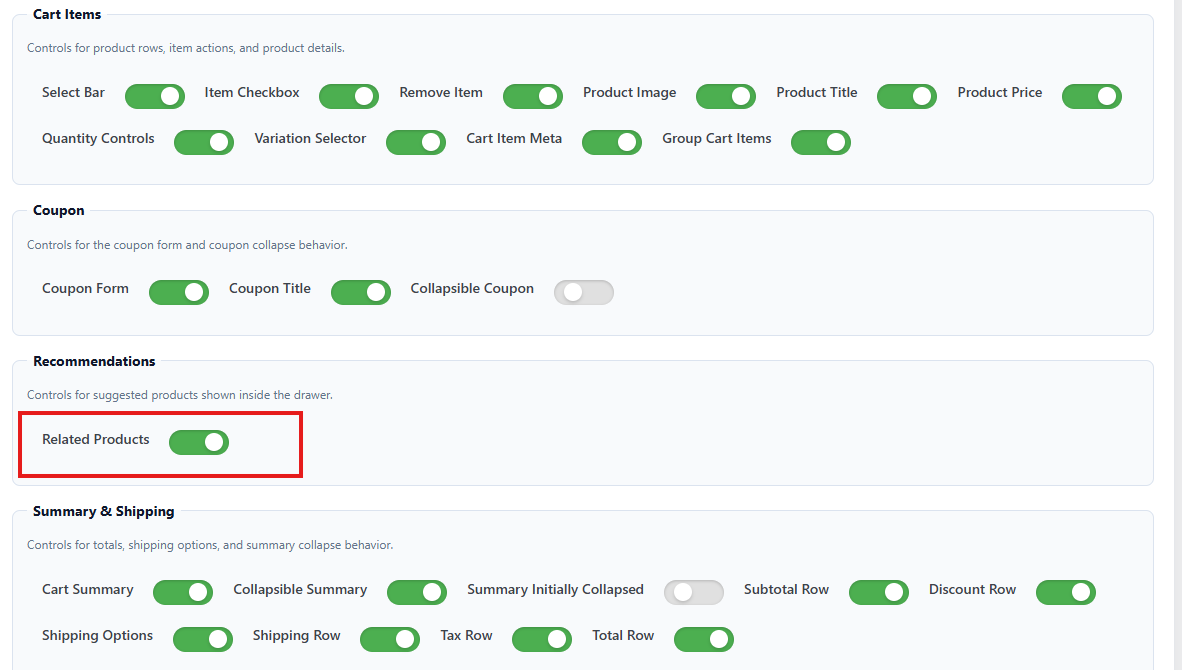
Product Recommendations
The Floating Cart can show related products in a “You may also like” section.
This helps increase average order value by suggesting additional products before checkout.
Example:
You may also like
- Matching Socks
- Leather Belt
- Gift Box
Recommended for:
- Fashion stores
- Beauty stores
- Accessories stores
- Grocery stores
- Home goods stores
- Stores with useful related products
Disable recommendations if:
- Your products do not have meaningful related items.
- The cart drawer becomes too long.
- You want the fastest possible checkout flow.
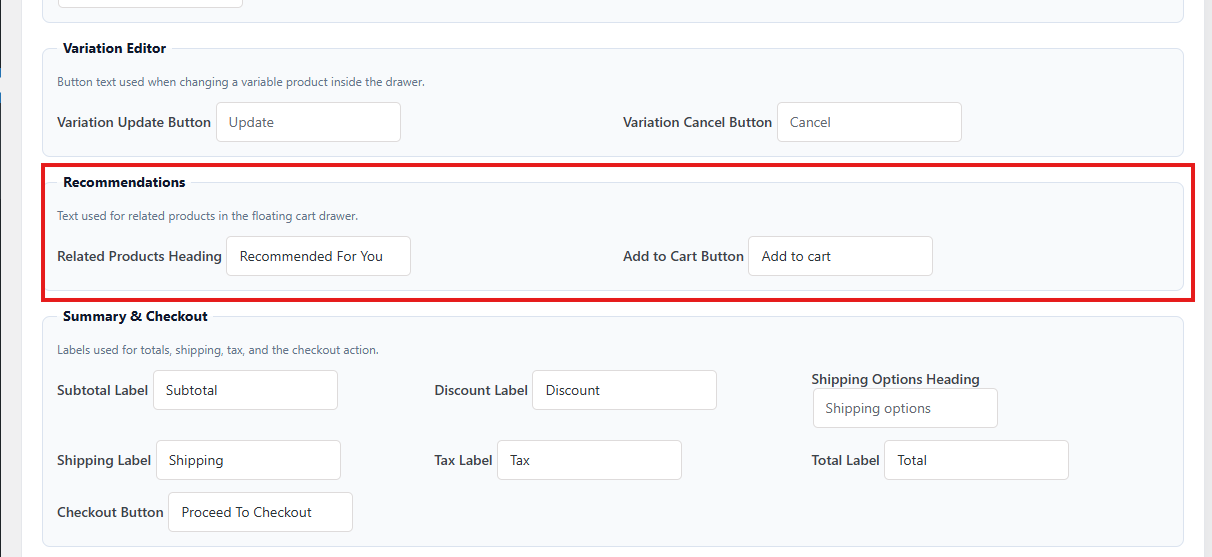
Related Product Add to Cart Button Text
You can customize the button text for recommended products.
Examples:
| Button Text | Best For |
|---|---|
| Add to Cart | General stores |
| Add Item | Compact cart layouts |
| Add This | Casual tone |
| Include Item | Bundle-style stores |
| Add Product | Clear generic label |
Recommended text:
Add to Cart
Keep the text short so it fits inside product recommendation cards.
Recommended Advanced Settings
For most stores, use this setup:
| Setting | Recommended Value |
|---|---|
| Group Cart Items | Optional |
| Group By | Category |
| Group Icon | Tag or Folder |
| Coupon Section | Enabled if coupons are used |
| Coupon Collapsible | Enabled |
| Coupon Initially Collapsed | Enabled |
| Summary Section | Enabled |
| Summary Collapsible | Optional |
| Show Subtotal | Enabled |
| Show Discount | Enabled |
| Show Shipping Total | Enabled if shipping is used |
| Show Tax Total | Enabled if tax is used |
| Show Total | Enabled |
| Shipping Options | Enabled if multiple shipping methods are available |
| Product Recommendations | Optional |
| Recommendation Button Text | Add to Cart |
Troubleshooting Floating Cart
Use this section if the Floating Cart does not appear or does not work as expected.
Floating Cart Icon Is Not Showing
Possible causes:
- Floating Cart is not enabled.
- Cart icon display is disabled.
- The shortcode/block/widget is not added to the page.
- Hide empty cart button is enabled and the cart is empty.
- Theme/header layout is hiding the cart button.
- CSS conflict is making the icon invisible.
- Cache/minification is loading old scripts or styles.
Fixes:
- Confirm Floating Cart is enabled.
- Add a product to cart and check again.
- If using shortcode, confirm this shortcode is added:
[plugincy_cart]
- Disable “Hide cart button when cart is empty” temporarily.
- Clear cache from your caching plugin, browser, and CDN.
- Test with a default theme to check for theme conflict.
Cart Drawer Is Not Opening
Possible causes:
- JavaScript conflict.
- Floating Cart script is not loading.
- Theme or optimization plugin is delaying scripts.
- Another cart drawer plugin is conflicting.
- The cart button is present but click event is blocked by another element.
Fixes:
- Clear cache and reload the page.
- Disable JS minification/defer/delay temporarily.
- Check if another cart/side cart plugin is active.
- Disable conflicting cart drawer plugins.
- Test with browser console open and check for JavaScript errors.
- Make sure your theme footer loads
wp_footer()correctly.
Cart Count Is Not Updating
Possible causes:
- AJAX add-to-cart is disabled.
- WooCommerce cart fragments are blocked.
- Cache plugin is caching cart fragments.
- Add-to-cart request is failing.
- Product was not actually added to cart.
Fixes:
- Enable AJAX add-to-cart where applicable.
- Exclude WooCommerce cart fragments from caching.
- Exclude cart, checkout, and account pages from cache.
- Clear cache.
- Test by adding a simple product to cart.
- Check if WooCommerce notices show any add-to-cart error.
Quantity Buttons Are Not Working
Possible causes:
- Quantity controls are disabled.
- AJAX request is blocked.
- Cart item key is missing or invalid.
- JavaScript conflict.
- Product has quantity restrictions.
- Stock limit prevents increasing quantity.
Fixes:
- Enable quantity controls in Floating Cart item settings.
- Test with a simple in-stock product.
- Check product stock and purchase limits.
- Clear cache.
- Disable JS optimization temporarily.
- Check browser console for errors.
Remove Item Button Is Not Working
Possible causes:
- Remove item button is disabled.
- AJAX remove request is blocked.
- Another plugin modifies cart item keys.
- JavaScript conflict.
- Cache or security plugin blocks the request.
Fixes:
- Enable remove item button.
- Test with a simple product.
- Clear cache.
- Disable JS minification/defer temporarily.
- Check if a security/firewall plugin blocks admin-ajax requests.
Coupon Is Not Applying
Possible causes:
- Coupon section is disabled.
- Coupon code is invalid.
- Coupon is expired.
- Coupon usage limit has been reached.
- Coupon restrictions do not match the cart.
- WooCommerce coupons are disabled.
- AJAX request is blocked.
Fixes:
- Confirm WooCommerce coupons are enabled.
- Confirm coupon section is enabled in Floating Cart.
- Test the same coupon on the normal WooCommerce cart/checkout page.
- Check coupon restrictions.
- Clear cache.
- Check for AJAX errors.
Shipping Options Are Not Showing
Possible causes:
- Shipping options are disabled in Floating Cart.
- Cart does not need shipping.
- Products are virtual/downloadable.
- WooCommerce shipping zones are not configured.
- Customer address is required before rates appear.
- No shipping methods match the customer location.
Fixes:
- Enable shipping options in Floating Cart.
- Confirm products require shipping.
- Check WooCommerce shipping zones and rates.
- Test with a physical product.
- Check the normal cart/checkout page to confirm shipping appears there.
- If shipping requires an address, ask customers to enter address at checkout.
Variation Editor Is Not Showing
Possible causes:
- Variation editor is disabled.
- Product is not a variable product.
- Cart item does not have changeable variations.
- Variation switching option is disabled.
- Only one variation is available.
- Product variations are invalid, hidden, out of stock, or not purchasable.
Fixes:
- Enable variation editor.
- Test with a variable product.
- Make sure the product has multiple valid variations.
- Check variation stock and visibility.
- Confirm the product can be purchased normally.
- Test variation switching on cart/checkout if supported.
Item Meta Is Not Showing
Possible causes:
- Item meta display is disabled.
- No meta keys are selected.
- The selected meta key does not exist in the cart item.
- Meta key is hidden/internal.
- Meta value is empty.
- The custom field plugin stores data using a different key.
Fixes:
- Enable item meta display.
- Add the correct meta key to the include list.
- Test with a product that actually stores that meta.
- Rename the label if needed.
- Avoid internal hidden keys unless customers need them.
- Check the cart item data created by your add-on/custom field plugin.
Drawer Is Hidden Behind Header or Theme Elements
Possible causes:
- Theme header has a very high z-index.
- Sticky header overlaps the drawer.
- Popup plugin or menu plugin overlaps the cart.
- Custom CSS changes drawer position.
Fixes:
- Temporarily disable sticky header and test again.
- Check if another popup/off-canvas plugin is overlapping it.
- Add custom CSS to increase Floating Cart drawer z-index if needed.
- Test with a default WooCommerce theme.
Example CSS:
.onepaqucpro-cart-drawer,
.onepaqucpro-floating-cart {
    z-index: 999999;
}
Use the actual class from your site if your theme/plugin output uses a different wrapper class.
Floating Cart Looks Broken on Mobile
Possible causes:
- Too many cart sections are enabled.
- Product recommendations make the drawer too long.
- Theme CSS affects drawer width.
- Long product names or meta values overflow.
- Coupon/summary sections are always expanded.
Fixes:
- Make coupon section collapsible.
- Make summary section collapsible if needed.
- Disable recommendations on small layouts if the cart feels too long.
- Use shorter button labels.
- Use compact variation display mode.
- Test with common mobile screen sizes.
Cache or Optimization Conflicts
Floating Cart depends on dynamic cart data. Some cache and optimization settings can prevent it from updating correctly.
Check these settings:
- Page cache
- Object cache
- CDN cache
- JavaScript minify/combine
- JavaScript defer/delay
- WooCommerce cart fragments
- AJAX request blocking
Recommended exclusions:
Cart page
Checkout page
My Account page
WooCommerce cart fragments
admin-ajax.php
Floating Cart scripts
After changing cache settings, clear all cache layers.
Final Testing Checklist
After configuring Floating Cart, test the full flow:
- Visit the shop page.
- Add a simple product to cart.
- Confirm cart count updates.
- Open Floating Cart.
- Increase and decrease quantity.
- Remove an item.
- Add a variable product.
- Check variation display.
- Apply a coupon.
- Check subtotal, discount, shipping, tax, and total.
- Test checkout button.
- Test on mobile.
- Test as logged-in and guest customer.
This confirms the Floating Cart is working correctly for real shoppers.