
The plugin supports WooCommerce coupon usage inside dynamic checkout interfaces such as the side cart, floating cart, cart drawer, and popup checkout. Customers can apply or remove coupon codes without manually refreshing the page.
This helps create a smoother checkout experience because cart totals, discounts, and order totals can update instantly after a coupon is applied or removed.
What this feature does
Coupon support allows customers to:
- Enter a WooCommerce coupon code
- Apply the coupon from the side cart or popup checkout
- See discount totals update through AJAX
- Remove an applied coupon
- Continue checkout with the updated order total
The plugin uses WooCommerce coupon validation, so normal WooCommerce coupon rules still apply.
Where the coupon field appears
The coupon field can appear in plugin-powered cart and checkout interfaces, such as:
- Side cart
- Floating cart
- Cart drawer
- Popup checkout
- AJAX cart interface
- One-page checkout/cart summary area, depending on layout
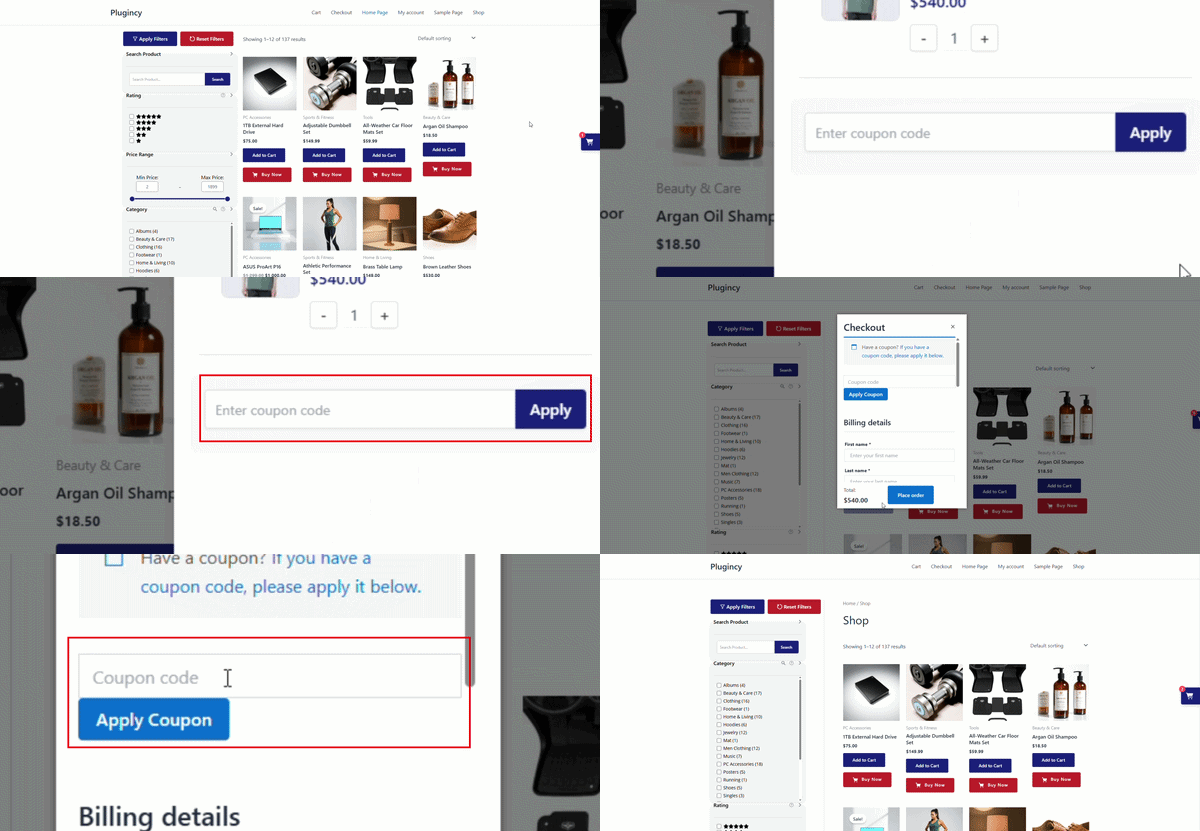
The exact location depends on your plugin settings and active checkout method.
For example, customers may see a coupon area near:
- Cart subtotal
- Cart total
- Checkout button
- Applied coupons list
- Order summary section
How customers apply a coupon
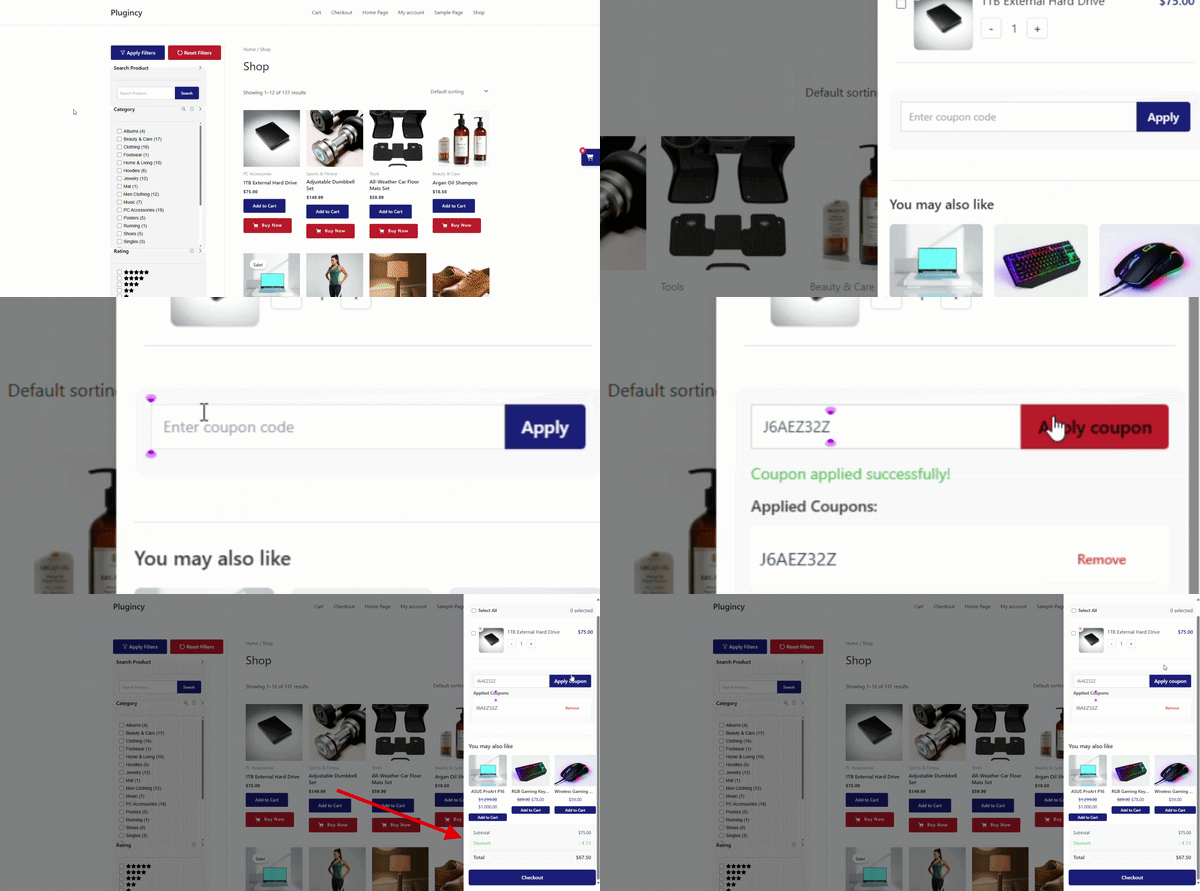
A typical customer flow looks like this:
Customer opens side cart or popup checkout
↓
Customer enters coupon code
↓
Customer clicks Apply Coupon
↓
Plugin validates the coupon through WooCommerce
↓
Discount is applied if valid
↓
Cart totals update automatically
The cart may update:
- Subtotal
- Discount total
- Shipping, if affected
- Taxes, if affected
- Final total
- Applied coupon list
How customers remove a coupon
Customers can also remove an applied coupon from the cart or checkout interface.
Typical flow:
Customer views applied coupon
↓
Customer clicks Remove
↓
Coupon is removed through AJAX
↓
Cart totals are recalculated
↓
Updated total is displayed
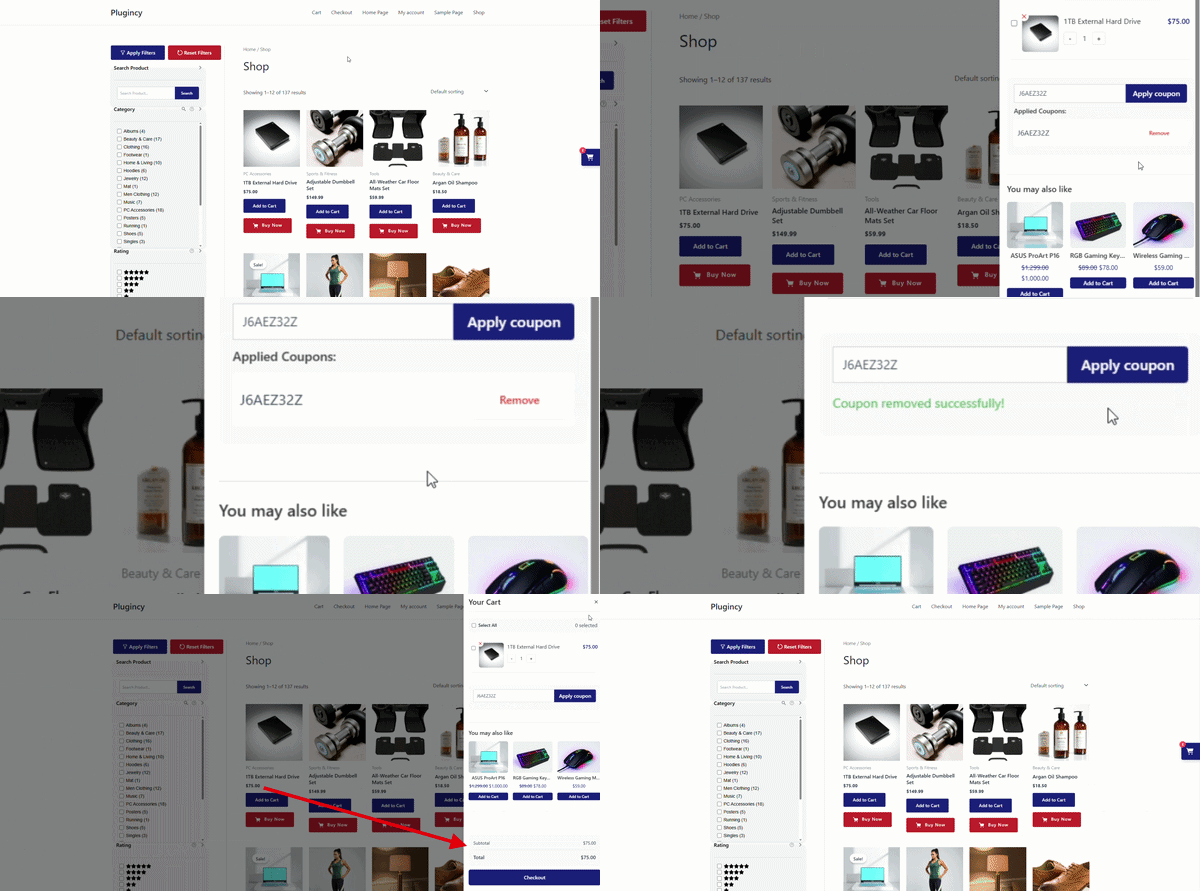
This lets customers change their coupon without reloading the page.
WooCommerce coupon compatibility
The plugin uses WooCommerce coupon logic, so most standard WooCommerce coupon settings should continue to work.
Supported WooCommerce coupon rules may include:
| WooCommerce coupon setting | Expected behavior |
|---|---|
| Percentage discount | Applies percentage discount to eligible products/cart |
| Fixed cart discount | Applies fixed amount to cart |
| Fixed product discount | Applies discount to eligible products |
| Minimum spend | Coupon only applies if cart meets the minimum |
| Maximum spend | Coupon only applies if cart is below the maximum |
| Individual use only | Cannot combine with some other coupons |
| Exclude sale items | Does not apply to sale items |
| Products | Applies only to selected products |
| Exclude products | Does not apply to excluded products |
| Product categories | Applies only to selected categories |
| Exclude categories | Does not apply to excluded categories |
| Usage limits | Stops working after coupon limit is reached |
| Usage limit per user | Depends on customer/account/email restrictions |
| Expiry date | Stops working after expiration |
| Allowed emails | Applies only to matching customer email |
Because WooCommerce performs the validation, coupon behavior should match your store’s normal WooCommerce coupon settings.
Coupon messages customers may see
The plugin can show coupon status messages while applying or removing coupons.
Common messages include:
| Message type | Meaning |
|---|---|
| Applying coupon | The coupon request is being processed |
| Coupon applied successfully | Coupon was valid and added to the cart |
| Invalid coupon code | Coupon does not exist or cannot be used |
| Removing coupon | Coupon removal is being processed |
| Coupon removed successfully | Coupon was removed from the cart |
| Discount | Shows the discount amount |
| Applied coupons | Shows coupon codes currently applied |
Common reasons a coupon may be invalid
A customer may see an invalid coupon message even if the coupon code exists.
Common causes include:
- Coupon code was typed incorrectly
- Coupon is expired
- Coupon has reached its usage limit
- Customer already used the coupon
- Cart does not meet minimum spend
- Cart exceeds maximum spend
- Coupon is restricted to specific products
- Coupon excludes products currently in the cart
- Coupon is restricted to specific categories
- Coupon excludes categories currently in the cart
- Coupon cannot be combined with another coupon
- Coupon excludes sale items
- Customer email does not match allowed emails
- Coupon is disabled or deleted
- Cart total is zero
- Product variation is not eligible
- Shipping/tax recalculation changed the eligible total
Applying coupons to variable products
WooCommerce may treat coupon eligibility differently depending on whether the coupon is restricted to a parent product, a variation, or a category.
If a coupon is not applying to a variable product, check:
- Whether the coupon is restricted to the parent product
- Whether the coupon is restricted to a specific variation
- Whether the variation belongs to the required category
- Whether sale items are excluded
- Whether the variation price qualifies for minimum spend
Coupon behavior with variation switching
If a customer changes a variation inside the cart, WooCommerce recalculates coupon eligibility.
A coupon may be removed or no longer apply if:
- The new variation is excluded
- The new variation does not match the coupon product restriction
- The new variation changes the cart below minimum spend
- The new variation is on sale and sale items are excluded
- Product/category restrictions no longer match
After changing variations, customers should review the updated cart total.
Coupon behavior with popup checkout
When popup checkout is enabled, customers may apply coupons inside the popup checkout or cart summary area depending on your checkout layout.
After a coupon is applied:
- The popup should stay open
- The discount should appear in the order summary
- The cart/order total should update
- The customer can continue checkout without refreshing the page
If the popup closes or does not update, check for JavaScript or cache conflicts.
Coupon behavior with side cart or floating cart
When side cart or floating cart is enabled, customers may apply coupons directly from the cart drawer.
After a coupon is applied:
- The drawer should remain open
- The applied coupon should be visible
- Subtotal/discount/total should update
- Checkout button should continue to work
This gives customers a faster cart review experience before checkout.
Admin setup checklist
Before using coupon support, confirm:
- WooCommerce coupons are enabled
- At least one valid coupon exists
- Coupon field/display is enabled in the plugin cart or checkout layout, if there is a setting for it
- Side cart, floating cart, or popup checkout is enabled if you want coupon use there
- Cart totals update correctly after applying a coupon
- Coupon removal works
- Cache does not break dynamic cart updates
WooCommerce coupon settings are managed from:
Marketing → Coupons
or, in some WooCommerce versions:
WooCommerce → Coupons
How to test coupon support
Create a test coupon in WooCommerce and test the full customer flow.
Test coupon example
Create a coupon like:
Code: TEST10
Discount type: Percentage discount
Coupon amount: 10
Minimum spend: None
Usage limit: Optional
Then test:
- Add a product to cart.
- Open the side cart or popup checkout.
- Enter the coupon code.
- Click Apply Coupon.
- Confirm the discount appears.
- Confirm the cart total updates.
- Remove the coupon.
- Confirm the cart total updates again.
- Complete a test checkout.
Best practices
Use simple coupon rules first
Start with a simple coupon to confirm the AJAX coupon system works. Then test more complex restrictions.
Show clear coupon messages
Customers should know whether the coupon was applied, rejected, or removed.
Keep coupon field easy to find
Place the coupon field near the cart totals or order summary.
Test coupons with variable products
If you sell variable products, test coupons against different variations.
Test with discounts and shipping
Some coupons affect shipping, taxes, and order totals. Confirm all totals update correctly.
Avoid aggressive cache on cart/checkout areas
Coupon application is dynamic. Do not cache cart drawer, checkout popup, or WooCommerce cart fragments incorrectly.
Troubleshooting invalid coupon messages
Coupon code is correct but shows invalid
Check:
- Coupon is published/active
- Coupon has not expired
- Coupon usage limit is not reached
- Customer email matches allowed email restrictions
- Cart meets minimum/maximum spend rules
- Products/categories in cart match coupon restrictions
- Coupon is allowed with other applied coupons
- Sale item restrictions are not blocking it
Coupon applies on normal cart page but not in side cart
This usually indicates an AJAX, cache, or JavaScript issue.
Check:
- Cart drawer scripts are loading
- AJAX requests are not blocked
- Cache plugin is not caching cart content
- Security plugin is not blocking admin-ajax requests
- Browser console has no JavaScript errors
- WooCommerce cart fragments are working
Coupon applies but total does not update
Check:
- AJAX response is successful
- Cart totals are refreshed after coupon apply
- Cache/CDN is not serving stale totals
- Theme is not overriding cart total markup
- JavaScript errors are not stopping UI refresh
- WooCommerce sessions are working
Coupon removes but still appears
Check:
- Cache is cleared
- Cart drawer refreshes after removal
- WooCommerce session updates correctly
- Browser is not showing stale cart data
- Another plugin is reapplying the coupon automatically
Coupon field does not appear
Check:
- Coupon support is enabled in WooCommerce
- Coupon field/display is enabled in plugin settings, if available
- Side cart or popup checkout is enabled
- Theme or custom CSS is not hiding the coupon field
- Checkout/cart template is not overridden by another plugin
Coupon is blocked by security plugin
Some security plugins may block AJAX requests or coupon parameters.
Check firewall/security logs for blocked requests related to:
admin-ajax.php
coupon_code
apply_coupon
remove_coupon
Allow these requests if they are being blocked incorrectly.
Coupon works for admins but not guests
Check:
- Guest cart sessions are working
- Page cache is not serving admin content to guests
- WooCommerce session cookies are not blocked
- Security plugin is not blocking guest AJAX requests
- Coupon restrictions do not require logged-in users
Compatibility notes
WooCommerce coupons
The feature is designed to work with standard WooCommerce coupons.
Coupon plugins
If you use advanced coupon plugins, test carefully. Some plugins add custom validation rules, automatic discounts, BOGO offers, gift cards, store credit, or dynamic coupon logic.
Test:
- Coupon apply
- Coupon remove
- Cart total update
- Checkout total update
- Coupon restrictions
- Auto-applied coupons
Currency and tax plugins
If you use multi-currency or tax plugins, test coupon totals carefully because discounts may be recalculated based on currency, tax display mode, or customer location.
Cache and optimization plugins
Exclude dynamic cart and checkout areas from cache.
Be careful with:
- Full-page cache
- CDN cache
- Object cache
- JavaScript delay
- JavaScript defer
- WooCommerce cart fragment optimization
- AJAX request blocking