
The Pro version of One Page Quick Checkout for WooCommerce includes advanced checkout, cart, design, and recovery features. Some Pro features require an active license before they can be used.
This guide explains how to activate your license, what happens if the license is inactive, which features may require Pro access, and how to move your license between sites.
Why license activation is required
A valid license helps unlock Pro features and allows your site to receive eligible plugin updates and support.
Some advanced features may be restricted when the license is inactive. For example, certain Pro checkout features may show a license-required message instead of loading normally.
Where to find license settings
From your WordPress dashboard, go to:
Onpage Checkout → Plugin License
This page is used to enter, activate, deactivate, or check your license key.
How to activate your license
Follow these steps to activate your license.
Step 1: Copy your license key
After purchasing the Pro version, copy your license key from your Plugincy account or purchase email.
Step 2: Open the Plugin License page
In your WordPress dashboard, go to:
Onpage Checkout → Plugin License
Step 3: Enter your license key
Paste your license key into the license field.
Make sure there are no extra spaces before or after the key.
Step 4: Activate the license
Click the Activate License button.
Step 5: Confirm activation
After activation, the license status should show as active.
Once active, return to the feature you want to use and refresh the page.
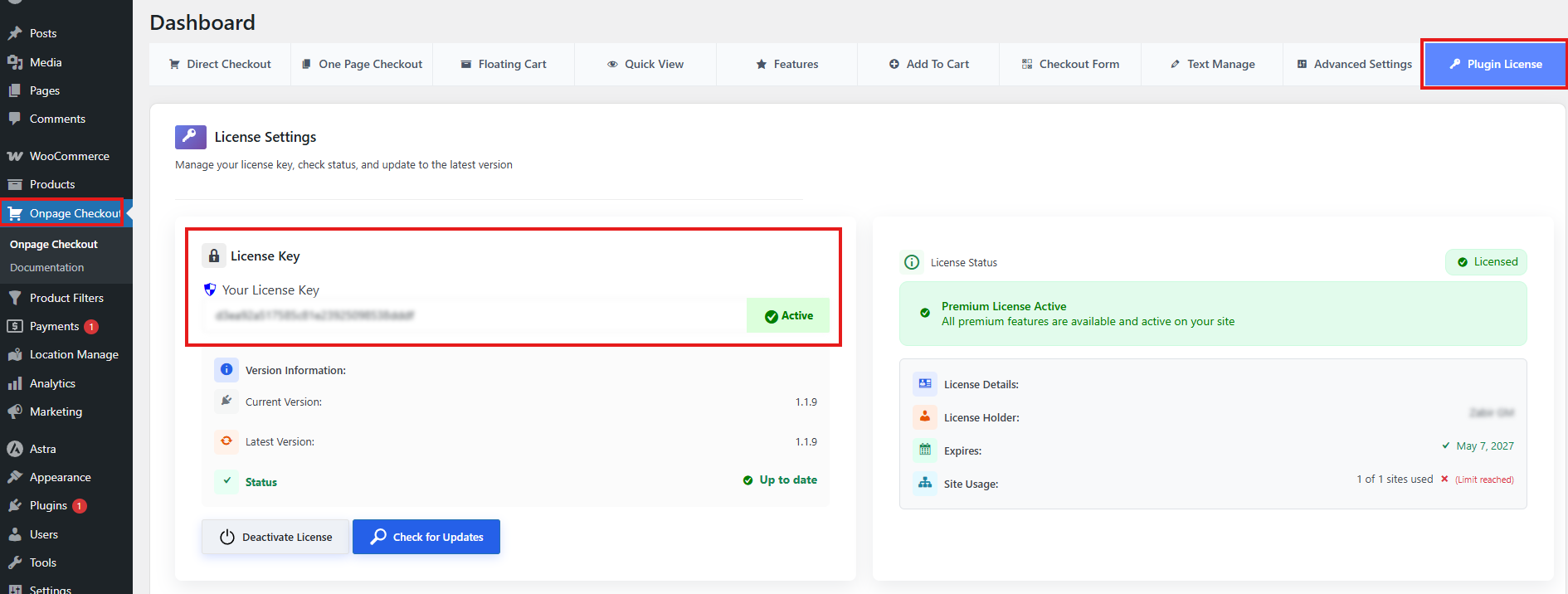
How to confirm your license is active
A successfully activated license may show:
- Active status
- License key status
- Product name
- Expiration date, if applicable
- Site activation status
- Success message
If the status still shows inactive, expired, invalid, or missing, check the troubleshooting section below.
What happens when the license is inactive
If the license is inactive, expired, invalid, or not connected, some Pro-only features may be locked or limited.
You may see:
- License-required notice
- Feature unavailable message
- Upgrade/activate license prompt
- Disabled settings
- Hidden advanced options
- Limited feature output on the frontend
- No automatic Pro updates
- Restricted support access, depending on your plan
Example
If Multi Product One Page Checkout requires Pro access and the license is inactive, the checkout layout may not render and the plugin may show a license activation notice instead.
Does checkout stop working if the license expires?
In most cases, existing basic WooCommerce checkout functionality should continue to work because WooCommerce checkout itself is handled by WooCommerce.
However, Pro-only features may become unavailable, limited, or stop receiving updates depending on the plugin’s license rules.
What may continue working
The following may continue depending on your installed version and settings:
- Standard WooCommerce checkout
- Basic WooCommerce cart behavior
- Previously configured basic plugin settings
- Non-Pro features
- Existing pages that do not depend on locked Pro functionality
What may be affected
The following may be restricted if your license is inactive or expired:
- Pro-only checkout layouts
- Multi-product one-page checkout
- Advanced popup/direct checkout behavior
- Advanced cart drawer features
- Advanced Quick View settings
- Advanced Add to Cart customization
- Cart Recovery email automation
- Cart Recovery analytics or exports
- Pro support and updates
If your license expires or becomes inactive, standard WooCommerce checkout should still work, but Pro-only features may be restricted and you may stop receiving Pro updates or support until the license is renewed or reactivated.
Features that may require Pro access
The exact feature access may depend on your plugin version and license plan, but Pro/license-required features may include:
| Feature area | Pro/license access may be required for |
|---|---|
| Multi Product One Page Checkout | Multi-product checkout layouts, product-selection templates, advanced product query options |
| Popup Checkout | Advanced popup checkout behavior and design options |
| Direct Checkout | Advanced direct checkout button behavior and styling |
| Floating Cart / Side Cart | Advanced drawer, cart controls, variation switching, coupon handling, and styling |
| Quick View | Advanced placement, product type targeting, AJAX add-to-cart, lightbox, custom text/CSS/JS |
| Add to Cart Customization | Advanced button styling, icons, loading effects, mobile sticky add-to-cart |
| Checkout Form Management | Advanced checkout field visibility, labels, placeholders, required-state controls |
| Cart Recovery | Email automation, templates, analytics, customer journey, activity logs, exports, manual/bulk actions |
| Trust Badges / Custom HTML | Advanced checkout trust badge and custom content options |
| Shortcodes / Blocks / Widgets | Some advanced shortcode, block, or Elementor widget options |
This feature may require an active Pro license. If you see a license notice, go to Onpage Checkout → Plugin License and activate your license.
Common license errors
Invalid license key
This means the license key was not accepted.
Check:
- License key was copied correctly
- No extra spaces were added
- You are using the correct product license
- The license has not been cancelled
- The key belongs to the Pro plugin
License expired
This means the license renewal period has ended.
To fix:
- Log in to your Plugincy account.
- Renew the license.
- Return to your WordPress dashboard.
- Refresh or reactivate the license.
Activation limit reached
This means the license has already been activated on the maximum number of allowed sites.
To fix:
- Deactivate the license on an old site
- Remove an old/staging site from your account, if available
- Upgrade your license plan if you need more site activations
License already used on another site
This can happen when moving from staging to production or changing domains.
Deactivate the license on the old site first, then activate it on the new site.
Could not connect to license server
This means your site could not communicate with the licensing system.
Check:
- Internet connection from your server
- Firewall/security plugin rules
- Hosting provider outbound request restrictions
- SSL/cURL issues
- Maintenance mode or blocked REST/API requests
Product mismatch
This means the license key may not match the installed plugin.
Check:
- You installed the correct Pro plugin
- You are not using the license for a different Plugincy product
- The plugin files are up to date
How to deactivate a license
Use license deactivation when you no longer want the license connected to a site.
Go to:
Onpage Checkout → Plugin License
Then click Deactivate License, if available.
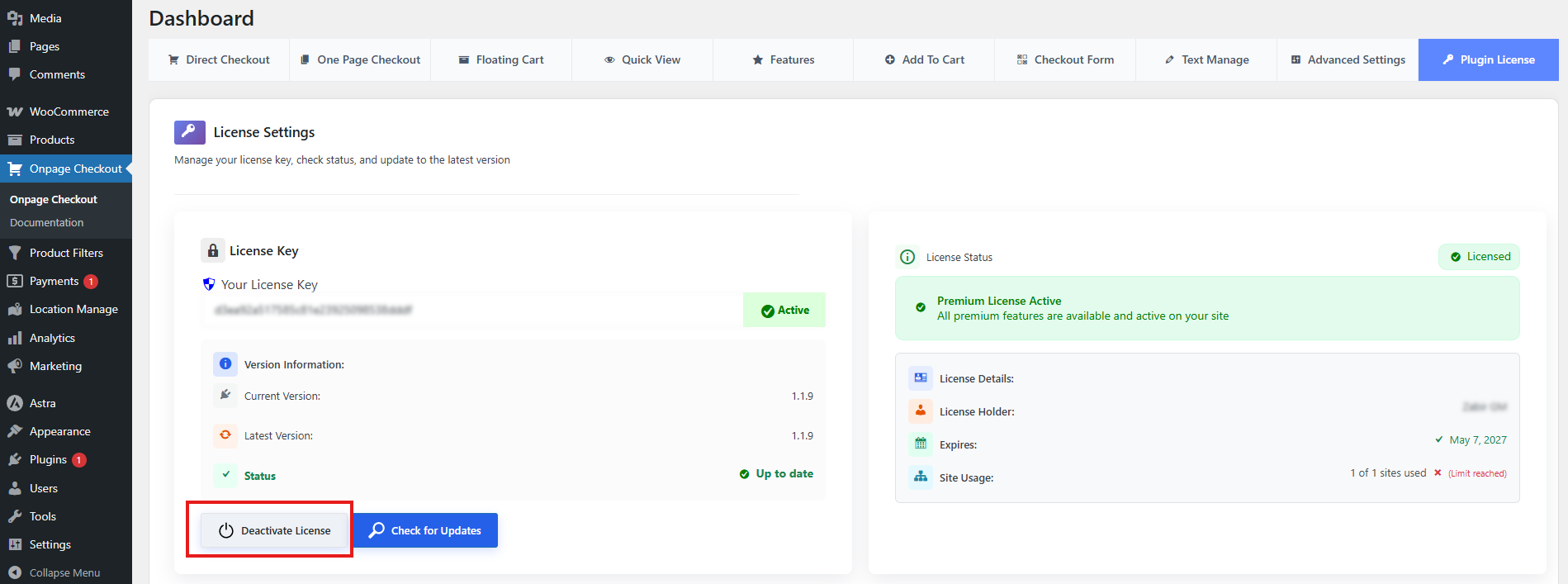
After deactivation, the license can usually be activated on another site, depending on your license plan and activation limits.
How to move a license between sites
Use this process when moving from staging to live, changing domains, or transferring a license to a new site.
Step 1: Deactivate the license on the old site
On the old site, go to:
Onpage Checkout → Plugin License
Click Deactivate License.
Step 2: Install the Pro plugin on the new site
Install and activate the Pro plugin on the new site.
Step 3: Activate the license on the new site
On the new site, go to:
Onpage Checkout → Plugin License
Enter the same license key and activate it.
Step 4: Test Pro features
After activation, test the Pro features you use, such as:
- Popup Checkout
- Multi Product One Page Checkout
- Floating Cart
- Quick View
- Add to Cart customization
- Cart Recovery
Moving from staging to production
If you used the license on a staging site first, deactivate it before activating it on the production site.
Recommended workflow:
Activate on staging
↓
Build and test the store
↓
Deactivate license on staging
↓
Activate license on production
↓
Test Pro features again
If your license plan supports staging domains separately, you may not need to deactivate staging. Check your Plugincy account or license rules.
What to do after license activation
After activating your license:
- Clear your site cache.
- Refresh the plugin settings page.
- Check that Pro settings are unlocked.
- Test frontend Pro features.
- Check for plugin updates.
- Update the plugin if a newer version is available.
- Test checkout after updating.
Troubleshooting locked Pro features
If a Pro feature still looks locked after activation:
1. Refresh the page
Reload the settings page after activation.
2. Clear cache
Clear:
- WordPress cache
- Browser cache
- CDN cache
- Object cache, if used
3. Check license status
Return to:
Onpage Checkout → Plugin License
Confirm the status is active.
4. Confirm the correct plugin is active
Make sure the Pro plugin is active and the free version is not causing conflicts.
If both free and Pro versions are installed, use the plugin’s recommended setup and keep only the required version active.
5. Update the plugin
Install the latest Pro version if an update is available.
6. Re-save settings
Open the related feature settings page and save settings again.
Best practices
Keep your license active
An active license helps maintain access to Pro features, updates, and support.
Do not share license keys publicly
Never publish your license key in screenshots, documentation, support forums, GitHub repositories, or client-facing pages.
Use staging carefully
If your license has limited activations, deactivate it from staging when moving to production.
Renew before expiration
Renew before the license expires to avoid losing access to updates or Pro-gated features.
Test after renewal or reactivation
After renewing or reactivating a license, test your most important checkout flows.