
Recovery email templates control the messages customers receive after they abandon a cart. Each template can have its own subject line, email content, delay time, and enabled/disabled status.
Use this section to create a complete abandoned cart email sequence, such as a first reminder, second follow-up, and final recovery email.
Email templates overview
Email templates are the messages used for abandoned cart recovery.
A typical recovery sequence may include:
| When it sends | Purpose | |
|---|---|---|
| First reminder | 1 hour after abandonment | Friendly reminder |
| Second reminder | 24 hours after abandonment | Encourage customer to return |
| Final reminder | 48–72 hours after abandonment | Final follow-up or discount offer |
Each email template can be scheduled independently. The plugin checks abandoned carts through the recovery queue and sends eligible templates when their delay time has passed.
What a template usually includes
A recovery email template normally includes:
- Template name
- Enabled/disabled status
- Subject line
- Email content
- Delay value
- Delay unit
- Recipient settings
- Restore cart link
- Unsubscribe link
Where to manage recovery email templates
From your WordPress dashboard, go to:
Onpage Checkout → Cart Recovery
Then open the Email tab.
From this section, you can manage recovery email templates, email settings, test emails, and email activity.
Create a recovery email template
To create a new recovery email template:
- Go to Onpage Checkout → Cart Recovery.
- Open the Email tab.
- Click Add New Email or Create Template.
- Enter a template name.
- Add the subject line.
- Write the email content.
- Set the delay value and delay unit.
- Enable the template.
- Save the template.
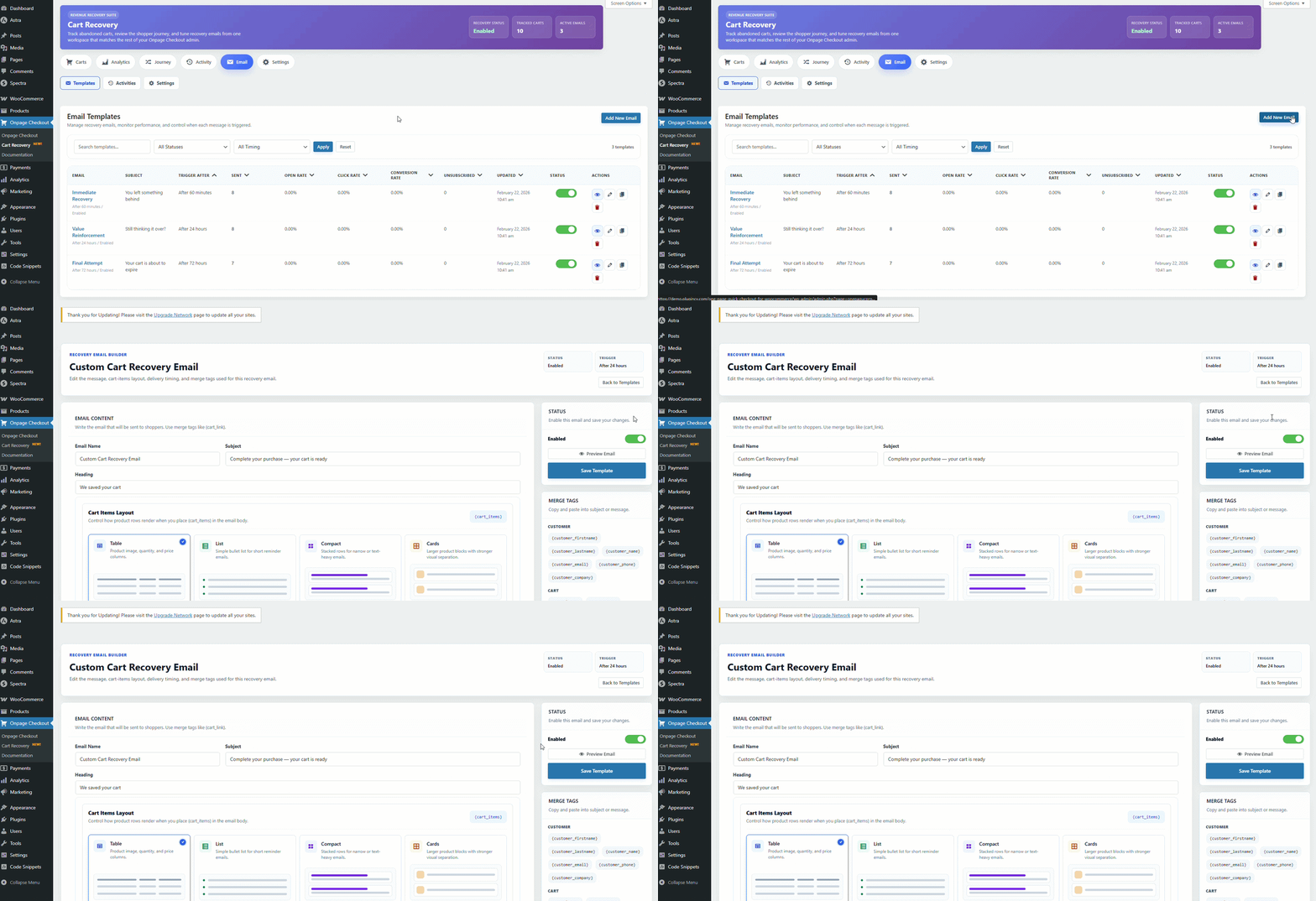
Example template setup
| Setting | Example value |
|---|---|
| Template Name | First Cart Reminder |
| Status | Enabled |
| Subject | You left something in your cart |
| Delay Value | 1 |
| Delay Unit | Hour |
| Content | Friendly reminder with restore cart button |
Edit an email template
Use the edit option when you want to update an existing recovery email.
You may edit:
- Template name
- Subject line
- Email content
- Delay timing
- Enabled/disabled status
- Recipient settings
After editing a template, save your changes. Future recovery emails will use the updated template.
When to edit a template
Edit a template when:
- The subject line is not performing well.
- The email content is outdated.
- You want to change the delay time.
- You want to add a discount or coupon message.
- You want to improve the call-to-action.
- You want to update branding or tone.
Duplicate an email template
Duplicating a template lets you quickly create another email using an existing message as a starting point.
Use this when creating a sequence, such as:
First Reminder → Second Reminder → Final Reminder
After duplicating a template, update the name, subject line, content, and delay timing so each email has a clear purpose.
Example
Duplicate First Cart Reminder and rename it:
Second Cart Reminder
Then change the delay to 24 hours and update the message.
Delete an email template
Delete a template when you no longer want to use it.
Before deleting, make sure the template is not part of an active recovery sequence.
Recommended approach
If you are unsure, disable the template first instead of deleting it. This keeps the template available for later use.
Enable or disable templates
Each template can be enabled or disabled.
Enabled
The template is active and can be sent when:
- Cart Recovery is enabled.
- The cart is abandoned.
- The customer has a valid email address.
- The template delay has passed.
- The email sending window allows sending.
- The cart has not reached the maximum email limit.
- The customer has not unsubscribed.
- The license requirements are met.
Disabled
The template will not be sent automatically.
Use disabled status when:
- You are drafting a new email.
- You are testing content.
- You want to pause a campaign.
- You want to stop one step of the sequence without deleting it.
Subject line
The subject line is one of the most important parts of a recovery email. It affects whether the customer opens the message.
Good subject line examples
You left something in your cart
Still thinking it over?
Your cart is waiting
Complete your order before it’s gone
Need help finishing your order?
Subject line best practices
Use subject lines that are:
- Clear
- Short
- Friendly
- Relevant to the cart
- Not too aggressive
- Not misleading
Avoid subject lines that feel spammy, overly urgent, or unrelated to the customer’s cart.
Email content
The email content should remind the customer what they left behind and make it easy to return to checkout.
A good recovery email should include
- Friendly greeting
- Short reminder
- Cart/product summary
- Clear restore cart button
- Support/contact message
- Optional discount or incentive
- Unsubscribe link
Example email structure
Hi {customer_name},

You left a few items in your cart.

Click the button below to return to your cart and complete your order.

[Restore Cart]

Need help? Contact our support team.

You are receiving this email because you started checkout on our store.
[Unsubscribe]
Keep the message focused
Avoid making the email too long. The main goal is to bring the customer back to the cart.
Delay value and delay unit
The delay controls when a recovery email should send after the cart becomes abandoned.
A template usually has two timing fields:
| Field | Meaning |
|---|---|
| Delay Value | The number amount |
| Delay Unit | The time unit, such as minutes, hours, or days |
Example
Delay Value: 1
Delay Unit: Hour
This means the email can be sent 1 hour after the cart is marked abandoned.
Recommended delay sequence
| Delay | |
|---|---|
| First reminder | 1 hour |
| Second reminder | 24 hours |
| Final reminder | 48–72 hours |
Email sending order
Recovery emails are sent based on enabled templates and their delay settings.
For example:
Template A: 1 hour
Template B: 24 hours
Template C: 48 hours
If all templates are enabled, the plugin sends each email when the abandoned cart reaches the matching delay time.
Important rules
A recovery email may not send if:
- The template is disabled.
- The cart is not abandoned.
- The customer email is missing or invalid.
- The customer has unsubscribed.
- The sending window is closed.
- The cart reached the max emails per cart limit.
- The cart has already recovered.
- The required license is inactive.
Max emails per cart
The Max Emails Per Cart setting controls how many recovery emails can be sent for the same abandoned cart.
Example:
Max Emails Per Cart: 3
If you have five templates enabled but the max emails per cart is set to three, only up to three emails can be sent for a single cart.
Recommended value
For most stores:
2–3 emails per cart
Sending too many emails can annoy customers. A short, helpful sequence usually works best.
Sending window
The Sending Window controls what time of day recovery emails are allowed to send.
Example:
Sending Window: 8:00 AM – 9:00 PM
If an email becomes eligible outside the sending window, it should wait until sending is allowed.
Recommended sending window
For most stores:
8:00 AM – 9:00 PM
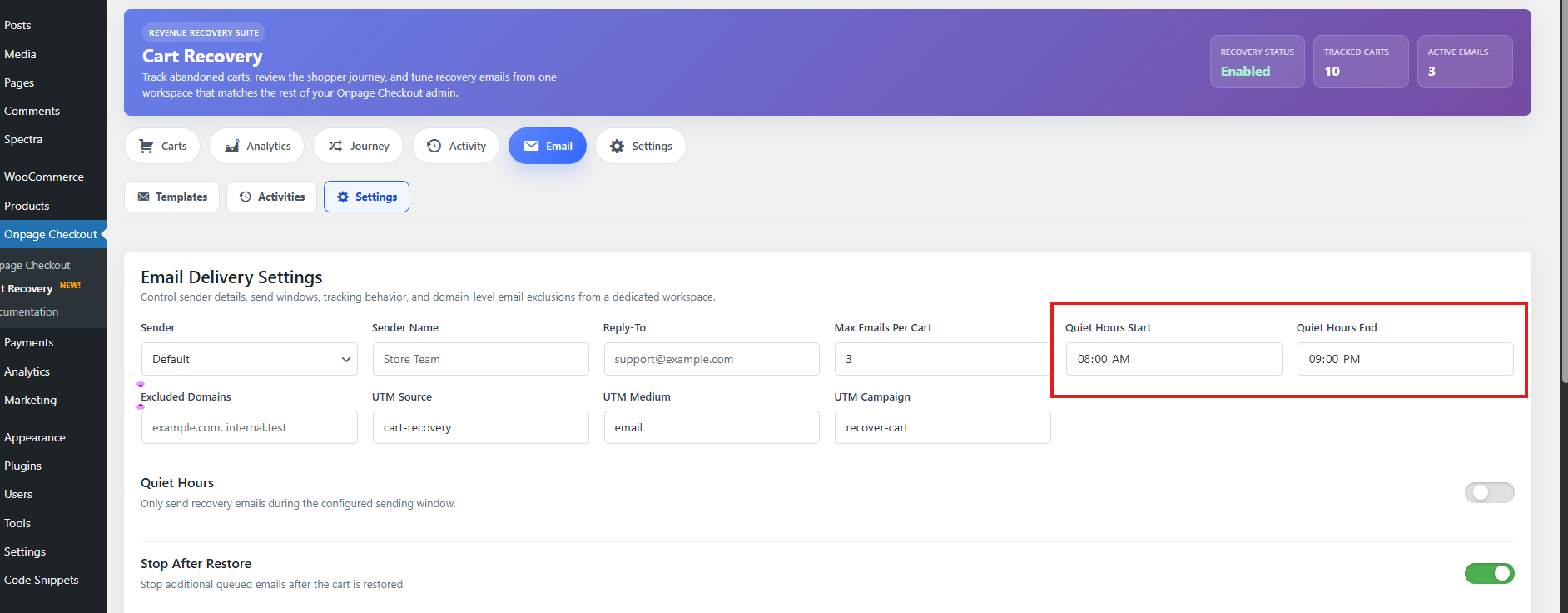
Choose a window that matches your customers’ timezone and avoids sending emails late at night.
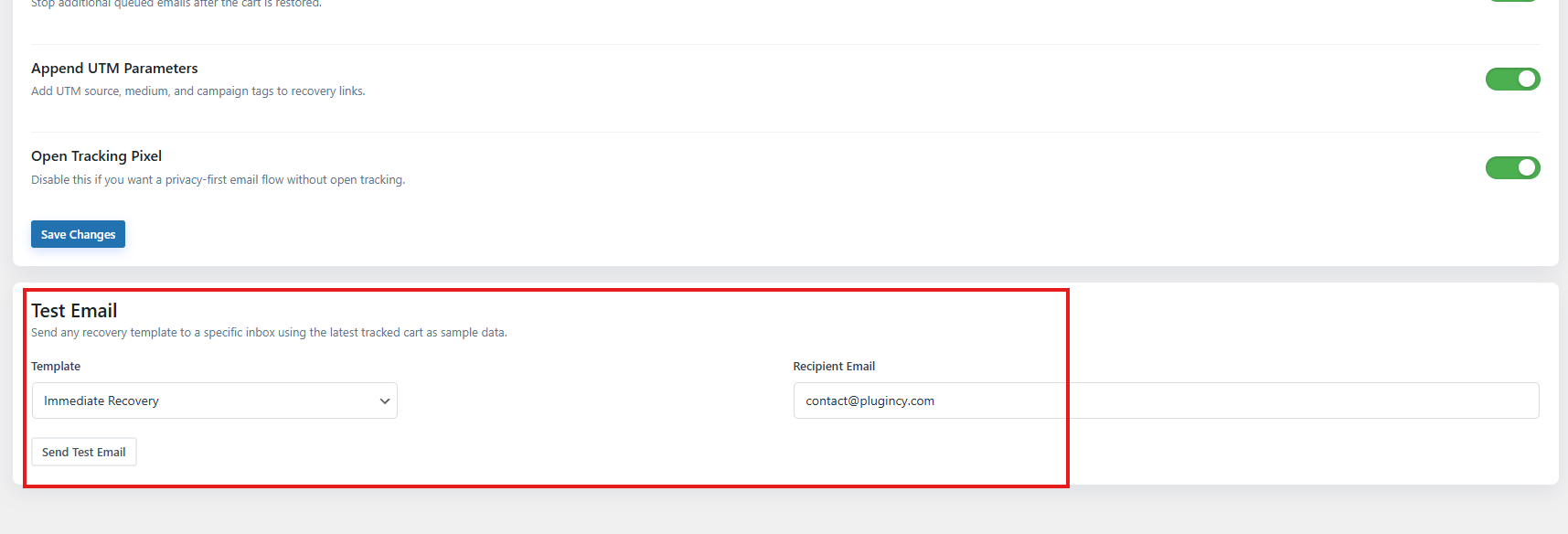
Send a test email
Use the test email option before enabling your recovery sequence.
A test email helps you check:
- Subject line
- Email layout
- Restore cart button
- Links
- Branding
- Spacing
- Mobile appearance
- Spam/deliverability
- Sender name and email address
How to send a test email
- Go to Onpage Checkout → Cart Recovery.
- Open the Email tab.
- Choose the template you want to test.
- Enter a test recipient email address.
- Click Send Test Email.
- Check the inbox and spam folder.
If the test email does not arrive
Check:
- Recipient email address
- WordPress email sending
- SMTP plugin settings
- Spam folder
- Hosting mail restrictions
- Email service logs
For best results, use a reliable SMTP plugin or transactional email service.
Email activity
The Email Activity area helps you review what happened after recovery emails were sent.
It may show:
| Status | Meaning |
|---|---|
| Sent | Email was sent successfully |
| Opened | Customer opened the email |
| Clicked | Customer clicked a link in the email |
| Failed | Email could not be sent |
How to use email activity
Use email activity to understand:
- Which templates are sending
- Which emails customers open
- Which emails customers click
- Which emails fail
- Which templates need improvement
If many emails are sent but few are opened, improve your subject lines and deliverability.
If emails are opened but not clicked, improve the email content and restore cart button.
If emails are clicked but carts are not recovered, review checkout usability, payment methods, shipping costs, and restore link behavior.
Resend or retry failed emails
Some email activity actions may allow you to resend an email or retry a failed email.
Resend email
Use resend when:
- The customer says they did not receive the email.
- You want to manually send the same recovery email again.
- You are testing deliverability.
Retry failed email
Use retry when:
- An email failed because of a temporary sending issue.
- SMTP was fixed after the original failure.
- The email service was temporarily unavailable.
Before retrying
Check:
- The customer email address is valid.
- SMTP/email sending is working.
- The template is still available.
- The customer has not unsubscribed.
- The cart is still eligible for recovery.
Best practices for recovery email templates
Use a short sequence
Start with two or three emails. Avoid sending too many messages for one abandoned cart.
Recommended sequence:
Email 1: 1 hour after abandonment
Email 2: 24 hours after abandonment
Email 3: 48–72 hours after abandonment
Make the first email helpful
The first email should feel like a helpful reminder, not a sales push.
Example tone:
Looks like you left something behind. You can return to your cart anytime using the button below.
Use discounts carefully
Do not offer a discount too early unless your store strategy depends on it. If customers learn that abandoning a cart always gives a discount, they may wait for the coupon.
A better approach:
- Email 1: Friendly reminder
- Email 2: Product/value reminder
- Email 3: Optional discount or final reminder
Include a clear restore cart button
The restore cart button should be easy to find. Use clear button text such as:
Return to Cart
Complete My Order
Restore My Cart
Continue Checkout
Keep emails mobile-friendly
Many customers read emails on mobile. Use:
- Short paragraphs
- Large buttons
- Simple layout
- Clear spacing
- Minimal distractions
Avoid spam-like content
Avoid:
- Too many emojis
- Excessive urgency
- All-caps subject lines
- Too many links
- Misleading claims
- Overuse of discount language
Always include unsubscribe option
Recovery emails should include a way for customers to unsubscribe from further recovery messages.
This improves trust and helps with email compliance.
Recommended starter setup
For most WooCommerce stores, use this setup:
| Template | Status | Delay | Purpose |
|---|---|---|---|
| First Reminder | Enabled | 1 hour | Friendly reminder |
| Second Reminder | Enabled | 24 hours | Product/value reminder |
| Final Reminder | Enabled | 48–72 hours | Final reminder or discount |
Recommended global email settings:
| Setting | Recommended value |
|---|---|
| Max Emails Per Cart | 3 |
| Sending Window | 8:00 AM – 9:00 PM |
| Stop Emails After Restore | Enabled |
| Test Email | Send before enabling automation |