
Use this guide to diagnose common Cart Recovery issues, including missing tracked carts, emails not sending, restore link problems, cron issues, cache conflicts, license messages, and email deliverability problems.
Carts are not being tracked
If no carts appear in Cart Recovery → Carts, check the items below.
1. Confirm Cart Recovery is enabled
Go to:
Onpage Checkout → Cart Recovery → Settings
Make sure Enable Cart Recovery is turned on.
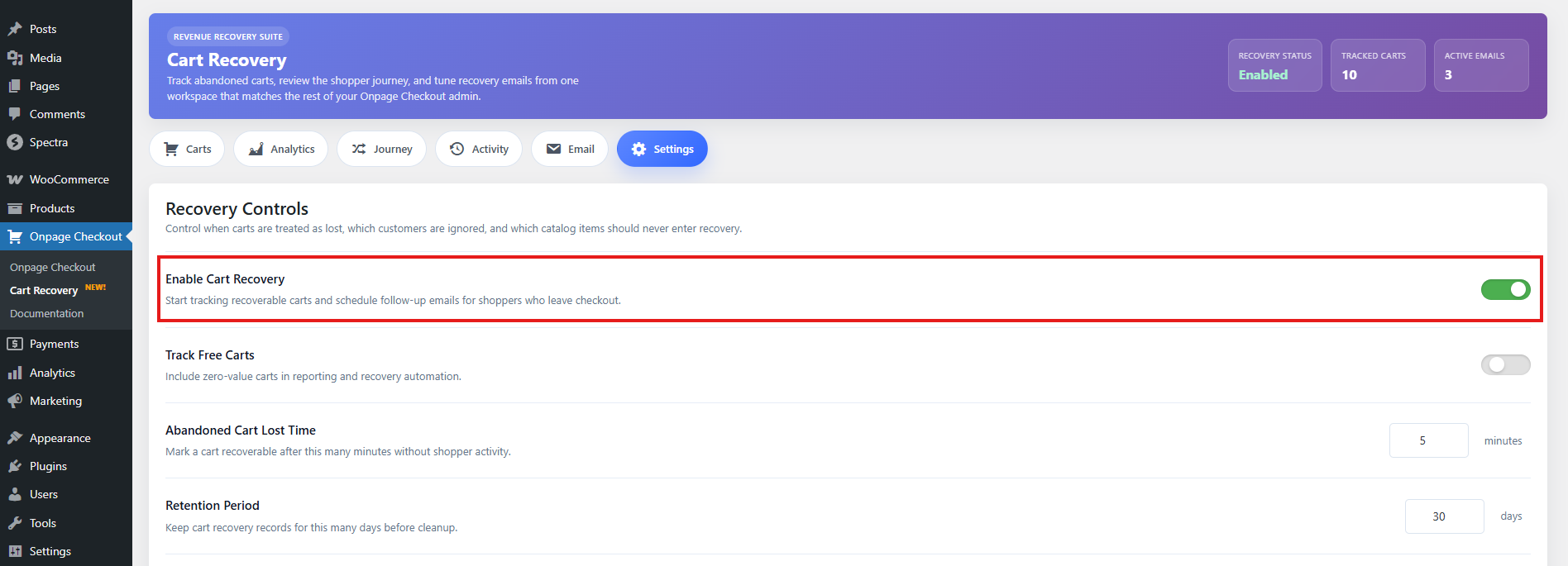
If Cart Recovery is disabled, the plugin will not track carts or process recovery emails.
2. Check whether the cart has customer identity data
Cart Recovery usually needs some customer identity information before it can save a recoverable cart.
A cart may not be tracked if the customer:
- Is not logged in
- Has not entered an email address
- Has not entered phone or checkout details
- Leaves before reaching checkout
3. Test with a real checkout email
To test tracking:
- Open your store in a private/incognito browser.
- Add a product to the cart.
- Go to checkout.
- Enter a valid email address.
- Wait for the cart to save.
- Leave the site without placing the order.
- Check Cart Recovery → Carts.
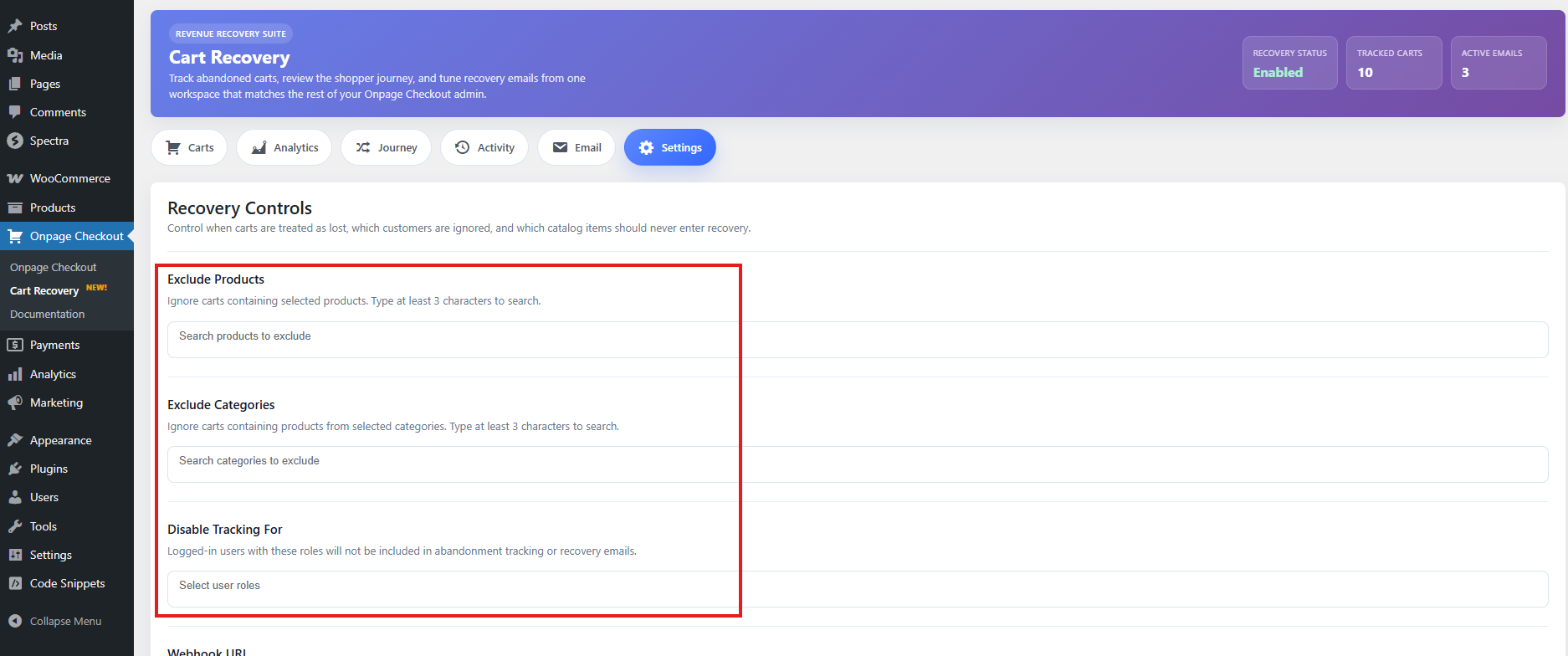
4. Check excluded products, categories, and roles
The cart may be skipped if it contains excluded products/categories or if the user role is excluded.
Check:
Onpage Checkout → Cart Recovery → Settings
Review:
- Excluded products
- Excluded categories
- Excluded user roles
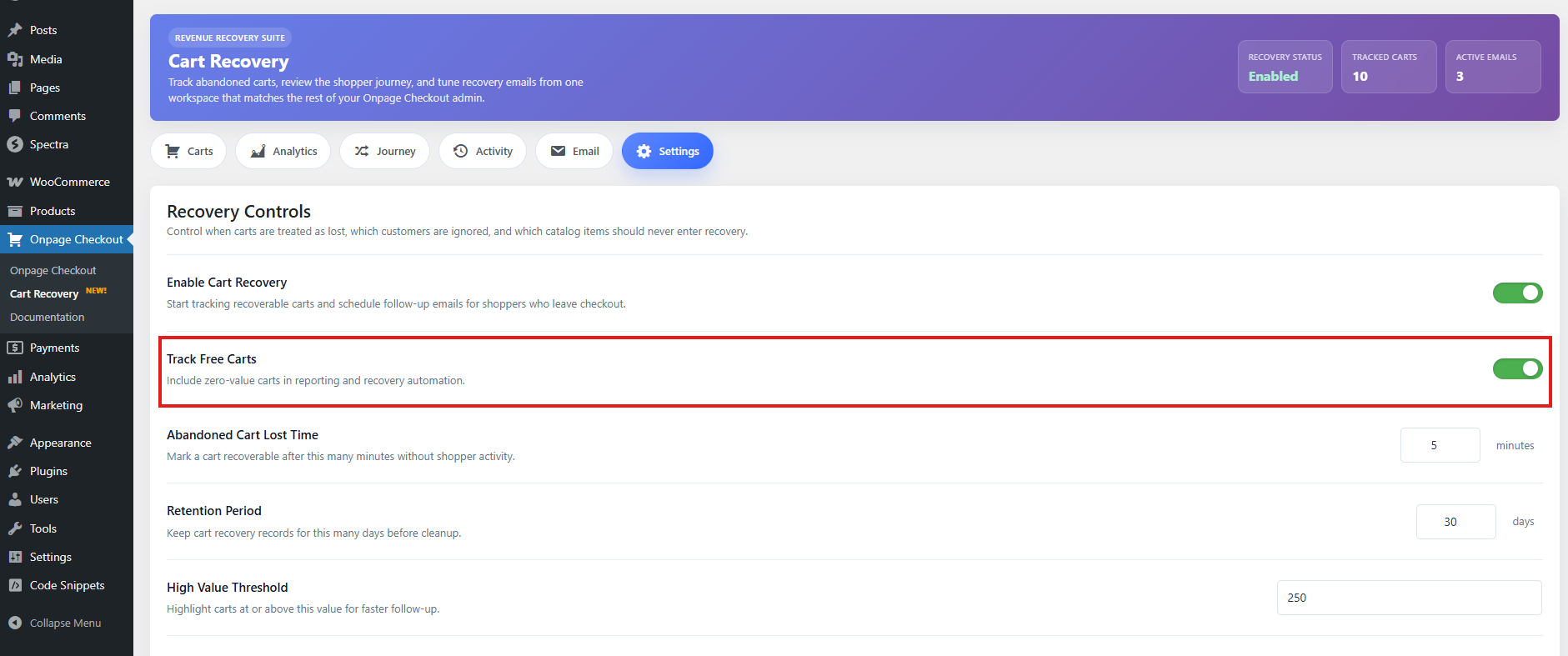
5. Check free cart tracking
If the cart total is zero, the cart may not be tracked unless free cart tracking is enabled.
Enable free cart tracking only if you want to recover:
- Free products
- Free samples
- 100% discounted carts
- Free trial carts
6. Check WooCommerce sessions
Cart Recovery depends on WooCommerce cart/session functionality.
If WooCommerce sessions are not working, carts may not save correctly. Test whether products remain in the cart after refreshing the page or browsing to another page.
Cart is not marked abandoned
If carts appear in the dashboard but do not become abandoned, check the following.
1. Review the inactivity timeout
The cart is marked abandoned only after the configured inactivity timeout has passed.
Example:
Inactivity Timeout: 30 minutes
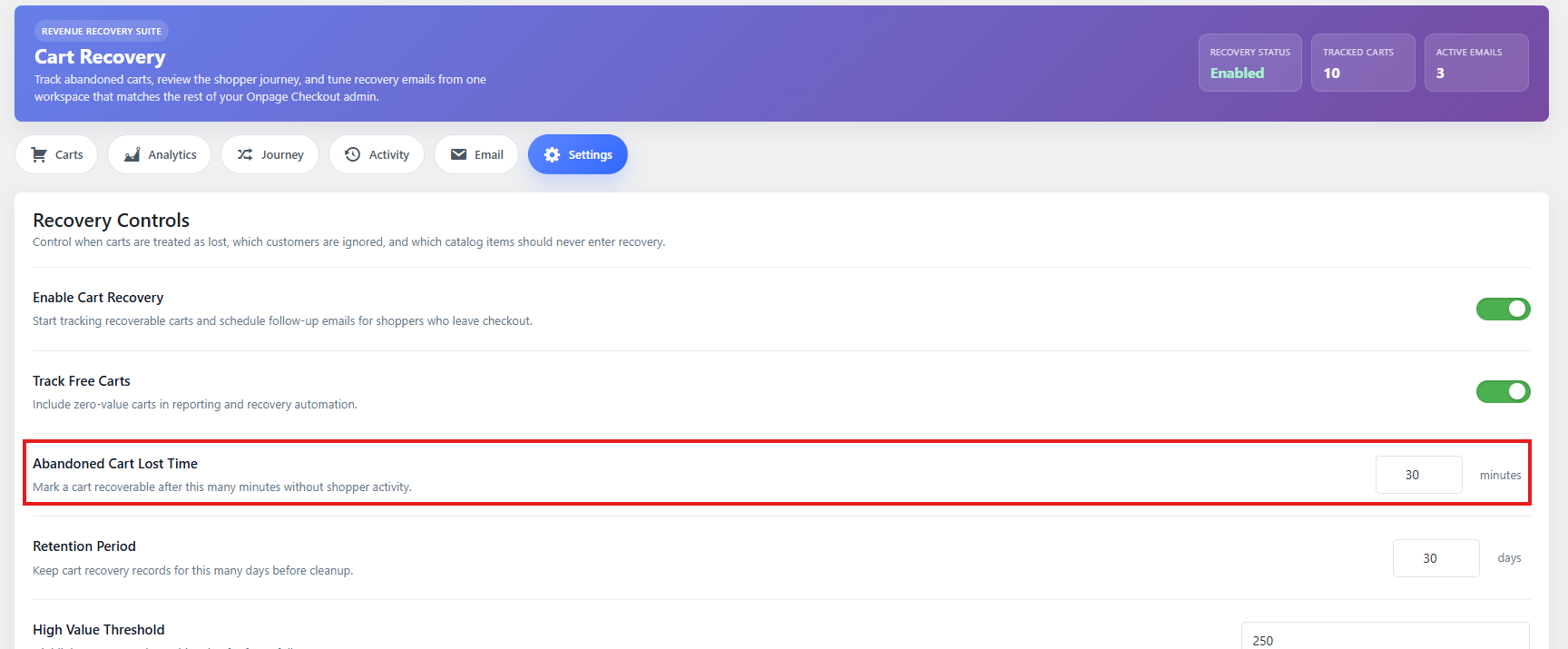
In this case, the cart should not become abandoned until it has been inactive for at least 30 minutes.
2. Wait for the recovery queue
Cart Recovery uses scheduled processing. A cart may not become abandoned immediately after the inactivity time passes.
Allow a short delay for the queue to run.
3. Check if the cart was recently updated
If the customer updates the cart, changes quantity, adds/removes a product, or returns to checkout, the cart updated time may refresh.
That can delay abandonment.
4. Check ignored or archived carts
Carts marked as Ignored or Archived may be skipped from active recovery processing.
Reactivate the cart if you want it to continue through the recovery workflow.
5. Check cron/queue processing
If no carts are changing status automatically, WordPress cron may not be running correctly.
See the Cron/queue problems section below.
Emails are not sending
If carts are abandoned but recovery emails are not sending, check these items.
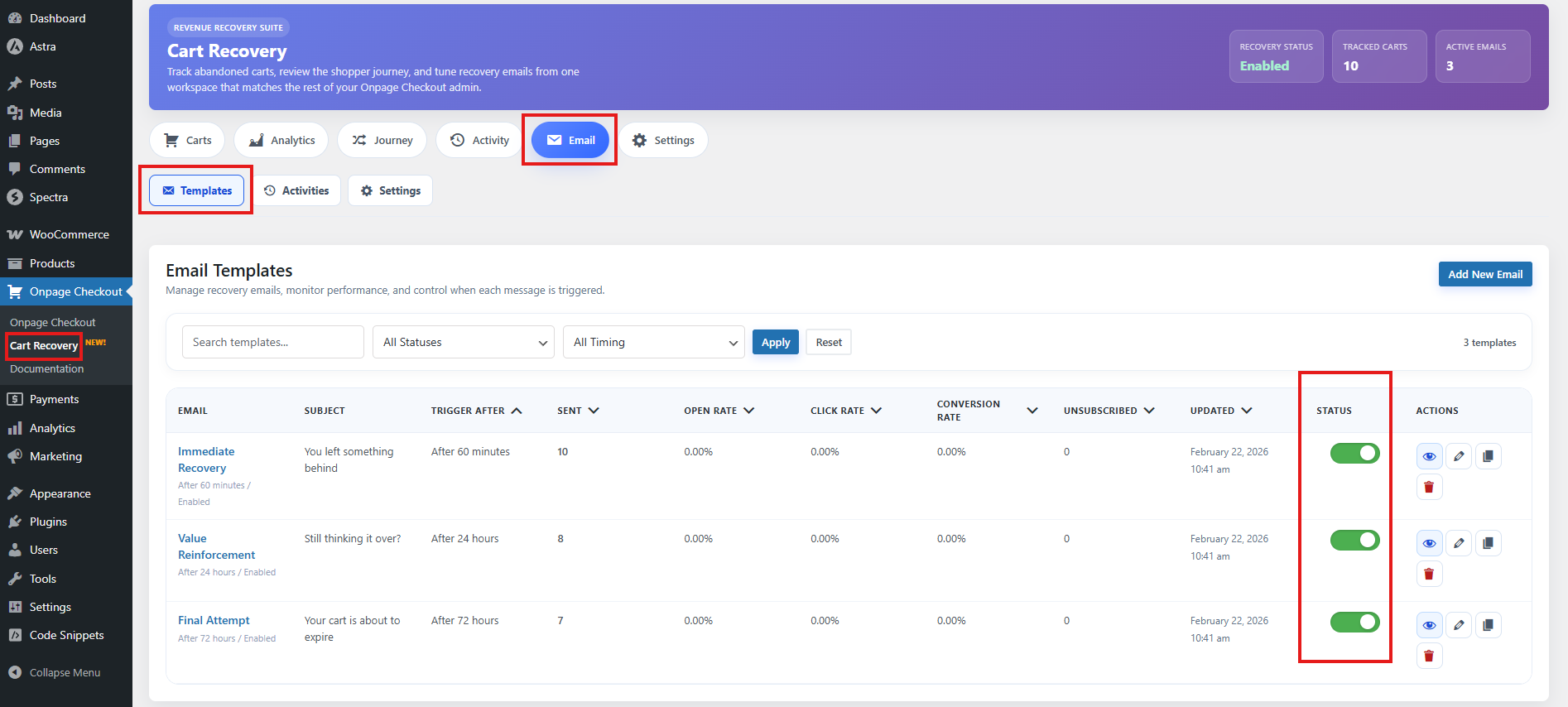
1. Confirm email templates are enabled
Go to:
Onpage Checkout → Cart Recovery → Email
Make sure at least one recovery email template is enabled.
2. Check template delay settings
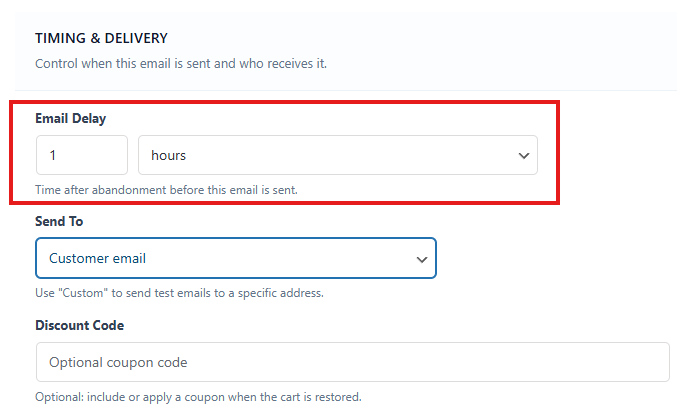
Each template has a delay value and delay unit.
Example:
Delay Value: 1
Delay Unit: Hour
This means the email can send 1 hour after the cart becomes abandoned, not necessarily 1 hour after the cart was created.
3. Confirm the customer has a valid email address
Recovery emails cannot be sent if the cart does not have a valid customer email address.
Check the cart details to confirm the email field is available.
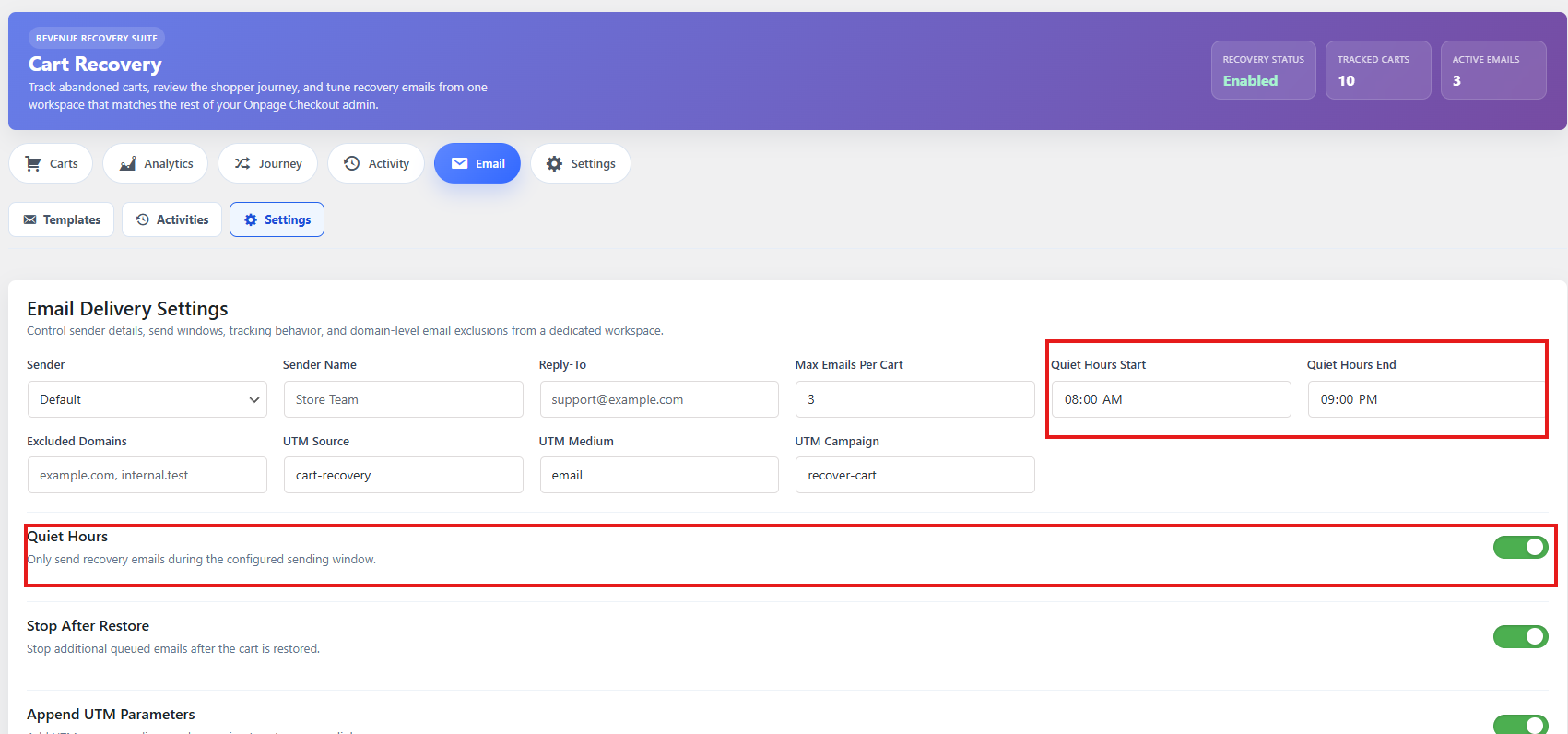
4. Check the sending window
If your sending window is limited, emails may wait until the allowed time.
Example:
Sending Window: 8:00 AM – 9:00 PM
If an email becomes eligible at 2:00 AM, it should wait until the sending window opens.
5. Check max emails per cart
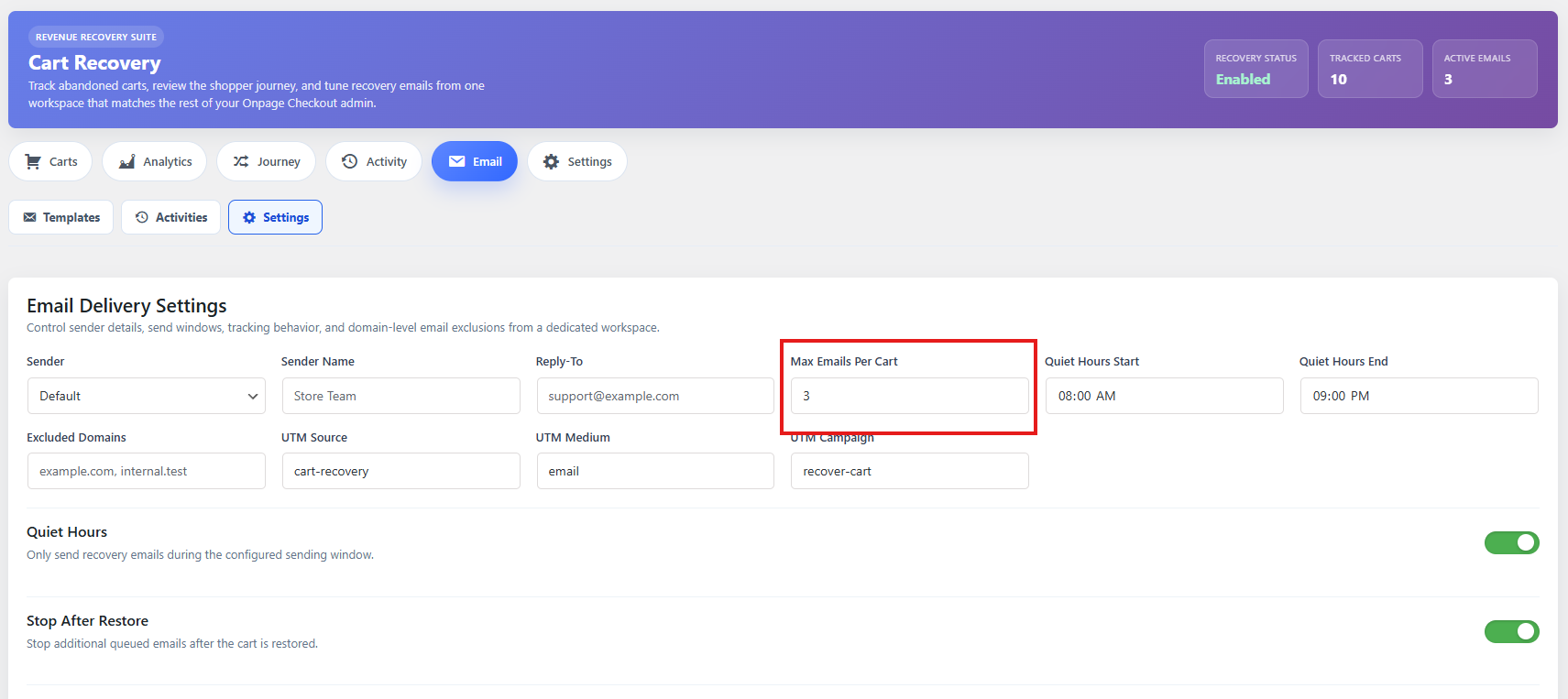
If the cart has already reached the Max Emails Per Cart limit, no more recovery emails will send for that cart.
Example:
Max Emails Per Cart: 3
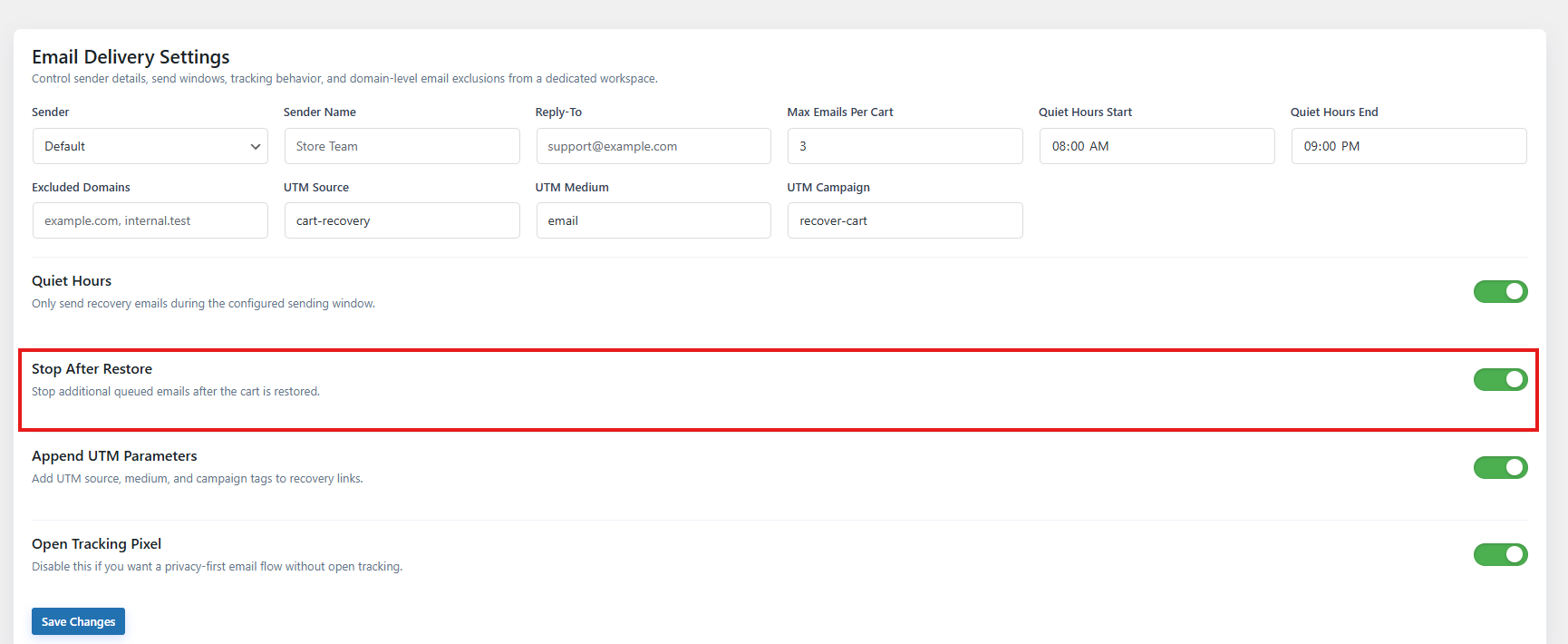
6. Check Stop After Restore
If Stop Emails After Restore is enabled and the customer already restored the cart, additional recovery emails may stop.
7. Check unsubscribe status
If the customer clicked the unsubscribe link, recovery emails should stop for that cart.
8. Check license status
Automated recovery emails may require an active Pro license.
Go to:
Onpage Checkout → Plugin License
Make sure the license is active.
Test email does not arrive
If a test recovery email does not arrive, check the following.
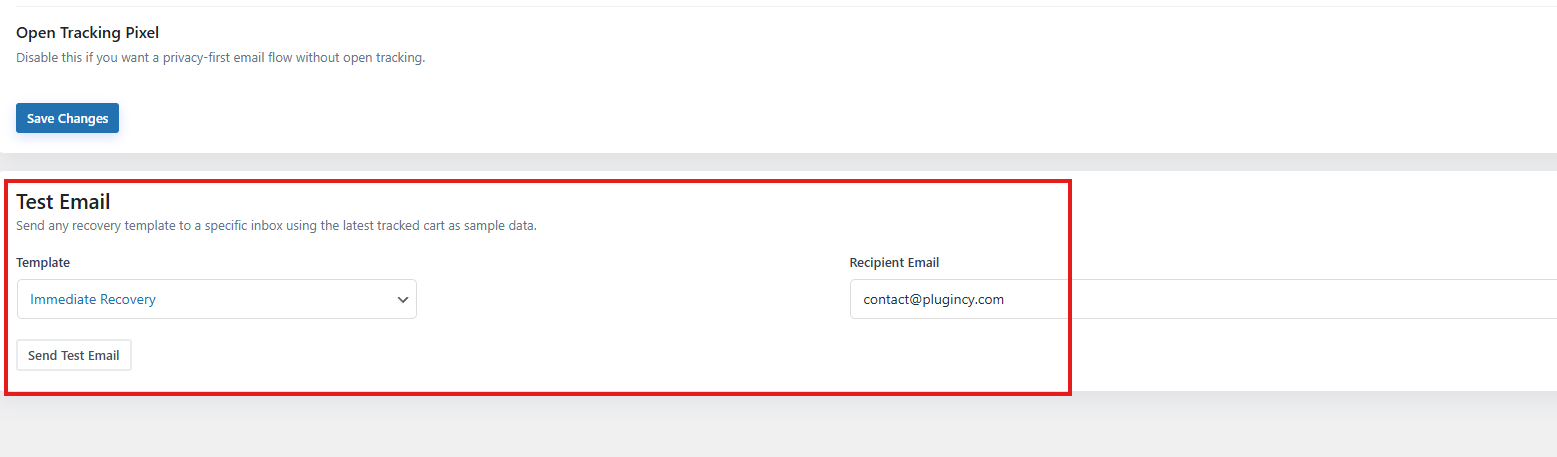
1. Confirm the test recipient email is valid
Make sure the email address is typed correctly.
2. Check spam or promotions folders
Recovery emails may be filtered into:
- Spam
- Junk
- Promotions
- Updates
- Quarantine
3. Check WordPress email sending
Your WordPress site must be able to send emails.
If default WordPress emails are unreliable, use an SMTP plugin or transactional email service.
4. Check SMTP configuration
If using SMTP, confirm:
- SMTP host is correct
- SMTP port is correct
- Username/password are correct
- Encryption method is correct
- From email is verified
- API key is valid, if using an API-based service
5. Check if the template is valid
A broken or empty template may fail to send correctly.
Check:
- Subject line is not empty
- Email body is not empty
- Restore/unsubscribe links are not malformed
- Placeholder syntax is correct
6. Check license access
Sending test recovery emails may require Pro license access. Confirm the license is active.
Restore link does not work
If customers click the restore link but the cart is not restored, use these checks.
1. Confirm the link is not modified
Some email builders, security tools, or tracking tools may rewrite links.
Check that the recovery URL still includes the required recovery parameter/token.
2. Confirm the cart record still exists
The cart may not restore if:
- The cart was deleted
- The cart was cleaned up by retention rules
- The recovery token no longer exists
- The cart was anonymized or expired
3. Check product availability
A restored cart may fail or appear incomplete if:
- Product was deleted
- Product is out of stock
- Product is no longer purchasable
- Variation no longer exists
- Product price changed
- Product status changed to private/draft
4. Check WooCommerce sessions
The restore process depends on WooCommerce cart/session behavior.
If WooCommerce sessions are blocked or broken, the cart may not stay restored.
5. Check cache settings
Cart, checkout, and account pages should not be cached.
Exclude these pages from page caching:
Cart
Checkout
My Account
Any page using one-page checkout
Any page using popup checkout
Also exclude WooCommerce cart/session cookies from aggressive cache rules if your caching plugin supports it.
6. Test in a private browser
Open the restore link in a private/incognito browser and test whether the cart restores correctly.
This helps identify browser cookie or session conflicts.
Email opens/clicks are not tracking
If emails are sending but opens or clicks are not recorded, check the following.
1. Understand open tracking limitations
Open tracking is not always exact. Some email apps block tracking images or privacy-related requests.
For example, opens may be blocked by:
- Apple Mail Privacy Protection
- Gmail image proxy behavior
- Security scanners
- Corporate email filters
- Image loading disabled by the customer
Open tracking should be treated as an estimate.
2. Check click tracking links
Click tracking depends on the recovery links remaining intact.
Clicks may not track if:
- Email builder rewrites the link incorrectly
- Link tracking is disabled or blocked
- Security plugin blocks URL parameters
- Customer copied the URL manually
- Email security scanner pre-clicked or blocked the link
3. Check security plugin rules
Some security plugins may block recovery URL parameters.
If click or restore tracking fails, review firewall/security logs and allow the recovery link parameters if needed.
4. Check caching rules
Tracking URLs should not be cached. Exclude recovery tracking URLs from aggressive caching when possible.
Customer email is missing
If carts are tracked but the customer email field is empty, check the following.
1. Customer may not have entered an email
A visitor can add products to the cart without entering an email address. In that case, the cart may not be recoverable by email.
2. Encourage earlier email capture
To improve recovery rates, consider:
- Making the checkout email field clear and easy to complete
- Using express checkout carefully
- Reducing unnecessary checkout friction
- Asking for email early in the checkout flow
- Using logged-in customer accounts where appropriate
3. Check checkout form customization
If you customized checkout fields, make sure the billing email field is still available and working.
4. Check guest checkout behavior
Guest carts may only become recoverable after the customer enters an email or checkout information.
Cron/queue problems
Cart Recovery depends on scheduled processing for tasks such as marking carts abandoned, sending recovery emails, and cleaning up old records.
Common cron problem signs
You may have a cron/queue issue if:
- Carts stay active forever
- Abandoned carts do not receive emails
- Email delays are much longer than expected
- Old carts are not cleaned up
- Email queue actions do not process
- Manual actions work but automation does not
1. Check whether WordPress cron is disabled
Open your site’s wp-config.php file and look for:
define('DISABLE_WP_CRON', true);
If this is set to true, WordPress cron will not run automatically unless a real server cron is configured.
2. Use a real server cron for reliability
For better reliability, configure a real server cron to call WordPress cron regularly.
A common interval is every 5 minutes.
3. Check low-traffic sites
WordPress cron normally runs when someone visits the site. If your site has low traffic, scheduled tasks may run late.
A real server cron is recommended for low-traffic stores.
4. Check cron management plugins
You can use a cron management plugin to check whether scheduled tasks are running.
Look for Cart Recovery scheduled tasks and confirm they are not stuck or overdue.
Cache/session conflicts
Cart Recovery depends on dynamic WooCommerce cart and checkout behavior. Aggressive caching can cause cart tracking, restore links, or checkout sessions to fail.
Pages that should not be cached
Exclude these pages from page cache:
Cart
Checkout
My Account
One-page checkout pages
Popup checkout pages
Side cart pages or templates
Common cache conflict symptoms
Cache conflicts may cause:
- Cart appears empty after restore
- Cart count does not update
- Wrong cart shown to customer
- Checkout form does not update
- Recovery link opens but cart is missing
- AJAX cart actions fail
- Cart data is not saved correctly
What to check
Review settings in:
- Cache plugins
- CDN cache
- Server-level cache
- Object cache
- Security/firewall tools
- Performance optimization plugins
- JavaScript minification/defer/delay settings
Recommended cache exclusions
Exclude WooCommerce dynamic pages and avoid delaying WooCommerce/cart scripts.
If your cache plugin has WooCommerce-specific compatibility settings, enable them.
License-required messages
Some Cart Recovery features require an active Pro license.
You may see license-required messages when trying to use:
- Email automation
- Recovery email templates
- Test emails
- Resend/retry email actions
- Advanced cart details
- Analytics
- Customer journey details
- Exports
- Notes/tags
- Bulk actions
How to fix
Go to:
Onpage Checkout → Plugin License
Then:
- Enter your license key.
- Activate the license.
- Refresh the Cart Recovery page.
- Test the feature again.
If the license still does not activate
Check:
- License key is correct
- License has not expired
- Site URL is allowed for the license
- Server can connect to the licensing API
- Security plugin is not blocking outbound requests
- You are using the correct Pro plugin version
Emails are going to spam
If recovery emails are sent but customers do not see them, deliverability may be the issue.
1. Use SMTP or transactional email
Default WordPress email is often unreliable.
Use a trusted SMTP plugin or transactional email service such as your preferred mail provider.
2. Configure DNS records
For better deliverability, configure:
- SPF
- DKIM
- DMARC
These records help email providers verify that your store is allowed to send emails from your domain.
3. Use a verified sender address
Use a real sender email from your domain.
Good example:
[email protected]
Avoid sender emails like:
gmail.com
yahoo.com
noreply from an unverified domain
4. Improve subject lines
Avoid spam-like subject lines.
Avoid:
FINAL WARNING!!!
FREE MONEY!!!
BUY NOW BEFORE IT'S TOO LATE!!!
Use clear, helpful subject lines:
You left something in your cart
Your cart is waiting
Need help completing your order?
5. Keep email content clean
Avoid:
- Too many links
- Too many images
- All-caps text
- Misleading claims
- Excessive urgency
- URL shorteners
- Large attachments
6. Include unsubscribe link
Every recovery email should include an unsubscribe link. Missing unsubscribe options can increase spam complaints.
7. Test email deliverability
Send test emails to multiple inboxes, such as Gmail, Outlook, and your business email. Check inbox placement and formatting.
Quick troubleshooting checklist
Use this checklist when Cart Recovery is not working as expected.
| Issue | Check first |
|---|---|
| No carts tracked | Cart Recovery enabled, customer email entered, exclusions |
| Cart not abandoned | Inactivity timeout, cron, cart updated time |
| Emails not sending | Templates enabled, delay, license, cron, valid email |
| Test email missing | Spam folder, SMTP, template content, license |
| Restore link broken | Token/link, cart record, product stock, cache/session |
| Opens not tracking | Email client privacy, image blocking |
| Clicks not tracking | Link rewrite, security plugin, URL parameters |
| Customer email missing | Customer did not enter email, checkout field hidden |
| Queue delayed | WordPress cron, low traffic, server cron |
| License message | Activate Pro license |
| Emails in spam | SMTP, SPF/DKIM/DMARC, sender reputation |
Recommended support information to collect
If you contact support, include:
- Plugin version
- WooCommerce version
- WordPress version
- Whether Pro license is active
- Screenshot of Cart Recovery settings
- Screenshot of email template settings
- Example abandoned cart record
- Whether WordPress cron is working
- SMTP/email plugin being used
- Cache plugin/CDN being used
- Any error messages from email logs or server logs
This helps support identify the issue faster.