
All sections
This guide is for the free plugin. It shows how to hide checkout fields and sections you do not need, because a shorter form gets finished more often. In Pro, the same job is done in the visual checkout form editor.
Go to Onpage Checkout > Checkout Form. When you finish, click Save Changes and open your checkout in a private window.
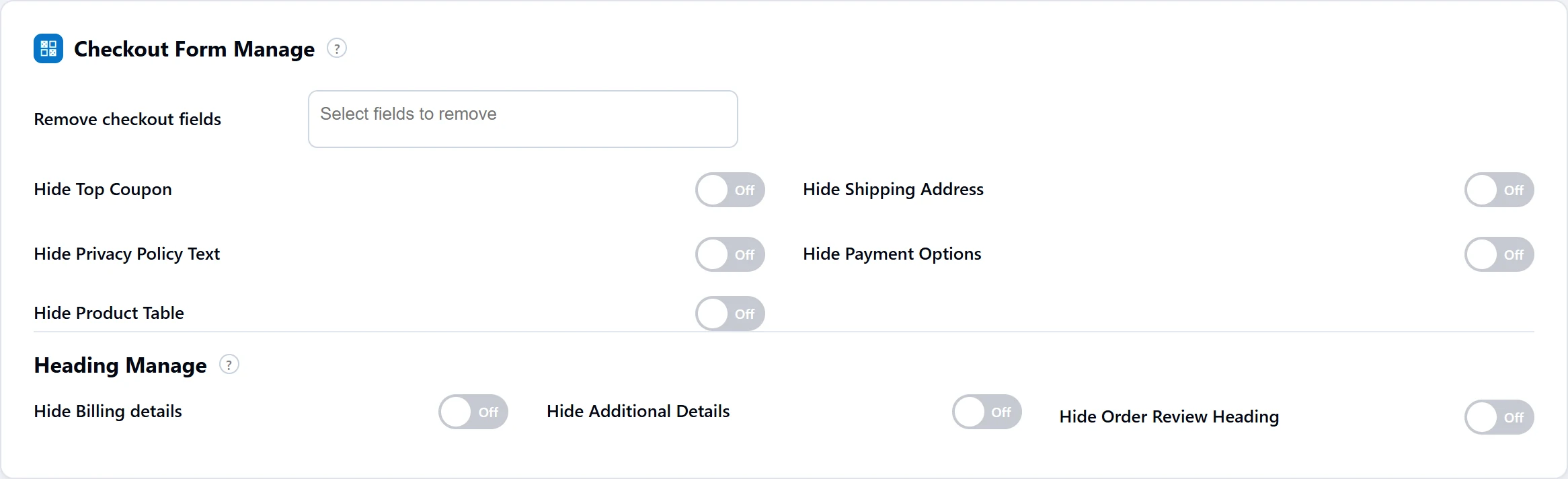
Remove checkout fields
Click the box and choose fields to remove. You can choose from First Name, Last Name, Country, State / District, City, Zip Code, Address 1, Address 2, Phone, Email, Company and Notes.
A removed field is hidden and is no longer required. Do not remove Email or Country, as WooCommerce needs them. Keep the address fields too if you ship physical products, because your shipping rates depend on them.
Hide parts of the form
All of these are off by default.
| Switch | What it hides |
|---|---|
| Hide Top Coupon | The “Have a coupon?” line at the top. |
| Hide Shipping Address | The separate shipping address section. |
| Hide Privacy Policy Text | The privacy text near the Place order button. |
| Hide Payment Options | The list of payment methods. Their settings are unchanged, so this suits a store with a single method. |
| Hide Product Table | The table of ordered products. |
These only hide things from view. Test that your order still goes through after using them, especially Hide Payment Options.
Heading Manage
These hide headings, and leave the fields below them in place:
- Hide Billing Details
- Hide Additional Details
- Hide Order Review Heading
Change the wording
To rename fields and headings, use the Text Manage tab, as our guide to changing checkout wording explains.