
Use this guide when Popup Checkout does not open, checkout does not load correctly, products are not added, payment methods do not appear, or the popup behaves differently for guests and logged-in admins.
Quick checklist
Before troubleshooting individual issues, confirm these basics first:
| Check | What to confirm |
|---|---|
| WooCommerce | WooCommerce is installed and active |
| Plugin status | One Page Quick Checkout for WooCommerce is active |
| Checkout method | Popup Checkout is selected in plugin settings |
| Product status | Product is published, purchasable, and in stock |
| Checkout page | Standard WooCommerce checkout page works normally |
| Payment gateways | At least one payment method is enabled |
| License | Pro license is active if Popup Checkout requires it |
| Cache | Cart, checkout, and popup pages are excluded from aggressive cache |
| JavaScript | No major JavaScript errors appear in browser console |
Popup does not open
If clicking the Popup Checkout button does nothing, start with these checks.
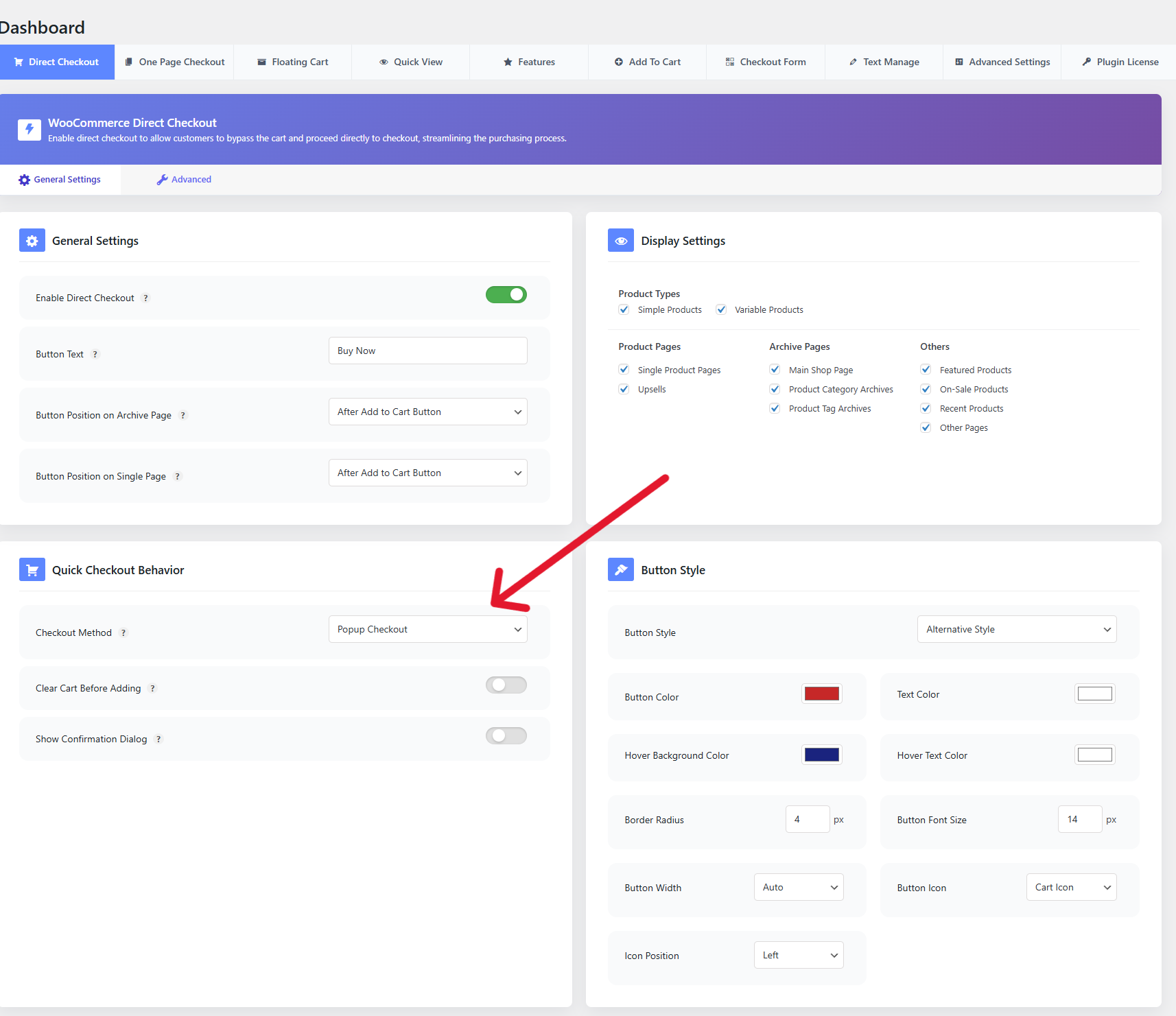
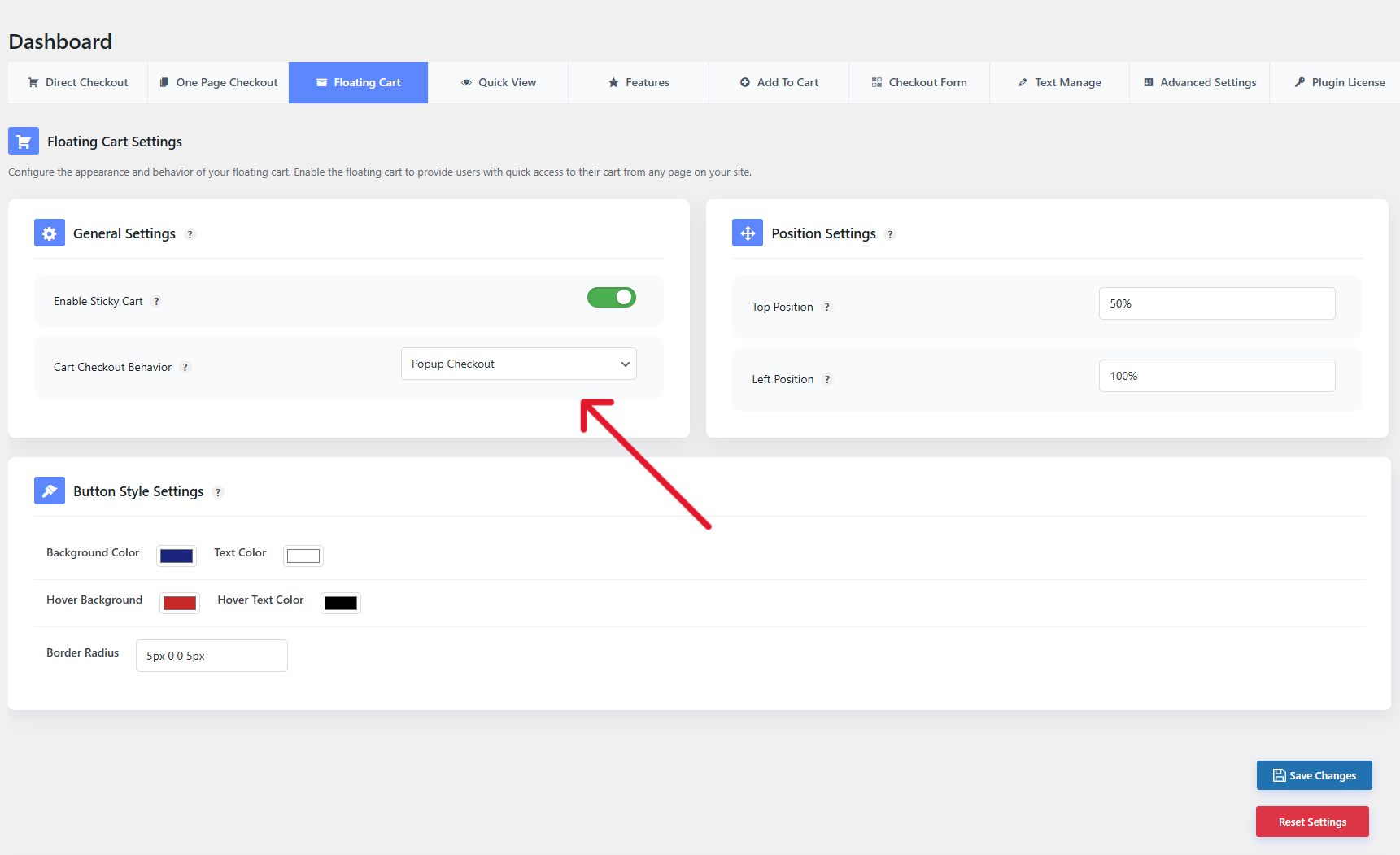
Check Popup Checkout is enabled
Go to:
Onpage Checkout → Direct Checkout
Onpage Checkout → Floating Cart
or the plugin area where checkout methods are managed.
Make sure Popup Checkout is selected as the checkout method.
Check the button is connected to Popup Checkout
If the button appears but does not open the popup, the button may not be using the plugin’s popup checkout behavior.
Check:
- Button position setting
- Button visibility setting
- Direct checkout settings
- Add to Cart settings
- Any custom button or page builder button
- Theme template overrides
Check JavaScript errors
Open the browser console and check for JavaScript errors.
Common causes include:
- Theme script conflict
- Page builder script conflict
- Optimization plugin delaying scripts
- WooCommerce checkout/cart scripts not loading
- Popup script blocked or missing
Check cache/minification
Temporarily disable JavaScript optimization and test again.
Check settings such as:
- Delay JavaScript
- Defer JavaScript
- Combine JavaScript
- Minify JavaScript
- Remove unused JavaScript
- CDN script optimization
Product is not added to cart
If the popup opens but the selected product is not in checkout, check the product and cart behavior settings.
Check product status
Make sure the product is:
- Published
- In stock
- Purchasable
- Not private or draft
- Has a price
- Not blocked by catalog visibility rules
Check Clear Cart behavior
If Clear Cart is enabled, the existing cart may be emptied before the selected product is added.
If the selected product fails to add after clearing cart, checkout may appear empty.
Check one-click purchase behavior
If One-click Purchase is enabled, make sure the product type supports your setup.
One-click purchase works best with simple products. Test carefully with:
- Variable products
- Grouped products
- Products with add-ons
- Products with custom fields
- Products with minimum/maximum quantity rules
Check AJAX Add to Cart
Popup Checkout may depend on AJAX add-to-cart behavior. If AJAX add-to-cart is broken, the popup may open without the correct product.
Check:
- AJAX requests are not blocked
- WooCommerce cart fragments are working
- No JavaScript errors are stopping add-to-cart
- Security plugin is not blocking
admin-ajax.php
Checkout form does not load
If the popup opens but the checkout form is missing, blank, or stuck loading, check these items.
Confirm normal checkout works
First test your standard WooCommerce checkout page.
Go to your normal checkout page and confirm:
- Checkout form loads
- Billing fields appear
- Shipping fields appear if needed
- Payment methods appear
- Place order button appears
- Test order can be placed
If normal checkout is broken, fix WooCommerce checkout first.
Check cart is not empty
WooCommerce checkout usually requires at least one product in the cart.
If the cart is empty, checkout may not display correctly.
Check WooCommerce checkout page configuration
Go to:
WooCommerce → Settings → Advanced
Confirm the correct Checkout page is assigned.
Check plugin/theme conflicts
Temporarily test with:
- Default WordPress theme
- Other checkout-related plugins disabled
- Cache/minification disabled
This helps identify compatibility problems.
Payment methods do not appear
If checkout loads but payment methods are missing, the issue is usually WooCommerce, payment gateway, customer location, or JavaScript-related.
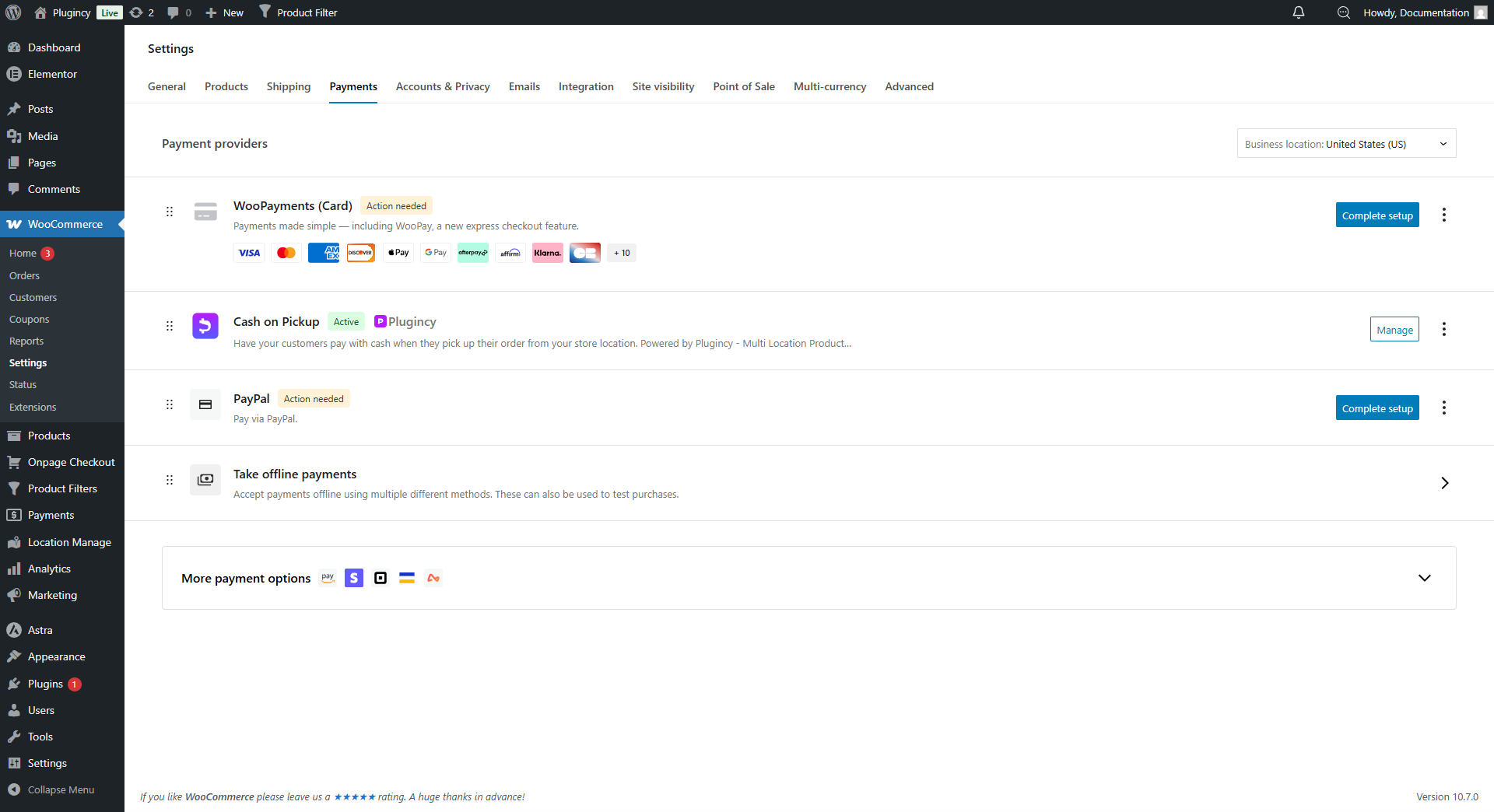
Check payment gateway settings
Go to:
WooCommerce → Settings → Payments
Make sure at least one payment gateway is enabled.
Check shipping/location rules
Some gateways only appear for certain:
- Countries
- Currencies
- Shipping zones
- Order totals
- Product types
- Customer roles
Test with a complete billing and shipping address.
Check gateway scripts
Some payment gateways need JavaScript to load payment fields.
If gateway scripts are delayed, blocked, or loaded outside the popup incorrectly, payment methods may not appear.
Temporarily disable:
- JavaScript delay
- JavaScript defer
- Script combine
- Popup blockers from other plugins
- Checkout script optimization
Test redirect-based gateways
Some payment gateways redirect customers to an external payment page. Confirm that clicking Place Order redirects correctly and returns the customer to the order confirmation page.
Popup layout is broken
If the popup appears but looks wrong, this is usually caused by theme CSS, page builder CSS, or z-index conflicts.
Common layout issues
- Popup hidden behind header
- Popup too narrow
- Popup too wide
- Checkout fields overlap
- Close button hidden
- Order summary squeezed
- Payment fields not visible
- Popup does not scroll on mobile
- Sticky header covers popup
- Button styles look inconsistent
How to fix
Check:
- Theme CSS
- Product page template overrides
- Page builder container settings
- Sticky header z-index
- Popup z-index
- Custom CSS
- CSS minification/cache
- Mobile breakpoints
Test with a default theme
Temporarily test with a default WordPress theme. If the popup works correctly there, the issue is likely theme or custom CSS related.
Popup closes unexpectedly
If the popup closes before checkout is completed, check these possibilities.
Customer clicked outside popup
Some popup layouts may close when the customer clicks the overlay. If this is not desired, check whether the plugin has an option to disable close-on-overlay-click.
Checkout refresh or AJAX error
A failed AJAX request may reload or close the popup.
Check browser console and network tab for failed requests.
Payment gateway redirect
Some gateways redirect customers outside the popup after clicking Place Order. This can be normal if the gateway uses an external payment page.
Theme or popup conflict
If another popup/modal plugin is active, it may conflict with Popup Checkout.
Temporarily disable other popup plugins and test again.
AJAX errors
Popup Checkout depends on dynamic WooCommerce cart and checkout requests.
Common AJAX error signs
- Popup does not open
- Product does not add to cart
- Checkout keeps loading
- Coupon does not apply
- Totals do not update
- Payment methods do not refresh
- Cart appears empty
- Console shows 400/403/500 errors
What to check
Check:
- Browser console errors
- Network tab failed requests
- Security plugin firewall logs
- Server error logs
- WooCommerce status logs
- Whether
admin-ajax.phpis blocked - Whether REST API requests are blocked, if used
- Nonce/cache issues
Security plugin conflicts
Some security plugins block AJAX requests for guests.
If Popup Checkout works for admins but not guests, review firewall logs and allow required WooCommerce/plugin AJAX requests.
Variable product issues
Variable products require customers to select options before checkout.
Popup opens before variation is selected
Make sure customers select all required options before clicking Popup Checkout.
If needed, keep the regular variation form visible.
Wrong variation appears in checkout
Check:
- Variation selection works on the product page
- Variation ID is passed correctly
- Swatches plugin is compatible
- Theme is not replacing WooCommerce variation form
- Product variations are configured correctly
Variation is out of stock
If selected variation is out of stock or not purchasable, it should not be added to cart.
Check:
- Variation stock
- Variation price
- Variation enabled status
- Backorder settings
- Required attributes
Coupon issues inside Popup Checkout
If coupons do not apply or totals do not update inside the popup, check WooCommerce coupon rules and AJAX behavior.
Coupon does not apply
Check:
- Coupon code is correct
- Coupon is active
- Coupon has not expired
- Cart meets minimum spend
- Cart does not exceed maximum spend
- Product/category restrictions match
- Coupon usage limit is not reached
- Customer email restrictions match
- Coupon can be combined with existing coupons
Coupon applies but total does not update
Check:
- AJAX response is successful
- Cart totals refresh inside popup
- Cache is not serving stale totals
- JavaScript errors are not blocking updates
- Theme is not overriding order summary markup
Coupon field does not appear
Check:
- WooCommerce coupons are enabled
- Coupon display is enabled in your checkout settings
- Plugin popup layout supports coupon display
- Custom checkout field settings are not hiding it
Cache and session conflicts
Caching is one of the most common causes of Popup Checkout problems.
Symptoms of cache/session conflicts
- Popup works for admins but not guests
- Popup opens with empty checkout
- Wrong product appears in checkout
- Cart count does not update
- Coupon total does not refresh
- Payment methods disappear
- Checkout form shows old customer/cart data
- Restore/session behavior is inconsistent
Pages to exclude from cache
Exclude:
Cart
Checkout
My Account
Product pages using Popup Checkout
Shop/archive pages using Popup Checkout
Landing pages using Popup Checkout
Also check
- CDN full-page cache
- Server cache
- Object cache
- Browser cache
- WooCommerce session cookies
- Cart fragment optimization
- JavaScript delay/defer settings
Works for admin but not guests
If Popup Checkout works while logged in but fails for logged-out visitors, the issue is usually cache, guest session, or security-related.
Check guest checkout
Go to WooCommerce checkout/account settings and confirm guest checkout is allowed if your store supports guest purchases.
Test in incognito
Open a private/incognito browser and test as a guest.
Check cache
Logged-in users are often excluded from cache, while guests see cached pages. Exclude Popup Checkout pages from cache.
Check security restrictions
Security plugins may block guest AJAX requests.
Review logs for blocked requests related to:
admin-ajax.php
wc-ajax
checkout
add_to_cart
apply_coupon
License messages
Some Popup Checkout features may require an active Pro license.
If you see a license notice, go to:
Onpage Checkout → Plugin License
Then:
- Enter your license key.
- Activate the license.
- Save changes.
- Clear cache.
- Reload the page and test again.
If the license still does not work
Check:
- License key is correct
- License has not expired
- Site URL is allowed
- Server can connect to the licensing API
- Security plugin is not blocking license requests
- You are using the correct Pro plugin version
Recommended testing workflow
Use this workflow before contacting support:
- Test standard WooCommerce checkout.
- Enable Popup Checkout.
- Test a simple product.
- Test a variable product.
- Test as a guest in incognito mode.
- Test with cache disabled.
- Test with your active payment gateway.
- Test with a valid coupon.
- Check browser console errors.
- Check WooCommerce logs.
Recommended support information to collect
If you contact support, include:
- Plugin version
- WooCommerce version
- WordPress version
- Theme name
- Page builder name, if used
- Payment gateway name
- Cache/CDN plugin name
- Product type being tested
- Whether the issue happens for guests, admins, or both
- Popup Checkout settings screenshot
- Browser console error screenshot
- WooCommerce logs, if available
This information helps support identify the issue faster.