
All sections
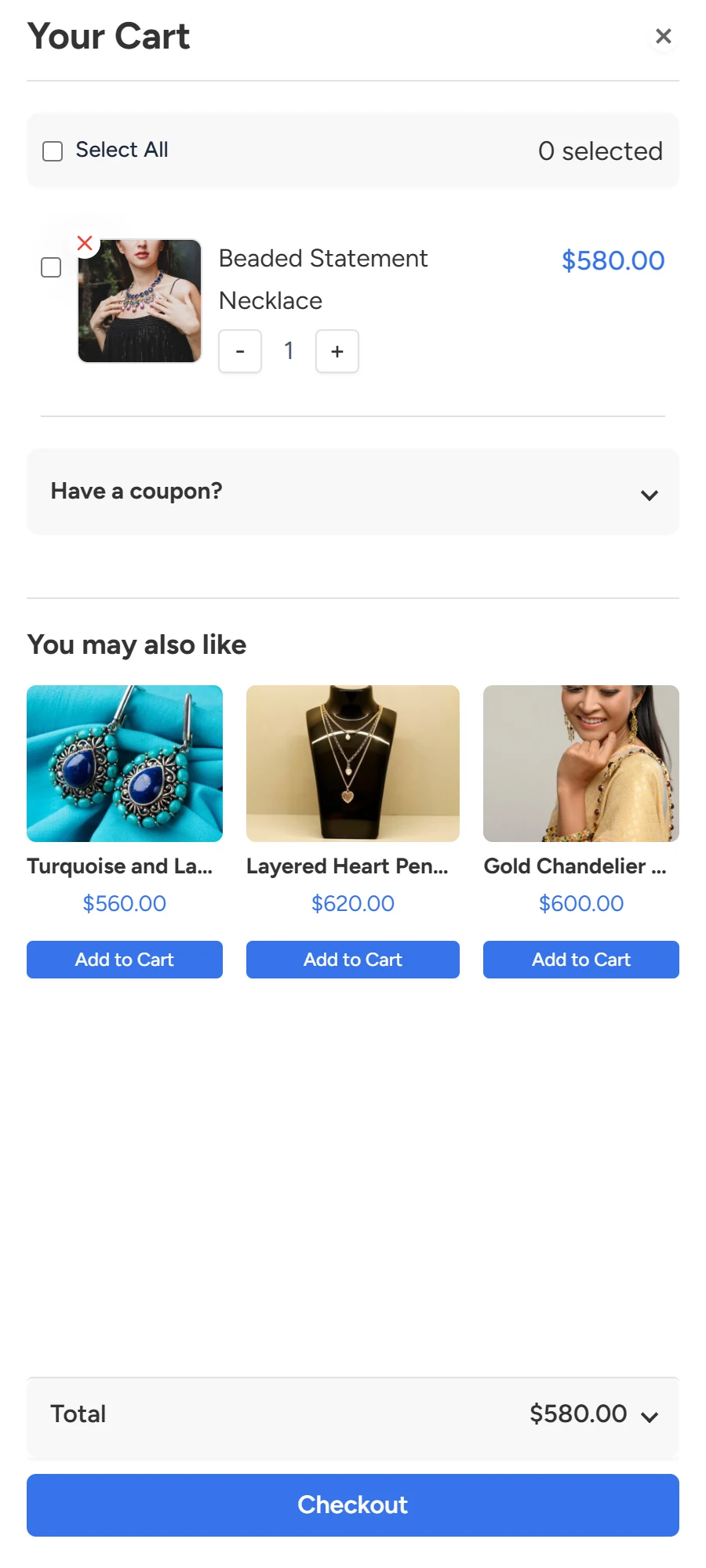
With this method, clicking Buy Now adds the product and slides the cart drawer open from the side of the screen. Shoppers see their cart straight away and can go to checkout or carry on shopping. You can see the drawer on the live demo.
Turn it on
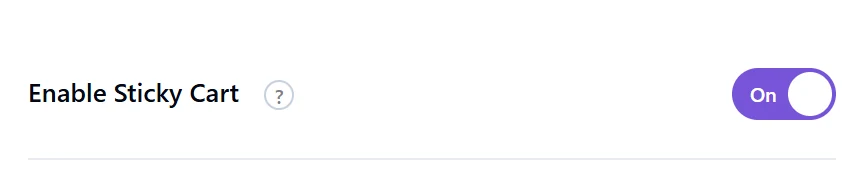
The drawer belongs to the floating cart, so that must be on first. Otherwise this method is greyed out.
- Go to Onpage Checkout > Floating Cart and turn on Enable Sticky Cart.
- Click Save Changes.
- Go to Direct Checkout and check that Enable Direct Checkout is on. Under Quick Checkout Behavior, set Checkout Method to Side Cart Slide-in.
- Click Save Changes.

The list is shown open here so you can see every choice.
Good and bad points
- Good: shoppers stay on the page and see the product was added.
- Good: they can change quantity or apply a coupon in the drawer.
- Good: it suits shops where people buy several items.
- Bad: the drawer covers part of the screen, especially on small phones.
- Bad: shoppers who want to buy quickly have one more click before checkout.
- Bad: some themes place their own header above it, so test it on your theme.
When the drawer does not open
If you see a warning that starts “Enable Sticky Cart”, the floating cart is off. In Pro, the drawer also stays closed on a page that already has a checkout form on it.
Five methods are available. Each one has its own page: Redirect to Checkout, AJAX Add to Cart, Redirect to Cart Page, Popup Checkout.