
The Floating Cart feature displays a cart button on your store and opens a slide-out cart drawer when customers click it. It allows shoppers to review their cart, update items, and continue to checkout without leaving the current page.
This is useful when you want customers to stay on the product or shop page while still giving them quick access to their cart.
What is Floating Cart?
Floating Cart is a slide-out cart drawer for WooCommerce stores. It usually appears as a floating cart icon on the frontend. When clicked, it opens a cart panel from the left or right side of the screen.
Customers can use it to quickly view their cart contents before going to checkout.
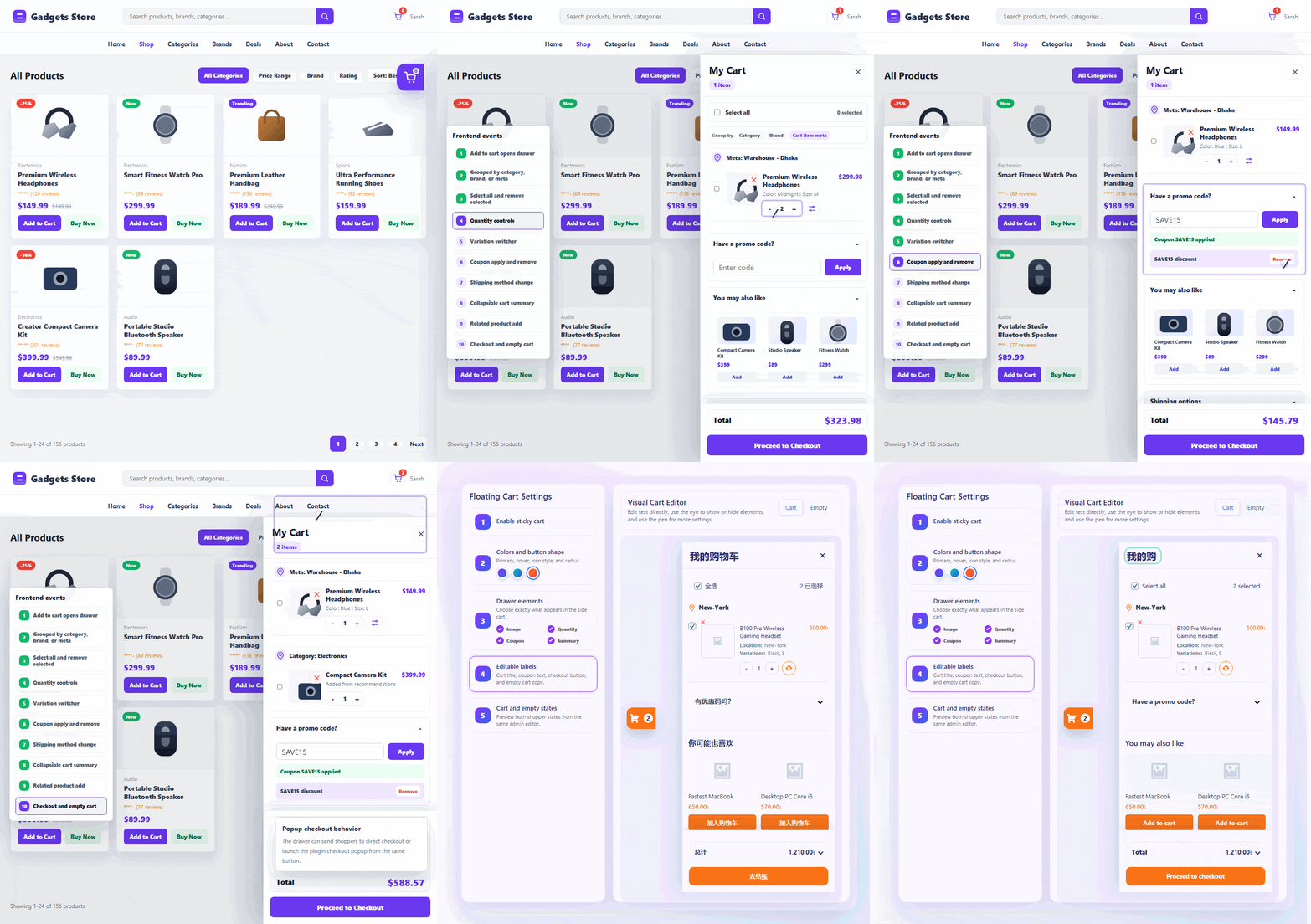
Depending on your settings, the Floating Cart can show:
- Cart icon
- Cart item count
- Product list
- Product image
- Product title
- Product price
- Quantity controls
- Remove item button
- Cart subtotal and total
- Checkout button
The plugin includes a dedicated cart renderer with cart icon support, cart count handling, drawer positioning, and empty-cart hiding logic.
How to Enable Floating Cart
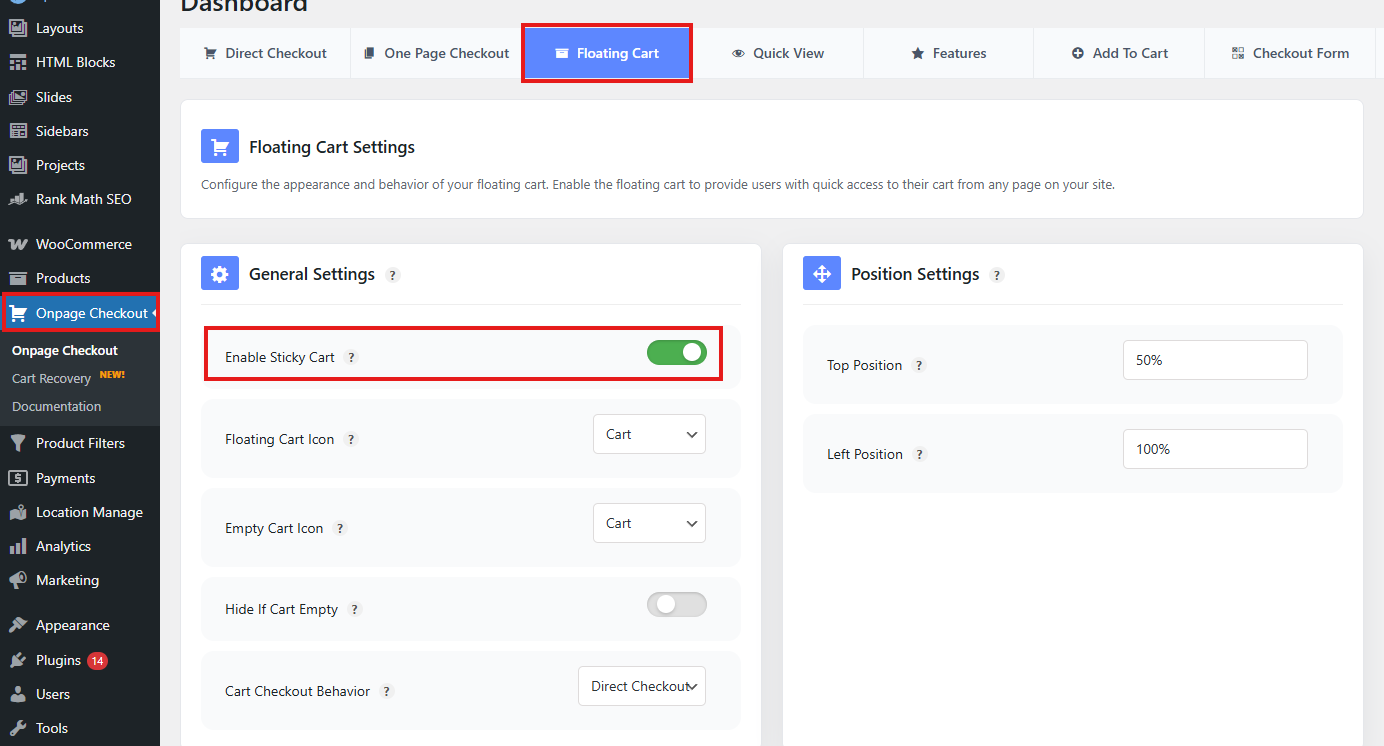
To enable Floating Cart:
- Go to your WordPress admin dashboard.
- Navigate to Onpage Checkout settings.
- Open the Floating Cart settings area.
- Toggle on the option named “Enable Sticky Cart“.
- Configure the cart icon, drawer position, and visibility settings.
- Save changes.
After enabling it, the Floating Cart can be shown using the shortcode, Gutenberg block, Elementor widget, or supported widget area.
Display Floating Cart Using Shortcode
You can display the Floating Cart using this shortcode:
[plugincy_cart]
Add this shortcode to any page, post, template, sidebar, header, footer, or shortcode-supported area.
Example:
[plugincy_cart]
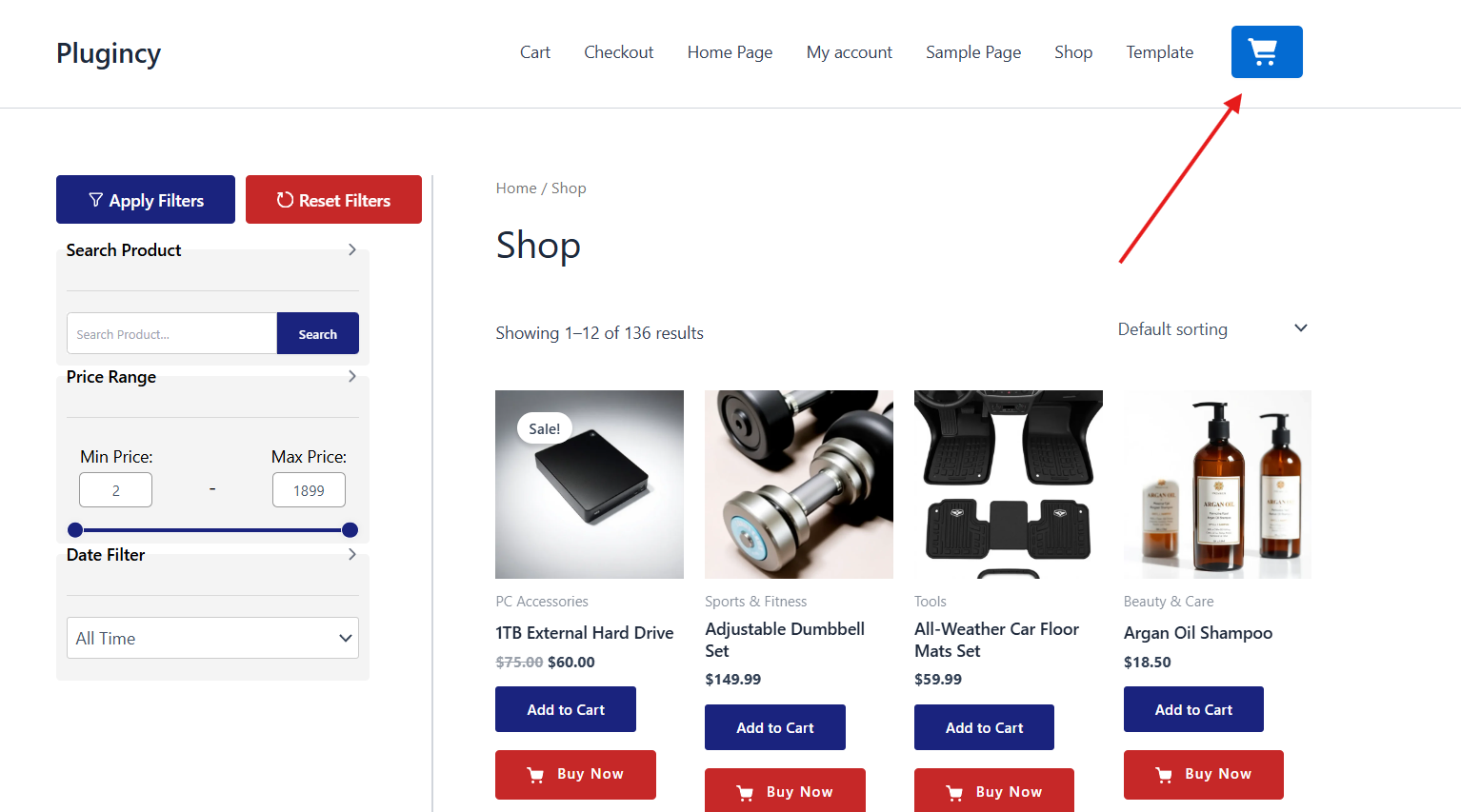
This outputs the cart button and connects it with the slide-out cart drawer.
Display Floating Cart Using Gutenberg Block
To add the Floating Cart using the WordPress block editor:
- Edit the page or template where you want to show the cart.
- Click the + button to add a new block.
- Search for the Floating Cart block.
- Insert the cart block.
- Update or publish the page.
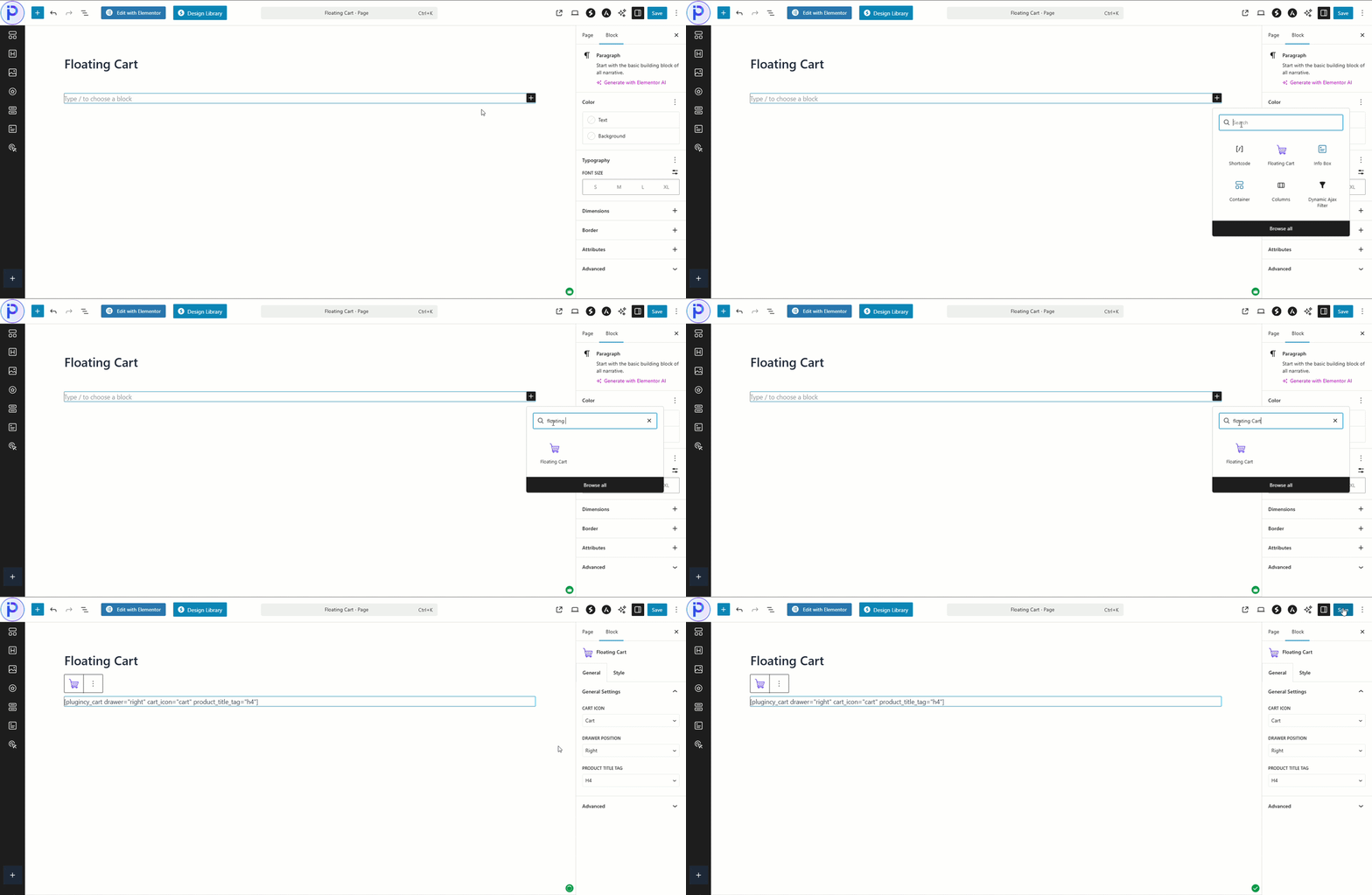
Use this method if you are building pages with the default WordPress block editor.
Display Floating Cart Using Elementor or Widget
If you use Elementor or widget-based layouts, you can add the Floating Cart using the plugin’s cart widget.
To add it with Elementor:
- Open the page or template in Elementor.
- Search for the Plugincy cart widget.
- Drag it into your header, sidebar, footer, or page layout.
- Adjust the widget settings if available.
- Save the template.
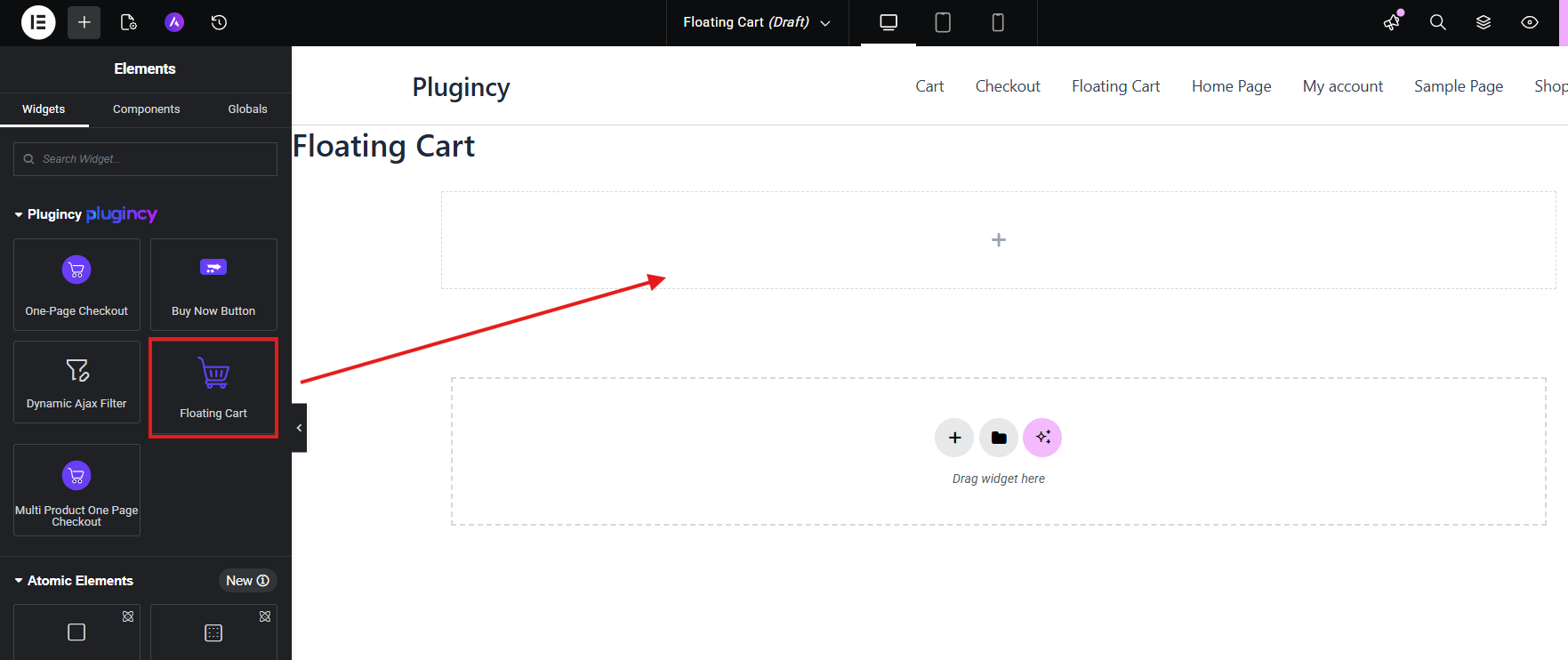
This is useful when you want to place the cart icon in a custom header or layout.
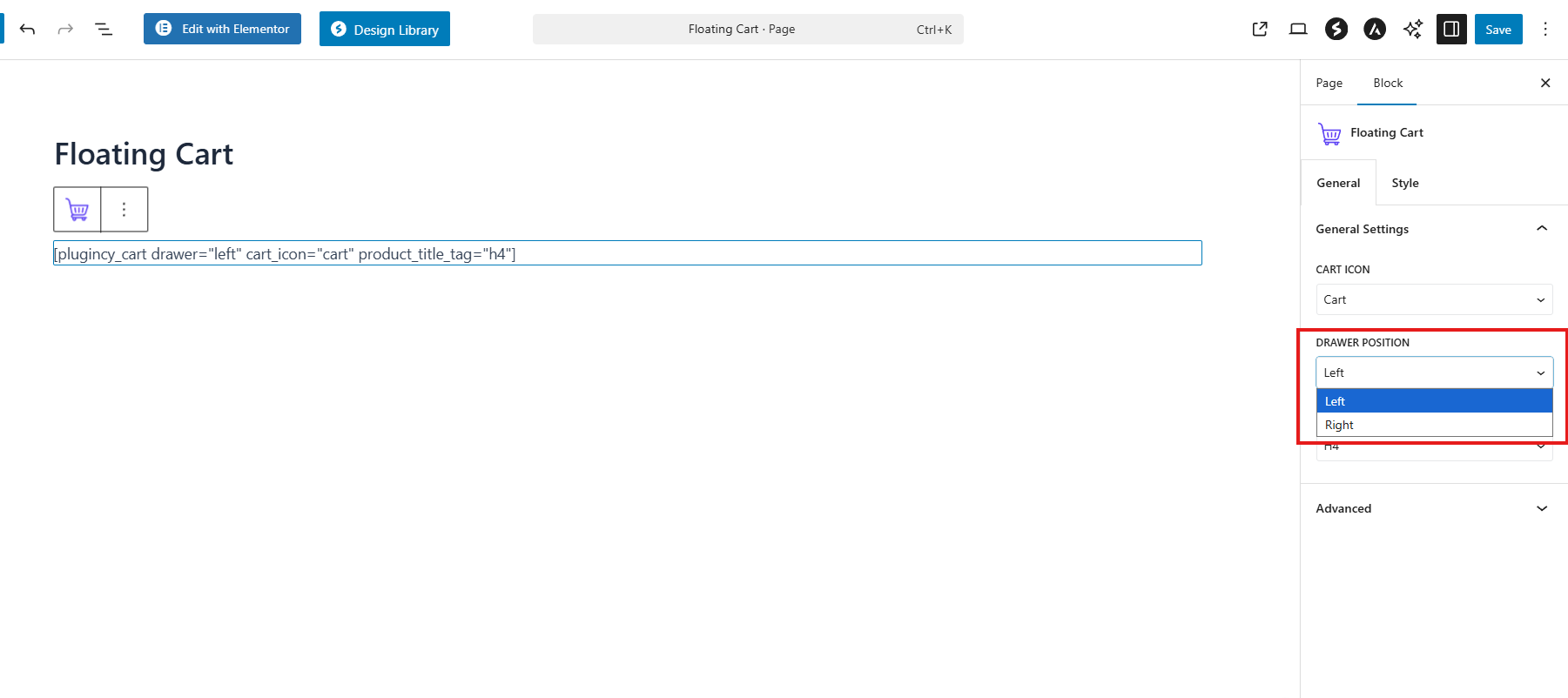
Drawer Position
You can choose where the Floating Cart drawer opens from.
Available options:
| Position | Description |
|---|---|
| Right | Opens the cart drawer from the right side of the screen. |
| Left | Opens the cart drawer from the left side of the screen. |
Most stores use the right side because it matches common cart drawer behavior. Use the left side if it fits your theme layout better.
Cart Icon Options
The Floating Cart supports multiple cart icon styles.
Available icon options include:
| Icon | Description |
|---|---|
| Cart | Standard shopping cart icon. |
| Shopping Bag | Bag-style cart icon. |
| Basket | Basket-style cart icon. |
Choose the icon that best matches your store design.
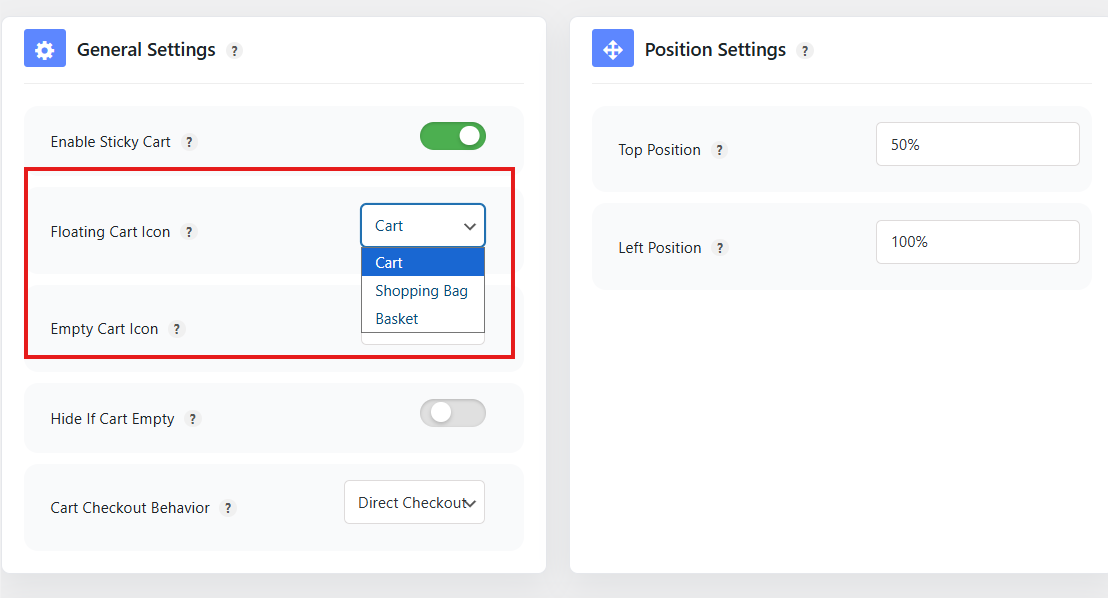
The plugin’s cart template includes these icon choices directly in the cart renderer.
Show or Hide Cart Icon
You can choose whether to display the cart icon inside the Floating Cart button.
Enable this option if you want customers to recognize the button visually as a cart.
Disable it if you only want to display text, count, or a custom design controlled by your theme or page builder.
Show or Hide Cart Count
The cart count shows the number of products currently in the customer’s cart.
For example:
Cart: 3
Use this option when you want customers to immediately see how many items they have added.
Recommended setting: Enabled
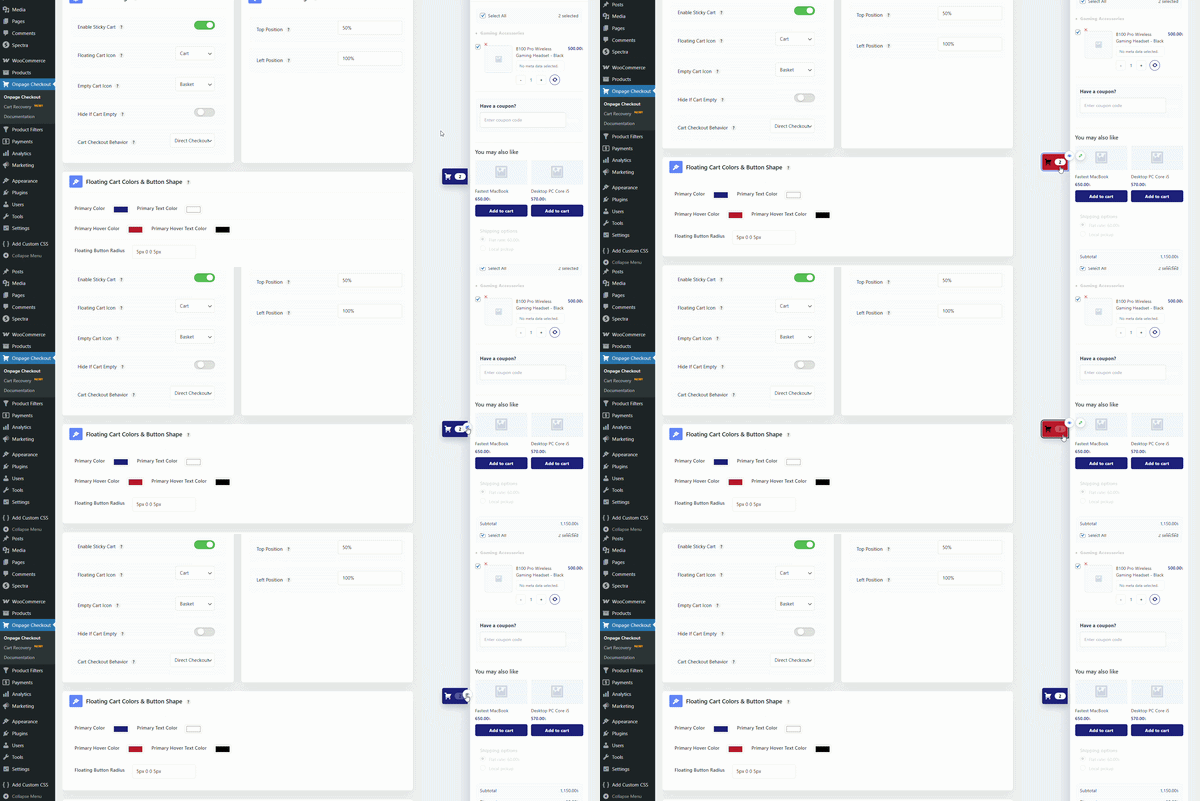
This improves visibility and helps customers track their cart without opening the drawer.
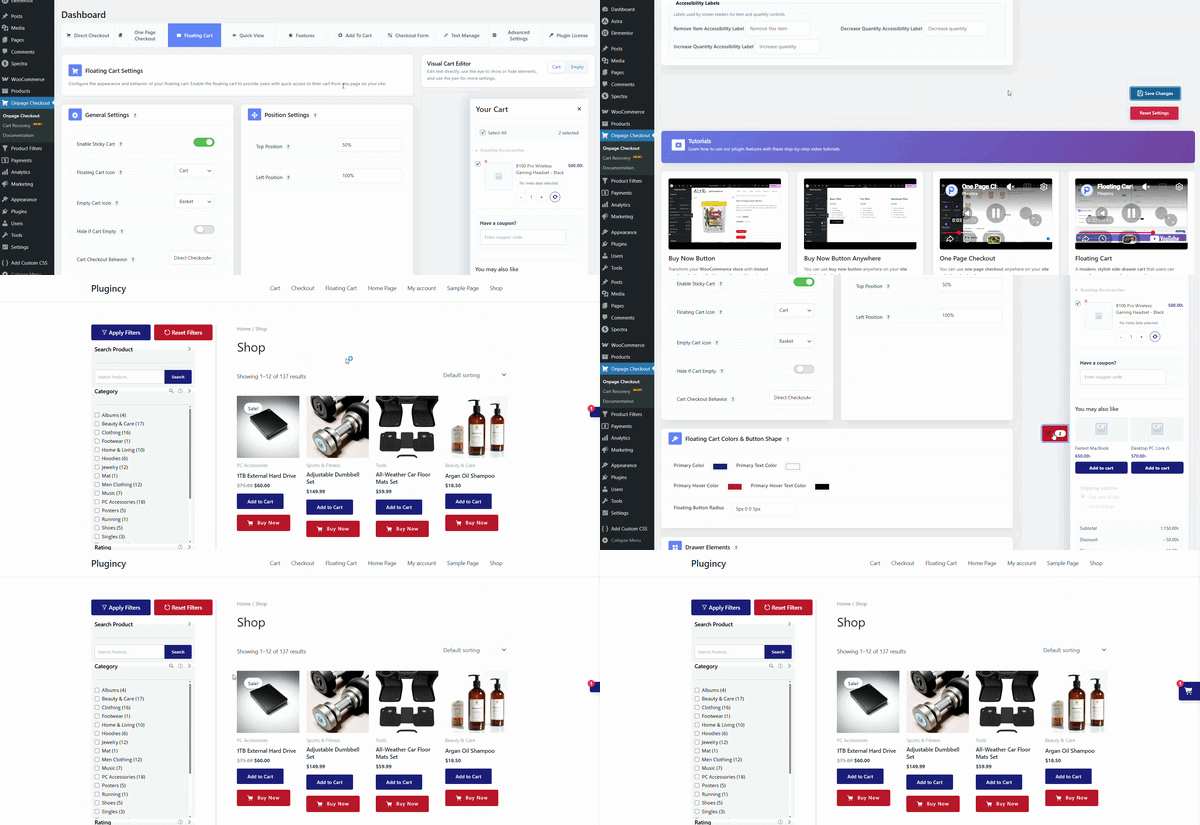
Hide Cart Button When Cart is Empty
You can hide the Floating Cart button when the customer’s cart is empty.
When enabled:
- The cart button is hidden if there are no products in the cart.
- The cart button appears after a product is added.
- This keeps the storefront cleaner for new visitors.
When disabled:
- The cart button is always visible.
- Customers can open the cart even when it is empty.
Use this option if you want a cleaner design and only want the cart button to appear when it is useful.
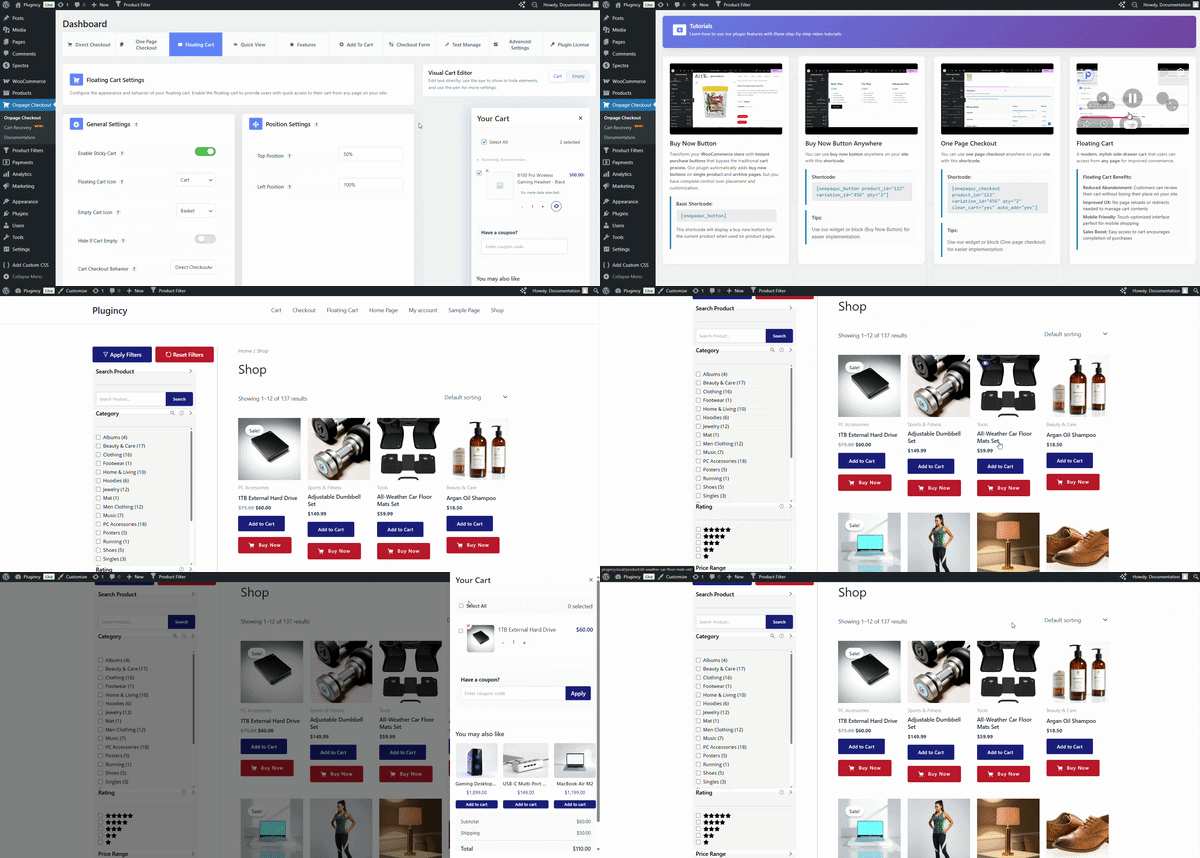
The plugin includes logic for detecting the cart count and hiding the cart button when the cart is empty.
When to Use Floating Cart
Use Floating Cart when you want customers to review their cart without leaving the current page.
It is best for stores where customers may add multiple products before checkout.
Good use cases:
- Fashion stores
- Grocery stores
- Accessories stores
- Multi-product shops
- Stores with product recommendations
- Stores where customers often update quantities
Floating Cart is ideal when the customer should stay in the shopping flow before checkout.
Floating Cart vs Direct Checkout vs Popup Checkout
| Feature | Best For | How It Works |
|---|---|---|
| Floating Cart | Reviewing cart before checkout | Opens a cart drawer from the side of the screen. |
| Direct Checkout | Fast checkout flow | Sends customers directly to checkout after clicking the checkout button. |
| Popup Checkout | Checkout without leaving page | Opens checkout inside a popup/modal. |
Use Floating Cart when customers should review or update cart items first.
Use Direct Checkout when you want to skip extra cart steps and send customers straight to checkout.
Use Popup Checkout when you want the checkout form to appear in a popup instead of redirecting to another page.
Recommended Setup
For most WooCommerce stores, we recommend:
| Setting | Recommended Value |
|---|---|
| Floating Cart | Enabled |
| Drawer Position | Right |
| Cart Icon | Cart or Shopping Bag |
| Show Cart Icon | Enabled |
| Show Cart Count | Enabled |
| Hide Cart Button When Empty | Optional |
| Display Method | Header widget, shortcode, or block |
This setup gives customers quick access to their cart while keeping the shopping experience smooth.