
The Change Variations in Cart feature lets customers update a variable product’s selected variation directly from the cart or cart drawer, without removing the product and adding it again from the product page.
This is useful when a customer adds a variable product to the cart but later wants to change an option such as size, color, style, package, or another variation attribute.
What this feature does
When enabled, customers can change a product variation from the cart area.
For example, if a customer adds a T-shirt with:
Color: Black
Size: Medium
They can update it from the cart to:
Color: Blue
Size: Large
The plugin validates the selected variation, removes the old cart item, and adds the new variation back to the cart while keeping the original quantity where possible.
Where the variation switcher appears
The variation switcher can appear in supported cart interfaces, such as:
- Floating cart
- Checkout Page
- Singe Product Checkout Page
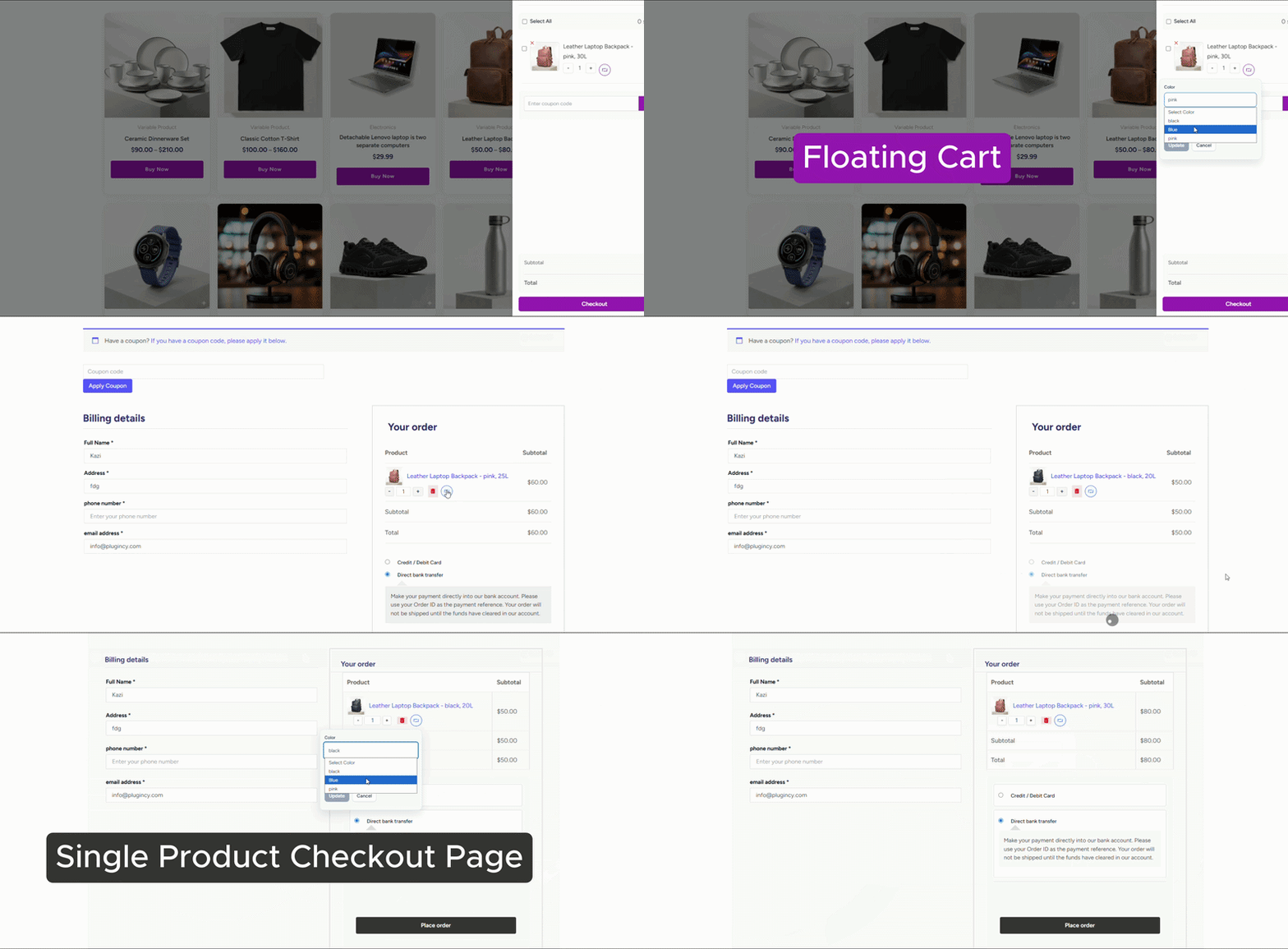
The exact location depends on your cart settings and active layout.
If the feature is enabled and the cart item is a variable product, the customer may see an option to edit or change the selected variation inside the cart item.
Supported product type
This feature is designed for variable products.
| Product type | Support |
|---|---|
| Simple product | Not applicable |
| Variable product | Supported |
| Grouped product | Not supported for variation switching |
| External/Affiliate product | Not supported |
| Subscription variable product | May work if built on standard WooCommerce variation behavior; test carefully |
| Bundled/composite product | Compatibility depends on the bundle/composite plugin; test carefully |
Requirements
Before using this feature, make sure:
- WooCommerce is installed and active.
- The product is a variable product.
- Product variations are created correctly.
- Each variation has a price.
- Variations are purchasable.
- Variations are in stock, unless backorders are allowed.
- The cart drawer or plugin cart interface is enabled.
- AJAX cart functionality is working.
- Your plugin license is active if this feature requires Pro access on your site.
How to enable variation switching in cart
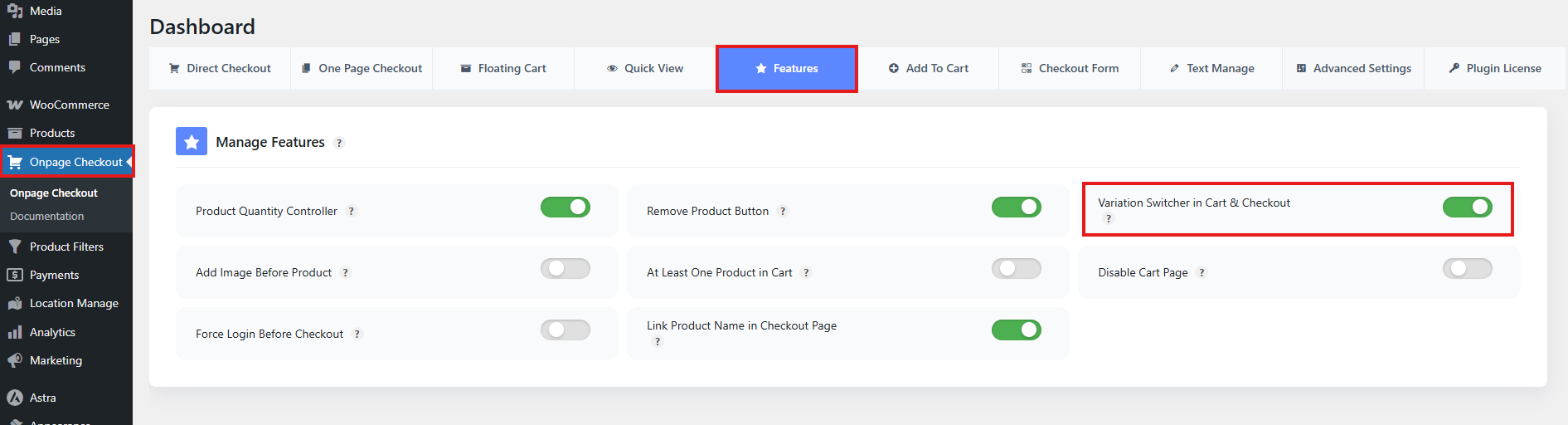
From your WordPress dashboard, go to:
Onpage Checkout → Features
Look for a setting:
Variation Switcher in Cart & CheckoutEnable the option and save your settings.
Then test the cart drawer with a variable product.
How customers change a variation
After the feature is enabled, the customer flow works like this:
Customer adds a variable product to cart
↓
Customer opens the cart drawer or cart interface
↓
Customer clicks change/edit variation
↓
Customer selects a different variation option
↓
Plugin validates the selected variation
↓
Cart item updates with the new variation
↓
Cart total refreshes
The customer does not need to return to the product page to change the variation.
What happens during variation update
When a customer changes the variation, the plugin checks whether the new variation is valid before updating the cart.
The plugin may validate:
- Cart item exists
- Product is a variable product
- Selected attributes are valid
- Matching variation exists
- Variation is purchasable
- Variation is in stock or backorders are allowed
- WooCommerce add-to-cart validation passes
If everything is valid, the old cart item is replaced with the new selected variation.
The cart quantity is preserved where possible.
What happens when a variation is out of stock
If the selected variation is out of stock, the cart item should not be updated to that variation.
The customer may see an error message or the update may be prevented.
Common reasons a variation cannot be selected:
- Variation is out of stock.
- Variation is disabled.
- Variation is not purchasable.
- Variation does not have a price.
- Variation attributes are incomplete.
- Variation was deleted.
- Variation no longer matches the selected attributes.
- Requested quantity is higher than available stock.
Example
If the customer has quantity 2 in the cart, but the selected variation only has 1 item available, the update may fail or require the customer to reduce the quantity.
Quantity behavior
When the variation is changed, the plugin tries to keep the original cart quantity.
Example:
Original cart item:
Blue Hoodie - Medium
Quantity: 2

Updated cart item:
Blue Hoodie - Large
Quantity: 2
However, WooCommerce stock rules still apply.
If the new variation does not allow the same quantity, the customer may need to choose a different variation or reduce the quantity.
Cart total and price updates
After the variation changes, the cart should refresh automatically.
The updated cart may show:
- New variation name
- New variation attributes
- Updated product image, if available
- Updated product price
- Updated subtotal
- Updated discount total, if coupons apply
- Updated cart total
- Updated checkout button/cart count
If the new variation has a different price, the cart total should update accordingly.
Coupons and variation changes
If a coupon is already applied, WooCommerce will recalculate whether the coupon still applies after the variation changes.
A coupon may stop applying if:
- The coupon is limited to specific products.
- The coupon excludes the new variation.
- The coupon requires a minimum spend.
- The cart total changed below the minimum spend.
- The coupon is category/product restricted.
After changing a variation, ask the customer to review the cart total before checkout.
Product images
If the selected variation has its own image, the cart may update to show the variation image.
If no variation image exists, WooCommerce may continue showing the parent product image.
For best results, add images to important product variations.
Compatibility notes
Works best with standard WooCommerce variable products
This feature is designed around WooCommerce’s standard variable product system.
It should work best when variations are created normally in WooCommerce.
Test with variation swatches plugins
If you use a variation swatches plugin, test carefully. Some swatches plugins modify variation selection behavior and may affect cart variation editing.
Test with product options/add-ons plugins
Plugins that add custom fields, product add-ons, engraving, uploads, bundle options, or custom pricing may not fully transfer those custom selections when a variation is changed.
Test carefully if you use:
- Product Add-Ons
- Extra Product Options
- Composite Products
- Product Bundles
- Measurement pricing
- Custom price calculators
- Subscription variations
- Deposit/pre-order plugins
Test with cache and optimization plugins
Cart variation switching uses dynamic AJAX/cart behavior. Avoid caching cart drawer content or delaying required WooCommerce scripts.
Exclude dynamic pages and cart interfaces from aggressive caching.
Test with custom themes
Some themes override WooCommerce cart item templates. If your cart drawer does not show variation controls, the theme may be replacing or hiding the plugin output.
Best practices
Keep variations simple
Variation switching works best when products use clear, standard attributes such as size, color, or style.
Add variation images
Variation images help customers confirm that they selected the correct option.
Keep stock updated
Out-of-stock variations can cause failed updates. Keep variation inventory accurate.
Test before enabling on live traffic
Test with several variable products before enabling this feature for customers.
Check:
- Simple variation change
- Variation with different price
- Variation with different image
- Out-of-stock variation
- Low-stock variation
- Coupon applied before variation change
- Quantity greater than one
- Mobile cart drawer behavior
Use clear labels
Make the variation edit button easy to understand.
Good labels include:
Change Options
Edit Variation
Change Size / Color
Update Selection
Troubleshooting
Variation switcher does not appear
Check:
- The cart item is a variable product.
- Variation switching is enabled.
- The cart drawer/plugin cart interface is active.
- Product variations are configured correctly.
- The theme is not overriding the cart item output.
- JavaScript is loading correctly.
- The feature is not license-restricted.
Variation update fails
Check:
- Selected variation exists.
- Selected variation is enabled.
- Selected variation is purchasable.
- Selected variation is in stock.
- Required attributes are selected.
- Requested quantity is available.
- WooCommerce add-to-cart validation is not blocked by another plugin.
Cart quantity changes unexpectedly
Check:
- Stock quantity for the new variation.
- Minimum/maximum purchase quantity rules.
- Quantity step rules from another plugin.
- Backorder settings.
- Custom quantity plugins.
Cart total does not update
Check:
- AJAX cart scripts are loading.
- Cache plugin is not caching cart fragments.
- WooCommerce cart sessions are working.
- JavaScript errors are not present.
- Coupons are recalculating correctly.
Customer sees old variation after update
Check:
- Browser cache
- Page cache
- Cart drawer cache
- WooCommerce session cookies
- Object cache
- CDN cache
- JavaScript errors
Clear cache and test again in an incognito window.
Variation image does not update
Check:
- The selected variation has an image.
- Theme is not overriding cart item image output.
- Cart drawer supports variation images.
- AJAX response is refreshing cart item HTML.