
All sections
Multi Product One Page Checkout PRO puts several products and the checkout form on one page. Shoppers choose what they want and pay on that same page. It suits landing pages, plans, bundles and small catalogues. You can see it on our Product Tabs demo.
This feature is not in the free plugin. It also needs an active licence: without one, visitors and admins see a notice in place of the products, and admins get a Manage license link.
Three ways to add it
With the block editor
- Edit a page and click + to add a block.
- Search for Multi Product One Page Checkout and add it.
- Choose a Display Template and enter your Product IDs.
- Publish the page.
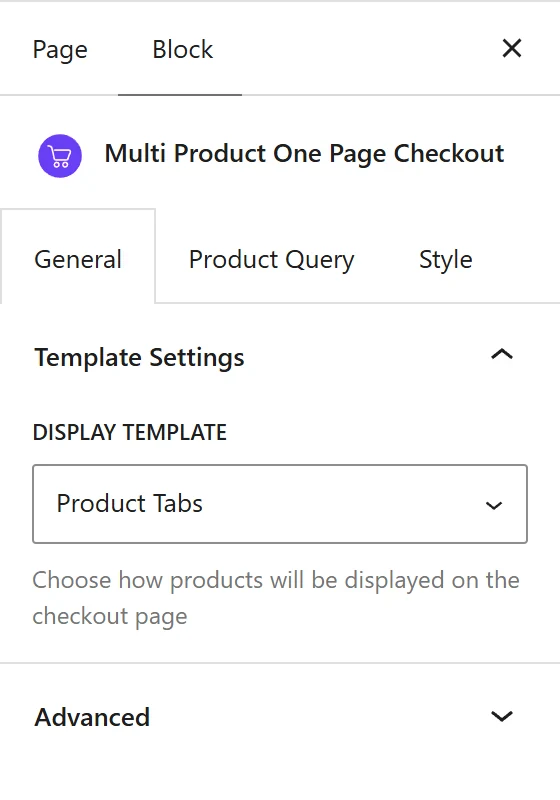
The block’s General tab has the layout choices. Product Query chooses products by Product IDs, by Product Categories and Product Tags, or by Product Attribute and Attribute Terms. Style has the colours and button style.
With Elementor
- Click Edit with Elementor.
- Search for Multi Product One Page Checkout and drag it onto the page.
- Choose the template and products in the Content tab, then click Update.
On the widget’s Style tab, you can set Border Radius, Element Spacing, Enable Box Shadow, Primary Color, Secondary Color, Button Style, Button Typography and Button Padding.
With a shortcode
Add a Shortcode block to your page and paste this, using your own product IDs:
[plugincy_one_page_checkout product_ids="152,153,154" template="product-tabs"]The multi product shortcode guide lists every option, with an example for each template.
Choose a template
| Template | How it looks | Demo |
|---|---|---|
| Product Table | Rows with picture, name and add to cart. | See it |
| Product List | A list with a tick box beside each product. | See it |
| Product Single | Full details of each product, one after another. | See it |
| Product Slider | Products in a moving carousel. | See it |
| Product Accordion | Sections that open to show the details. | See it |
| Product Tabs | One tab for each product. | See it |
| Pricing Table | Products side by side, like price plans. | See it |
| Product Selection | A dropdown or cards inside the checkout form. Choosing one replaces the product in the cart. |
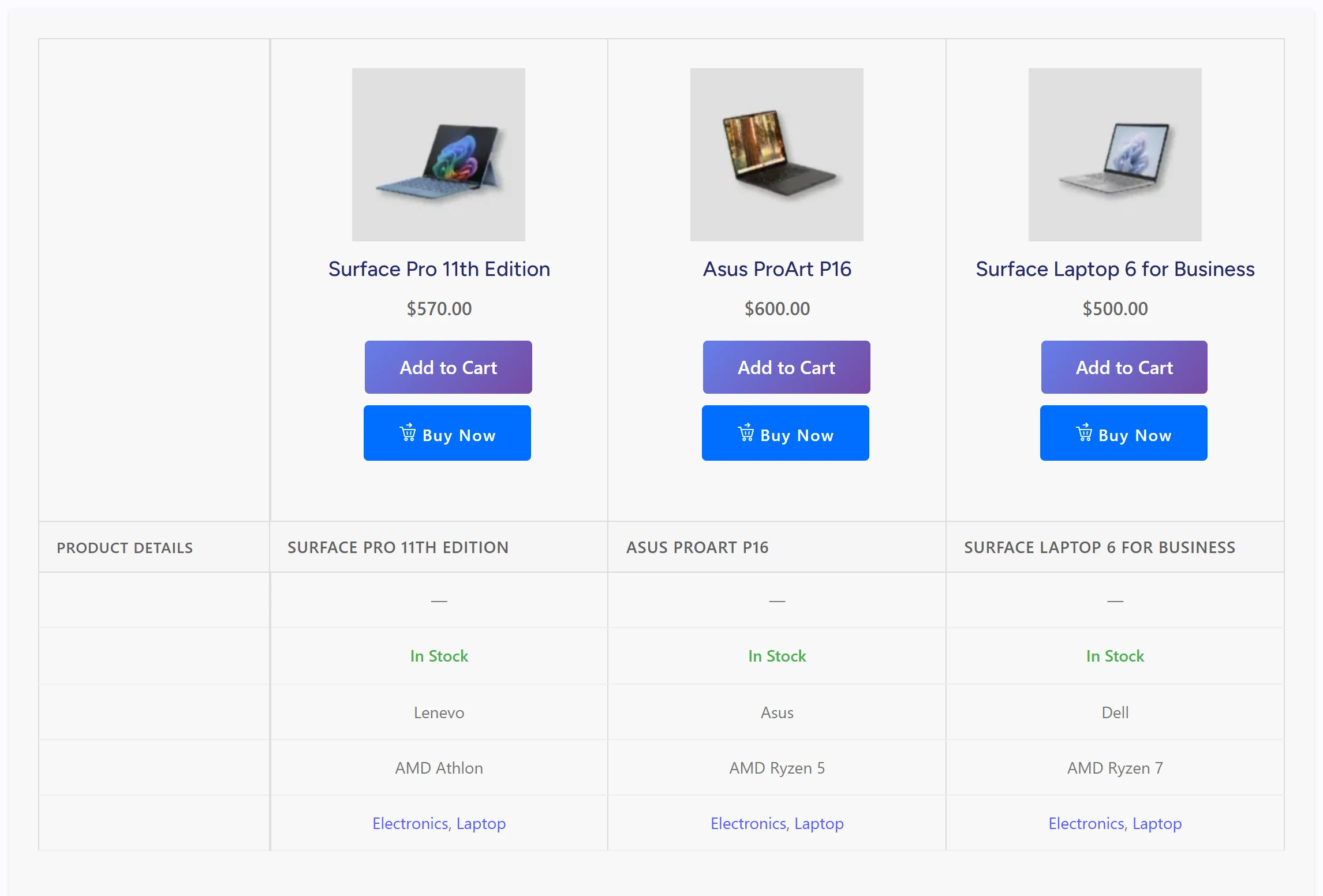
Product Selection options
Only this template has extra choices. Product Selection Position is After checkout description, Before order notes or After checkout form. Show Product & Variation Images adds pictures. With pictures on, Product Layout can be Select Dropdown (Default), Cards in Dropdown or Card & More. Under Text Management, you can change Product Label, Variation Label and Updating Selection Text, for example to “Choose Your Plan”.
Two settings on the plugin screen
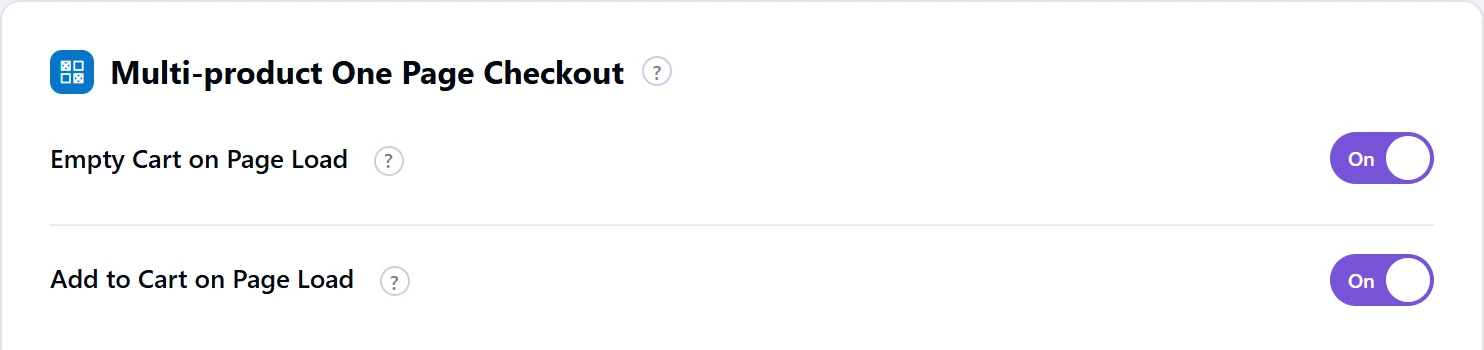
Go to Onpage Checkout > One Page Checkout and find the Multi-product One Page Checkout block.
- Empty Cart on Page Load is on by default. It empties the cart once per visit for each set of products.
- Add to Cart on Page Load is on by default. It adds every product on the page to the cart, once per visit. With Product Selection, only the first product goes in.
So if you list three products in a table, the page opens with all three in the cart. Turn this setting off if shoppers should choose for themselves, and they can use the buttons on the page instead.
Good uses
- A landing page for an ad or email, with one or a few offers.
- Price plans, such as Basic, Standard and Premium.
- A short range, such as one product in several packs.
If something goes wrong
- The block or widget is missing: check that Pro is active. In the block editor, try searching for “checkout”.
- The code shows as plain text: paste it into a Shortcode block, not a Paragraph or Code block.
- No products appear: check the IDs, and that the products are published.
- You see “Pro version only”: activate your licence on the Plugin License tab.
- The form is empty: add a product to the cart, or keep Add to Cart on Page Load on.