
Cart Recovery does more than store abandoned carts. It also records important customer actions, recovery email activity, and performance data so you can understand how well your recovery process is working.
This guide explains how to read the customer journey timeline, review the Activity tab, understand analytics, and export cart recovery data.
Where to find Journey, Activity, and Analytics
From your WordPress dashboard, go to:
Onpage Checkout → Cart Recovery
Inside the Cart Recovery workspace, you may see these sections:
- Journey
- Activity
- Analytics
- Carts
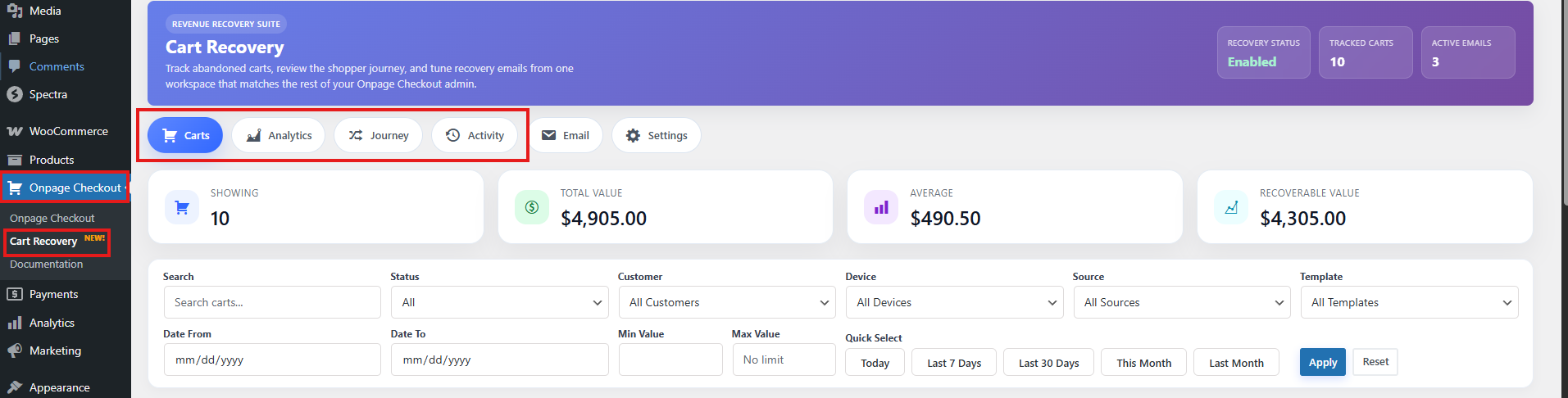
Use these sections together to understand what happened before, during, and after a cart was abandoned.
Customer Journey Timeline
The Customer Journey shows the timeline of events for a tracked cart. It helps you understand how the customer interacted with the store before the cart was abandoned or recovered.
A journey timeline may include events such as:
Cart Created
Cart Abandoned
Recovery Email Sent
Recovery Email Opened
Recovery Email Clicked
Cart Restored
Cart Recovered
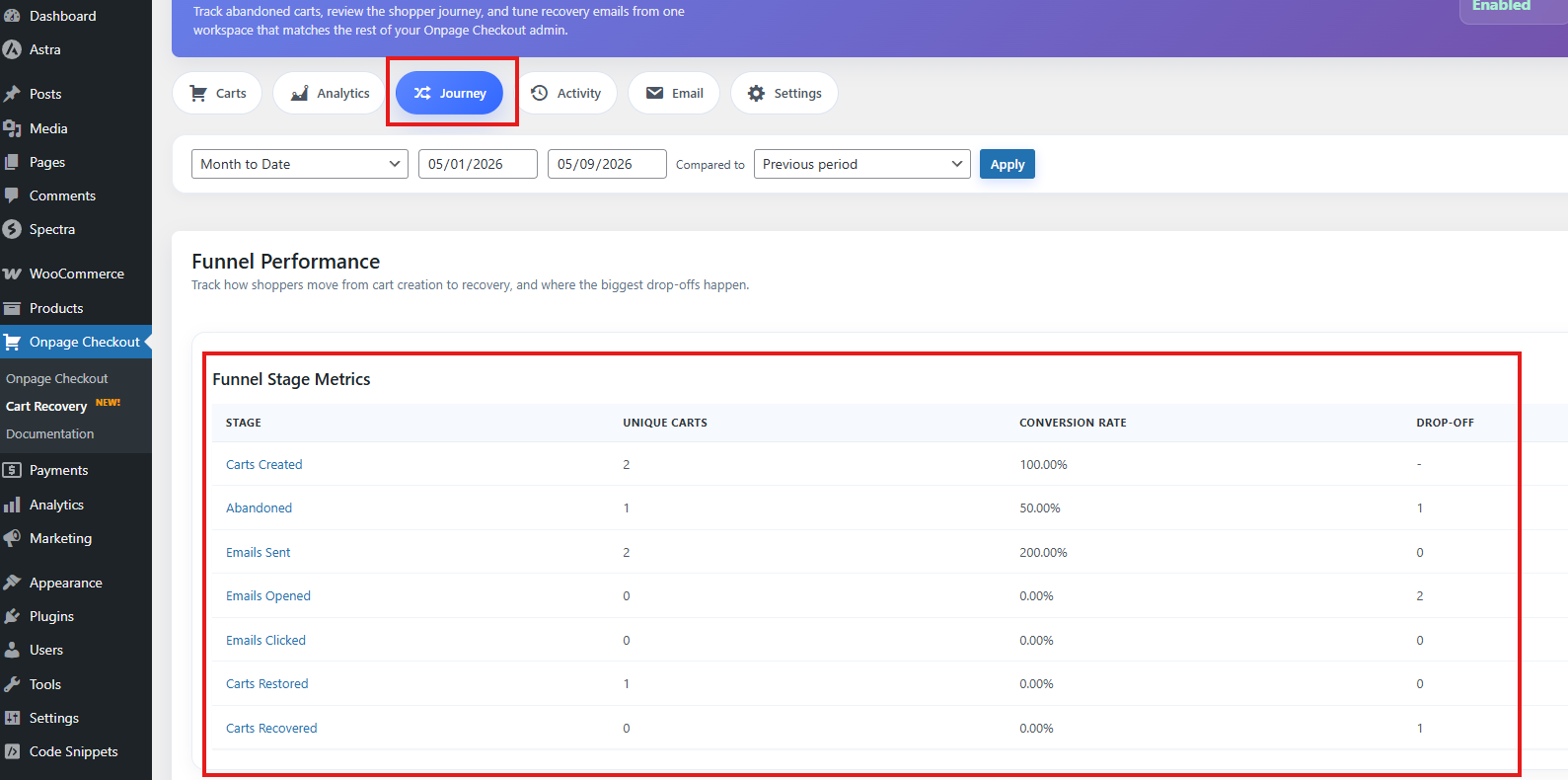
This timeline is useful when you want to understand why a cart was recovered, why a customer returned, or where the customer stopped during checkout.
Cart created event
A Cart Created event means the plugin created a new tracked cart record.
This usually happens when:
- The customer has products in the cart.
- Cart Recovery is enabled.
- The cart contains enough customer identity information.
- The cart is not excluded by settings.
Example:
Cart Created
Customer: Guest Customer
Cart Total: $89.00
Products: Hoodie, Cap
Use this event to confirm that Cart Recovery is tracking customer carts correctly.
Cart abandoned event
A Cart Abandoned event means the cart remained inactive longer than the configured inactivity timeout.
Example:
Cart Abandoned
Reason: No cart activity after 45 minutes
After this event, the cart may become eligible for recovery emails, depending on your email settings, sending window, customer email availability, and license status.
Cart restored event
A Cart Restored event means the customer returned to the store after the cart was abandoned.
This can happen when:
- The customer clicks a recovery email link.
- The customer revisits the store and the cart is restored from the existing session.
- The cart becomes active again after previously being abandoned.
Example:
Cart Restored
Source: Recovery email link
A restored cart is not the same as a recovered cart. The cart is only recovered when the customer completes checkout.
Cart recovered event
A Cart Recovered event means the customer completed checkout after the cart was previously abandoned, restored, or connected to recovery email activity.
When this happens, Cart Recovery may store the recovered order ID and recovered revenue.
Example:
Cart Recovered
Order: #1045
Recovered Revenue: $124.00
Use recovered events to measure how much revenue Cart Recovery helped bring back.
Email Activity Events
Cart Recovery can also track recovery email events. These events help you understand whether customers are receiving and engaging with recovery emails.
Email sent
An Email Sent event means a recovery email was successfully sent to the customer.
Example:
Email Sent
Template: First Reminder
Recipient: [email protected]
Use this event to confirm that the email sequence is working.
Email opened
An Email Opened event means the customer opened the recovery email.
Open tracking usually depends on an invisible tracking image or tracking request. Because some email apps block tracking pixels, open tracking may not always be 100% accurate.
Example:
Email Opened
Template: First Reminder
Use open data as a helpful signal, not as a perfect measurement.
Email clicked
An Email Clicked event means the customer clicked a link in the recovery email, usually the restore cart link.
Example:
Email Clicked
Template: First Reminder
Action: Restore Cart
Clicks are often more reliable than opens because they show direct customer action.
Email failed
An Email Failed event means the plugin attempted to send a recovery email but the message did not send successfully.
Common reasons include:
- Invalid customer email address
- WordPress email sending issue
- SMTP configuration problem
- Email service rejection
- Site cron/queue issue
- Server mail restrictions
If emails fail often, check your SMTP or transactional email service.
Activity Log
The Activity tab gives you a broader list of recovery-related events.
It may include:
- Cart created
- Cart updated
- Cart abandoned
- Cart restored
- Cart recovered
- Email sent
- Email opened
- Email clicked
- Email failed
- Manual status changes
- Admin actions
Use the Activity tab when you want a chronological view of what happened across multiple carts.
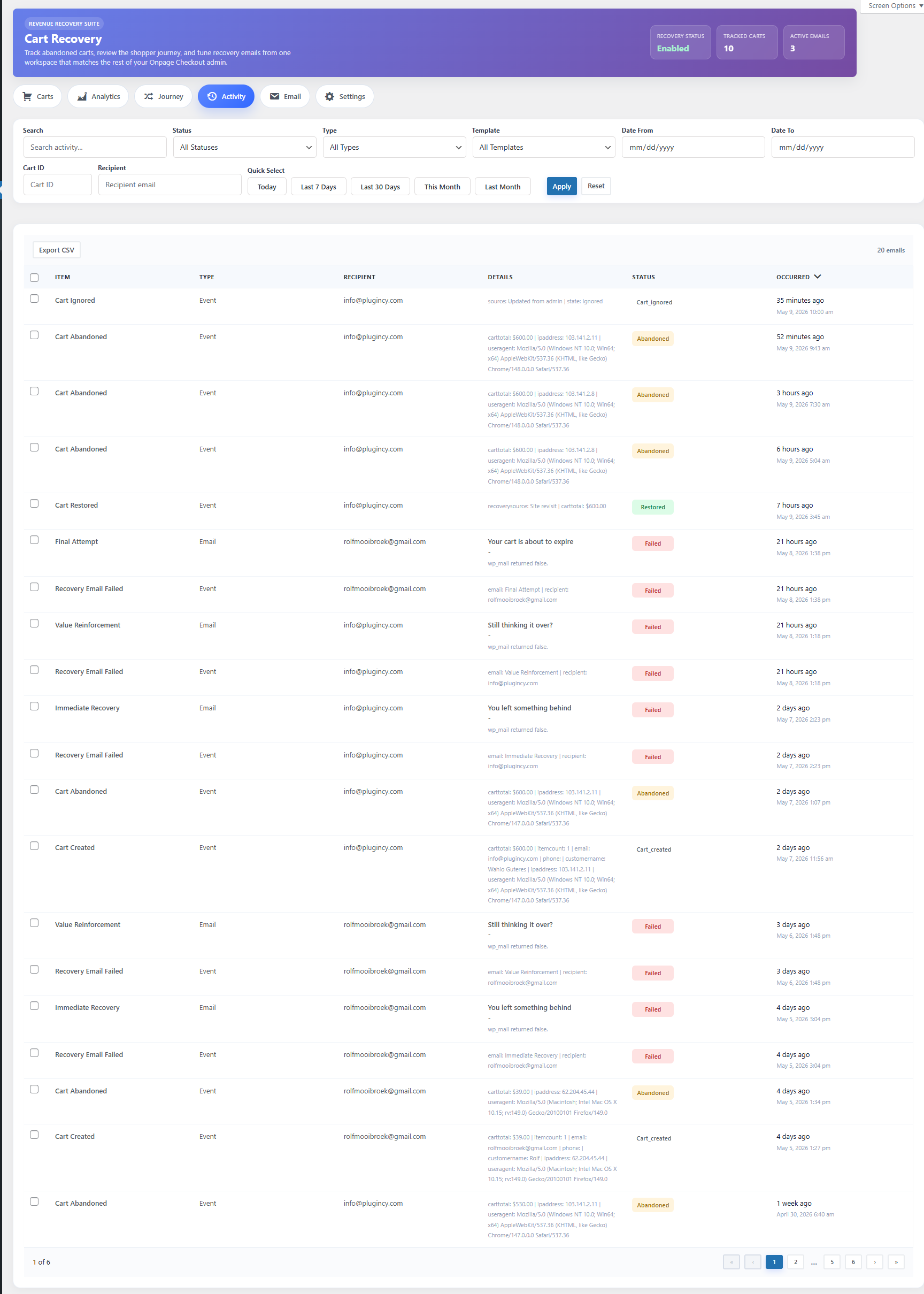
How to use the Activity tab
The Activity tab is useful for answering questions like:
- Are carts being tracked correctly?
- Are carts becoming abandoned at the expected time?
- Are recovery emails being sent?
- Are customers opening or clicking emails?
- Are carts being restored?
- Are restored carts becoming completed orders?
- Did an admin manually change a cart status?
For example, if a cart was abandoned but never received an email, the Activity tab can help you check whether the email was skipped, delayed, failed, or blocked by settings.
Analytics Dashboard
The Analytics tab helps you understand Cart Recovery performance.
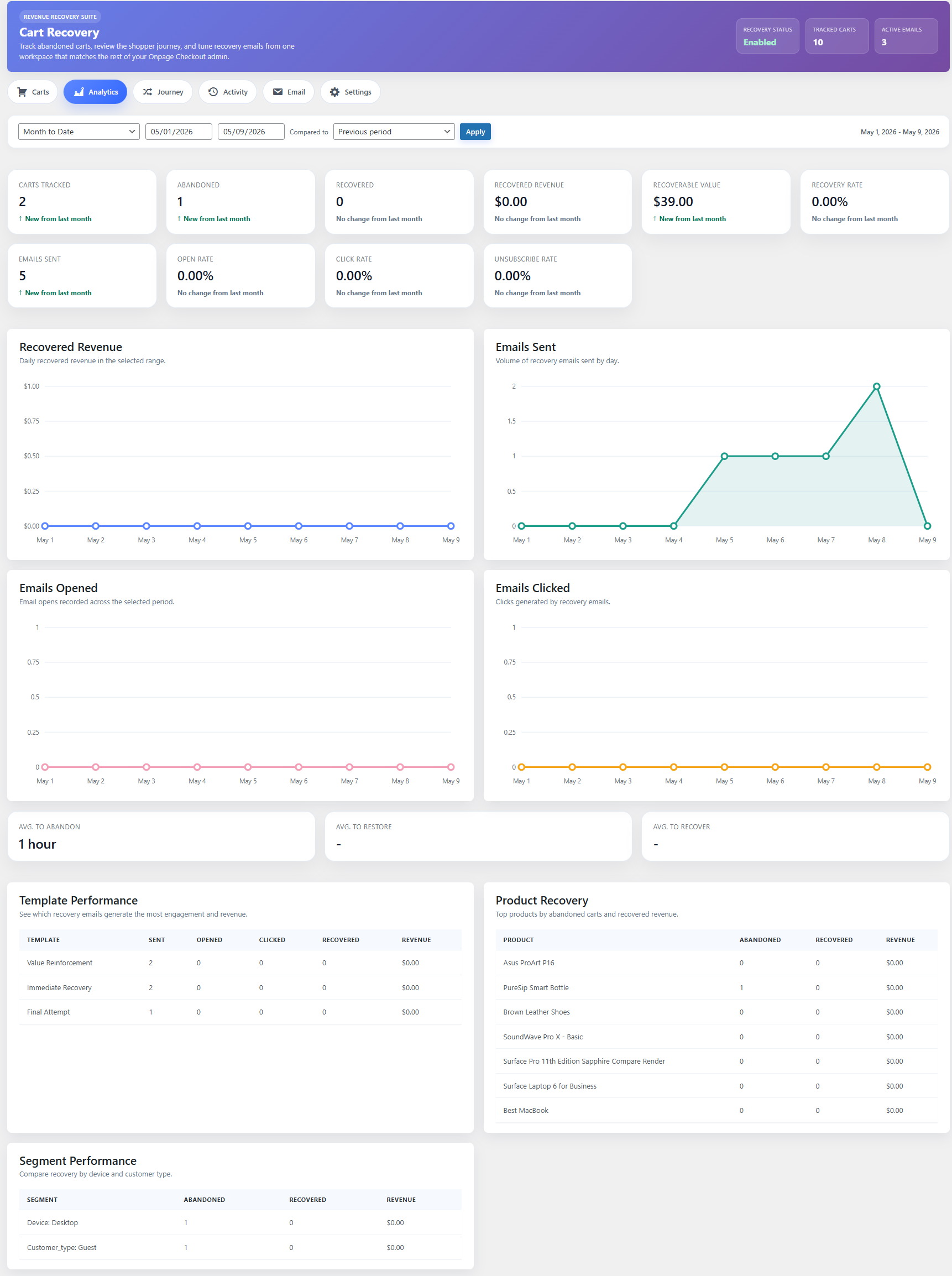
Depending on your plugin version and license status, analytics may include metrics such as:
| Metric | What it means |
|---|---|
| Tracked Carts | Total carts captured by Cart Recovery |
| Abandoned Carts | Carts that became inactive and were marked abandoned |
| Restored Carts | Customers who returned to the cart after abandonment |
| Recovered Carts | Abandoned/restored carts that later completed checkout |
| Recovered Revenue | Revenue generated from recovered carts |
| Emails Sent | Total recovery emails sent |
| Email Opens | Number of tracked email opens |
| Email Clicks | Number of tracked email clicks |
| Failed Emails | Emails that could not be sent |
How to understand recovery performance
Cart Recovery analytics should help you answer three main questions:
1. How many customers abandon their carts?
2. How many customers return after recovery emails?
3. How much revenue is recovered?
Important performance indicators
Abandonment volume
If tracked carts are high but recovered carts are low, customers may be leaving because of checkout friction, shipping costs, payment issues, or pricing concerns.
Email open rate
If email opens are low, improve:
- Subject lines
- Sender name
- Email deliverability
- Sending time
- Spam prevention setup
Email click rate
If opens are good but clicks are low, improve:
- Email content
- Restore cart button visibility
- Offer clarity
- Product reminder section
- Discount or incentive
Recovery rate
If clicks are high but recovered orders are low, customers may be returning but still not completing checkout. Check:
- Checkout page errors
- Payment gateway issues
- Shipping cost surprises
- Coupon problems
- Mobile checkout usability
- Page speed
Recovered revenue
Recovered revenue shows the value of orders completed after the recovery process. This is one of the most important metrics because it shows real business impact.
Example analytics interpretation
Example 1: Emails are sent but not opened
Possible issue:
Poor email deliverability or weak subject lines
Recommended actions:
- Use a trusted SMTP plugin or transactional email service.
- Improve subject lines.
- Avoid spammy words.
- Use a recognizable sender name.
- Test email delivery.
Example 2: Emails are opened but not clicked
Possible issue:
Email content is not persuasive enough
Recommended actions:
- Add a clear restore cart button.
- Show cart products.
- Keep the email short.
- Add urgency carefully.
- Consider offering a discount in the second or third email.
Example 3: Emails are clicked but carts are not recovered
Possible issue:
Customers return but still do not complete checkout
Recommended actions:
- Test the restore cart link.
- Check checkout page errors.
- Review shipping/payment settings.
- Test checkout on mobile.
- Reduce unnecessary checkout fields.
- Make sure coupons apply correctly.
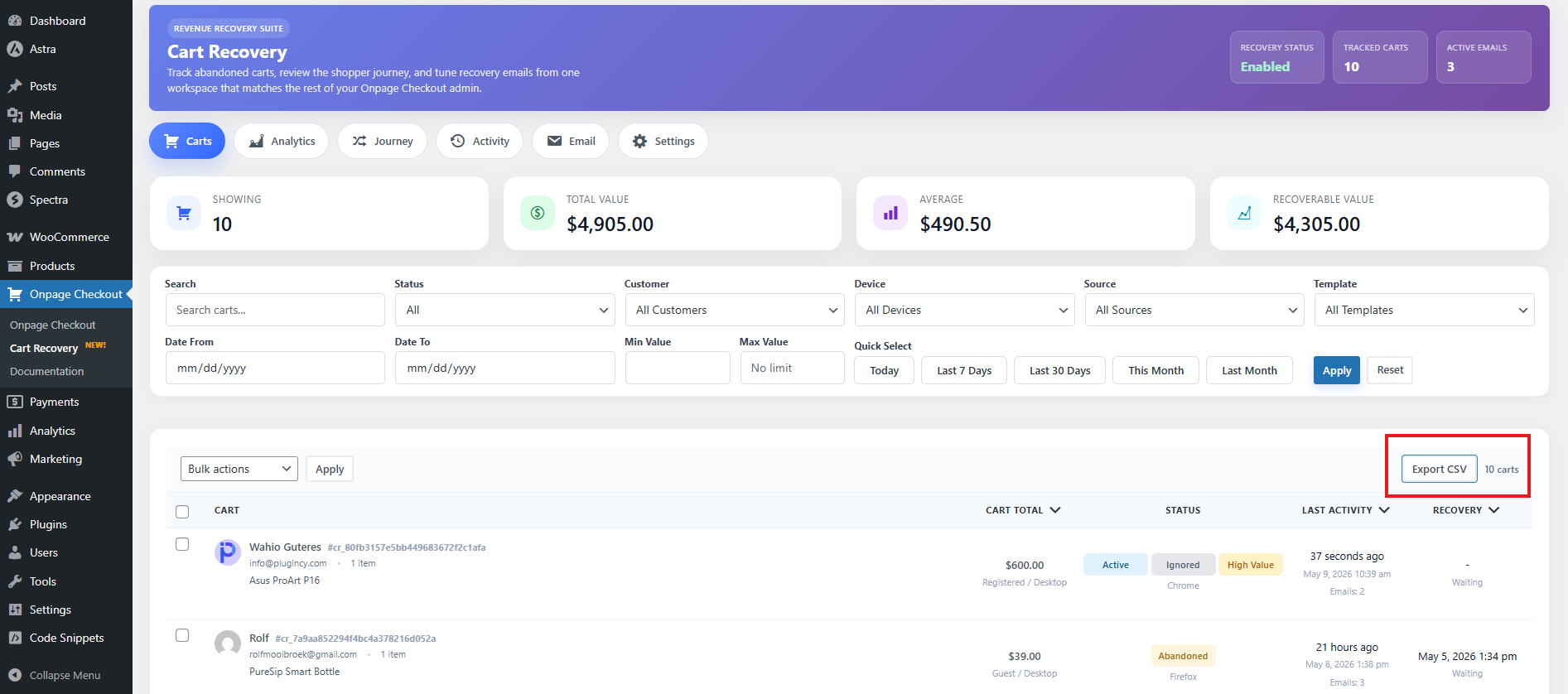
Export carts and activity
Cart Recovery may allow exporting cart and activity data from the admin area.
Exports are useful when you want to:
- Analyze abandoned carts outside WordPress
- Share reports with your team
- Keep backup records
- Review recovery performance by date range
- Investigate failed emails or recovery behavior
- Compare abandoned products
Possible export types include:
- Cart export
- Activity export
- Email activity export
What export files may include
A cart export may include:
- Customer name
- Cart total
- Currency
- Products
- Cart status
- Created date
- Updated date
- Abandoned date
- Restored date
- Recovered date
- Recovered order ID
An activity export may include:
- Event type
- Event title
- Event time
- Cart/customer reference
- Email event details
- Recovery actions
Best practices for reporting
Review analytics weekly
Check Cart Recovery performance at least once per week. This helps you quickly find issues with emails, checkout, or cart tracking.
Compare abandoned vs recovered carts
Do not only look at total abandoned carts. Always compare abandoned carts with recovered carts and recovered revenue.
Watch failed emails
Failed emails can reduce recovery performance. If failures increase, check your email sending setup immediately.
Use activity logs for troubleshooting
When something looks wrong, check the Activity tab before changing settings. It can show exactly what happened.
Export data before major cleanup
Before deleting old carts or changing retention rules, export data if you need historical reporting.