
The [plugincy_one_page_checkout] shortcode displays a multi-product checkout section on a page. It is useful when you want customers to choose one or more products and complete checkout without moving through the standard WooCommerce product/cart/checkout flow.
Use this shortcode for landing pages, bundles, product offers, pricing tables, sales campaigns, and custom checkout pages.
Basic usage
Add the shortcode to any page, post, shortcode block, or page builder shortcode widget.
[plugincy_one_page_checkout]
This displays the one-page checkout layout using the shortcode’s default settings.
For best results, define which products should appear.
[plugincy_one_page_checkout product_ids="152,153,154"]
When to use this shortcode
Use [plugincy_one_page_checkout] when you want to create a checkout page for multiple products.
Best use cases:
- Landing pages
- Product bundles
- Limited-time offers
- Pricing tables
- Product comparison pages
- Category-based checkout pages
- Campaign-specific checkout pages
- Custom sales funnels
Shortcode attributes
The shortcode supports product selection, layout, template, and styling attributes.
| Attribute | Default | Accepted values | Description |
|---|---|---|---|
product_ids | Empty | Comma-separated product IDs | Displays specific products by ID |
category | Empty | Product category slug | Displays products from a category |
tags | Empty | Product tag slug or comma-separated slugs | Displays products by tag |
attribute | Empty | Product attribute taxonomy/slug | Filters products by attribute |
terms | Empty | Attribute term slug or comma-separated slugs | Used with attribute to filter products |
template | product-table or plugin default | Template key | Controls product display layout |
template_position | Plugin default | before, after, or available plugin positions | Controls where the product template appears around checkout |
position | Plugin default | Plugin-supported position values | Controls checkout/product section position |
show_images | Plugin default | yes, no | Shows or hides product images |
product_layout | Plugin default | Plugin-supported layout values | Controls product layout style |
product_label | Plugin default | Text | Custom label for product section |
variation_label | Plugin default | Text | Custom label for variation selection |
updating_selection_text | Plugin default | Text | Text shown while product selection updates |
primary_color | Plugin default | HEX color | Main accent color |
secondary_color | Plugin default | HEX color | Secondary accent color |
border_radius | Plugin default | CSS size value | Controls rounded corners |
spacing | Plugin default | CSS size value | Controls spacing between elements |
button_style | Plugin default | Plugin-supported button style | Controls button appearance |
Product selection options
You can choose which products appear in the checkout section using product IDs, categories, tags, or attributes.
Display specific products by ID
Use product_ids to show selected products.
[plugincy_one_page_checkout product_ids="152,153,154"]
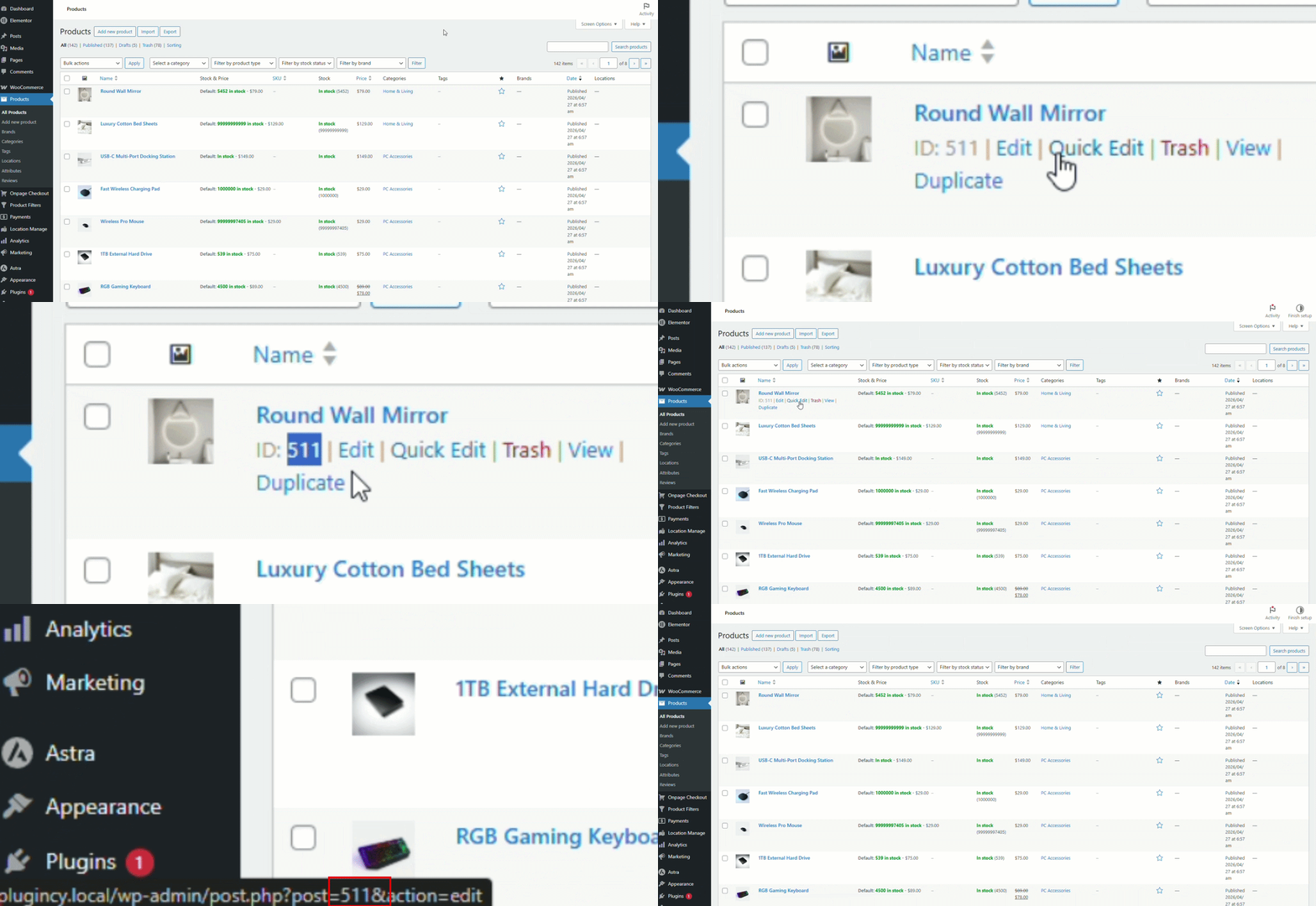
How to find a product ID
- Go to Products → All Products.
- Hover over a product name.
- Look for the product ID in the product row or URL.
- Copy the ID and add it to the shortcode.
Best use cases
Use product_ids when you want full control over exactly which products appear.
Good for:
- Bundles
- Offers
- Hand-picked products
- Pricing tables
- Sales pages
Display products by category
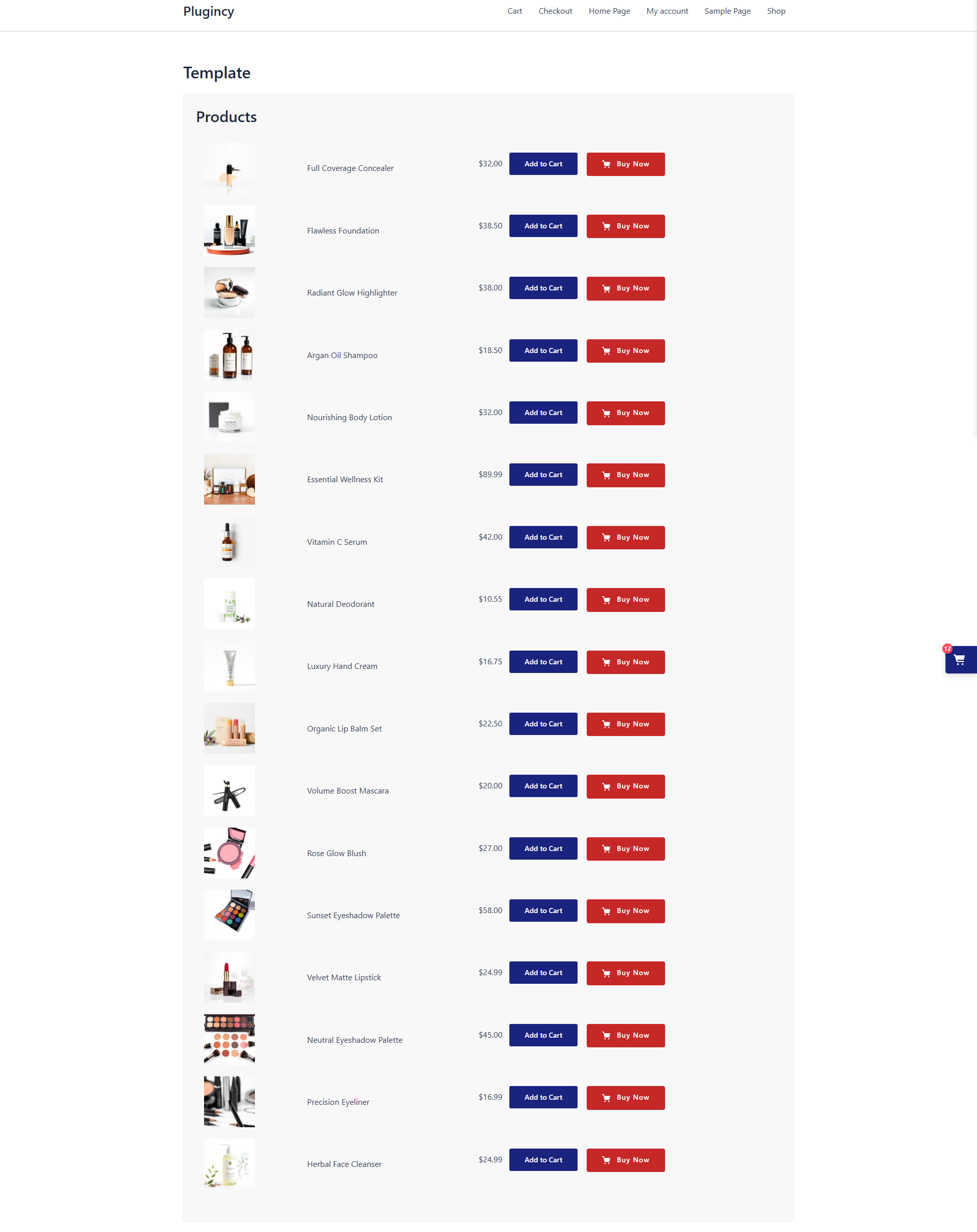
Use category to display products from a WooCommerce product category.
[plugincy_one_page_checkout category="beauty-care"]
You can combine category with a template:
[plugincy_one_page_checkout category="beauty-care" template="product-table" show_images="yes"]
Use category slugs
Use the category slug, not the category name.
Example:
| Category name | Category slug |
|---|---|
| Hoodies | hoodies |
| Beauty & Care | beauty-care |
| Digital Products | digital-products |
Best use cases
Use category selection when you want the checkout page to update automatically as products are added to that category.
Display products by tag
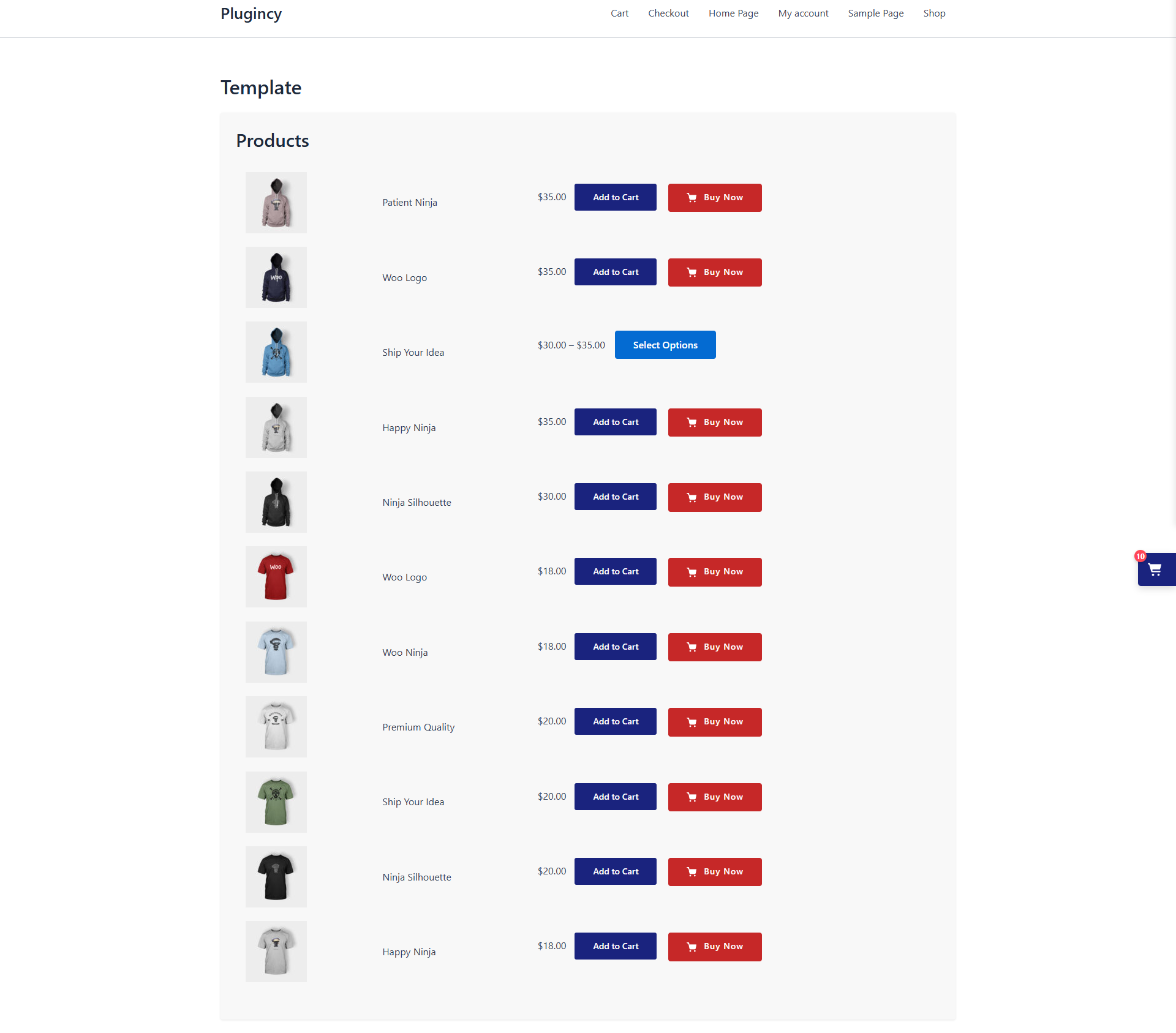
Use tags to show products that match one or more WooCommerce product tags.
[plugincy_one_page_checkout tags="new-arrival"]
For multiple tags:
[plugincy_one_page_checkout tags="new-arrival,bestseller"]
Best use cases
Use tags when products belong to different categories but share a common campaign or label.
Good for:
- New arrivals
- Bestsellers
- Featured products
- Seasonal offers
- Campaign products
Display products by attribute and terms
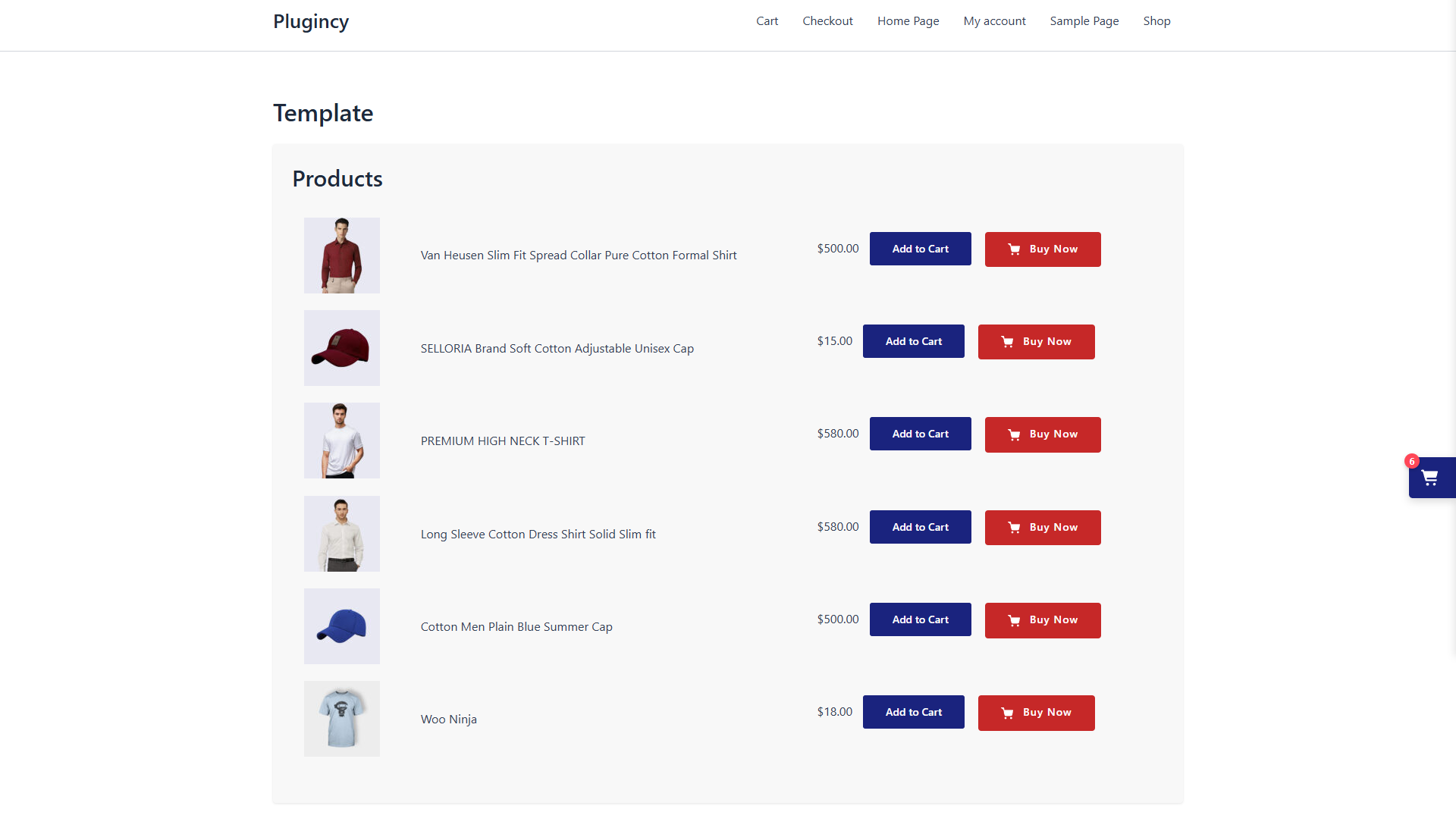
Use attribute and terms to show products based on product attributes.
Example:
[plugincy_one_page_checkout attribute="color" terms="black,blue"]
Another example:
[plugincy_one_page_checkout attribute="size" terms="large"]
Important notes
WooCommerce global attributes usually use the pa_ prefix.
Examples:
| Attribute name | Attribute taxonomy |
|---|---|
| Color | pa_color |
| Size | pa_size |
| Brand | pa_brand |
Best use cases
Use attribute filtering when you want to create a checkout page for a specific product group, such as:
- Products in one size
- Products in one color
- Products from one brand
- Products with one material
- Products with one subscription type
Template options
The template attribute controls how products are displayed before or alongside checkout.
Available templates may include:
| Template | Description | Best used for |
|---|---|---|
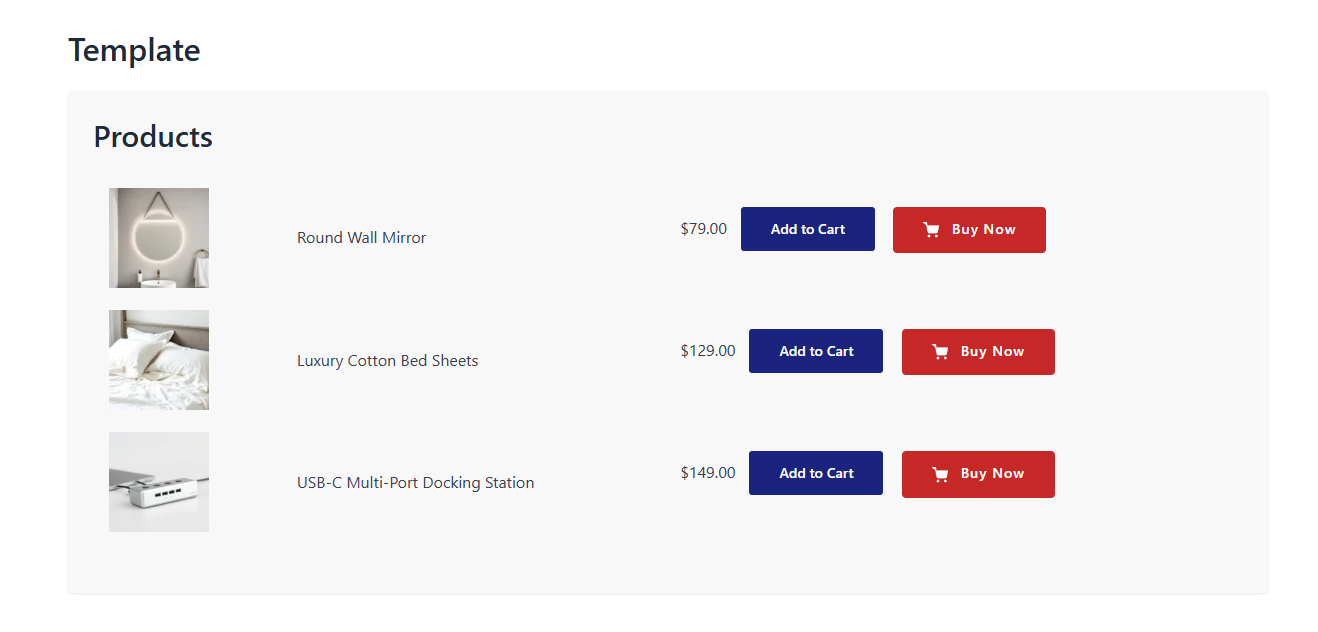
product-table | Displays products in a table layout | Product lists, comparison-style checkout |
product-list | Displays products in a list layout | Simple product selection |
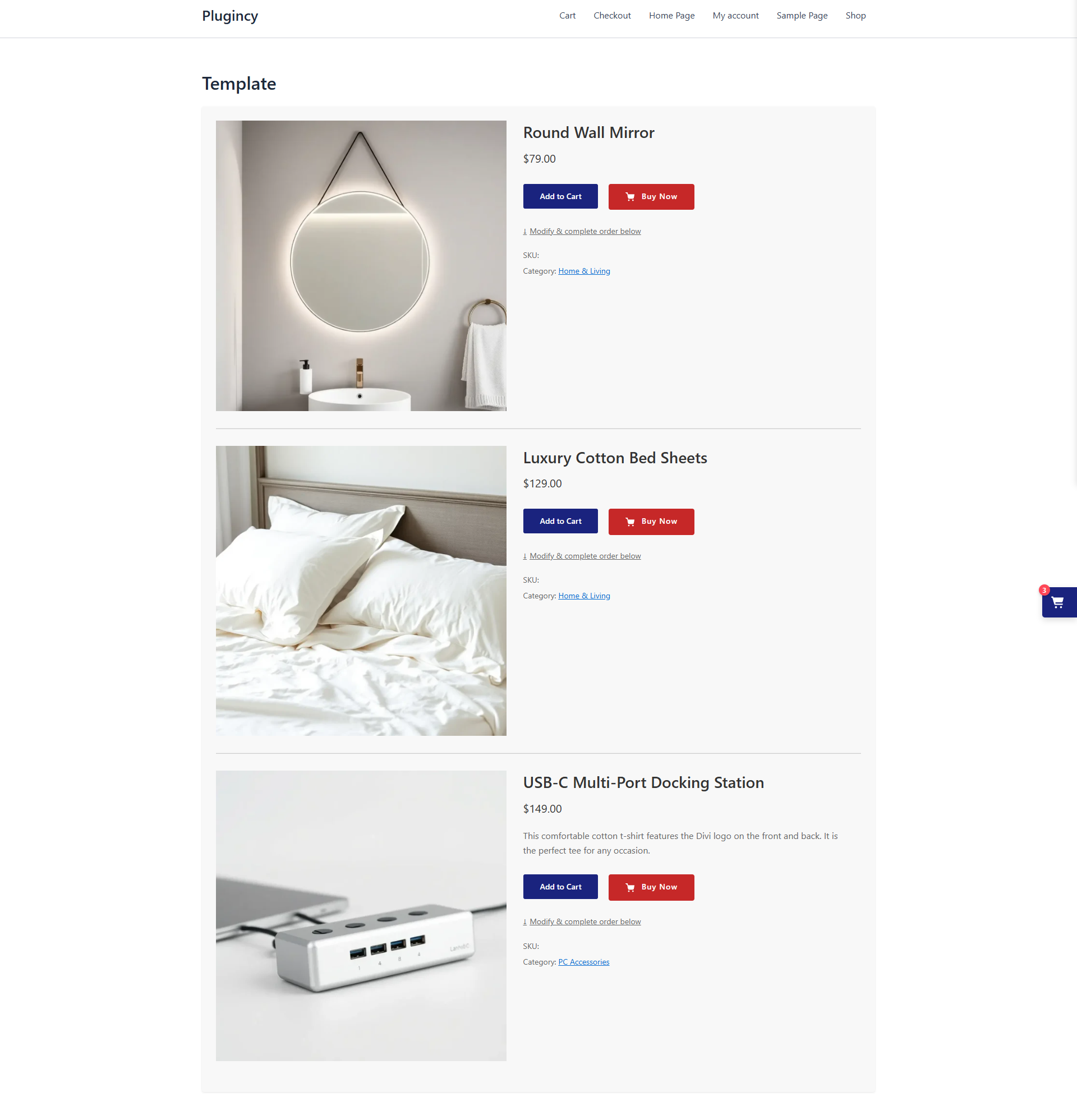
product-single | Displays one product-style layout | Focused offers |
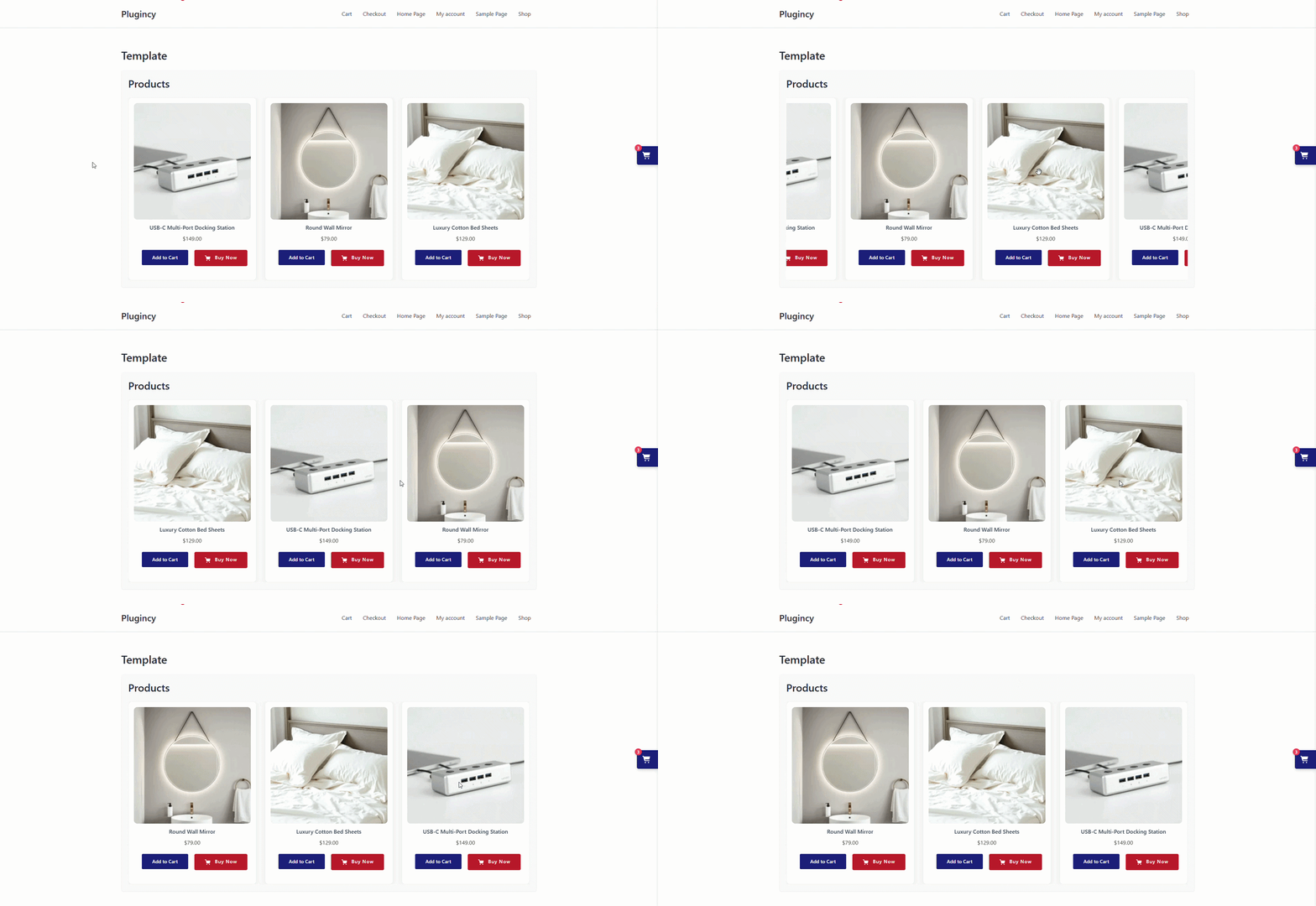
product-slider | Displays products in a slider | Visual product browsing |
product-accordion | Displays products in accordion sections | Compact pages |
product-tabs | Displays products in tabs | Product groups or plan comparison |
pricing-table | Displays products like pricing plans | Subscriptions, packages, plans |
product-selection | Lets customers select a product and update checkout | Choose-one-product checkout flows |
Example: product table
[plugincy_one_page_checkout product_ids="152,153,154" template="product-table"]
Example: product list
[plugincy_one_page_checkout product_ids="152,153,154" template="product-list"]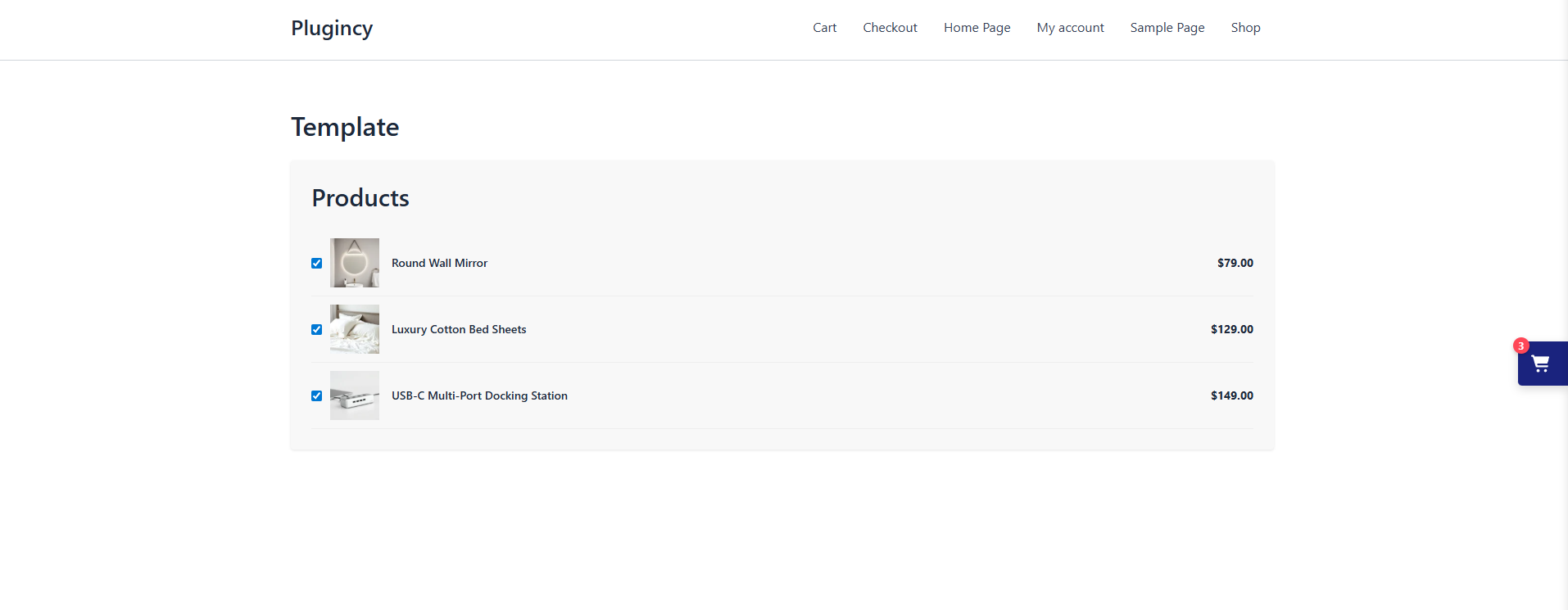
Example: product single
[plugincy_one_page_checkout product_ids="152,153,154" template="product-single"]
Example: product slider
[plugincy_one_page_checkout product_ids="152,153,154" template="product-slider"]
Example: product accordion
[plugincy_one_page_checkout product_ids="152,153,154" template="product-accordion"]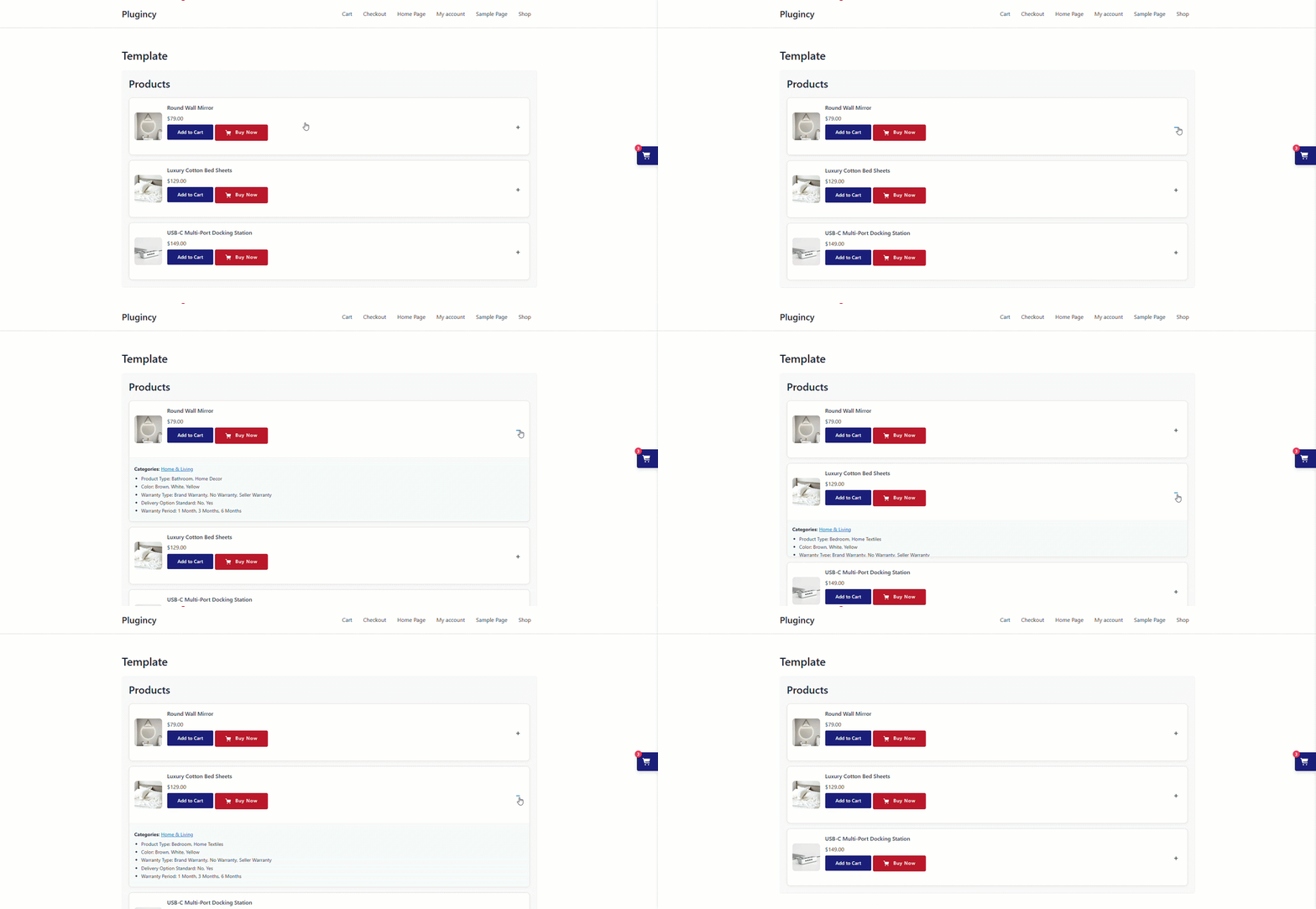
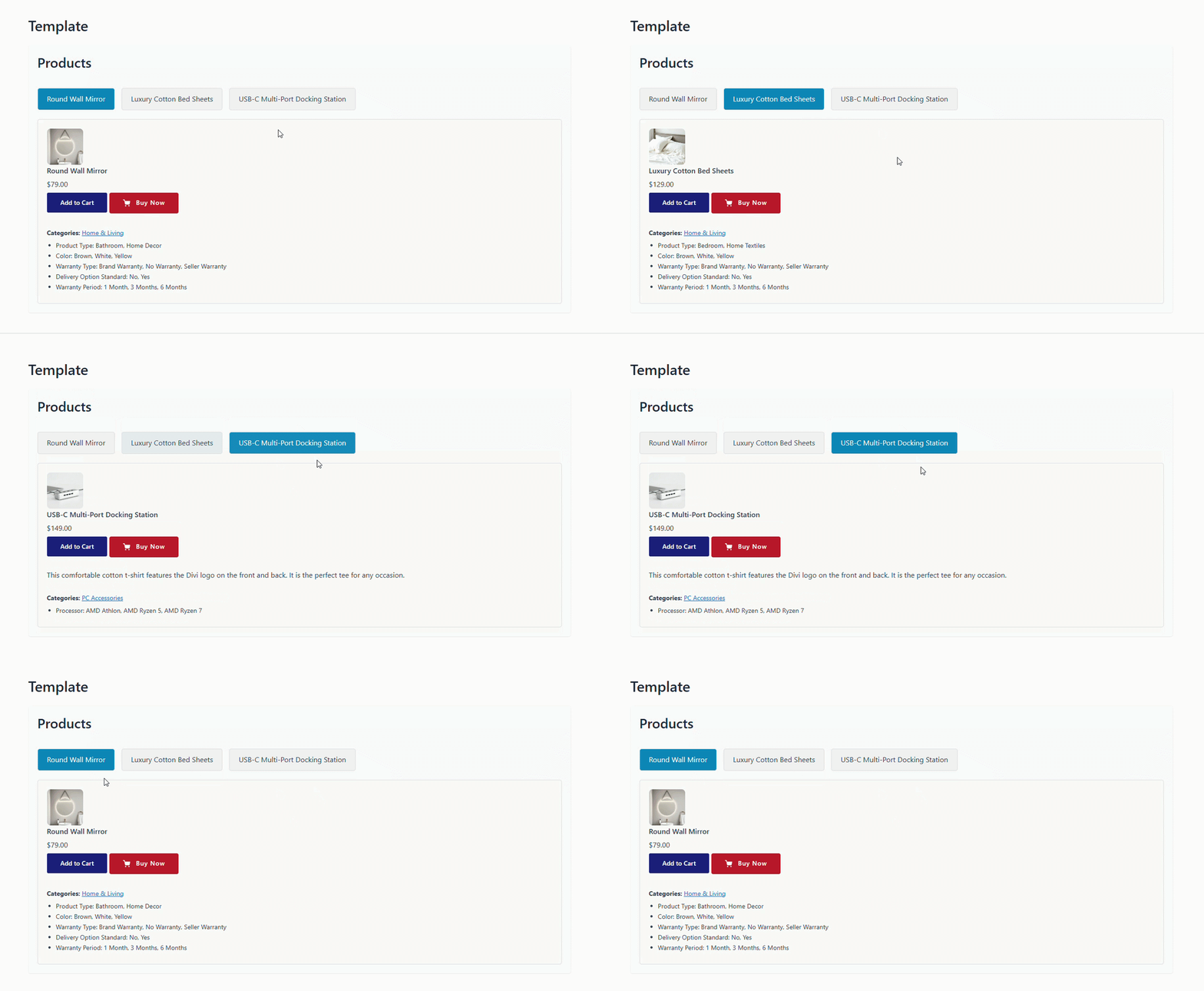
Example: product tabs
[plugincy_one_page_checkout product_ids="152,153,154" template="product-tabs"]
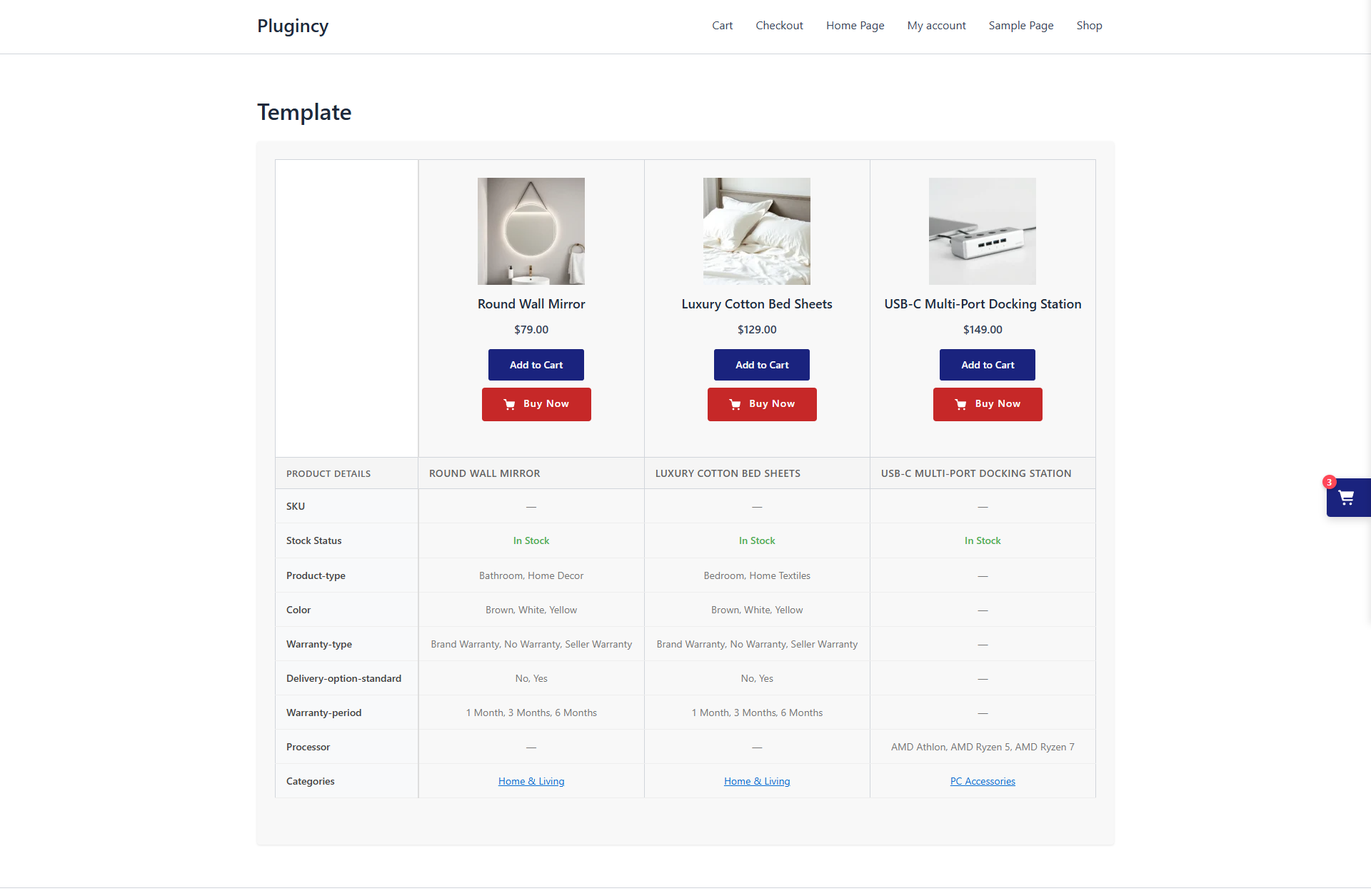
Example: pricing table
[plugincy_one_page_checkout product_ids="152,153,154" template="pricing-table"]
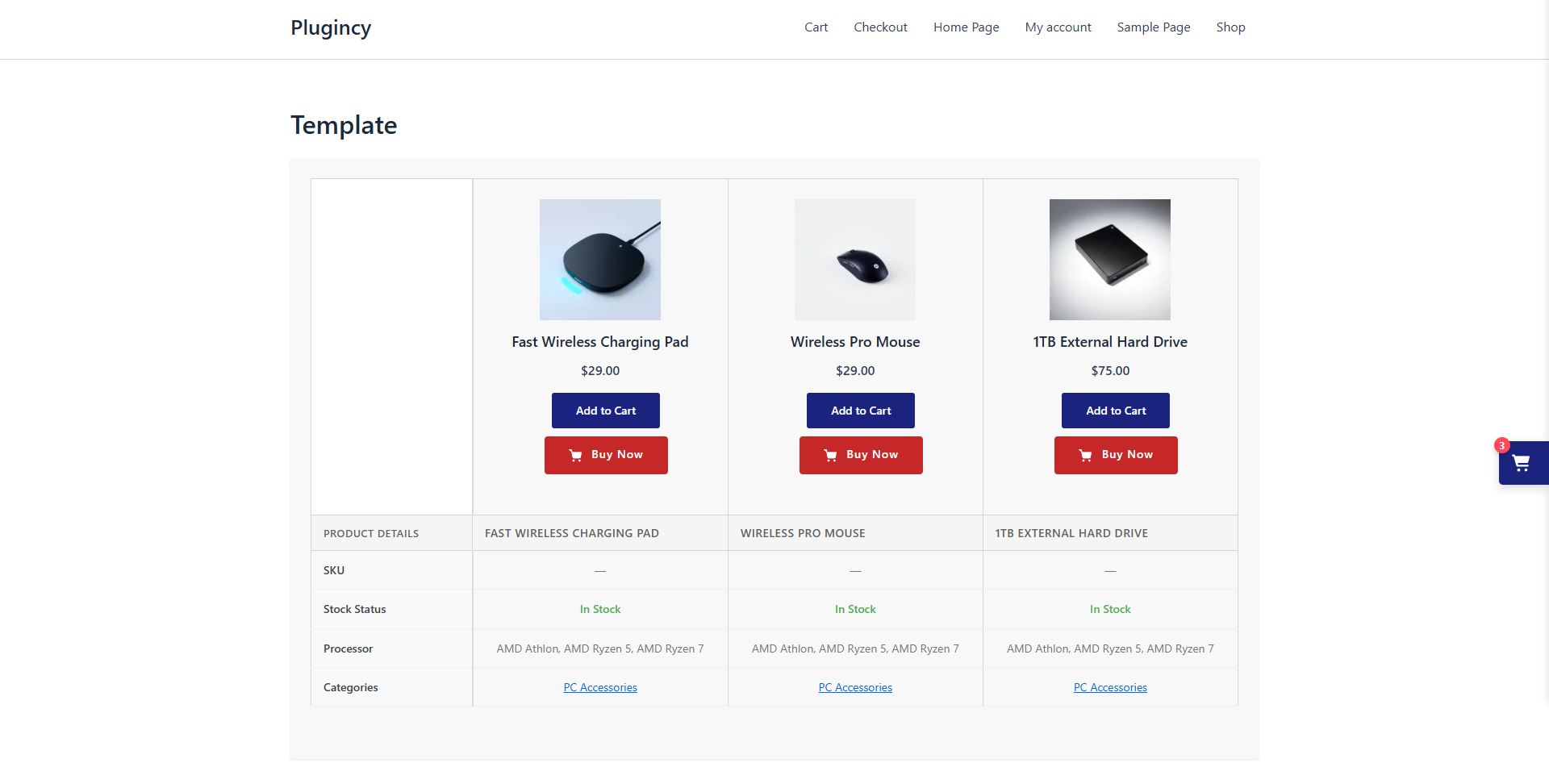
Example: product selection
[plugincy_one_page_checkout product_ids="152,153,154" template="product-selection"]
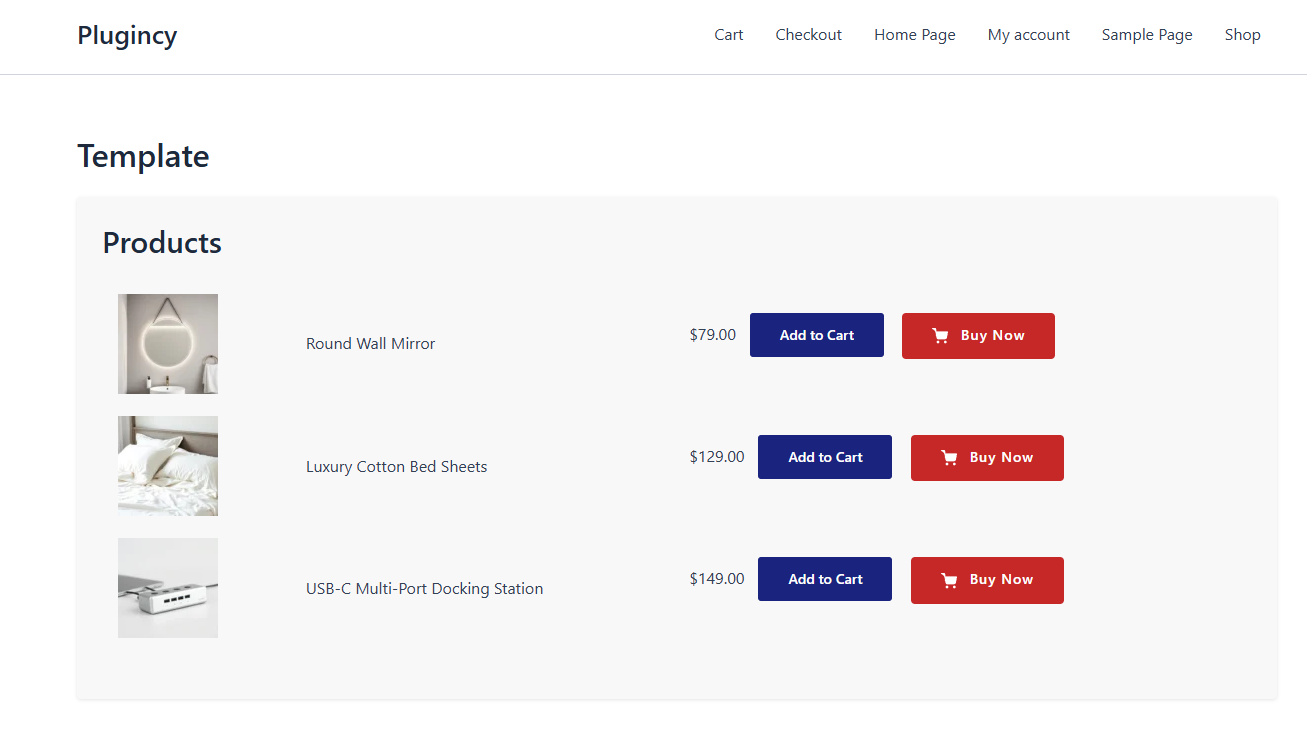
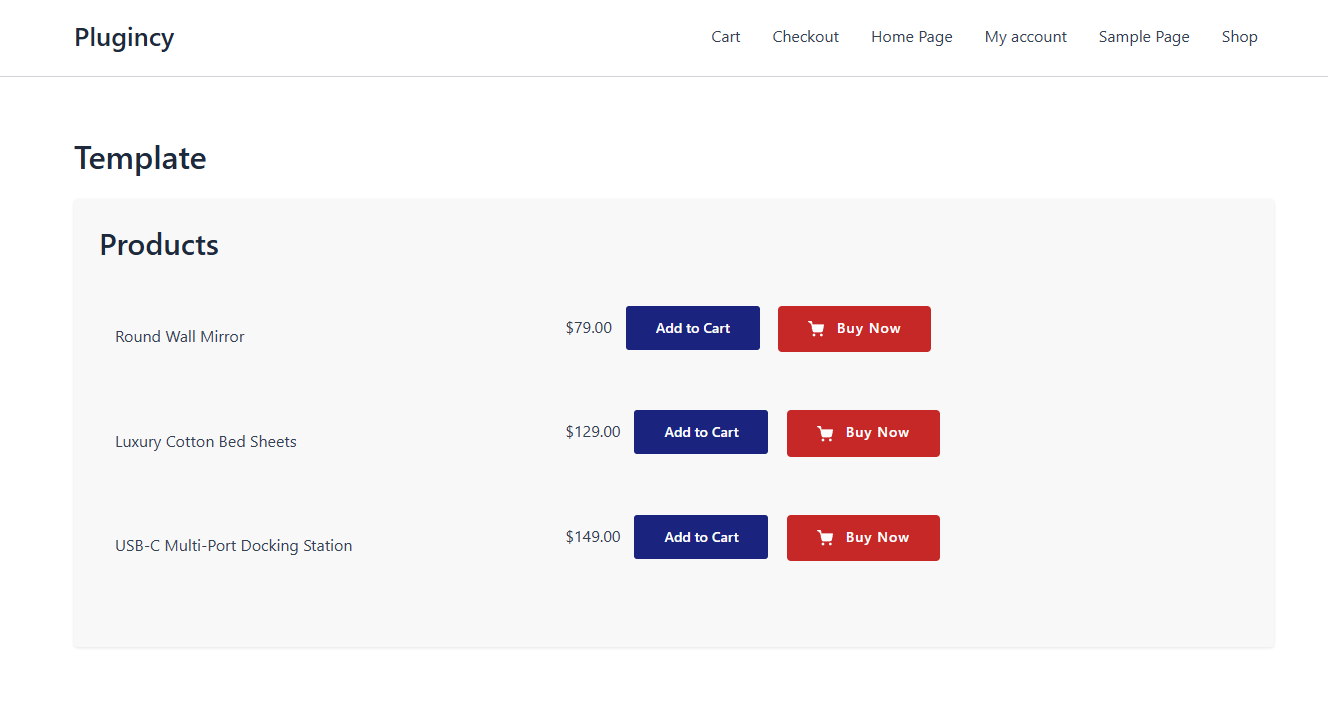
Show or hide product images
Use show_images to control product images.
Show images:
[plugincy_one_page_checkout product_ids="152,153,154" show_images="yes"]
Hide images:
[plugincy_one_page_checkout product_ids="152,153,154" show_images="no"]
Recommendation
Use images for visual products such as clothing, accessories, cosmetics, and physical goods.
Hide images for simple service plans, digital products, or pricing-table style layouts where text is more important.
Template position
Use template_position to control where the product selection/display area appears compared with the checkout form.
Example:
[plugincy_one_page_checkout product_ids="152,153,154" template="product-table" template_position="before"]
Another example:
[plugincy_one_page_checkout product_ids="152,153,154" template="product-tabs" template_position="after"]
Common use
| Position | Best used for |
|---|---|
before | Show product options before checkout |
after | Show product options after checkout |
Use the position that creates the clearest checkout flow for your page layout.
Product labels
Use product_label to change the product section label.
[plugincy_one_page_checkout product_ids="152,153,154" product_label="Choose Your Product"]
Use variation_label to change the variation selection label.
[plugincy_one_page_checkout product_ids="152,153,154" variation_label="Choose an Option"]
Use updating_selection_text to change the loading/update message when product selection changes.
[plugincy_one_page_checkout product_ids="152,153,154" updating_selection_text="Updating your checkout..."]
Styling attributes
You can customize the appearance of the shortcode output using styling attributes.
Primary color
[plugincy_one_page_checkout product_ids="152,153,154" primary_color="#6D28D9"]
Secondary color
[plugincy_one_page_checkout product_ids="152,153,154" secondary_color="#F3E8FF"]
Border radius
[plugincy_one_page_checkout product_ids="152,153,154" border_radius="12px"]
Spacing
[plugincy_one_page_checkout product_ids="152,153,154" spacing="20px"]
Button style
[plugincy_one_page_checkout product_ids="152,153,154" button_style="rounded"]
Complete examples
Product table checkout
[plugincy_one_page_checkout product_ids="152,153,154" template="product-table" show_images="yes"]
Use this for a clean product list with checkout on the same page.
Category checkout page
[plugincy_one_page_checkout category="hoodies" template="product-list" show_images="yes"]
Use this for a category-specific checkout page.
Product tabs checkout
[plugincy_one_page_checkout product_ids="152,153,154" template="product-tabs" product_label="Choose Your Plan"]
Use this for plans, packages, or grouped product offers.
Pricing table checkout
[plugincy_one_page_checkout product_ids="152,153,154" template="pricing-table" primary_color="#4F46E5" button_style="rounded"]
Use this for memberships, subscriptions, or packages.
Product selection checkout
[plugincy_one_page_checkout product_ids="152,153,154" template="product-selection" updating_selection_text="Updating checkout..."]
Use this when the customer should select one product and checkout immediately.
Attribute-based checkout
[plugincy_one_page_checkout attribute="pa_color" terms="black,blue" template="product-table"]
Use this for product groups based on attributes.
Best practices
Use product IDs for campaign pages
If the page is built for a specific campaign, use product_ids so only the selected products appear.
Use categories for dynamic product groups
If you want the checkout page to update automatically when products are added to a category, use category.
Keep product selection simple
Avoid showing too many products on a one-page checkout page. Too many choices can reduce conversions.
Use clear labels
Change product labels so customers understand what to do.
Example:
product_label="Choose Your Package"
Test variable products
If your products have variations, test the full flow before publishing the page.
Exclude shortcode pages from cache
Do not aggressively cache pages that contain checkout shortcodes. Checkout and cart pages should stay dynamic.
Use one checkout shortcode per page
Avoid placing multiple checkout shortcodes on the same page unless you have tested the layout carefully.
Troubleshooting
Products are not showing
Check:
- Product IDs are correct.
- Products are published.
- Products are in stock.
- Category/tag/attribute slugs are correct.
- Products are visible in WooCommerce catalog/search.
- The shortcode syntax is correct.
Checkout form is empty
Check:
- The cart has products.
- Auto-add behavior is working.
- Products are purchasable.
- WooCommerce checkout page is configured.
- Checkout page is not cached.
- There are no JavaScript errors.
Variable product does not work
Check:
- Product variations are published.
- Variation attributes are configured correctly.
- Variation is in stock.
- Customer selected required variation options.
- The variation ID is valid if used.
Styling does not look correct
Check:
- Theme CSS is not overriding plugin styles.
- Page builder spacing is not conflicting.
- Custom colors use valid HEX codes.
- Cache/minification has been cleared.