
This section explains how to control the product information shown inside the Floating Cart. You can decide which cart item elements are visible, how product variations appear, and which custom cart item meta fields should be displayed.
Use these settings when you want more control over how cart products appear in the cart drawer.
Item Display Settings
Floating Cart item display settings control what customers see for each product inside the drawer.
Depending on your configuration, each cart item can show:
- Selection checkbox
- Product image
- Remove item button
- Product title
- Product price
- Item meta
- Quantity controls
- Variation editor
The plugin’s cart item renderer supports these item-level controls, including product image, title, price, quantity controls, remove button, variation editor, and filtered item meta.
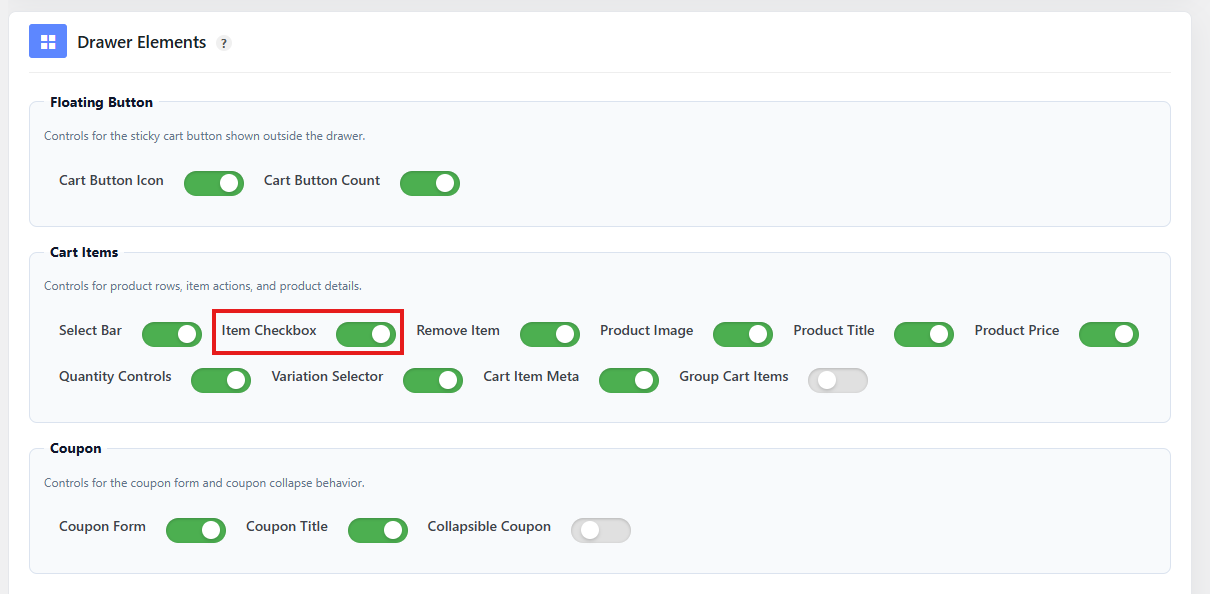
Show or Hide Item Selection Checkbox
The item selection checkbox allows customers to select individual cart items.
This is useful when your cart drawer supports item-level actions or selective checkout behavior.
Recommended setting:
| Store Type | Recommendation |
|---|---|
| Simple stores | Disabled |
| Stores with advanced cart actions | Enabled |
| Stores with many cart items | Enabled |
Disable this option if you want a cleaner, simpler cart layout.
Show or Hide Remove Item Button
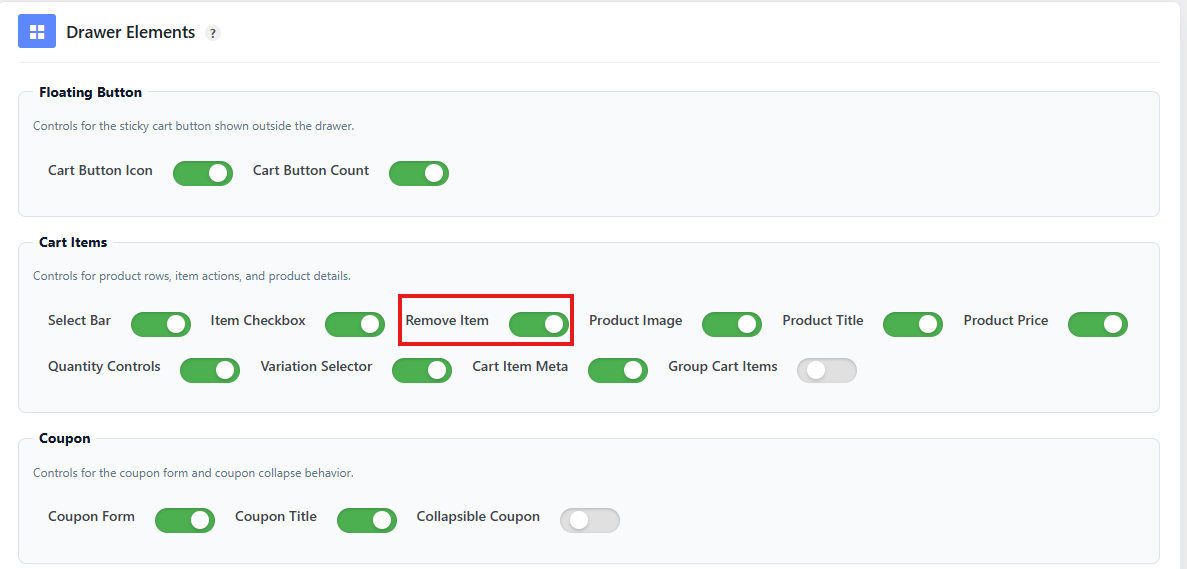
The remove item button allows customers to remove a product from the cart directly inside the Floating Cart.
Recommended setting: Enabled
This gives customers better control without requiring them to visit the cart page.
When enabled, a remove icon appears with the cart item. Customers can click it to remove the item from the cart drawer.
Show or Hide Product Image
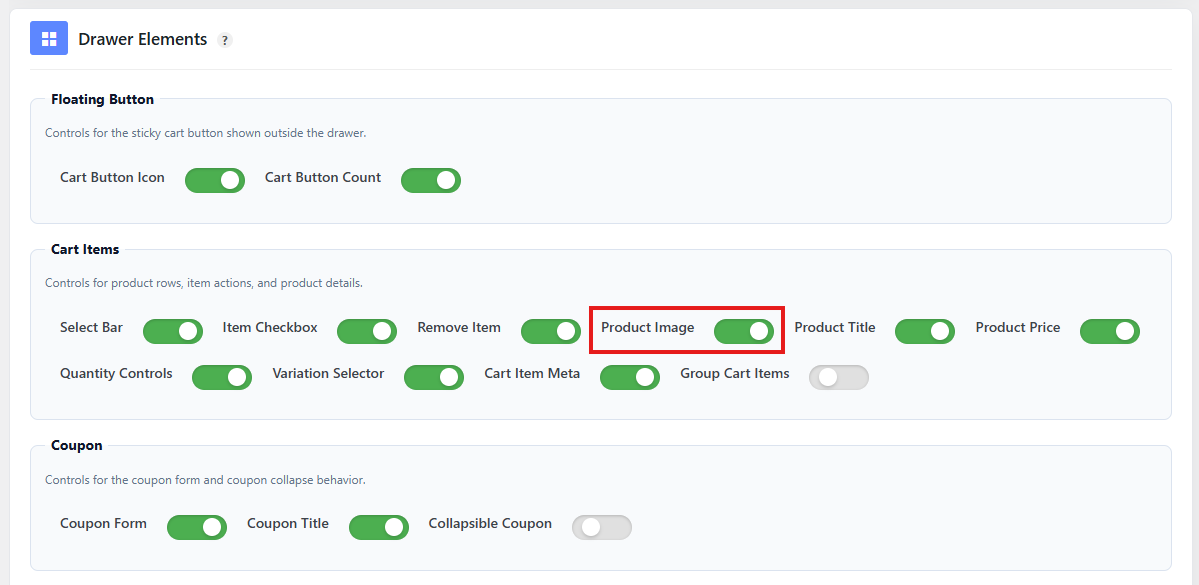
The product image displays the product thumbnail inside the Floating Cart.
Recommended setting: Enabled
Product images help customers quickly recognize items in their cart.
Disable product images if:
- You want a very compact cart drawer.
- Your products do not use meaningful images.
- You want the cart to load with a simpler visual layout.
Show or Hide Product Title
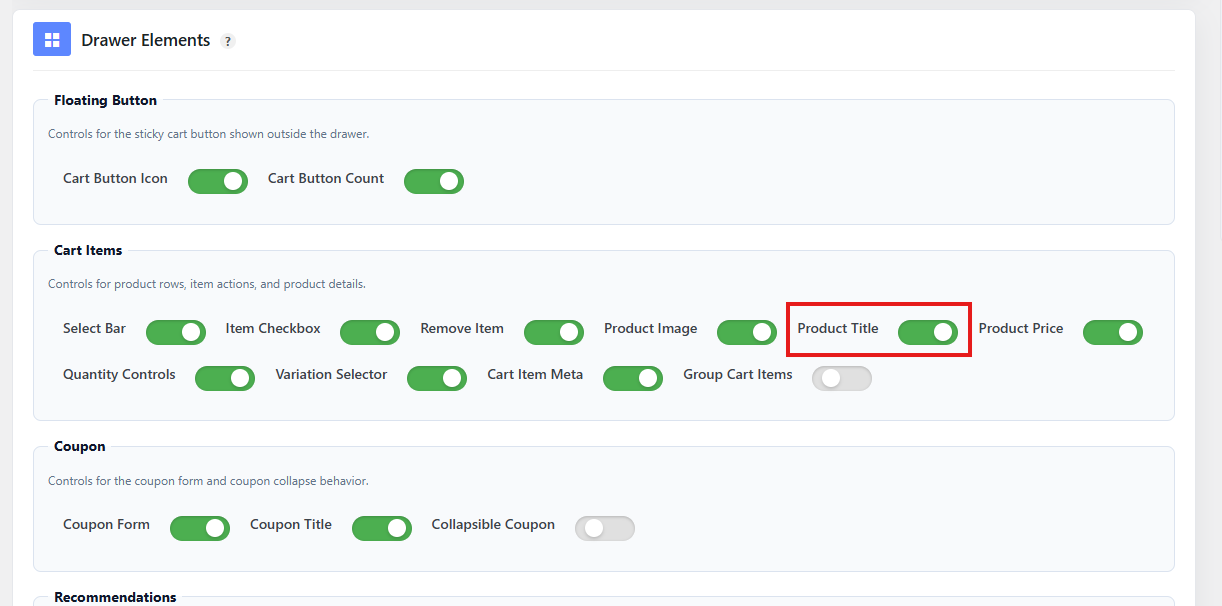
The product title displays the name of the product in the cart drawer.
Recommended setting: Enabled
Product titles are important because they help customers confirm which items they added.
Disable this only if your layout uses another clear way to identify products.
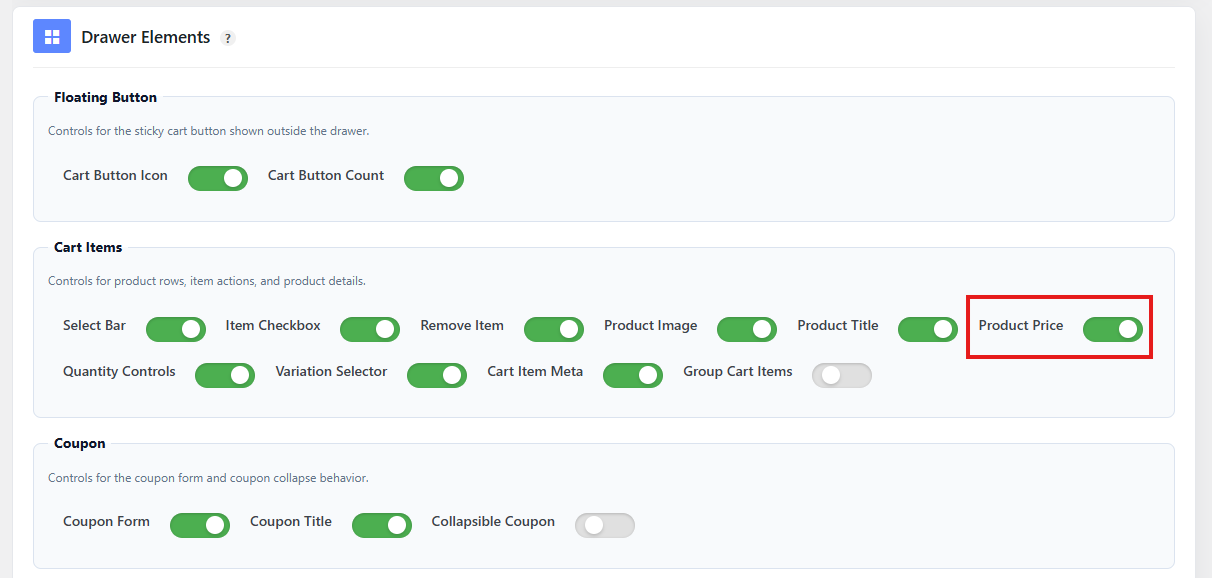
Show or Hide Product Price
The product price displays the item price in the cart drawer.
Recommended setting: Enabled
This helps customers review costs before checkout.
If your store has complex pricing, discounts, or subscriptions, keep price visible so customers understand the cart total.
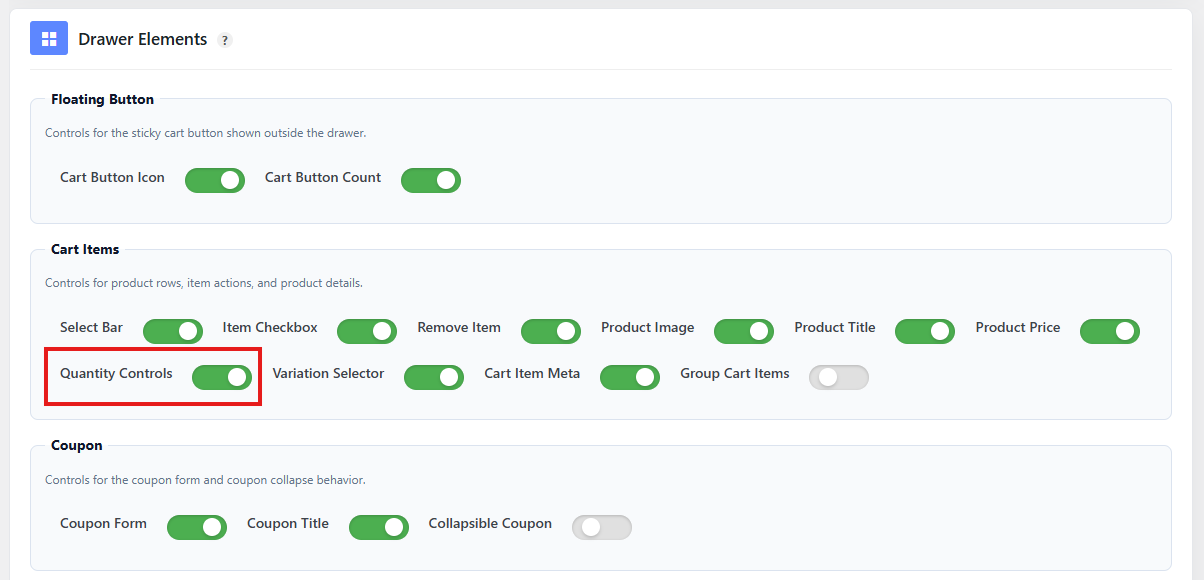
Show or Hide Quantity Controls
Quantity controls allow customers to increase or decrease product quantity inside the Floating Cart.
Recommended setting: Enabled
When enabled, customers can update item quantity directly from the cart drawer.
This improves the shopping experience because customers do not need to visit the cart page just to change quantities.
Quantity controls usually include:
- Minus button
- Quantity input field
- Plus button
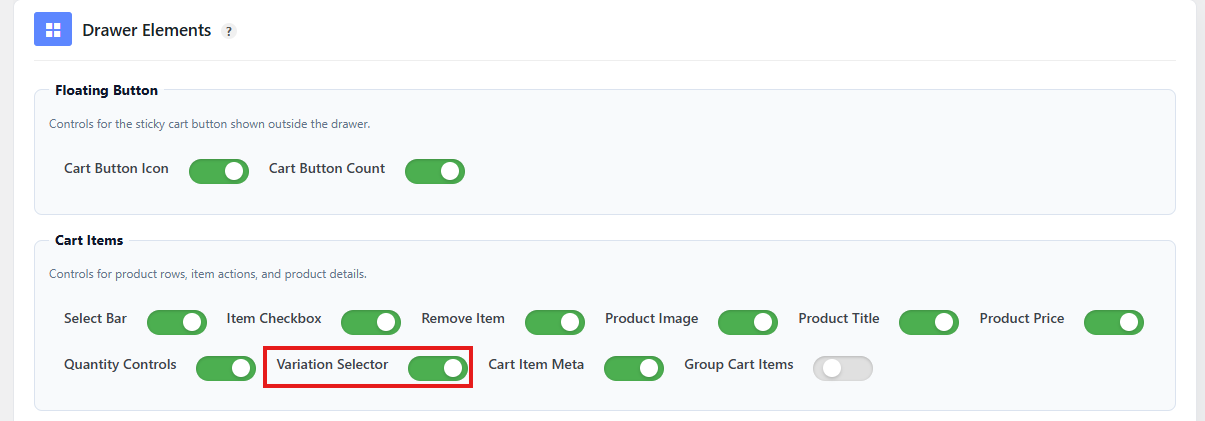
Show or Hide Variation Selector
The variation editor allows customers to change selected product options from the cart.
For example, a customer may change:
- Size
- Color
- Material
- Style
- Any other variation attribute
Recommended setting:
| Store Type | Recommendation |
|---|---|
| Stores with variable products | Enabled |
| Stores with simple products only | Disabled |
| Stores with size/color options | Enabled |
The variation editor only appears when the cart item supports variation switching. It is most useful for variable products.
The plugin includes variation editor logic for cart items and can render variation controls in cart-related contexts.
Show or Hide Item Meta
Item meta displays extra information attached to a cart item.
Examples of item meta:
- Size
- Color
- Custom product field
- Selected add-on
- Location
- Booking option
- Personalization text
- Extra product option
Recommended setting: Enable only if your store uses meaningful item meta
If your products use custom fields, add-ons, or variation details, item meta helps customers confirm their selections.
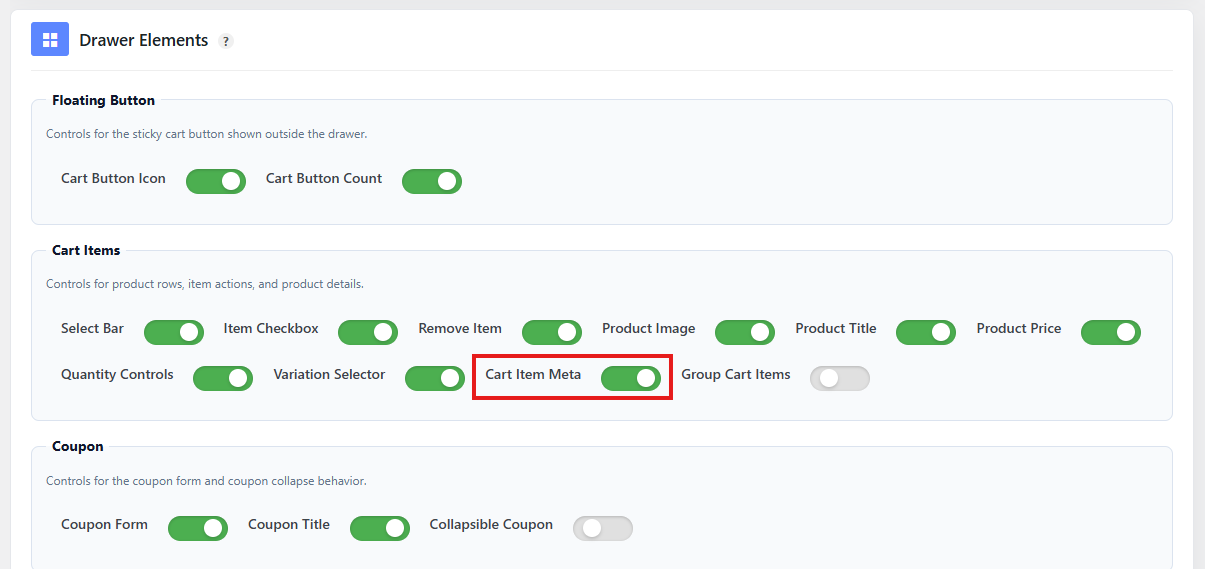
If your products do not use extra cart item data, you can disable this option for a cleaner layout.
Variation Display Options
Product variations can be displayed in different ways inside the Floating Cart.
For example, a variable product may appear as:
T-Shirt - Blue, Large
or:
T-Shirt
Color: Blue
Size: Large
The best option depends on how much detail you want to show.
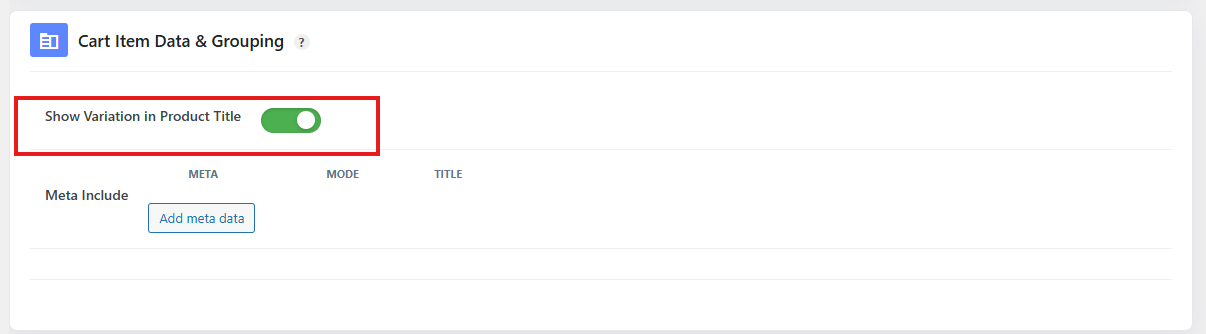
Show Variation in Product Title
When this option is enabled, variation details appear as part of the product title.
Example:
Hoodie - Black, Medium
Use this when you want a compact cart layout.
Recommended for:
- Simple variation products
- Stores with only one or two variation attributes
- Compact cart drawer designs
Show Variations as Separate Meta Rows
When variation details are not shown in the product title, they can be displayed as separate item meta rows.
Example:
Hoodie
Color: Black
Size: Medium
Use this when variation details are important and should be easier to read.
Recommended for:
- Fashion stores
- Product bundles
- Customizable products
- Stores with multiple attributes
- Stores where customers must confirm options before checkout
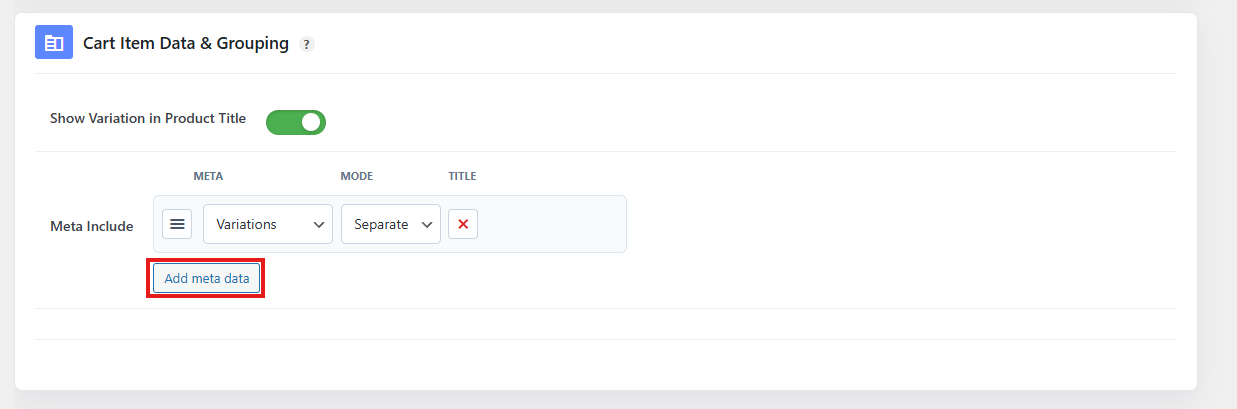
The plugin supports a special variation meta rule and can output variation rows separately when variation display is handled as meta.
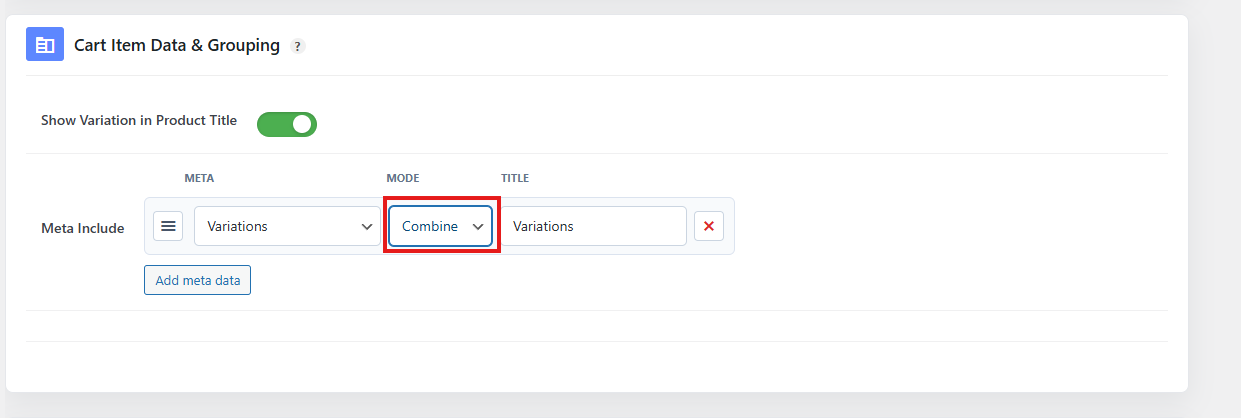
Combine Variation Values into One Row
You can also combine variation values into a single meta row.
Example:
Hoodie
Variations: Black, Medium
This keeps the cart drawer shorter while still showing important variation information.
Recommended for:
- Stores with limited drawer space
- Mobile-first layouts
- Products with short variation values
The plugin supports variation meta display modes, including separate and combine.
Special Variation Meta Key
The Floating Cart uses this special key for variation display rules:
onepaqucpro_variations
Use this key when configuring variation display inside the Floating Cart item meta settings.
This key represents product variation details and can be configured to show variation values separately or combined.
The plugin defines onepaqucpro_variations as the dedicated Floating Cart variation meta key.
Item Meta Include Rules
The Floating Cart can show only selected item meta fields.
This is useful because cart items may contain internal or technical meta fields that customers do not need to see.
You can choose which meta keys should appear in the Floating Cart.
Example:
Color
Size
Engraving Text
Delivery Date
Only selected meta fields should be shown to customers.
Add Custom Cart Item Meta Keys
If your store uses custom product options, add-ons, or third-party plugins, you may need to add custom meta keys manually.
Examples:
engraving_text
gift_message
delivery_date
custom_size
After adding a custom meta key, the Floating Cart can display that value if it exists in the cart item.
Use this for:
- Product add-ons
- Custom fields
- Gift messages
- Booking data
- Measurement fields
- Multi-location inventory fields
- Extra product options
Rename Meta Labels
You can rename meta labels so they look better for customers.
Example:
| Meta Key | Customer-Friendly Label |
|---|---|
engraving_text | Engraving Text |
gift_message | Gift Message |
delivery_date | Delivery Date |
custom_size | Custom Size |
This makes the cart easier to understand.
Use short, clear labels.
Hidden/Internal Meta Keys
Some cart item meta keys should not be shown to customers because they are used internally.
For example, the plugin hides this meta key by default:
mulopimfwc_location
The Floating Cart meta system includes hidden meta key handling so internal fields can be excluded from display.
Do not show internal meta unless customers need to see it.
Meta Key Matching
The Floating Cart can match meta fields using normalized keys and labels.
For example, a field may be added as:
Gift Message
and normalized internally to:
gift-message
or:
gift_message
This helps the cart display the correct meta even when labels and keys are formatted differently.
The plugin includes meta identifier normalization and alias matching for Floating Cart item meta.
Example: Show Size and Color Under Product Title
Use this setup if you want variations shown clearly under each product.
Recommended settings:
| Setting | Value |
|---|---|
| Show Product Title | Enabled |
| Show Variation in Product Title | Disabled |
| Show Item Meta | Enabled |
| Add Variation Meta Key | onepaqucpro_variations |
| Variation Display Mode | Separate |
Result:
T-Shirt
Color: Blue
Size: Large
Example: Show Variations in One Compact Row
Use this setup if you want a shorter cart layout.
Recommended settings:
| Setting | Value |
|---|---|
| Show Product Title | Enabled |
| Show Variation in Product Title | Disabled |
| Show Item Meta | Enabled |
| Add Variation Meta Key | onepaqucpro_variations |
| Variation Display Mode | Combine |
| Meta Label | Variations |
Result:
T-Shirt
Variations: Blue, Large
Example: Show Custom Product Add-On Data
Use this setup if your store uses product add-ons or custom fields.
Example custom fields:
engraving_text
gift_message
delivery_date
Recommended settings:
| Setting | Value |
|---|---|
| Show Item Meta | Enabled |
| Add Meta Key | engraving_text |
| Label | Engraving Text |
| Add Meta Key | gift_message |
| Label | Gift Message |
| Add Meta Key | delivery_date |
| Label | Delivery Date |
Result:
Engraving Text: Happy Birthday
Gift Message: Please wrap this item
Delivery Date: May 20
Recommended Settings
For most stores, use this configuration:
| Setting | Recommended Value |
|---|---|
| Show Product Image | Enabled |
| Show Product Title | Enabled |
| Show Product Price | Enabled |
| Show Quantity Controls | Enabled |
| Show Remove Item Button | Enabled |
| Show Item Meta | Enabled if using variations/add-ons |
| Show Variation Editor | Enabled for variable products |
| Show Variation in Title | Optional |
| Variation Meta Mode | Separate for clarity, Combine for compact layout |
| Hide Internal Meta | Enabled |
Best Practice
Keep the cart item display clear and useful.
Recommended layout:
Product Image
Product Title
Price
Selected Options / Meta
Quantity Controls
Remove Button
Avoid showing too many technical fields. Only display information that helps customers confirm their order before checkout.