
The WooCommerce Add To Cart feature allows you to customize the text, style, behavior, and more for the Add To Cart button using the One Page Quick Checkout for WooCommerce plugin. This flexibility helps enhance the shopping experience for your customers.
Step 1: Install the Plugin
Before configuring the Add To Cart settings, ensure the plugin is installed. For detailed installation steps, please visit the Installation Guide Documentation Page.
Step 2: Navigate to Add To Cart General Settings
- Log in to your WordPress admin dashboard.
- Go to Onpage Checkout in the sidebar.
- Click on Add To Cart and then select General Settings.
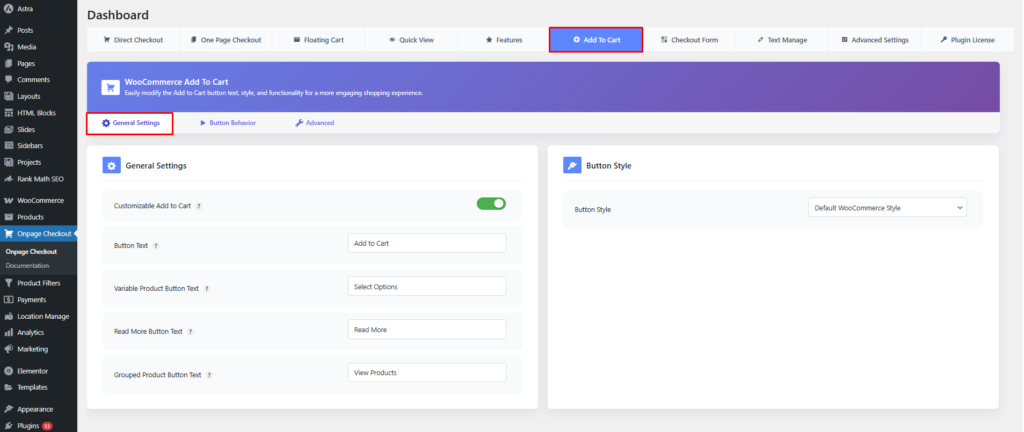
General Settings
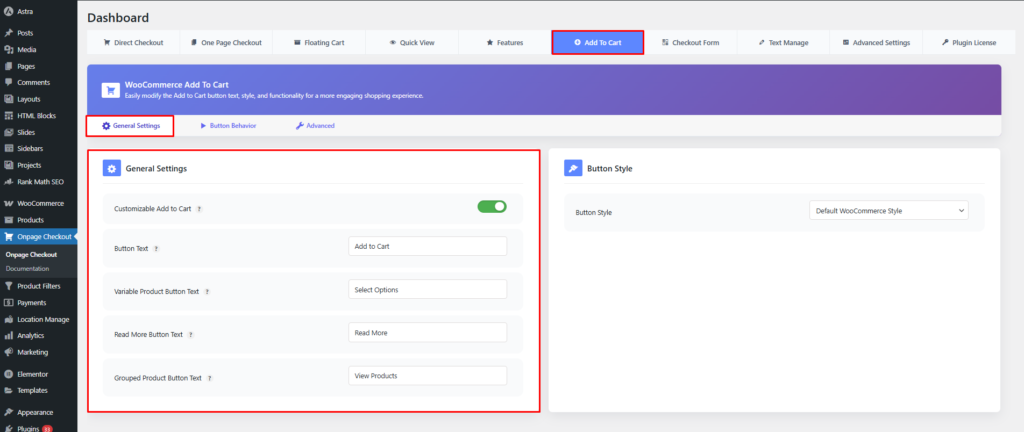
Customizable Add to Cart
- Customizable Add to Cart: Toggle this option to enable or disable custom styling and functionality for the Add to Cart button.
Button Text Customization
- Button Text: Customize the text displayed on the Add to Cart button for simple products.
- Variable Product Button Text: Customize the text for variable product buttons.
- Read More Button Text: Set the text for the Read More button for variable products.
- Grouped Product Button Text: Customize the text for grouped product buttons.
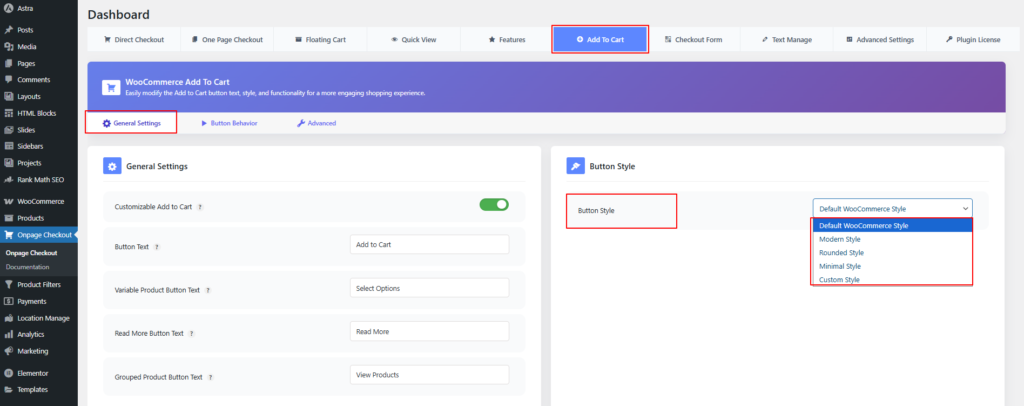
Button Style
The Button Style setting allows you to control the appearance of action buttons on the One Page Quick Checkout page. This helps ensure visual consistency with your store design and branding.
Available Button Styles
- Default WooCommerce Style
Uses the default WooCommerce button styling inherited from the active theme. - Modern Style
Applies a clean, modern button design with improved spacing and visual hierarchy. - Rounded Style
Displays buttons with rounded corners for a softer, more user-friendly appearance. - Minimal Style
Uses a simple, distraction-free button design focused on clarity and usability. - Custom Style
Allows full customization of button appearance using custom CSS.
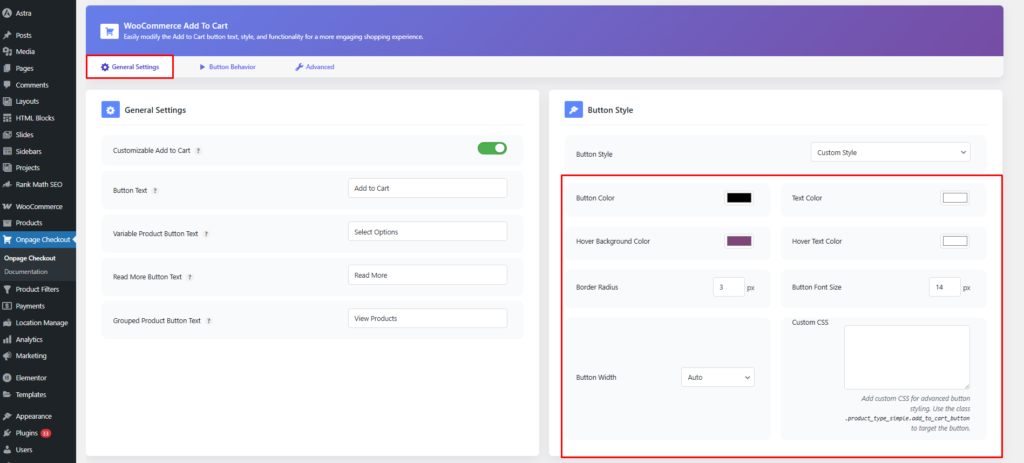
- Button Color: Set the background color of the button.
- Text Color: Customize the text color of the button.
- Hover Background Color: Define the background color when hovering over the button.
- Hover Text Color: Set the text color when the button is hovered over.
- Border Radius: Specify the border radius in pixels (e.g., 3 px).
- Button Font Size: Adjust the font size in pixels (e.g., 14 px).
- Button Width: Choose the button width:
- Auto
- Full Width
- Custom Width
- Custom CSS: Add your own CSS to customize button styling using the
.product_type_simple.add_to_cart_buttonclass for advanced design control.
This documentation provides a comprehensive guide for managing the WooCommerce Add To Cart General Settings in the One Page Quick Checkout for WooCommerce. For further assistance, please refer to our support section or contact our support team.