
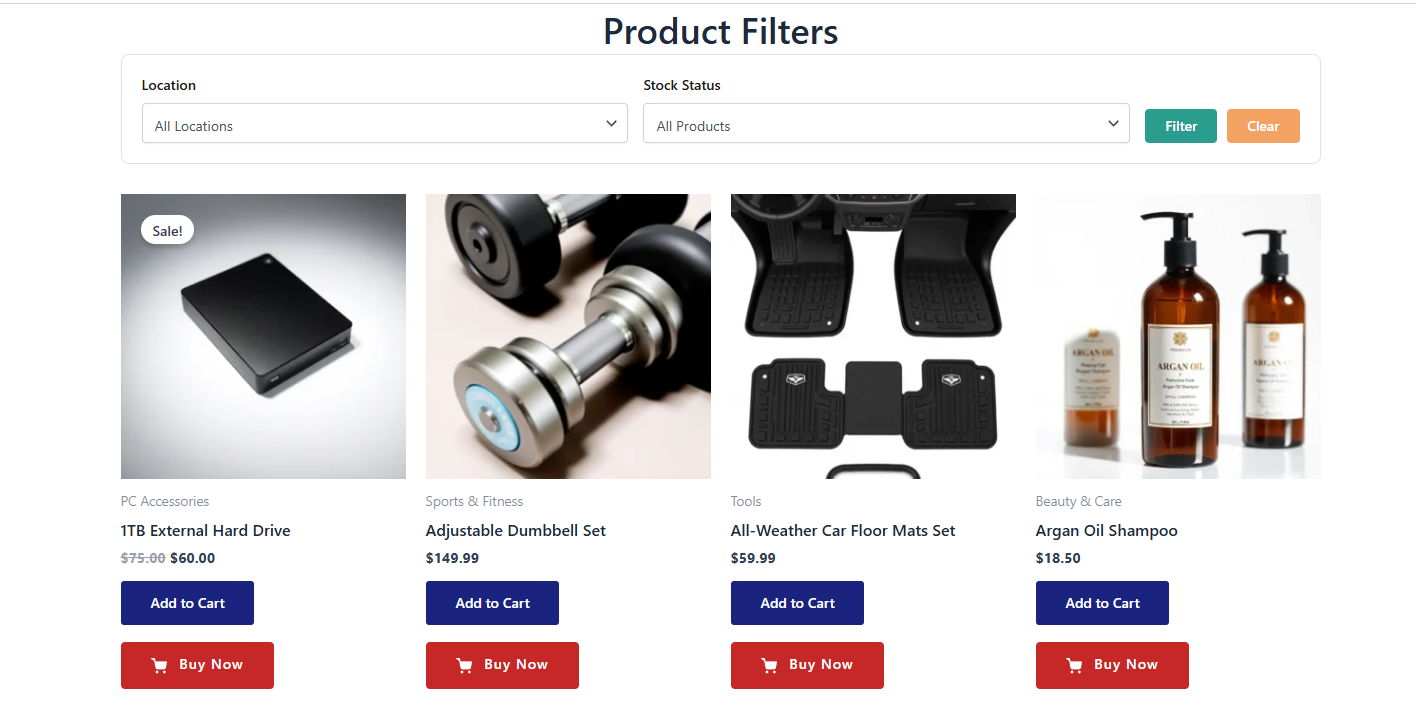
The [mulopimfwc_product_filter] shortcode provides an AJAX-powered product filter that allows customers to filter products by location and stock status without reloading the page. This makes product browsing faster, smoother, and more user-friendly.
What It Does
- Adds a location filter dropdown so customers can select products available at specific store locations.
- Adds a stock status filter dropdown to show only in-stock or out-of-stock products.
- Uses AJAX filtering, meaning results update instantly without page reload.
- Supports pagination and caching for efficient browsing.
- Can be enabled automatically on shop/archive pages or placed manually with a shortcode.
This feature is part of the Multi Location Product & Inventory Management for WooCommerce plugin, designed to simplify product discovery across multiple stores.
Enable the Product Filter
Before using the Ajax Product Filter, you must enable it in the settings.
- From your WordPress dashboard, go to Location Manage > Settings.
- Navigate to the Location Info Management tab.
- Toggle on the option labeled Enable Product Filter.
- Click Save Changes.
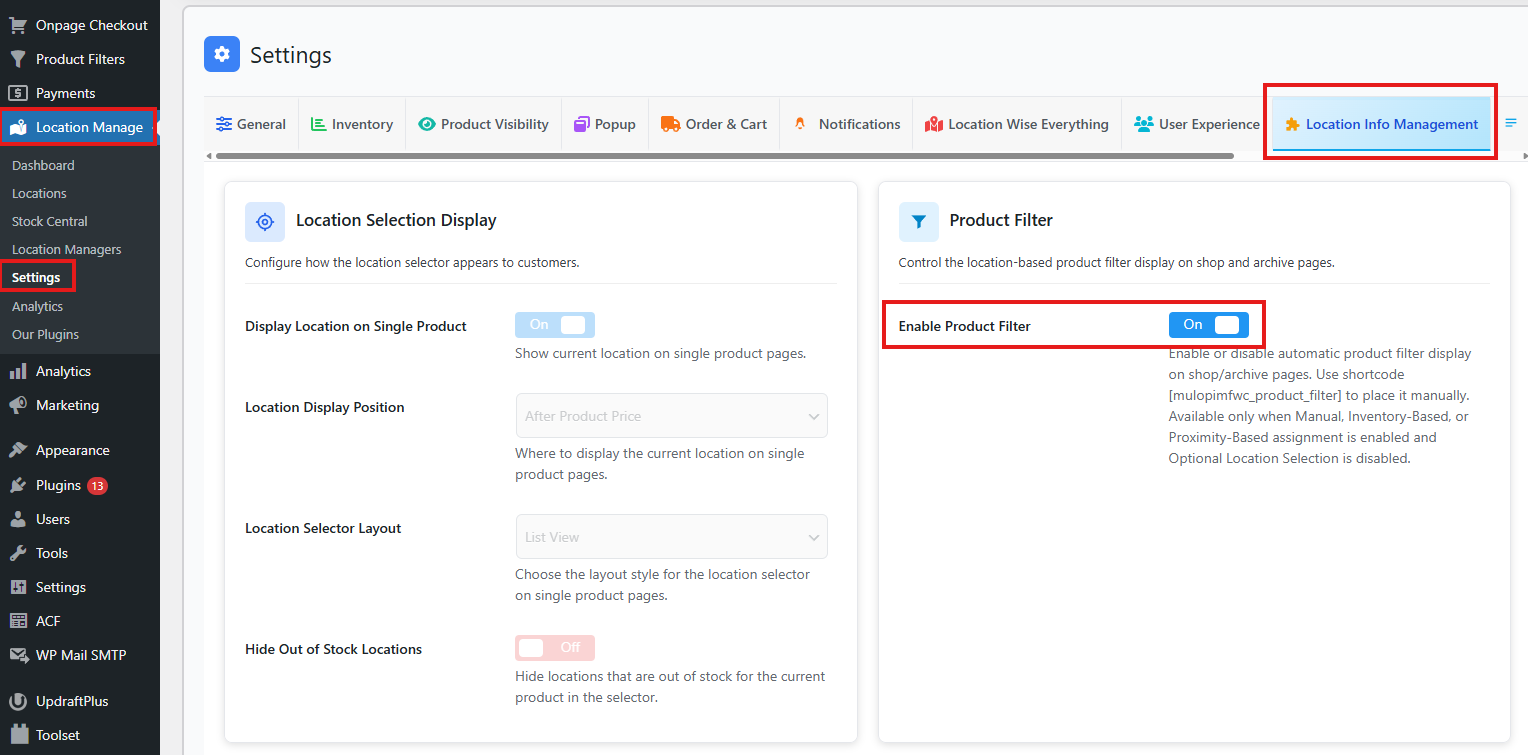
Conclusion: Enabling this option activates the Ajax Product Filter, allowing customers to filter products by location.
Resolve Enabling Issues
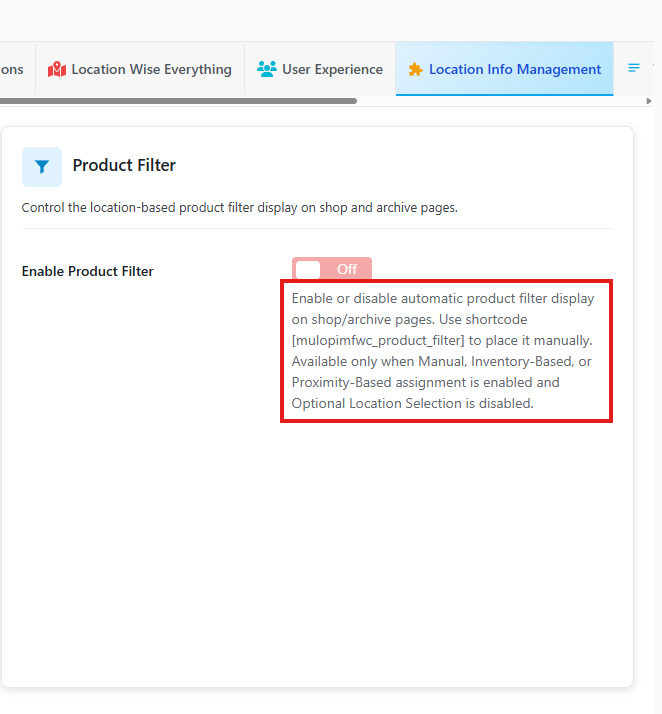
Sometimes you may face issues where the Enable Product Filter button is not clickable. This is usually due to order and cart settings.
- Below the Enable Product Filter option, read the description carefully. It explains that this feature cannot be used when Manual, Inventory-Based, or Proximity-Based assignment is enabled and Optional Location Selection is disabled.
- To check your settings, go to Location Manage > Settings > Order & Cart.
- Look for the Order Assignment Method.
- If it is set to Customer Selection, the Product Filter cannot be used.
- Change it to Inventory-Based, Proximity-Based, or Manual Assignment.
- Click Save Changes.
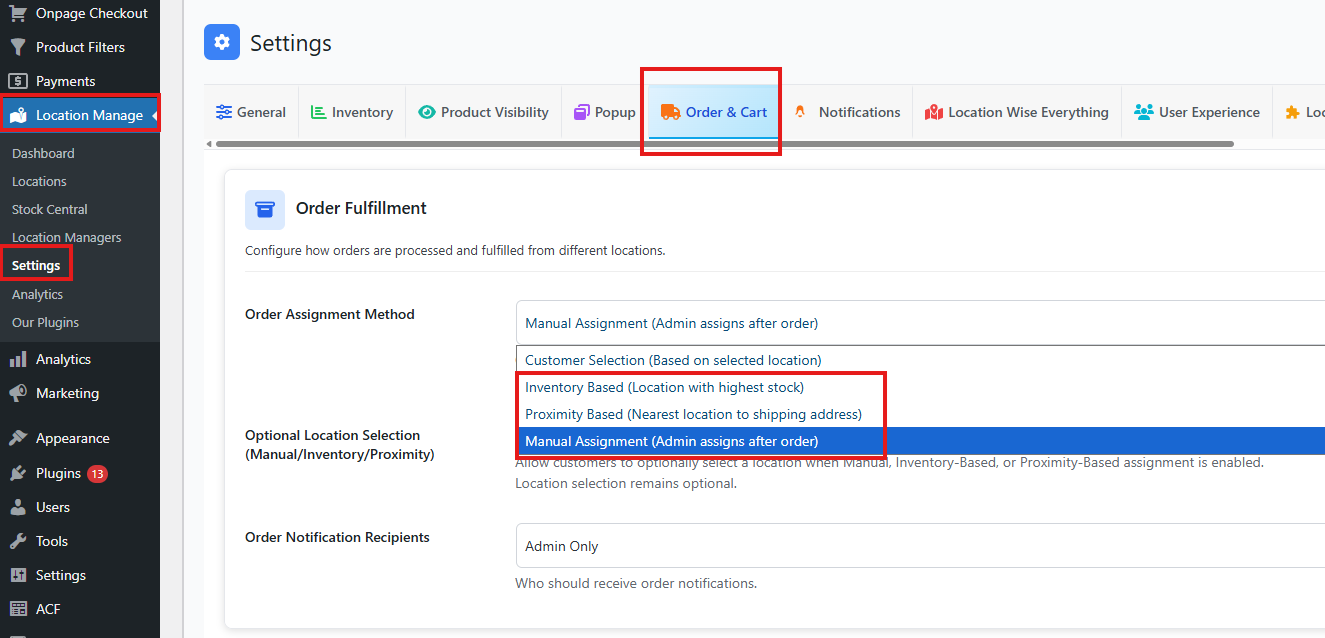
Conclusion: Adjusting the order assignment method ensures the Product Filter can be enabled and used correctly.
Basic Usage
[mulopimfwc_product_filter]
This will display the product filter with default settings.
Parameters
| Parameter | Description | Values | Example |
|---|---|---|---|
| location | Show location filter dropdown | yes or no | location="yes" |
| stock | Show stock status filter dropdown | yes or no | stock="yes" |
Example Shortcodes
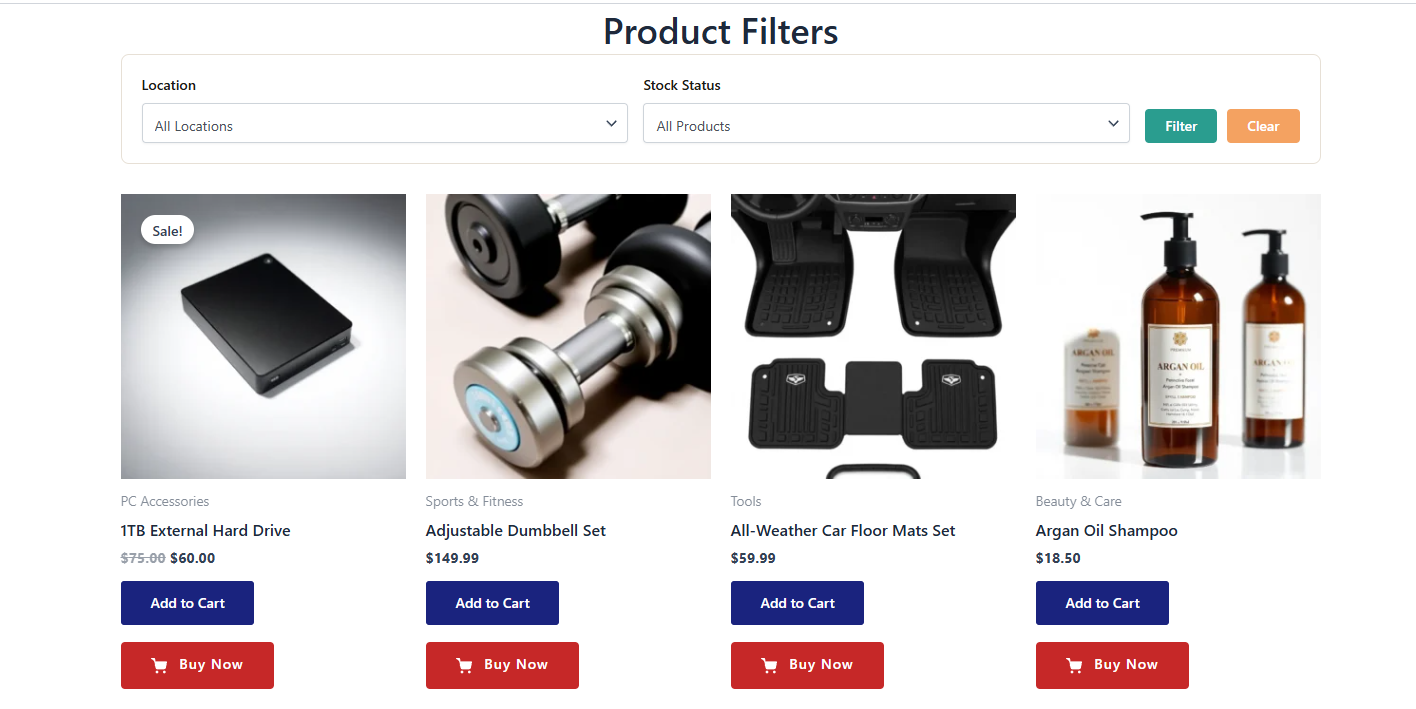
Enable Both Location and Stock Filters
[mulopimfwc_product_filter location="yes" stock="yes"]
Show Only Location Filter
[mulopimfwc_product_filter location="yes" stock="no"]
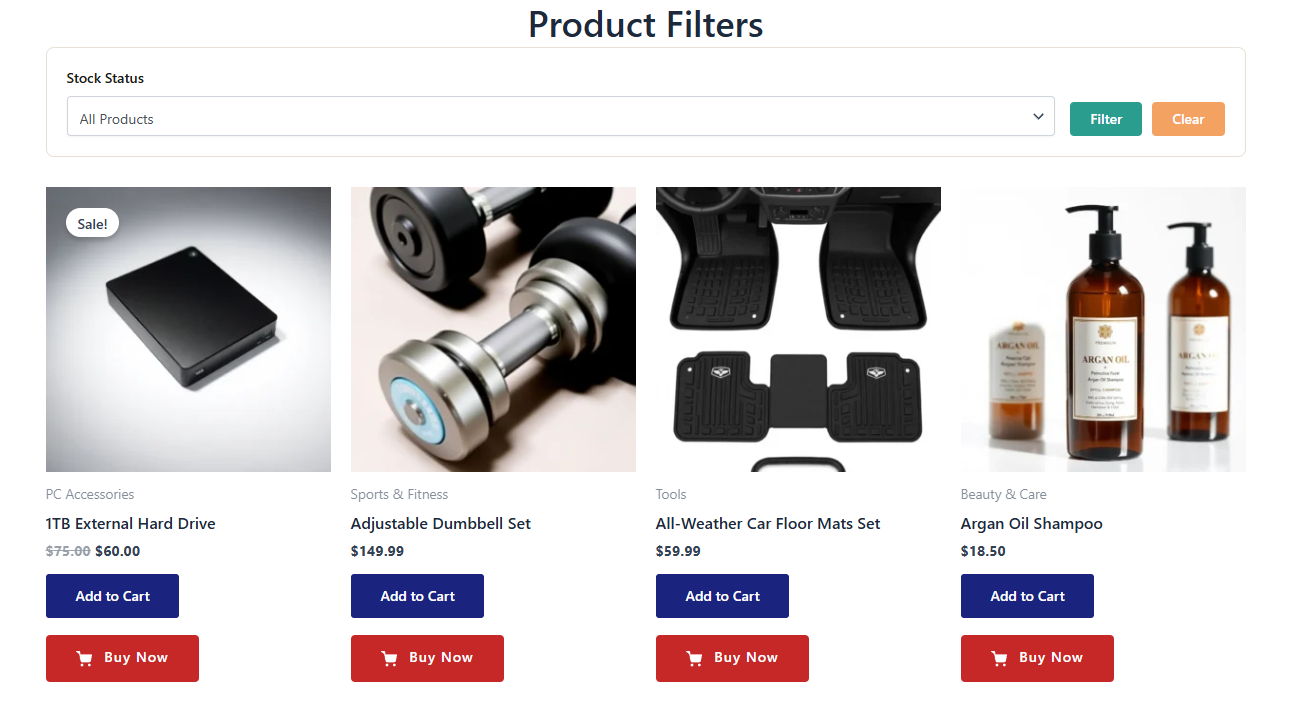
Show Only Stock Filter
[mulopimfwc_product_filter location="no" stock="yes"]
Layout Tips
- Place the shortcode above product listings so customers can filter before browsing.
- Use location filter when you have multiple branches or warehouses.
- Use stock filter to help customers quickly find available products.
- Combine both filters for maximum flexibility.
Common Mistakes and Troubleshooting
- Filter Not Showing: Ensure parameters are set correctly (
location="yes"orstock="yes"). - No Results After Filtering: Verify that products are assigned to locations and stock status is updated.
- Slow Filtering: Enable caching in plugin settings to improve performance.
- Pagination Issues: Confirm AJAX pagination is enabled in WooCommerce settings.
- Automatic Display Not Working: Check that Optional Location Selection is disabled and assignment mode is set to Manual, Inventory-Based, or Proximity-Based.
Best Practices
- Enable automatic display if you want filters on all shop/archive pages.
- Use manual shortcode placement for custom layouts or landing pages.
- Always enable location filter if you operate multiple stores.
- Use stock filter to reduce customer frustration when items are unavailable.
- Test filters on a staging site before deploying to live.
- Keep dropdown labels clear and user-friendly (e.g., “Select Location”, “Stock Status”).
Quick Summary
The [mulopimfwc_product_filter] shortcode in Multi Location Product & Inventory Management for WooCommerce provides a fast, AJAX-powered way for customers to filter products by location and stock status. You can enable automatic display on shop/archive pages or place the filter manually with the shortcode. For best results, combine both filters to deliver a smooth shopping experience.