
All sections
The location popup PRO asks visitors to choose a store when they arrive, so they see the right prices and stock from the start. Go to Location Manage > Settings > Popup and find Popup Settings. You can see it on the live demo.
Before you start
- Create at least two active stores.
- Assign your products to them.
Turn it on
- Turn on Enable Popup.
- Choose a Template Selection.
- Click Save Changes and clear your site’s cache.
- Test it with the checklist below.
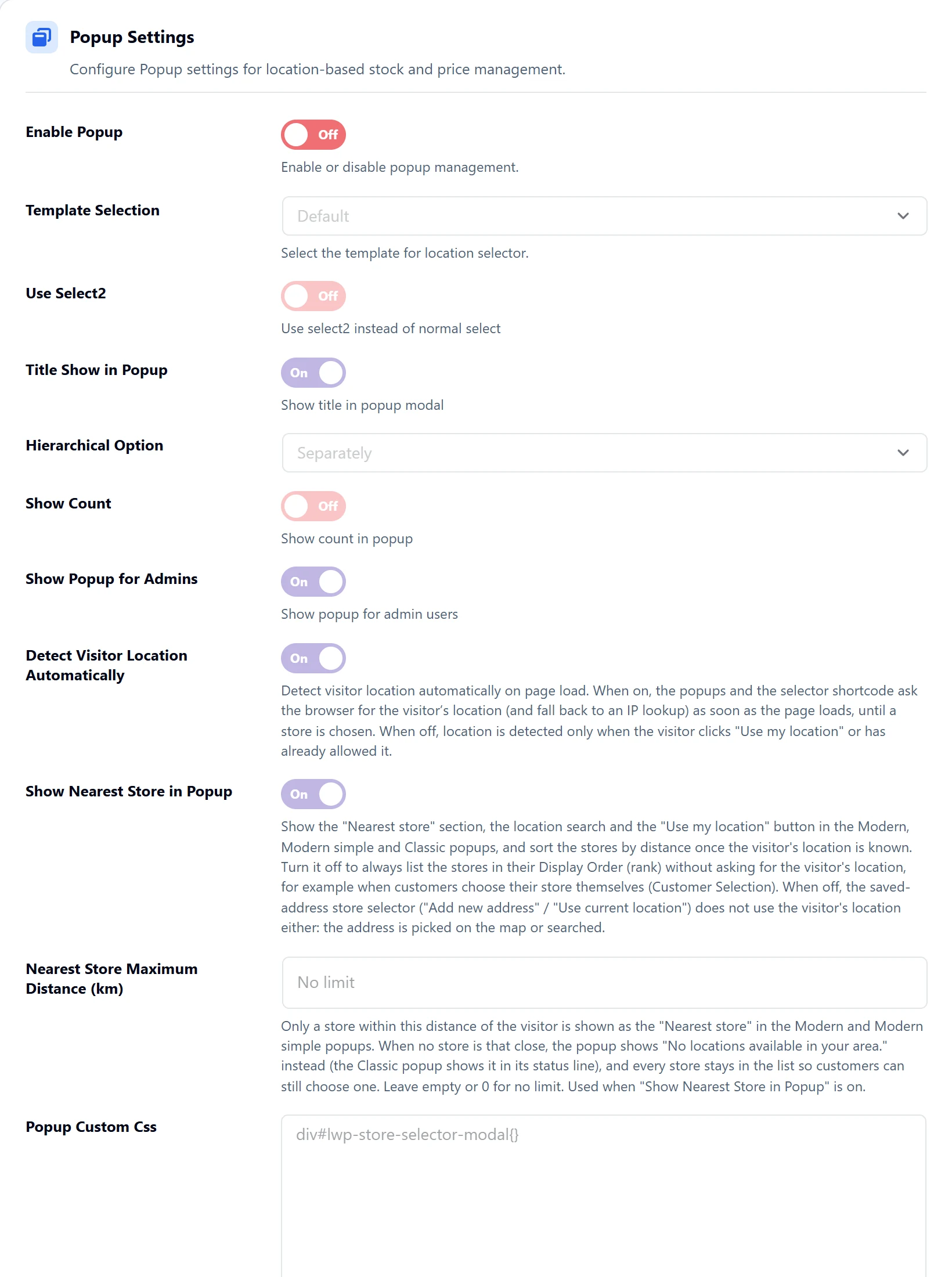
The settings
| Setting | What it does | Default |
|---|---|---|
| Enable Popup | Shows the popup. | Off |
| Template Selection | The design: Default, Modern, Modern Simple, Classic, Tabs, Compact or Grid. | Default |
| Use Select2, Hierarchical Option, Show Count | A searchable list, parent and child stores (On, Off or Separately), and child counts. These show with the Default template only. | Off |
| Title Show in Popup | Shows the popup title. | Off |
| Show Popup for Admins | Shows it to administrators, shop managers and location managers too. | Off |
| Detect Visitor Location Automatically | Suggests a store from the visitor’s position. | Off on new sites |
| Show Nearest Store in Popup | Suggests the closest store, in the Modern, Modern Simple and Classic templates. | On |
| Nearest Store Maximum Distance (km) | Ignores stores further than this. Empty or 0 means no limit. | Empty |
| Popup Custom Css | Your own styling, for example on div#lwp-store-selector-modal. | Empty |
These are turned off when the plugin picks the store, with Inventory Based, Proximity Based or Manual Assignment with Optional Location Selection off.
When it opens
It opens when the visitor has not chosen a store and has not closed it. The choice is remembered for Location Cookie Expiry (Days), under Advanced, 30 days by default.
Change the wording
Go to Text Management > Modal & Popup. You can change Popup Title (“Select Your Location”), Dropdown Placeholder (“– Select a Store –“, for the Default template) and Popup Button Text (“Select Location”). For example: “Where are you shopping today?” and “Show my store”.
Testing checklist
- Open the shop in a private window. The popup appears.
- Choose a store. Prices and stock change.
- Reload. The popup does not appear again.
- Test on a phone.
If it does not appear
- Check Enable Popup.
- You are logged in as an admin, and Show Popup for Admins is off.
- A store is already chosen. Clear your cookies.
- A page cache is serving an old copy. Clear it.
- The plugin picks the store. Check your order assignment method.
- Look for errors in the browser console, by pressing F12.
You can also see the popup with a map, automatic detection and parent and child stores on the demo.