
All sections
IntroductionGetting StartedLocation ManagementDisplay LocationShortcodes ReferenceLocation ArchiveLocation base Product DisplayOrder & CartUI CustomizationPayment & ShippingTax & DiscountLocation based reviewSEOEmail & NotificationUser ExperienceStore locator mapReports & AnalyticsInvestment CalculationRole Management and Access ControlDashboardStock CentralProduct FilterAdvanced SettingsImport & ExportAPI & Webhooks IntegrationDebuging / Troubleshooting
On this page
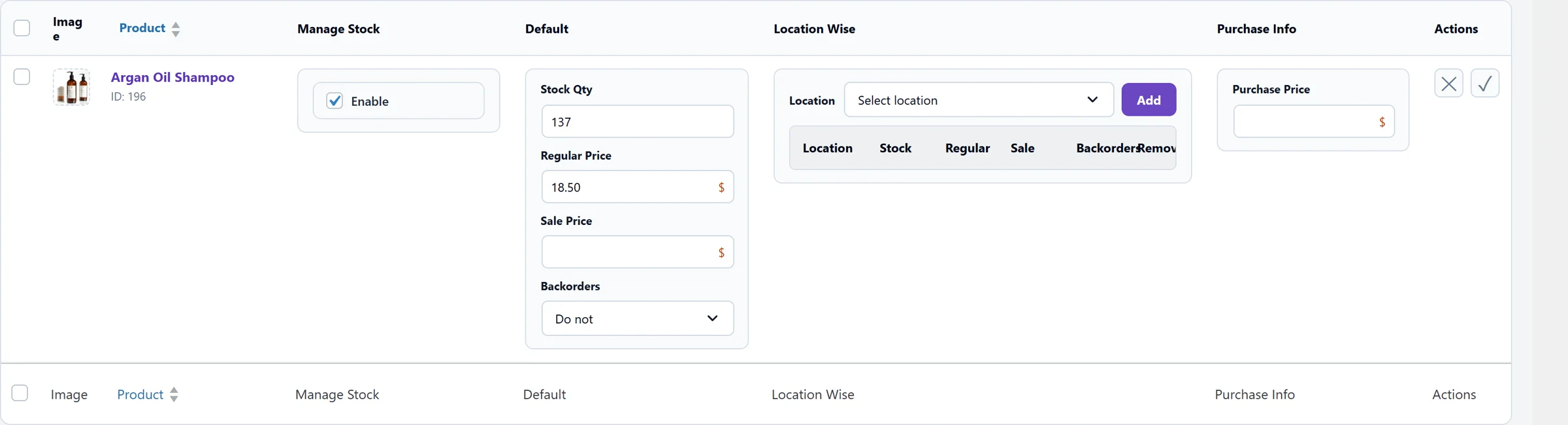
Classic view PRO shows each product’s stores in one row, so you can edit everything inline without opening a popup. Go to Location Manage > Stock Central and click Classic at the top. The plugin remembers your choice.
The columns
- Manage Stock: tick Enable to manage stock for the product. Not for grouped or external products, and WooCommerce stock must be on.
- Default: the product’s normal stock, prices and backorders.
- Location Wise: a block for each store, with Stock Qty, Regular Price, Sale Price and Backorders.
- Purchase Info: Purchase Price.
Variable products show blocks for each variation: Variation Manage Stock, Variation Default Values, Variation Purchase Info and Variation Locations.
Edit a row
- Tick Enable.
- Fill in the default values.
- To add a store, choose it under Select location, or All locations, and click Add.
- Fill in that store’s values, and the purchase price.
- Click the tick icon, Save this product.
The undo icon, Reset product row changes, throws away unsaved edits. The X on a store removes it, after you confirm. Mistakes, such as a sale price above the regular price, are shown on the field.
An empty store price uses the default price. It is converted only when location currency is on.
Test your changes
- Open the product in your shop and choose each store.
- Check the price, stock and backorder message.